Help
Device guides
Motorola
Moto G8 PLUS

Motorola Moto G8 PLUS
f-0923f25c-f3af-4fa8-b10a-828fb6d87d81
f-5f581b3f-b036-4235-8bb3-eba8536c5018
f-648b557a-5b9e-4243-8acb-8adcff67581e
f-ab55df9f-4b82-45eb-ac04-eadc2e5dd8e1
f-de957b56-3180-4a55-9738-7b0c20a87ffa
f-8dd1a361-060c-4afe-a2ec-880cf15916bd
  • Device home
  • Getting started
  • Basic functions
  • Calls, contacts, messaging
  • Connectivity
  • Specifications
  • Device home
  • Getting started
  • Basic functions
  • Calls, contacts, messaging
  • Connectivity
  • Specifications

Uninstalling apps

You can uninstall apps to free up memory.
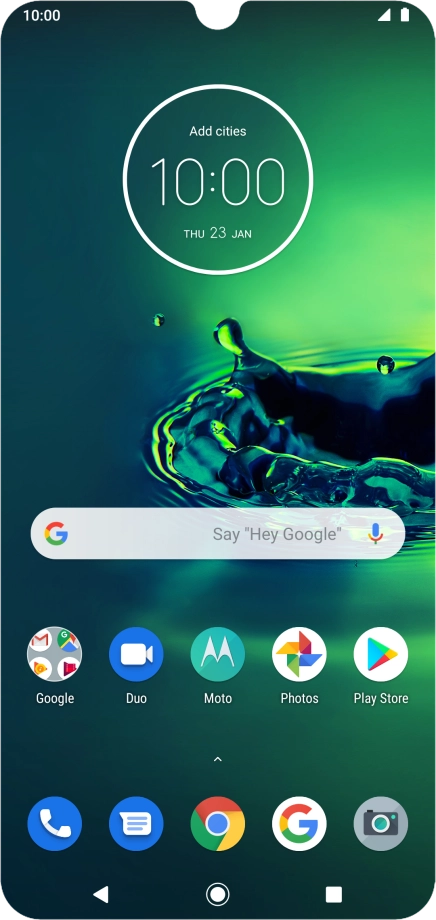
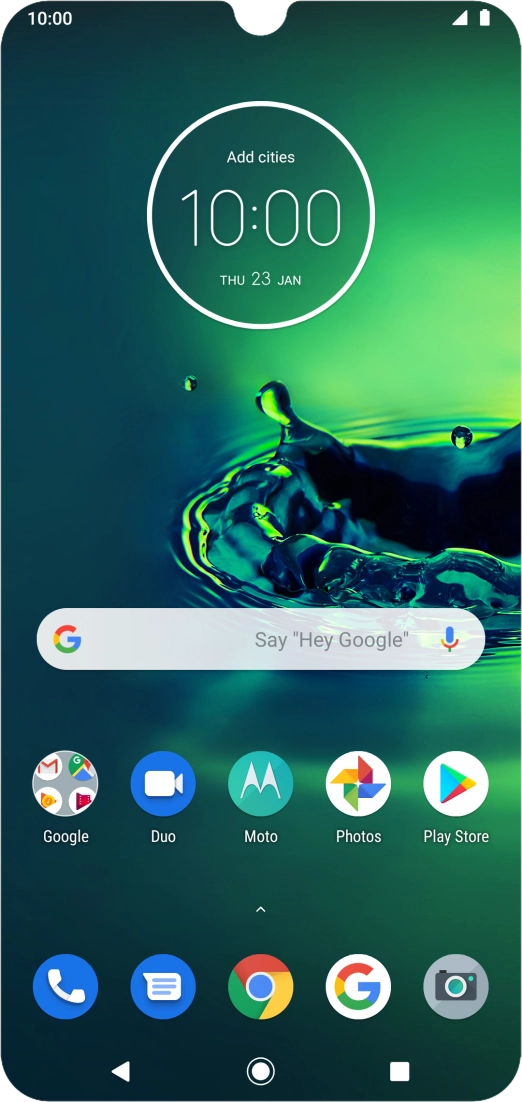
Slide your finger upwards on the screen.
Step 1 of 9

Slide your finger upwards on the screen.

Press Play Store.
Press Play Store.
Step 2 of 9

Press Play Store.

Slide your finger right starting from the left side of the screen.
Step 3 of 9

Slide your finger right starting from the left side of the screen.

Press My apps & games.
Step 4 of 9

Press My apps & games.

Press Installed.
Press Installed.
Step 5 of 9

Press Installed.

Press the required app.
Step 6 of 9

Press the required app.

Press Uninstall.
Press Uninstall.
Step 7 of 9

Press Uninstall.

Press OK.
Press OK.
Step 8 of 9

Press OK.

Press the Home key to return to the home screen.
Step 9 of 9

Press the Home key to return to the home screen.

Get information on...

Or choose...

Show more