

Help
Device guides
Motorola
razr 40

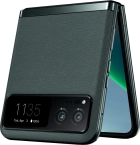
Motorola razr 40

f-6e09b8d8-52cc-49d8-91fc-8e0143b2a46b
f-c0319212-1710-4d18-a4b4-842b28e010ec
f-8d0f08c4-a17b-42c6-ad6d-9b91272f7867
f-25c02a4f-4bc0-4dfa-9d5a-64634b42e18b
f-4226be60-204f-4662-83e7-8c165c8bff39
f-408ed419-a4d6-44ab-aaf8-335ad955948a
f-391b8d3a-b7a6-4202-8966-50a8fa1e63d4
f-22302ff6-a730-4593-8503-baed6a61dd13
  • Device home
  • Getting started
  • Basic functions
  • Calls, contacts, messaging
  • Connectivity
  • Specifications
  • Device home
  • Getting started
  • Basic functions
  • Calls, contacts, messaging
  • Connectivity
  • Specifications

Uninstalling apps

You can uninstall apps to free up memory.

Slide your finger upwards on the screen.
Step 1 of 9

Slide your finger upwards on the screen.

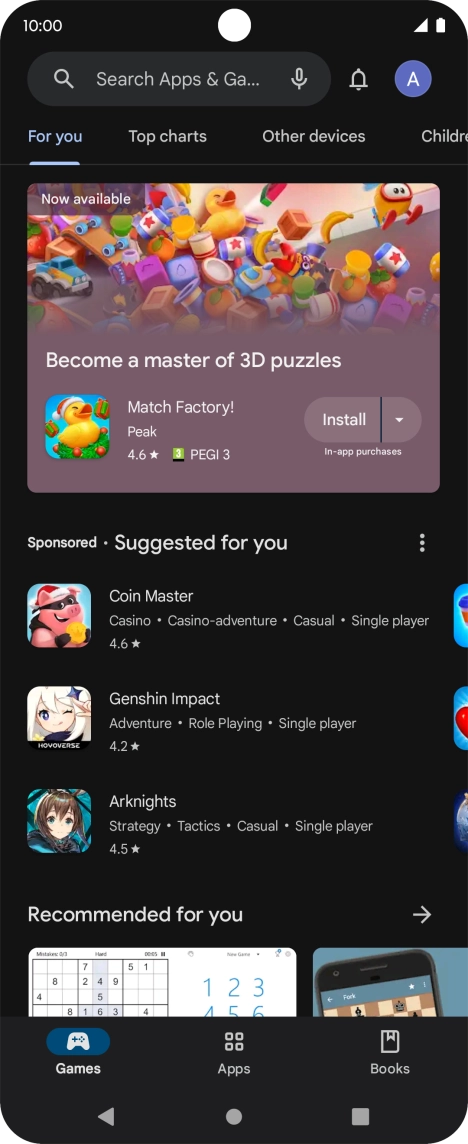
Press Play Store.
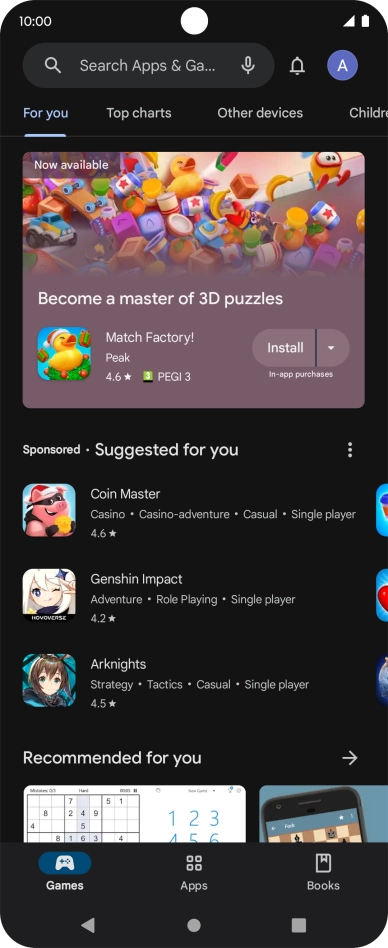
Press Play Store.
Step 2 of 9

Press Play Store.

Press the profile icon.
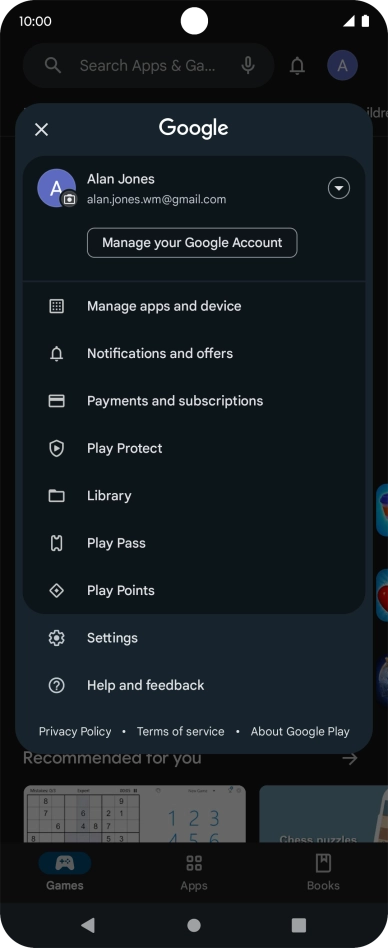
Step 3 of 9

Press the profile icon.

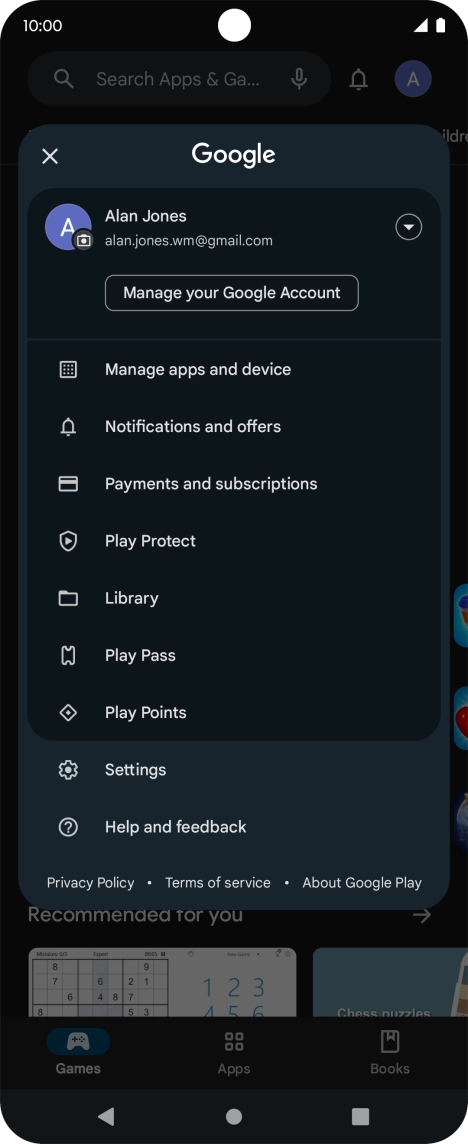
Press Manage apps and device.
Step 4 of 9

Press Manage apps and device.

Press Manage.
Press Manage.
Step 5 of 9

Press Manage.

Press the required app.
Step 6 of 9

Press the required app.

Press Uninstall.
Press Uninstall.
Step 7 of 9

Press Uninstall.

Press Uninstall.
Press Uninstall.
Step 8 of 9

Press Uninstall.

Press the Home key to return to the home screen.
Step 9 of 9

Press the Home key to return to the home screen.

Get information on...

Or choose...

Show more