Help
Device guides
Motorola
razr 40 ultra

Motorola razr 40 ultra
f-4a61d6c3-9456-4167-85ef-5303d20d1cd2
f-fb2d8988-81be-4ebb-8a15-4615963e3394
f-eedd0114-32d2-4309-b4b4-eb8bbab24797
f-e312c9e3-4d19-40c8-b231-306b166d3015
f-76f38f74-d65d-428b-9792-00da29a558c8
f-30564e4a-242d-43a0-a795-923e8329ea20
f-12557081-bfa2-425d-a095-fc62b0947918
f-c1b700dc-58d4-40d7-872d-8f227135de86
  • Device home
  • Getting started
  • Basic functions
  • Calls, contacts, messaging
  • Connectivity
  • Specifications
  • Device home
  • Getting started
  • Basic functions
  • Calls, contacts, messaging
  • Connectivity
  • Specifications

Uninstalling apps

You can uninstall apps to free up memory.
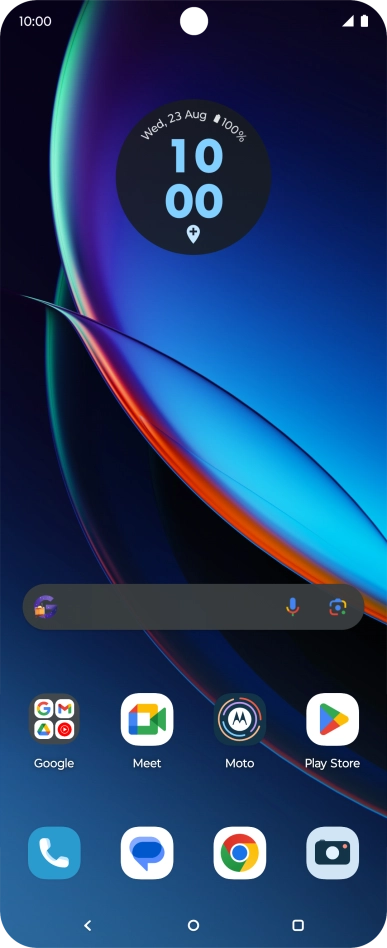
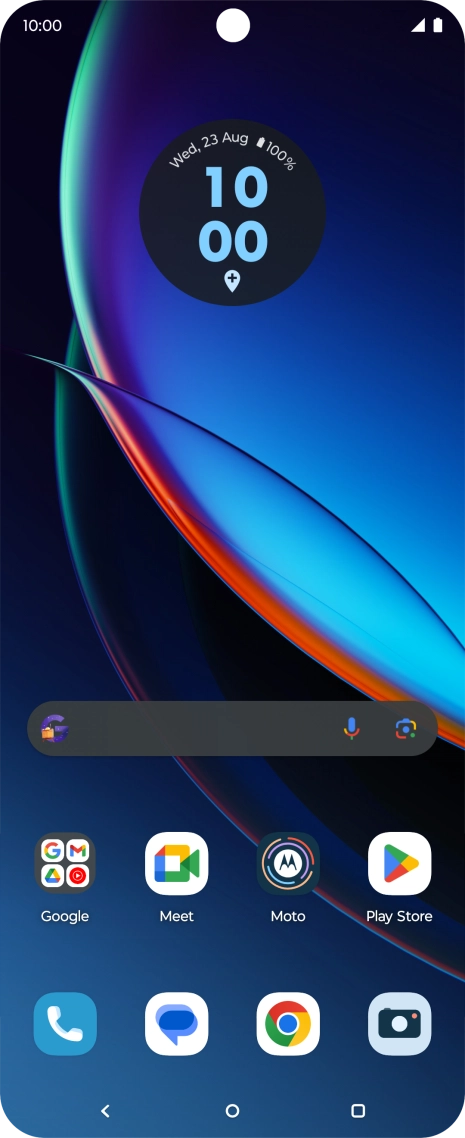
Slide your finger upwards on the screen.
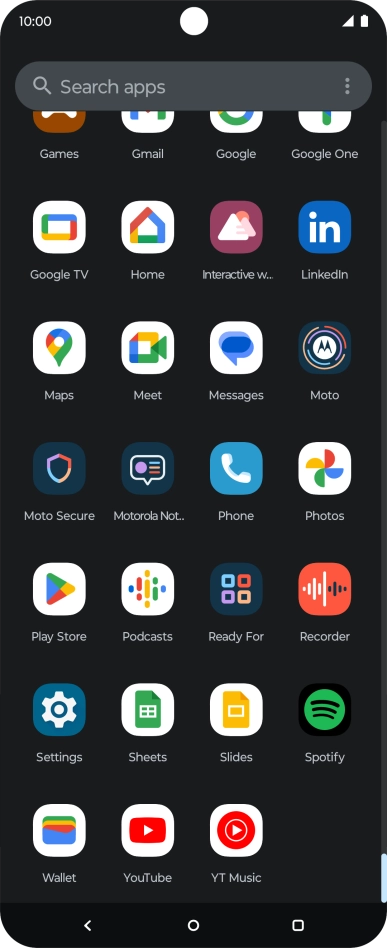
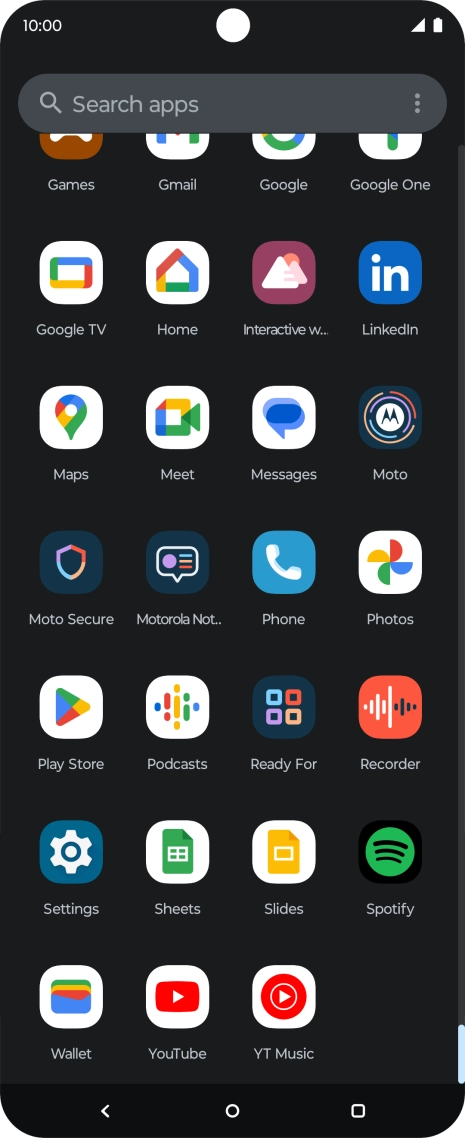
Step 1 of 9

Slide your finger upwards on the screen.

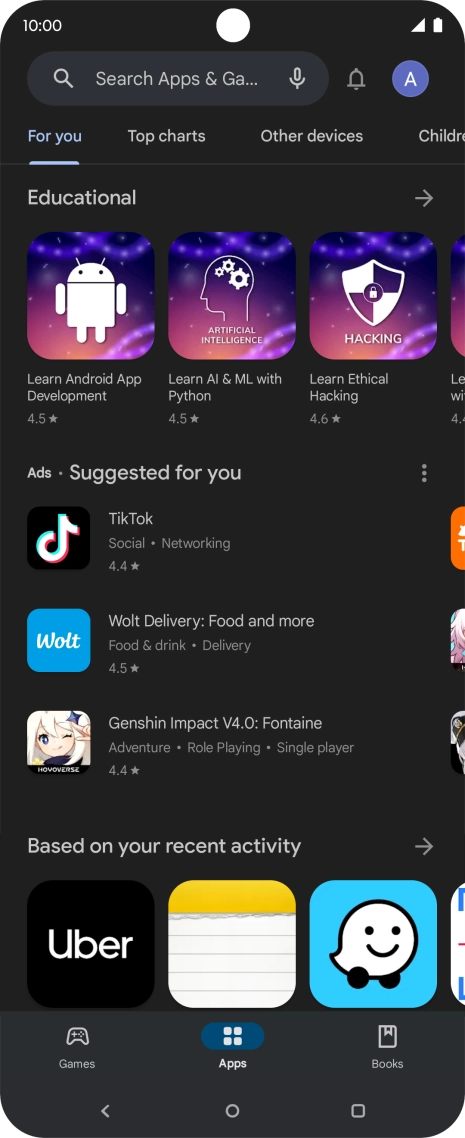
Press Play Store.
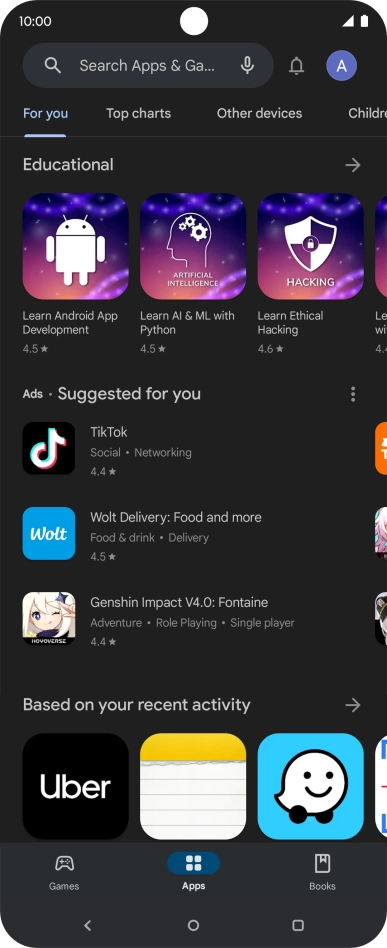
Press Play Store.
Step 2 of 9

Press Play Store.

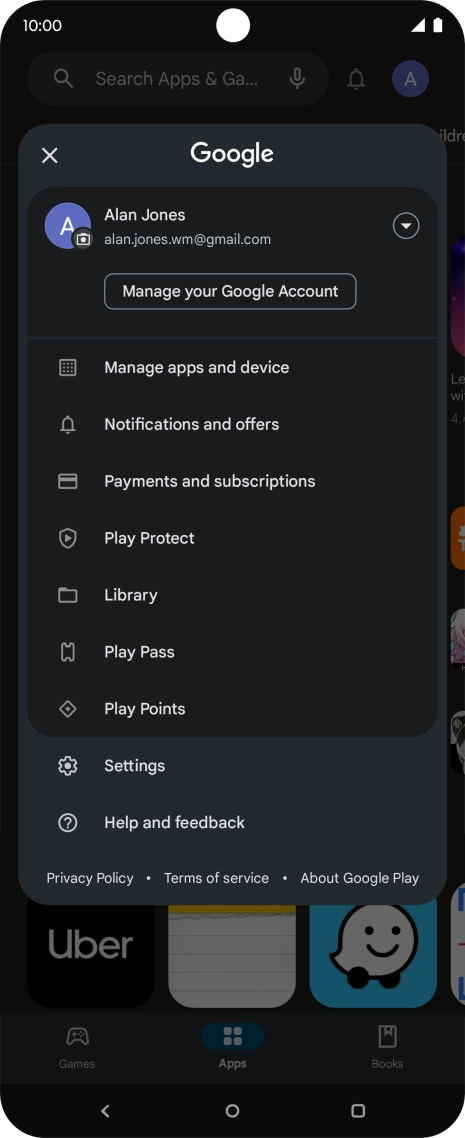
Press the profile icon.
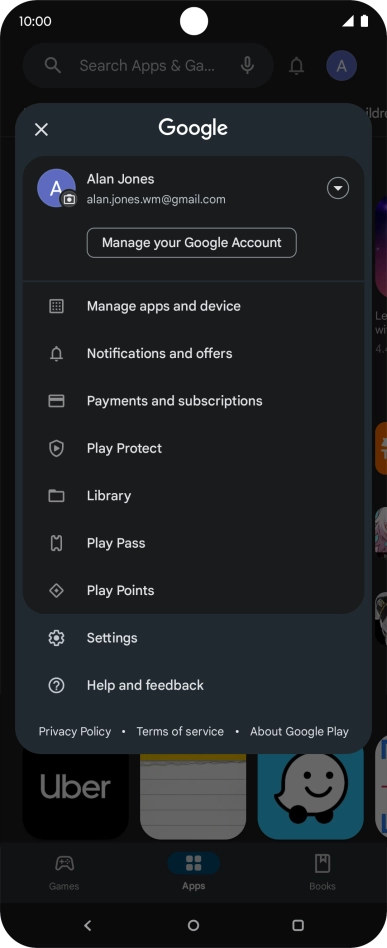
Step 3 of 9

Press the profile icon.

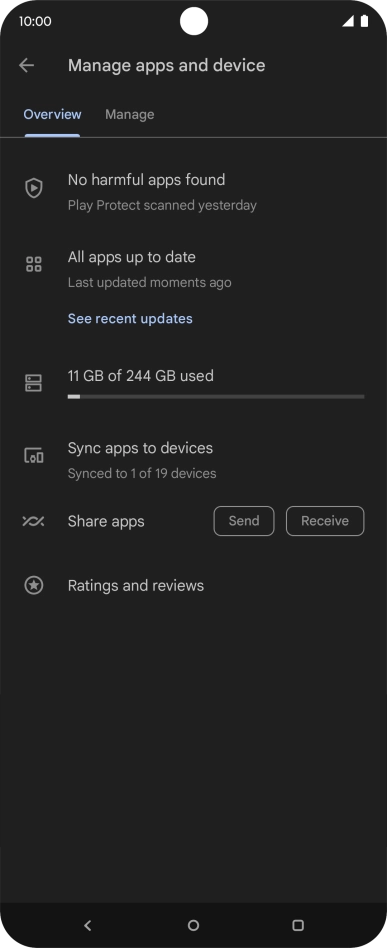
Press Manage apps and device.
Step 4 of 9

Press Manage apps and device.

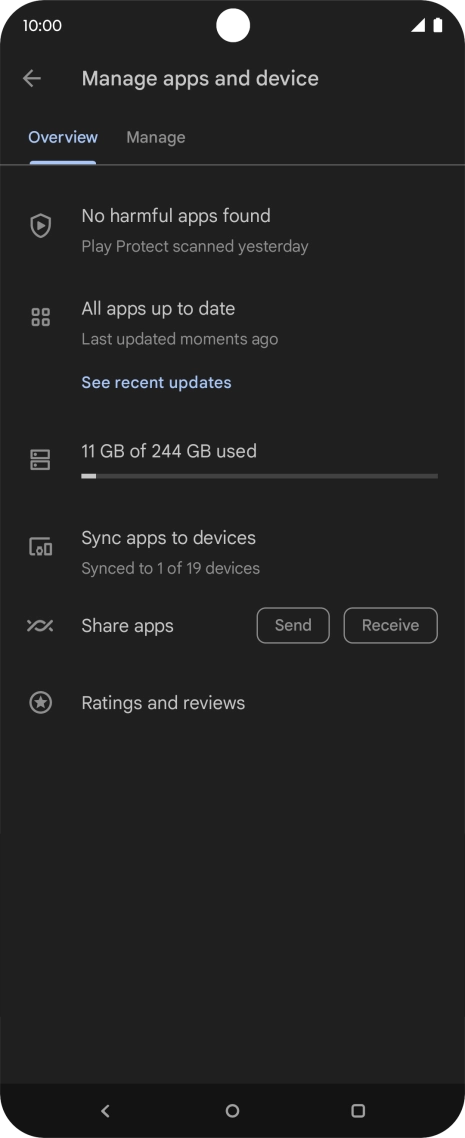
Press Manage.
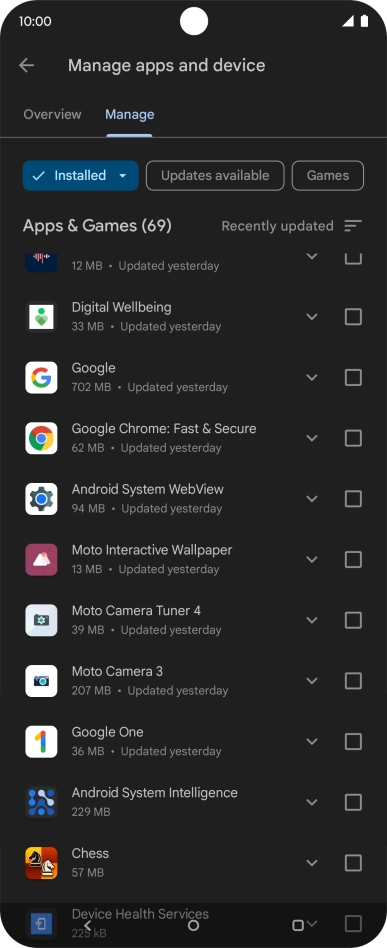
Press Manage.
Step 5 of 9

Press Manage.

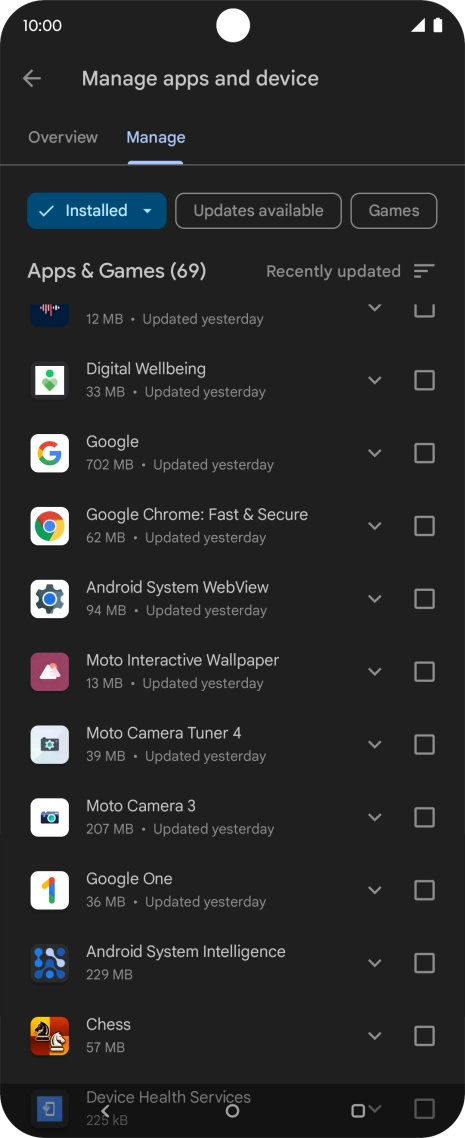
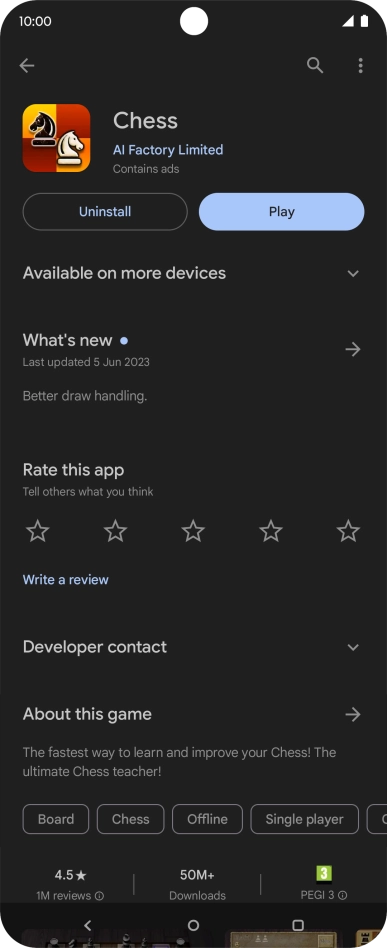
Press the required app.
Step 6 of 9

Press the required app.

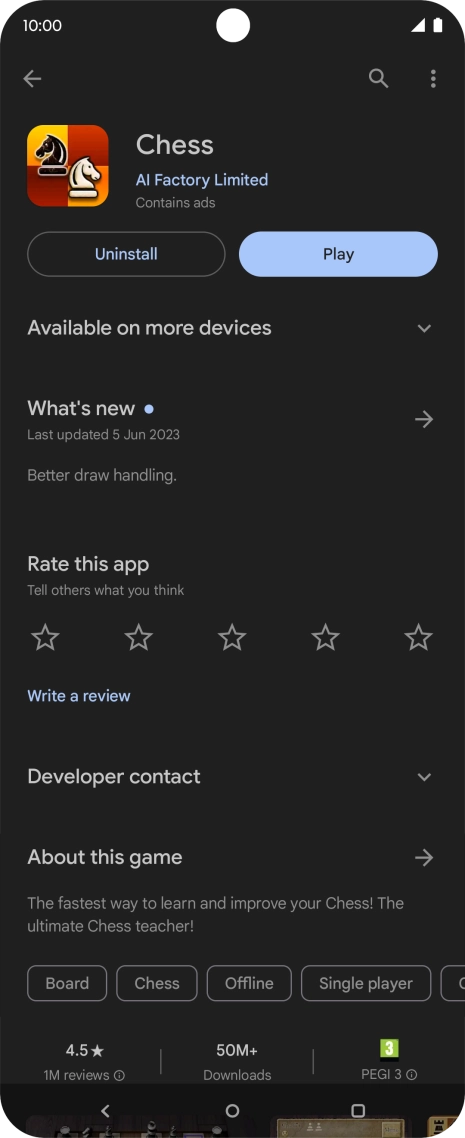
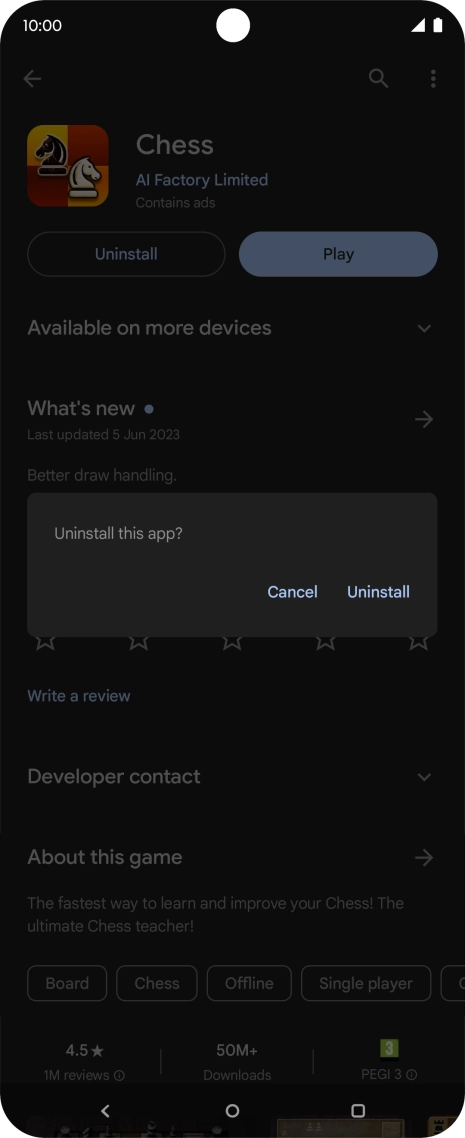
Press Uninstall.
Press Uninstall.
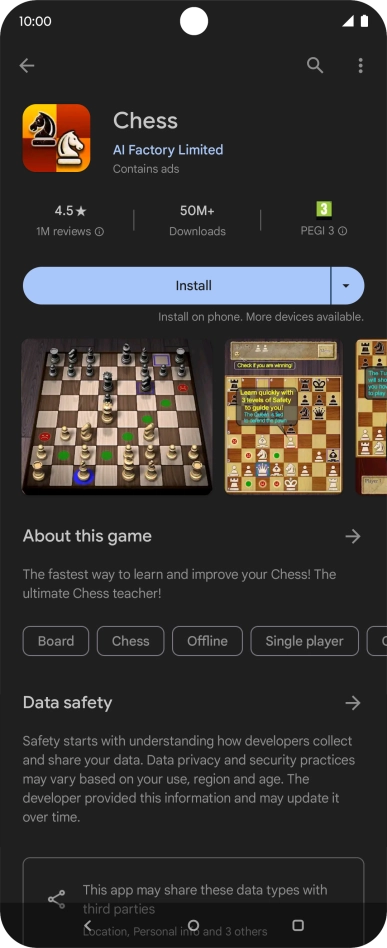
Step 7 of 9

Press Uninstall.

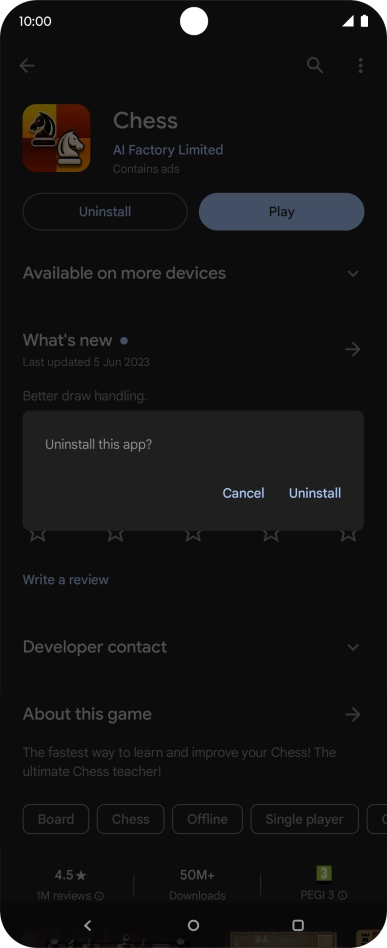
Press Uninstall.
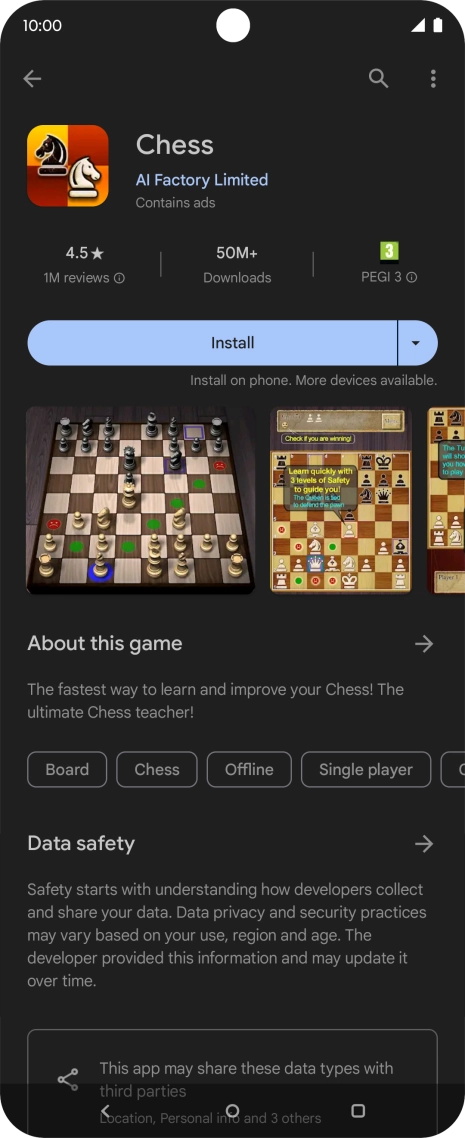
Press Uninstall.
Step 8 of 9

Press Uninstall.

Press the Home key to return to the home screen.
Step 9 of 9

Press the Home key to return to the home screen.

Get information on...

Or choose...

Show more