Help
Device guides
Motorola
Razr 60 Ultra

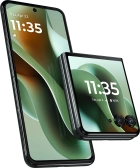
Motorola Razr 60 Ultra
f-32a222c8-c99a-4a14-b28a-67c303091654
f-506ae2cb-7fb5-4346-9ca2-1ea6c6caa1cf
f-dba9d799-dd34-4cf6-91a5-b7c465d9357d
f-cd5bbef5-d349-4a72-8d67-775e656965bd
f-c8c58068-06be-47b5-a488-8a85199ee785
f-12c67ea4-4692-4149-83bf-91ab6d56af7b
f-3d705d68-08d1-4f58-8b95-785cb6cbaa31
f-024b4db6-4410-4dcc-87dc-0d543e6b7fa3
  • Device home
  • Getting started
  • Basic functions
  • Calls, contacts, messaging
  • Connectivity
  • Specifications
  • Device home
  • Getting started
  • Basic functions
  • Calls, contacts, messaging
  • Connectivity
  • Specifications

Turning Wi-Fi calling on or off

When Wi-Fi calling is turned on, you can make and answer calls using a Wi-Fi network when you're in an area with little or no network coverage. To turn on Wi-Fi calling, you need to establish a connection to a Wi-Fi network, select 4G (LTE) as network mode and follow the steps below. You can also visit the EE web page for more information about Wi-Fi calling.

Press the call icon.
Step 1 of 8

Press the call icon.

Press the menu icon.
Step 2 of 8

Press the menu icon.

Press Settings.
Press Settings.
Step 3 of 8

Press Settings.

Press Calling accounts.
Step 4 of 8

Press Calling accounts.

Press the name of the SIM.
Step 5 of 8

Press the name of the SIM.

Press Wi-Fi calling.
Step 6 of 8

Press Wi-Fi calling.

Press the indicator next to
Step 7 of 8

Press the indicator next to "Use Wi-Fi calling" to turn the function on or off.

Press the Home key to return to the home screen.
Step 8 of 8

Press the Home key to return to the home screen.

Get information on...

Or choose...

Show more