Help
Device guides
Motorola
Razr 60 Ultra

Motorola Razr 60 Ultra
f-32a222c8-c99a-4a14-b28a-67c303091654
f-506ae2cb-7fb5-4346-9ca2-1ea6c6caa1cf
f-dba9d799-dd34-4cf6-91a5-b7c465d9357d
f-cd5bbef5-d349-4a72-8d67-775e656965bd
f-c8c58068-06be-47b5-a488-8a85199ee785
f-12c67ea4-4692-4149-83bf-91ab6d56af7b
f-3d705d68-08d1-4f58-8b95-785cb6cbaa31
f-024b4db6-4410-4dcc-87dc-0d543e6b7fa3
  • Device home
  • Getting started
  • Basic functions
  • Calls, contacts, messaging
  • Connectivity
  • Specifications
  • Device home
  • Getting started
  • Basic functions
  • Calls, contacts, messaging
  • Connectivity
  • Specifications

Using Gemini on your phone

You can use Gemini to generate text, create various creative content and answer your questions in an informative way. Here you can see some examples of Gemini usage. To use most of the Gemini functions, you need to activate your Google account on your phone and set up your phone for internet.

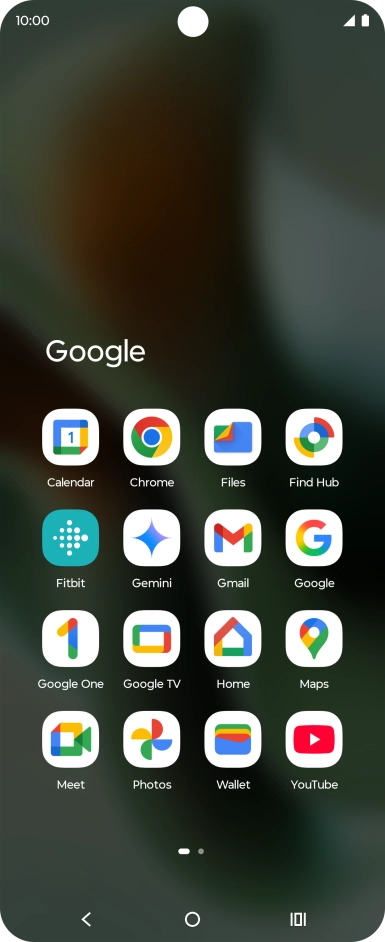
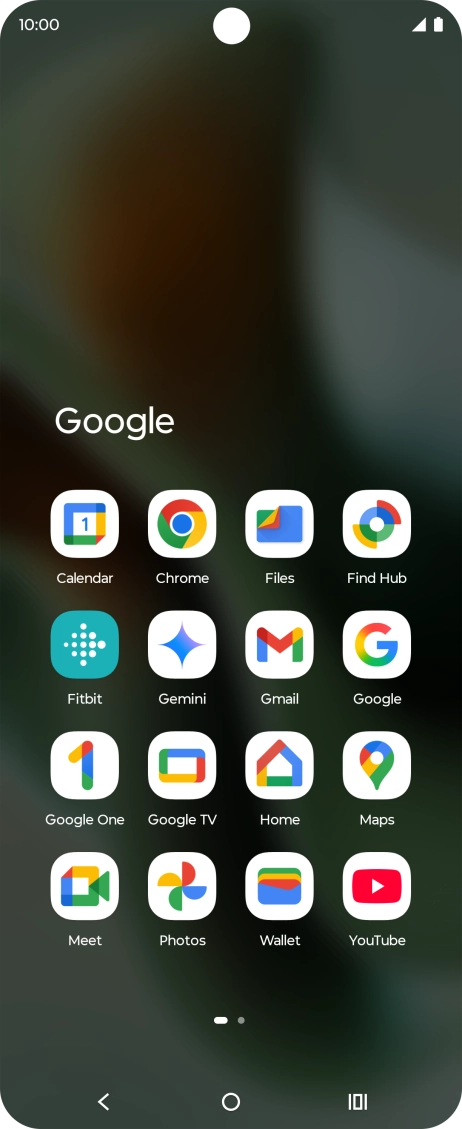
Slide your finger upwards on the screen.
Step 1 of 43

Slide your finger upwards on the screen.

Press Gemini.
Press Gemini.
Step 2 of 43

Press Gemini.

Press Gemini. If prompted, follow the instructions on the screen to turn on the function.
Step 3 of 43

Press Gemini. If prompted, follow the instructions on the screen to turn on the function.

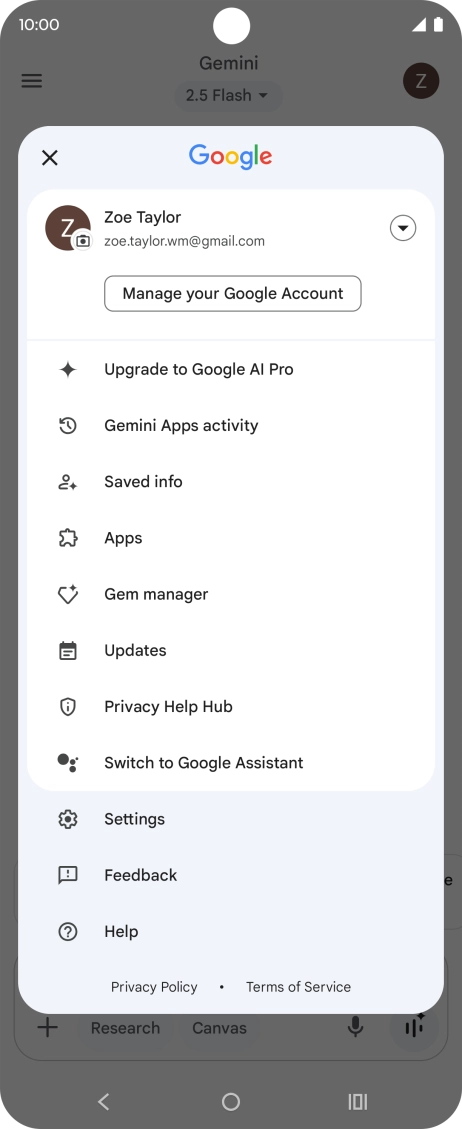
Press the profile icon.

Step 4 of 43

Press the profile icon.

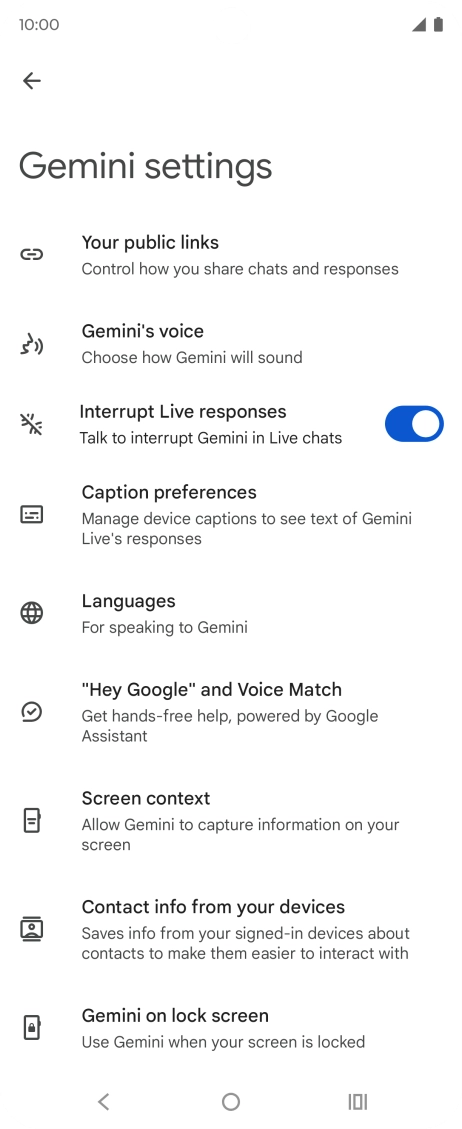
Press Settings.
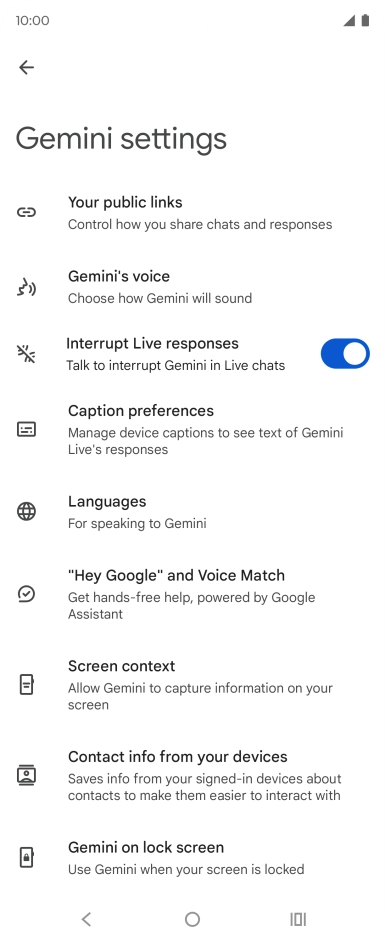
Press Settings.
Step 5 of 43

Press Settings.

Follow the instructions on the screen to select the required settings.
Step 6 of 43

Follow the instructions on the screen to select the required settings.

Press the profile icon.
Step 7 of 43

Press the profile icon.

Press Apps.
Press Apps.
Step 8 of 43

Press Apps.

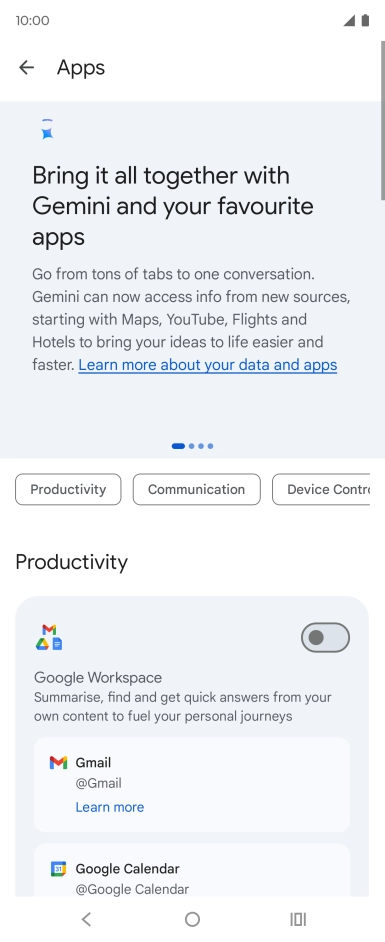
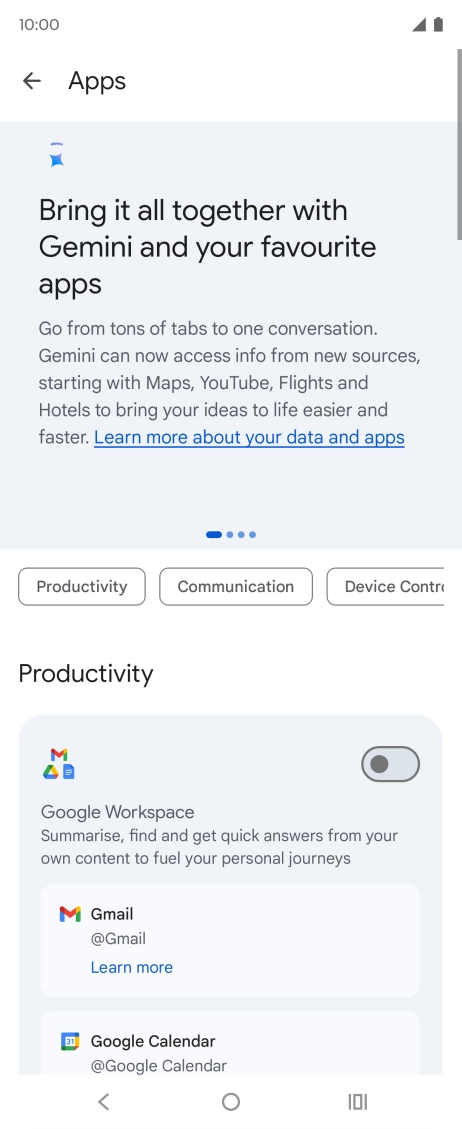
Press the indicator next to the required extension to turn on the function.
Step 9 of 43

Press the indicator next to the required extension to turn on the function.

If you turn on extensions, Gemini can interact with other apps and services to give you answers to your questions and respond to your commands for the selected app or service.
Press the Return key to return to Gemini.
Step 10 of 43

Press the Return key to return to Gemini.

Follow the instructions on the screen to type or speak the required question. You can also attach pictures or documents and ask questions to them.
Step 11 of 43

Follow the instructions on the screen to type or speak the required question. You can also attach pictures or documents and ask questions to them.

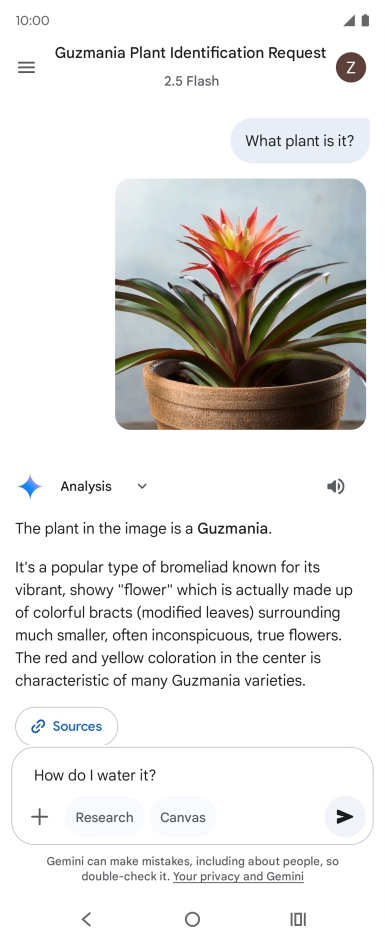
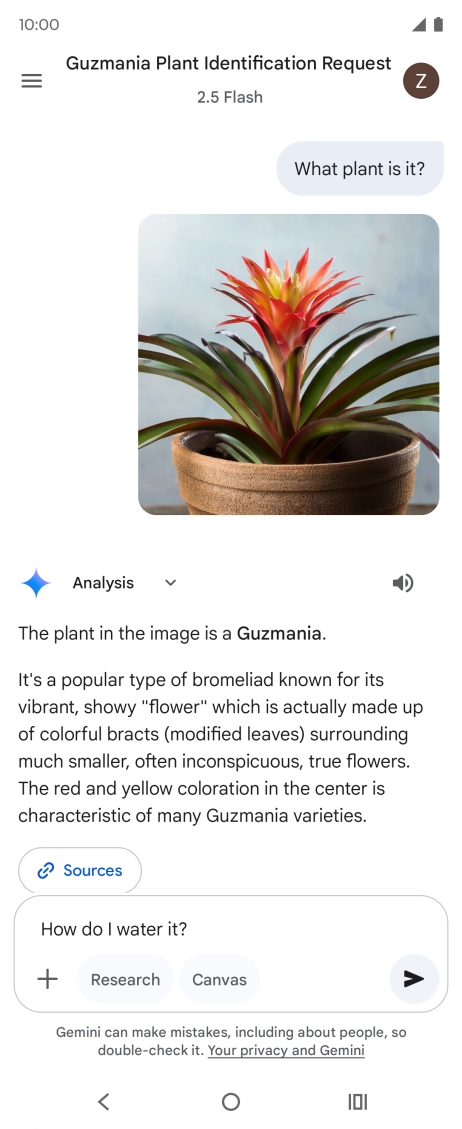
The answer from Gemini to your question is displayed.
Step 12 of 43

The answer from Gemini to your question is displayed.

Press the speaker icon to play back the answer from Gemini.
Step 13 of 43

Press the speaker icon to play back the answer from Gemini.

Follow the instructions on the screen to type or speak more questions to continue the conversation.
Step 14 of 43

Follow the instructions on the screen to type or speak more questions to continue the conversation.

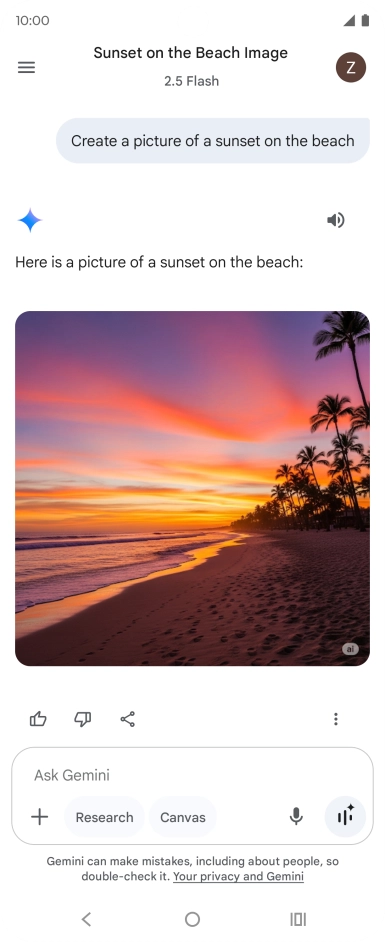
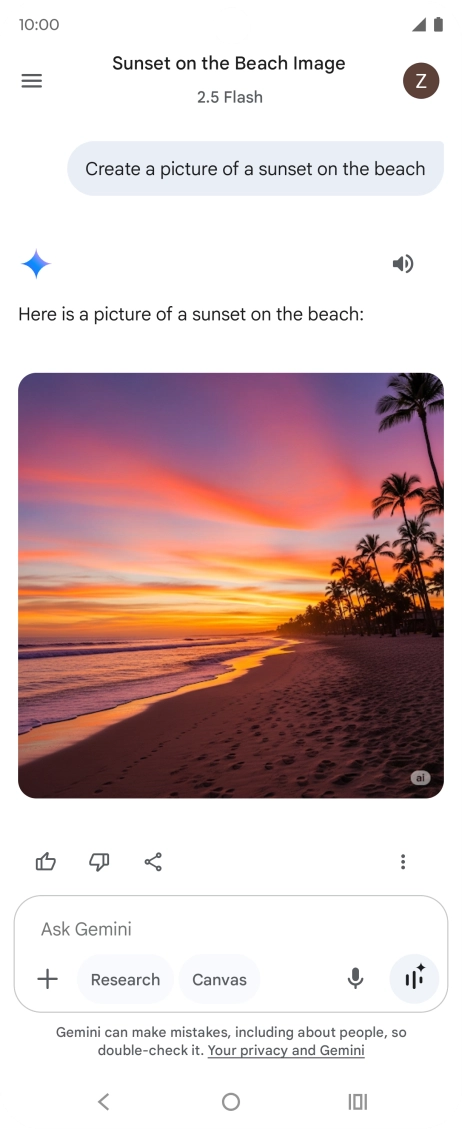
You can ask Gemini to generate a text based on your description.
Step 15 of 43

You can ask Gemini to generate a text based on your description.

You can also ask Gemini to generate a picture based on your description.
Step 16 of 43

You can also ask Gemini to generate a picture based on your description.

Press the Return key to leave the conversation.
Step 17 of 43

Press the Return key to leave the conversation.

Press the Gemini Live icon. If prompted, follow the instructions on the screen to turn on the function.
Step 18 of 43

Press the Gemini Live icon. If prompted, follow the instructions on the screen to turn on the function.

Talk to Gemini about the required topic.
Step 19 of 43

Talk to Gemini about the required topic.

You can have a direct conversation with Gemini without having to write anything.
Press the camera icon and point the camera lens at the required subject or object to ask questions about it.
Step 20 of 43

Press the camera icon and point the camera lens at the required subject or object to ask questions about it.

Press the share icon and follow the instructions on the screen to go to and share the required content on your phone screen with Gemini.
Step 21 of 43

Press the share icon and follow the instructions on the screen to go to and share the required content on your phone screen with Gemini.

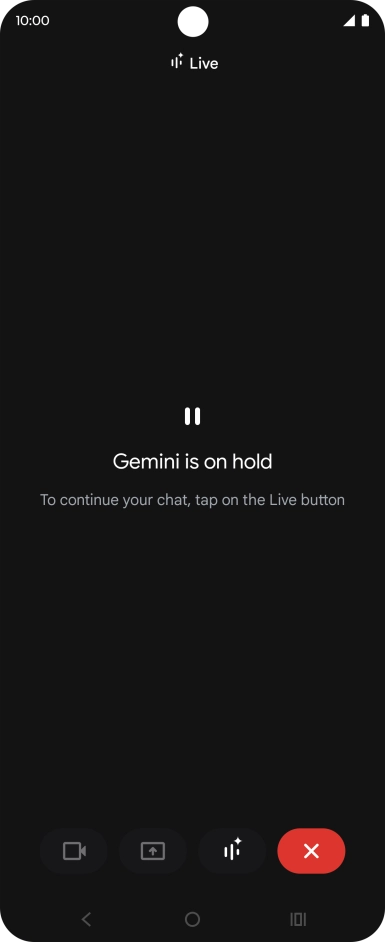
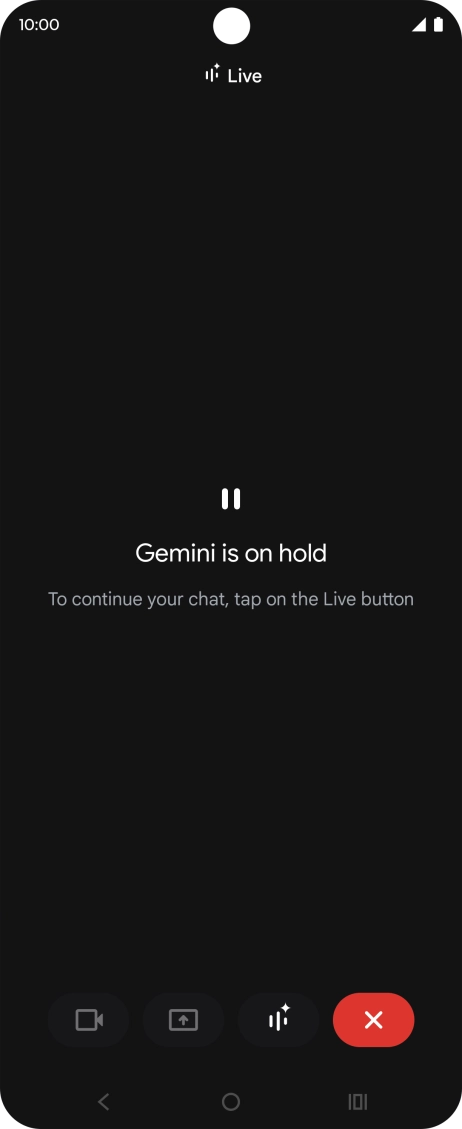
To pause the conversation, press the pause icon.
Step 22 of 43

To pause the conversation, press the pause icon.

To resume the conversation, press the resume icon.
Step 23 of 43

To resume the conversation, press the resume icon.

To end the conversation, press the end icon.
Step 24 of 43

To end the conversation, press the end icon.

Transcription of the conversation with Gemini Live is now displayed.
Step 25 of 43

Transcription of the conversation with Gemini Live is now displayed.

Press the Return key to return to Gemini.
Step 26 of 43

Press the Return key to return to Gemini.

Open the Messages.
Open the Messages.
Step 27 of 43

Open the Messages.

Gemini can generate text suggestions based on the selected topic.
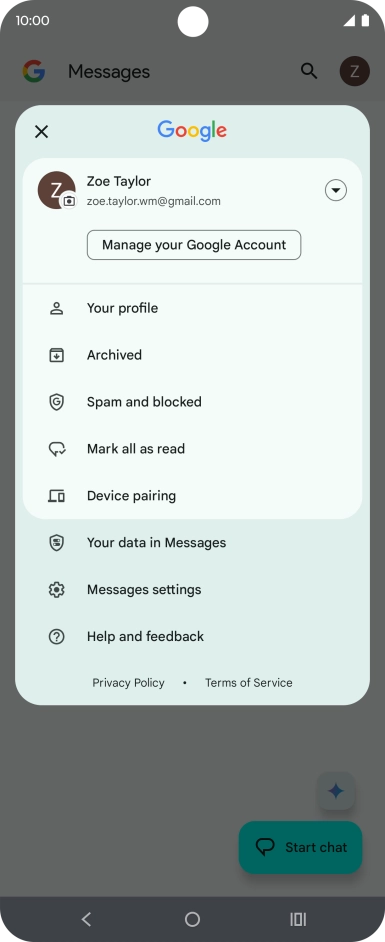
Press the profile icon.
Step 28 of 43

Press the profile icon.

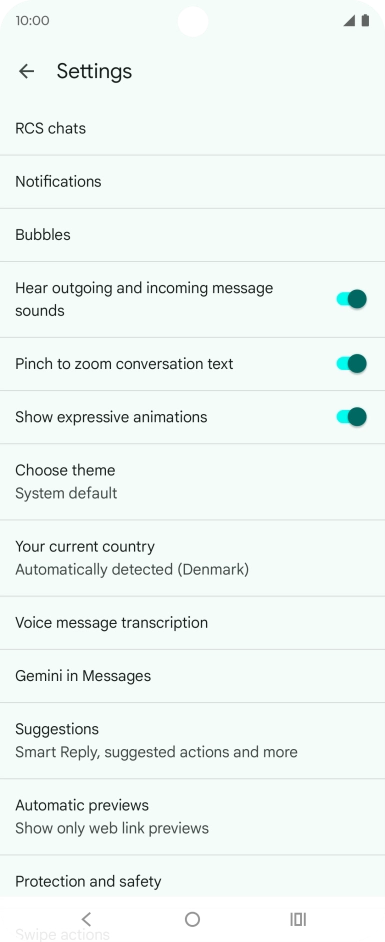
Press Messages settings.
Step 29 of 43

Press Messages settings.

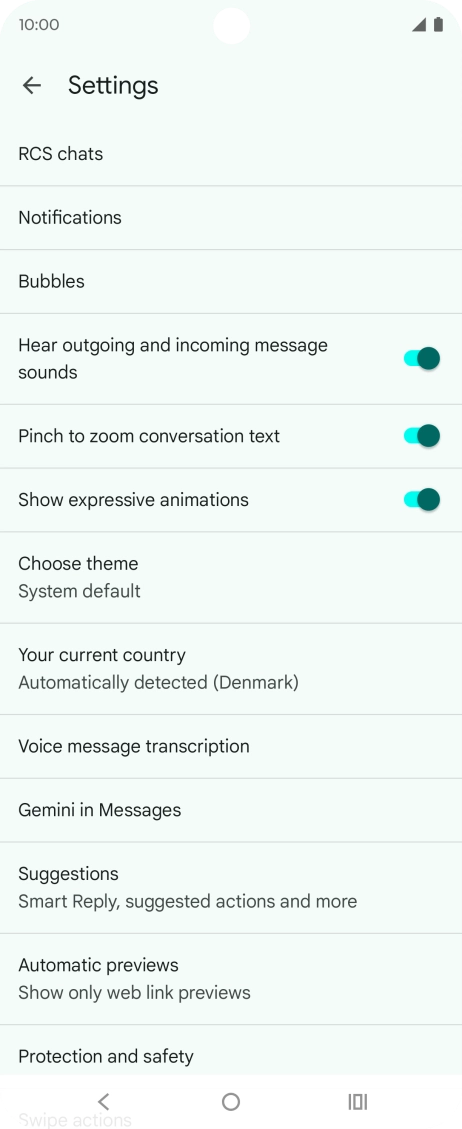
Press Gemini in Messages.
Step 30 of 43

Press Gemini in Messages.

Press the indicator next to
Step 31 of 43

Press the indicator next to "Show Gemini button" to turn on the function.

Press the Return key the necessary number of times to return to the list of messages.
Step 32 of 43

Press the Return key the necessary number of times to return to the list of messages.

Press the Gemini icon. If prompted, follow the instructions on the screen to turn on the function.
Step 33 of 43

Press the Gemini icon. If prompted, follow the instructions on the screen to turn on the function.

Write or say in your own words which topic you would like to use.
Step 34 of 43

Write or say in your own words which topic you would like to use.

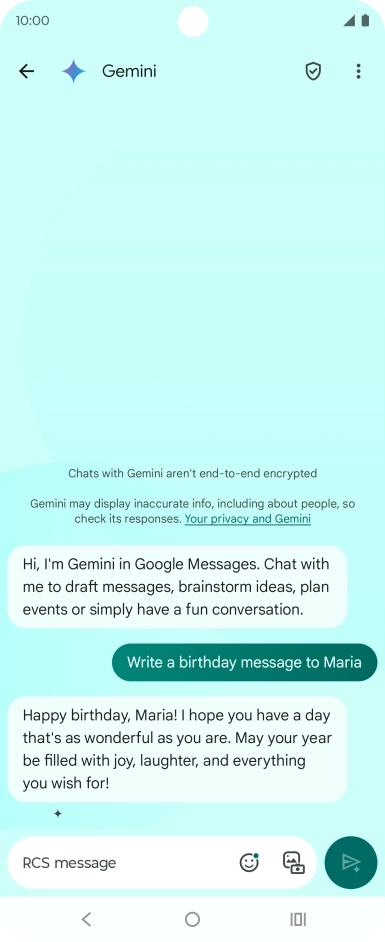
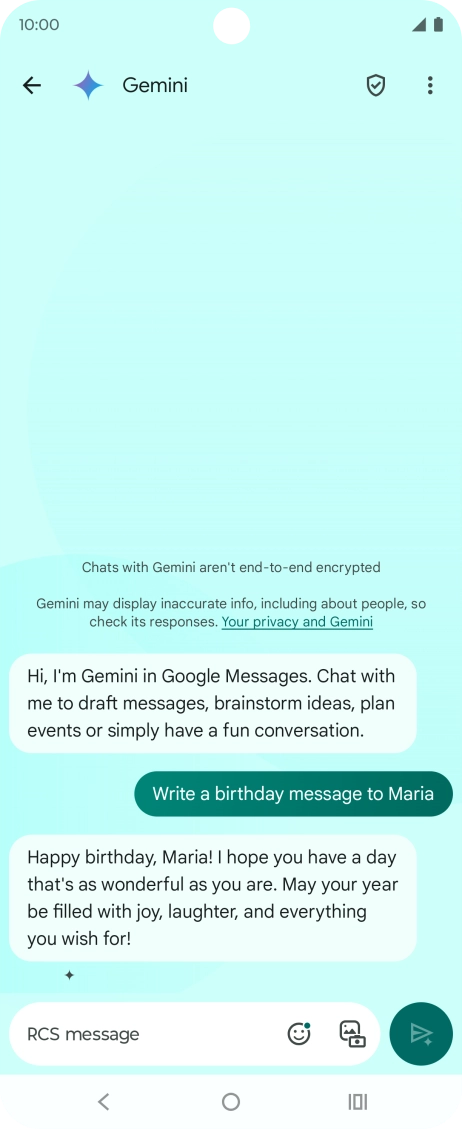
To use one of the predefined topics, press a topic example.
Step 35 of 43

To use one of the predefined topics, press a topic example.

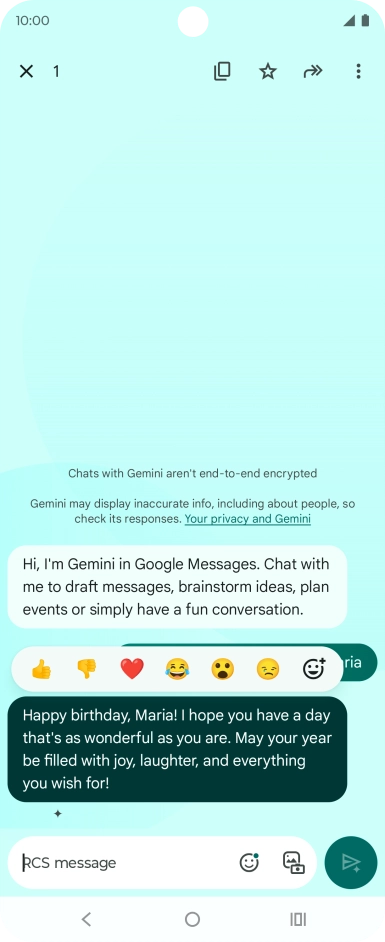
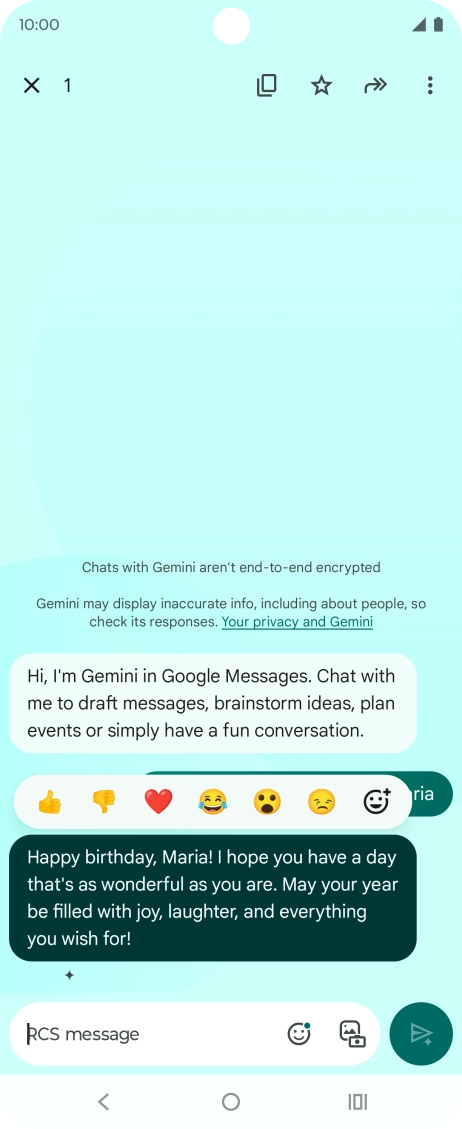
The text suggestion from Gemini is displayed.
Step 36 of 43

The text suggestion from Gemini is displayed.

Press and hold the text suggestion from Gemini. Follow the instructions on the screen to use the text suggestion.
Step 37 of 43

Press and hold the text suggestion from Gemini. Follow the instructions on the screen to use the text suggestion.

Open YouTube and go to the required video.
Step 38 of 43

Open YouTube and go to the required video.

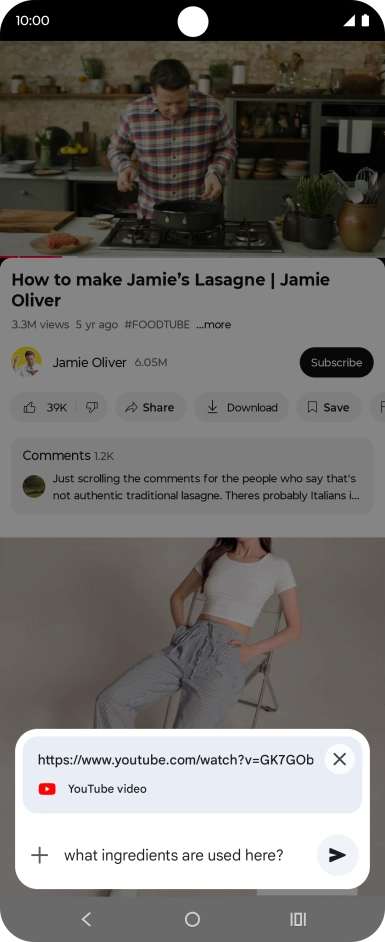
Using Gemini, you can ask questions about the content of a YouTube video.
Press and hold the Home key to activate Gemini.
Step 39 of 43

Press and hold the Home key to activate Gemini.

If you've turned on automatic activation, you can say "Hey Google" to activate Gemini.
Press Ask about video.
Step 40 of 43

Press Ask about video.

Follow the instructions on the screen to type or speak the required question for the video.
Step 41 of 43

Follow the instructions on the screen to type or speak the required question for the video.

The answer from Gemini to your question is displayed.
Step 42 of 43

The answer from Gemini to your question is displayed.

Press the Return key to return to the video.
Step 43 of 43

Press the Return key to return to the video.

Get information on...

Or choose...

Show more