




Help
Device guides
OnePlus
7 Pro 5G

OnePlus 7 Pro 5G

f-14d789db-1d1b-4a29-b4d6-63f24e6ae290
f-50b8a90e-e293-408e-b97d-9c72460aca82
f-e35c9925-d6c4-453b-a7ff-67e071235f2f
f-28387184-cac7-42de-87d8-b8d102ebb6e8
f-98fdaffe-c3e3-4759-92ff-54434ceef355
f-393b7784-bd3c-4025-997b-9e1e561d8848
  • Device home
  • Getting started
  • Basic functions
  • Calls, contacts, messaging
  • Connectivity
  • Specifications
  • Device home
  • Getting started
  • Basic functions
  • Calls, contacts, messaging
  • Connectivity
  • Specifications

Cancelling all diverts

If you no longer wish to divert your calls, you need to cancel the diverts.
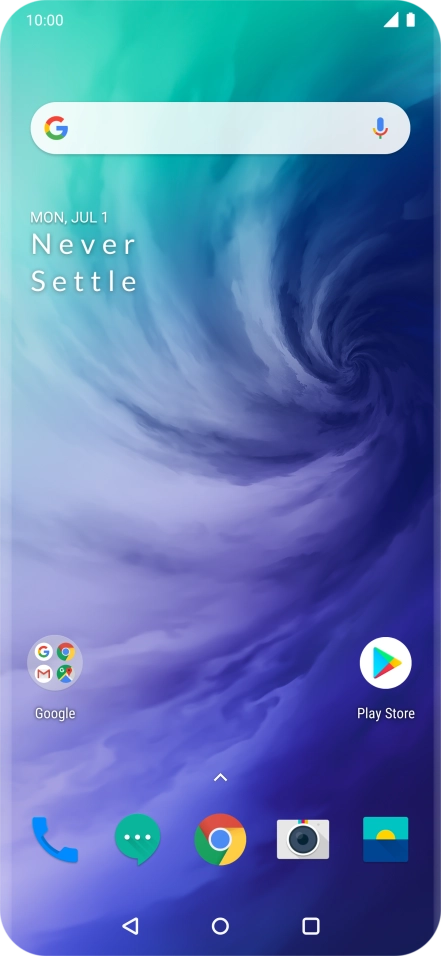
Press the phone icon.
Step 1 of 9

Press the phone icon.

Press the menu icon.
Step 2 of 9

Press the menu icon.

Press Settings.
Press Settings.
Step 3 of 9

Press Settings.

Press Call settings.
Step 4 of 9

Press Call settings.

Press the name of the SIM.
Step 5 of 9

Press the name of the SIM.

Press Call forwarding.
Step 6 of 9

Press Call forwarding.

Press the required divert type.
Step 7 of 9

Press the required divert type.

Press TURN OFF.
Press TURN OFF.
Step 8 of 9

Press TURN OFF.

Press the Home key to return to the home screen.
Step 9 of 9

Press the Home key to return to the home screen.

Get information on...

Or choose...

Show more