




Help
Device guides
OnePlus
7 Pro 5G

OnePlus 7 Pro 5G

f-14d789db-1d1b-4a29-b4d6-63f24e6ae290
f-50b8a90e-e293-408e-b97d-9c72460aca82
f-e35c9925-d6c4-453b-a7ff-67e071235f2f
f-28387184-cac7-42de-87d8-b8d102ebb6e8
f-98fdaffe-c3e3-4759-92ff-54434ceef355
f-393b7784-bd3c-4025-997b-9e1e561d8848
  • Device home
  • Getting started
  • Basic functions
  • Calls, contacts, messaging
  • Connectivity
  • Specifications
  • Device home
  • Getting started
  • Basic functions
  • Calls, contacts, messaging
  • Connectivity
  • Specifications

Copying contacts between your SIM and your phone

You can copy contacts between your SIM and phone. This way, you won't lose your contacts if you change your SIM or phone.
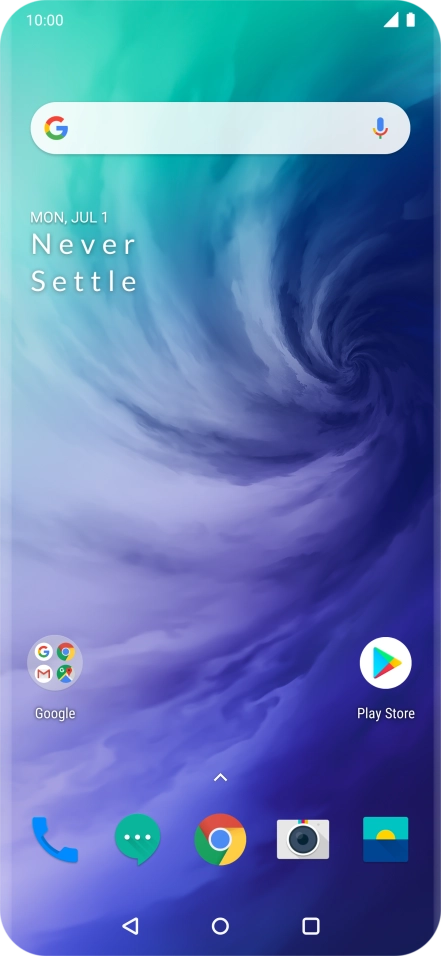
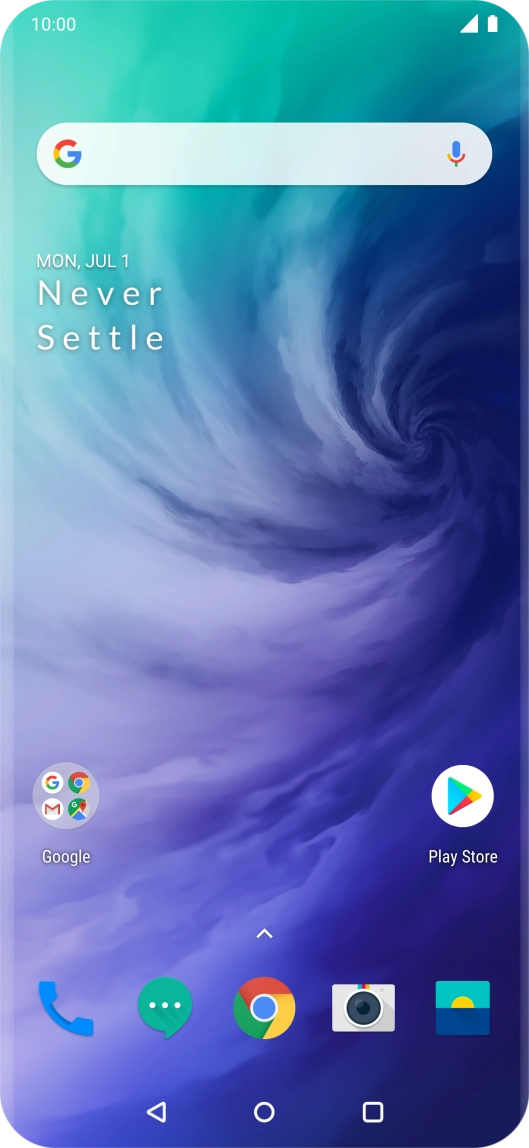
Slide your finger upwards on the screen.
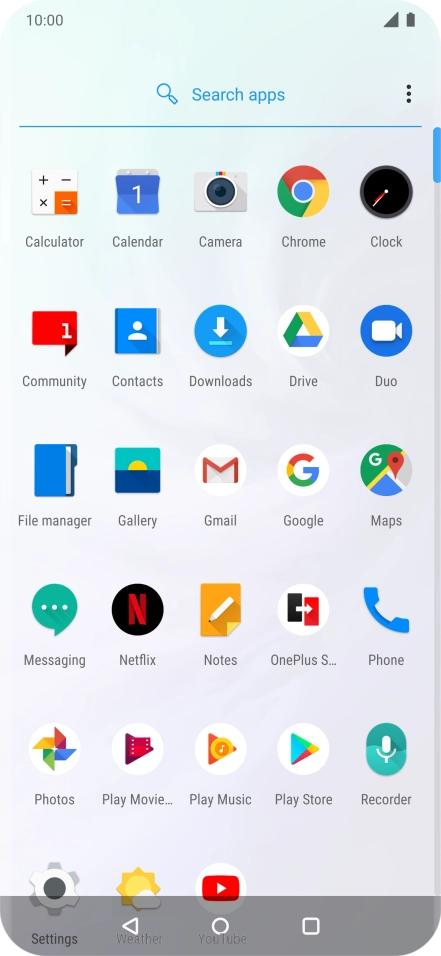
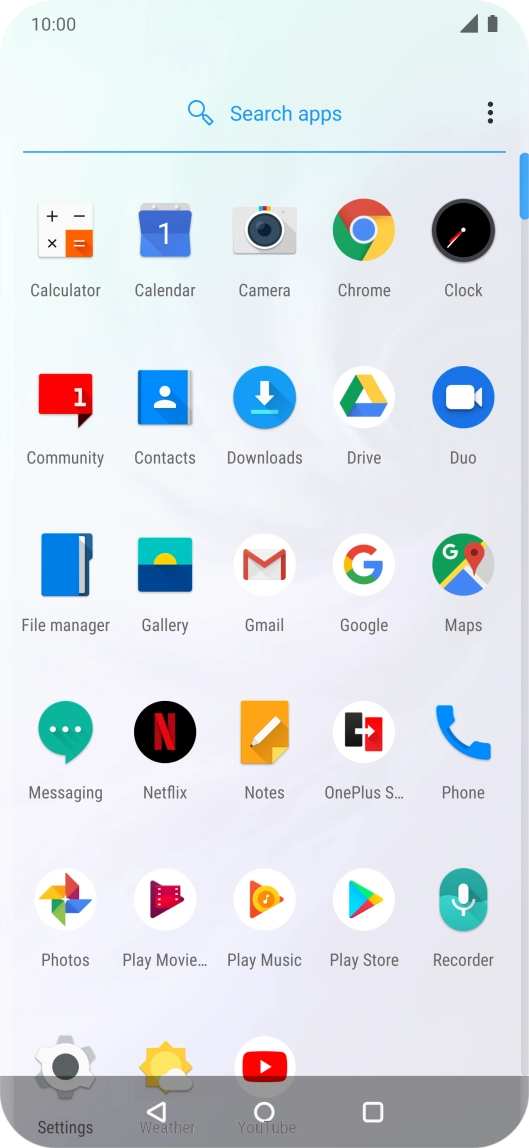
Step 1 of 15

Slide your finger upwards on the screen.

Press Contacts.
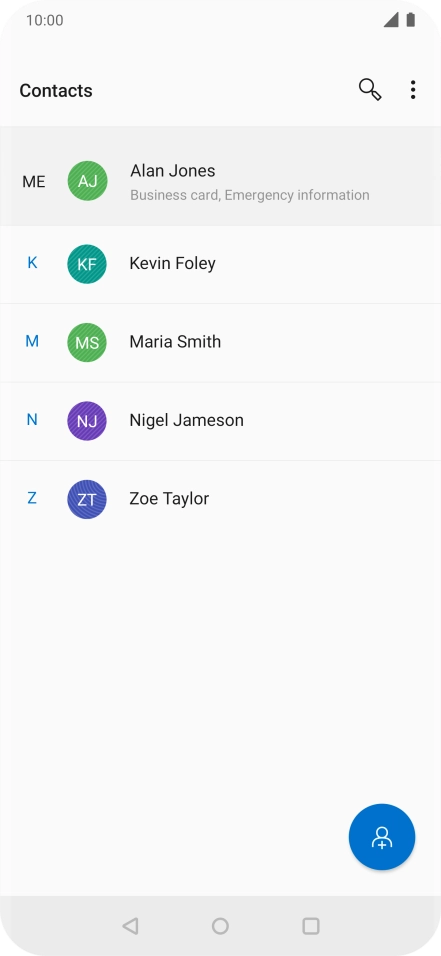
Press Contacts.
Step 2 of 15

Press Contacts.

Press the menu icon.
Step 3 of 15

Press the menu icon.

Press Settings.
Press Settings.
Step 4 of 15

Press Settings.

Press SIM card contacts manager.
Step 5 of 15

Press SIM card contacts manager.

Press the menu icon.
Step 6 of 15

Press the menu icon.

Press Import from phone.
Step 7 of 15

Press Import from phone.

Press the select all icon.
Step 8 of 15

Press the select all icon.

Press the confirm icon.
Step 9 of 15

Press the confirm icon.

Press OK.
Press OK.
Step 10 of 15

Press OK.

Press the menu icon.
Step 11 of 15

Press the menu icon.

Press Export all to phone.
Step 12 of 15

Press Export all to phone.

Press OK.
Press OK.
Step 13 of 15

Press OK.

Press PHONE.
Press PHONE.
Step 14 of 15

Press PHONE.

Press the Home key to return to the home screen.
Step 15 of 15

Press the Home key to return to the home screen.

Get information on...

Or choose...

Show more