


Help
Device guides
OPPO
A54s

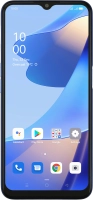
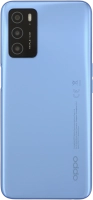
OPPO A54s

f-3d6c505e-30d8-4240-9d78-5a670694ff2b
f-ef4649dc-c04a-43d4-bfca-52e6482b97e3
f-25425e90-8baa-4579-83c7-7d438bfea916
f-09bd72ef-7686-48b0-a394-f5b85af007fa
f-573ca3ec-1fd2-4e14-acb3-c7869b580b16
f-9e1b32d5-3775-432d-a616-decbd4c76136
  • Device home
  • Getting started
  • Basic functions
  • Calls, contacts, messaging
  • Connectivity
  • Specifications
  • Device home
  • Getting started
  • Basic functions
  • Calls, contacts, messaging
  • Connectivity
  • Specifications

Uninstalling apps

You can uninstall apps to free up memory.

Slide your finger upwards on the screen.
Step 1 of 9

Slide your finger upwards on the screen.

Press Play Store.
Press Play Store.
Step 2 of 9

Press Play Store.

Press the profile icon.
Step 3 of 9

Press the profile icon.

Press Manage apps and device.
Step 4 of 9

Press Manage apps and device.

Press Manage.
Press Manage.
Step 5 of 9

Press Manage.

Press the required app.
Step 6 of 9

Press the required app.

Press Uninstall.
Press Uninstall.
Step 7 of 9

Press Uninstall.

Press Uninstall.
Press Uninstall.
Step 8 of 9

Press Uninstall.

Press the Home key to return to the home screen.
Step 9 of 9

Press the Home key to return to the home screen.

Get information on...

Or choose...

Show more