



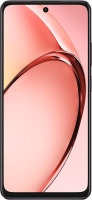
Help
Device guides
OPPO
A60

OPPO A60

f-11e223e2-2f8f-4228-8a65-af04af342d68
f-e3c02c0a-df86-4646-a5b1-0c0c3664800d
f-d15371d9-498c-449e-a6b5-343d69e9918b
f-cea7f7ba-5fee-4429-81c5-3cbcc56e3857
f-c61c1335-5ddb-4f7e-a91b-f19e20f35365
f-f3994b2e-5b66-4043-9088-d89a289b023f
f-5ec91a6e-efaf-4541-b147-977d07b5ac5a
f-3ea3926a-b15b-4276-9ea4-e3be1437f4dc
  • Device home
  • Getting started
  • Basic functions
  • Calls, contacts, messaging
  • Connectivity
  • Specifications
  • Device home
  • Getting started
  • Basic functions
  • Calls, contacts, messaging
  • Connectivity
  • Specifications

Cancelling all diverts

If you no longer wish to divert your calls, you need to cancel the diverts.

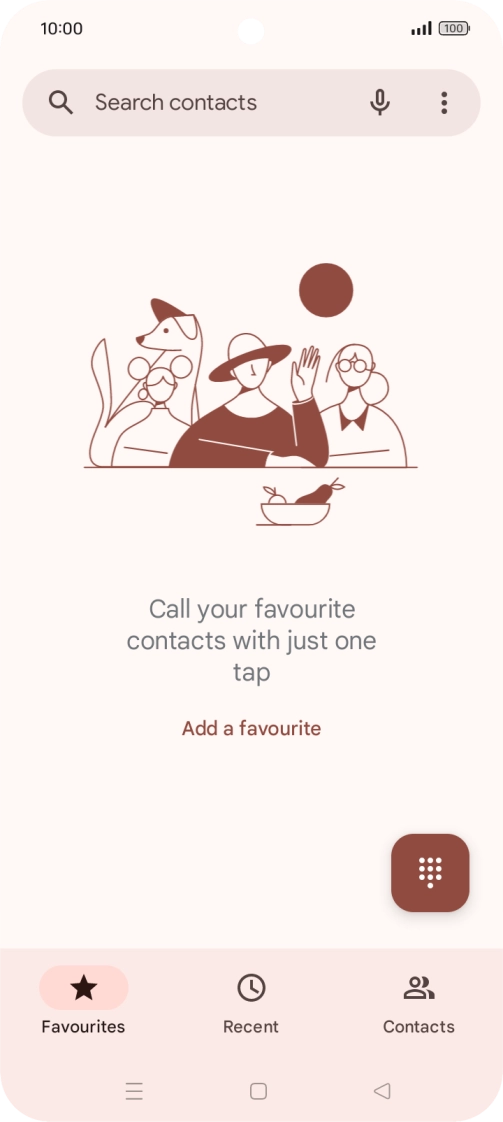
Press the call icon.
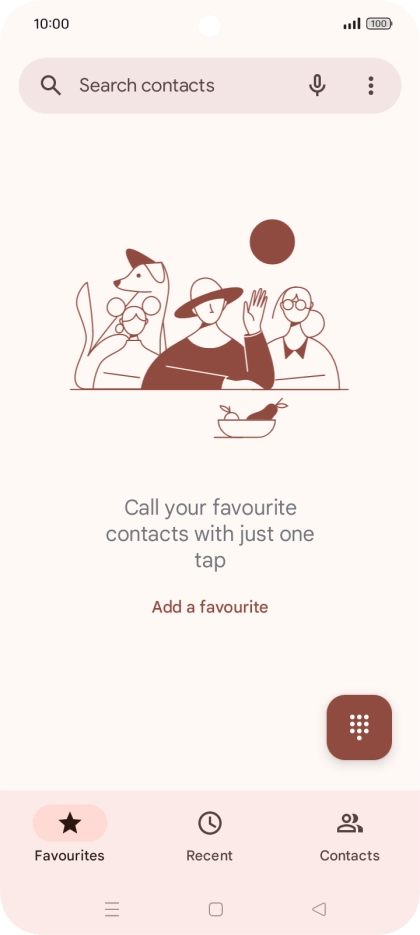
Step 1 of 8

Press the call icon.

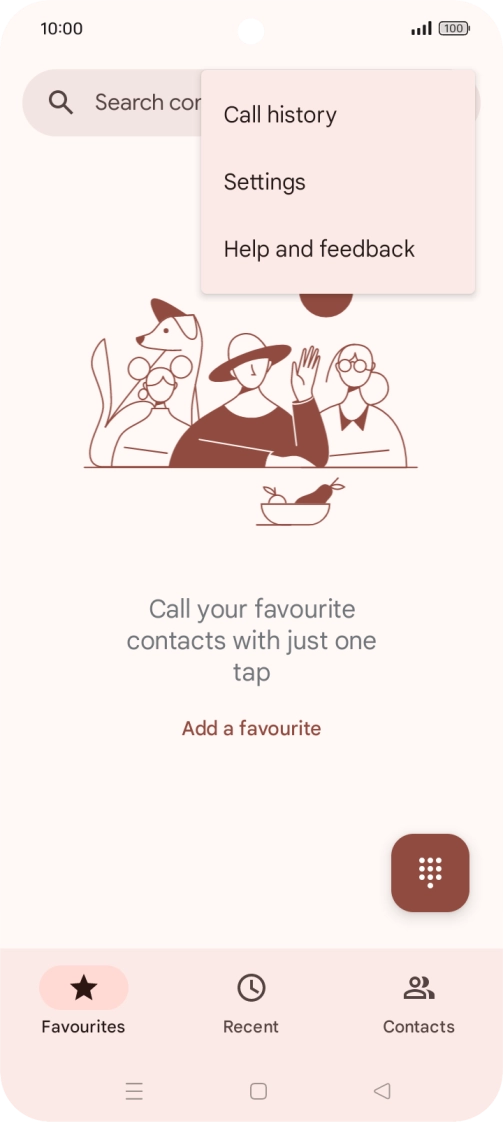
Press the menu icon.
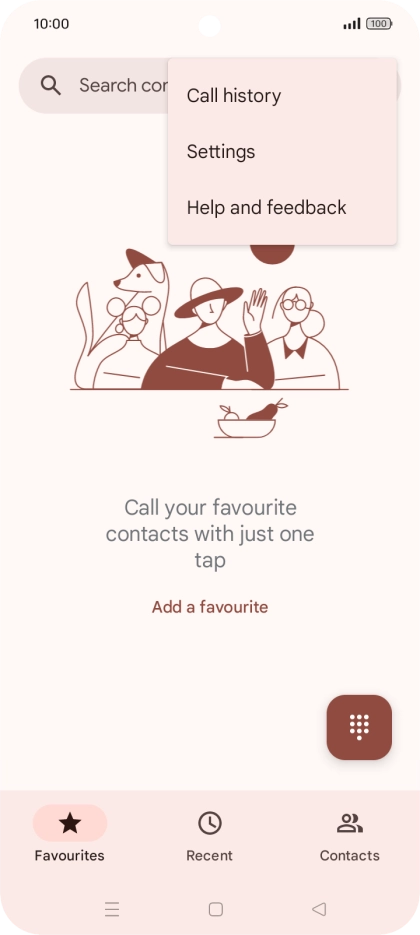
Step 2 of 8

Press the menu icon.

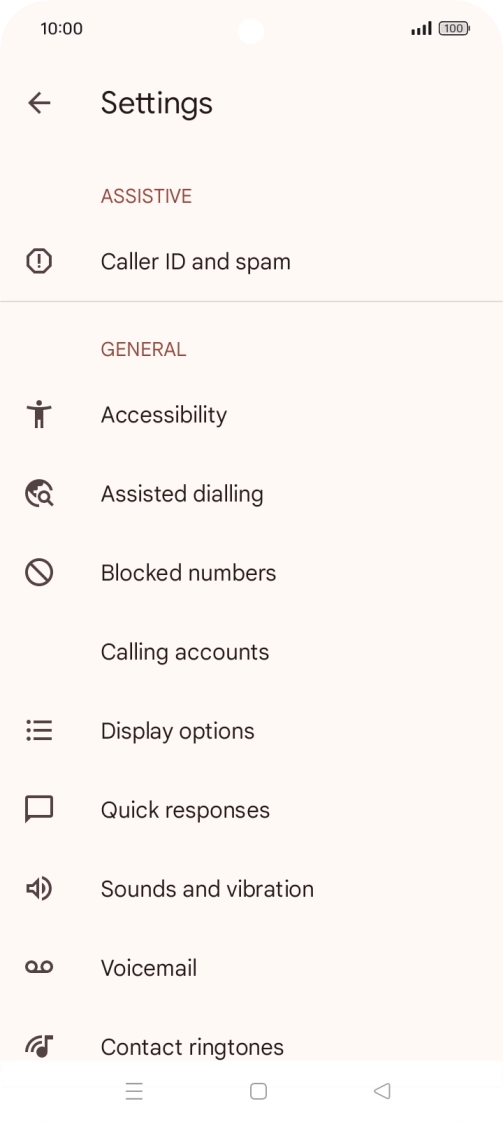
Press Settings.
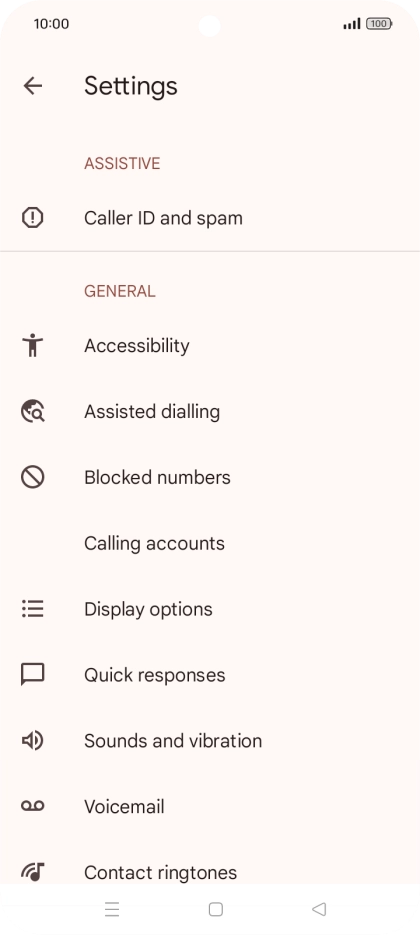
Press Settings.
Step 3 of 8

Press Settings.

Press Calling accounts.
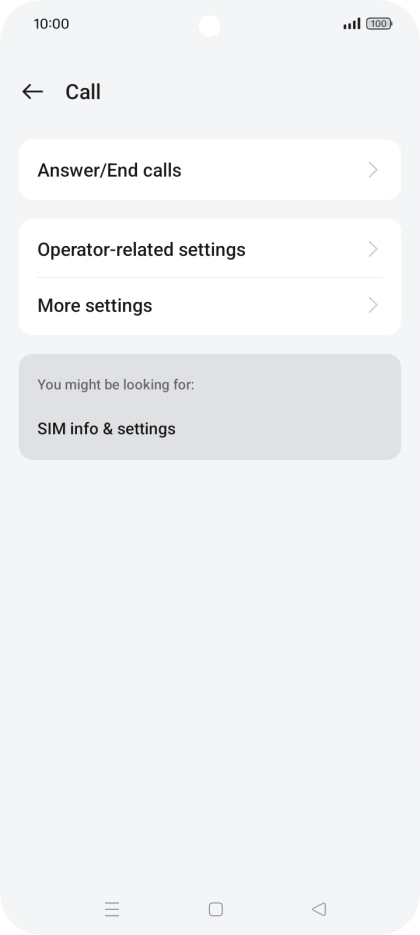
Step 4 of 8

Press Calling accounts.

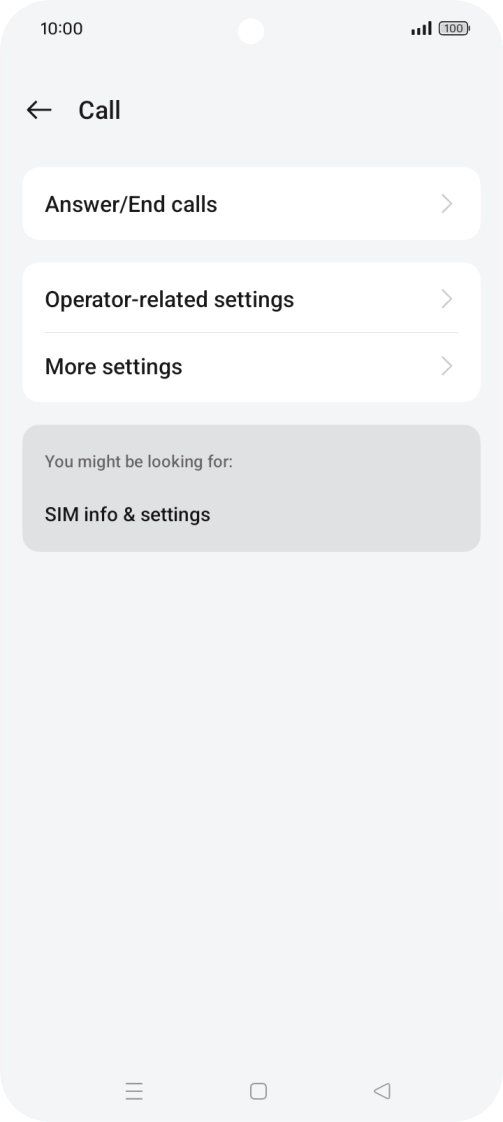
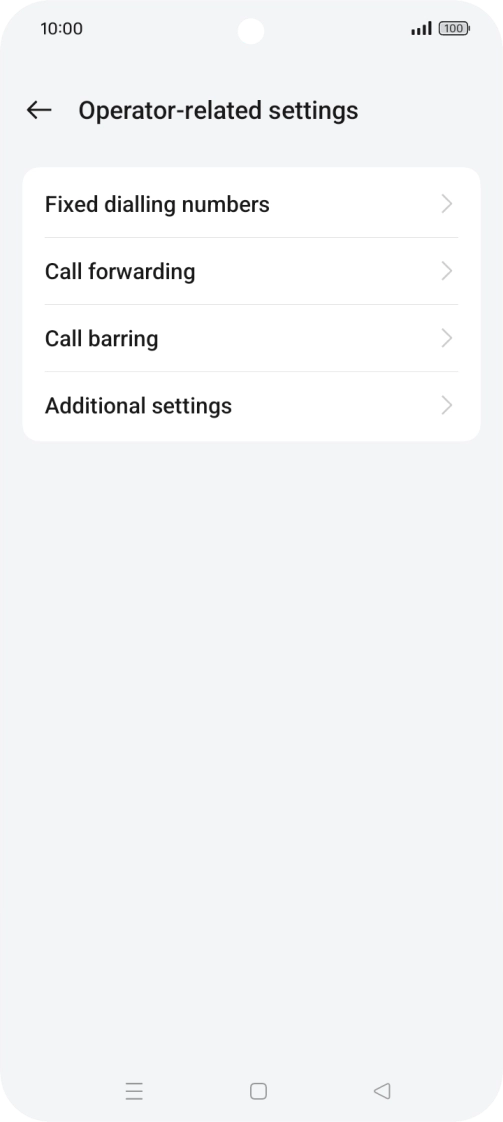
Press Operator-related settings.
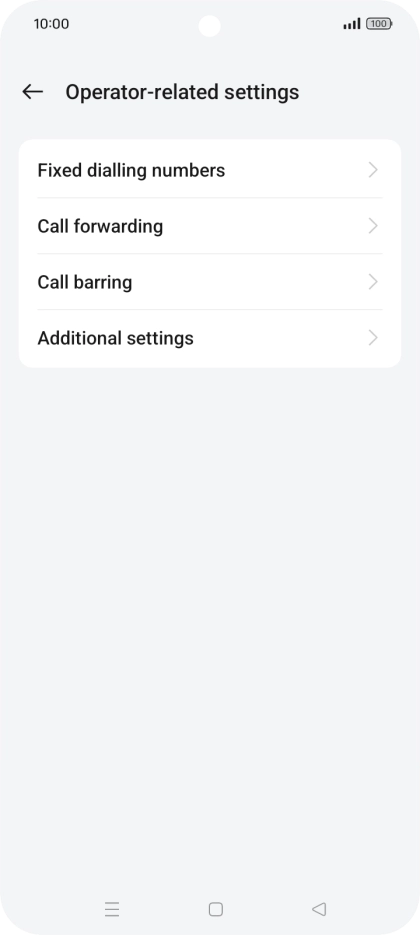
Step 5 of 8

Press Operator-related settings.

Press Call forwarding.
Step 6 of 8

Press Call forwarding.

Press the indicator next to the required divert type.
Step 7 of 8

Press the indicator next to the required divert type.

Press the Home key to return to the home screen.
Step 8 of 8

Press the Home key to return to the home screen.

Get information on...

Or choose...

Show more