



Help
Device guides
OPPO
Find X3 Neo

OPPO Find X3 Neo

f-705b3c89-f8b1-4b6b-9d24-ccd877c026a4
f-b34553d4-9316-4293-8b78-51d665374675
f-965502a6-03b2-4297-b7f4-8d5903a54db1
f-d1b3b821-45dc-42bc-971f-8e57348cc6ff
f-73c4675a-badf-481c-8747-170fb31c139e
f-eb44f1bc-f5f7-4e3f-a650-70003b40ed90
  • Device home
  • Getting started
  • Basic functions
  • Calls, contacts, messaging
  • Connectivity
  • Specifications
  • Device home
  • Getting started
  • Basic functions
  • Calls, contacts, messaging
  • Connectivity
  • Specifications

Uninstalling apps

You can uninstall apps to free up memory.

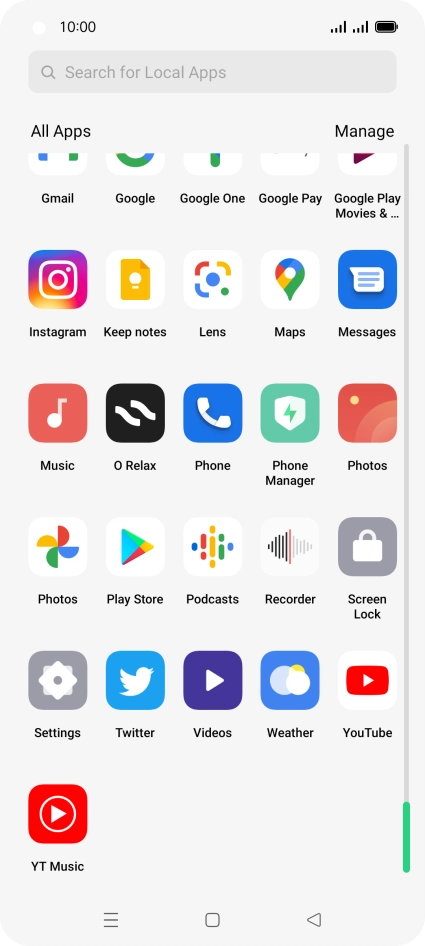
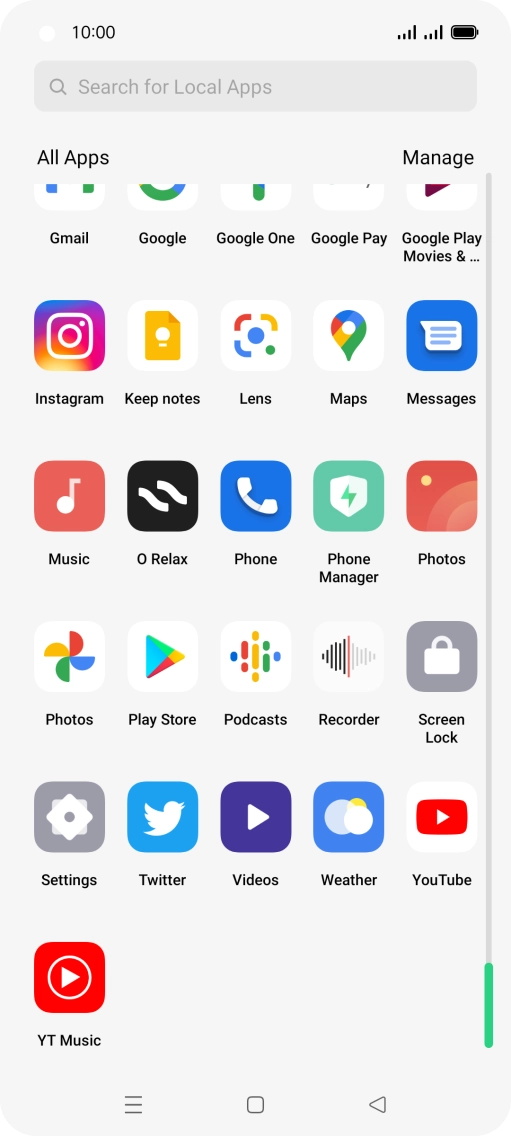
Slide your finger upwards on the screen.
Step 1 of 9

Slide your finger upwards on the screen.

Press Play Store.
Press Play Store.
Step 2 of 9

Press Play Store.

Press the profile icon.
Step 3 of 9

Press the profile icon.

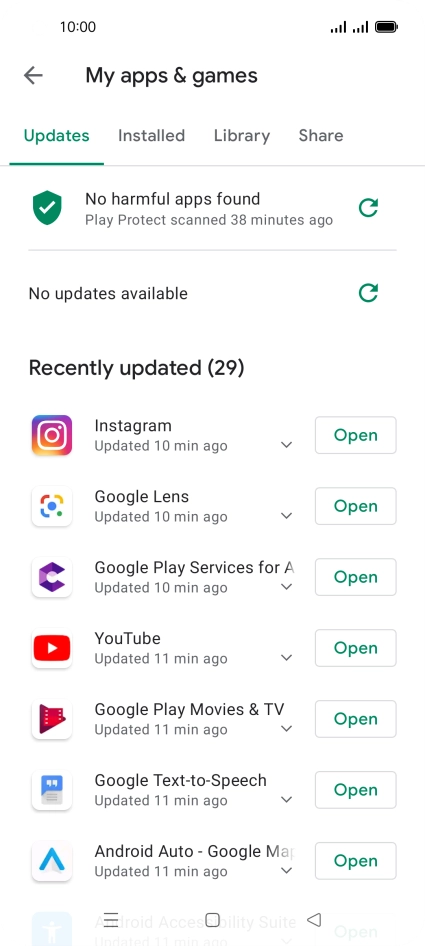
Press My apps & games.
Step 4 of 9

Press My apps & games.

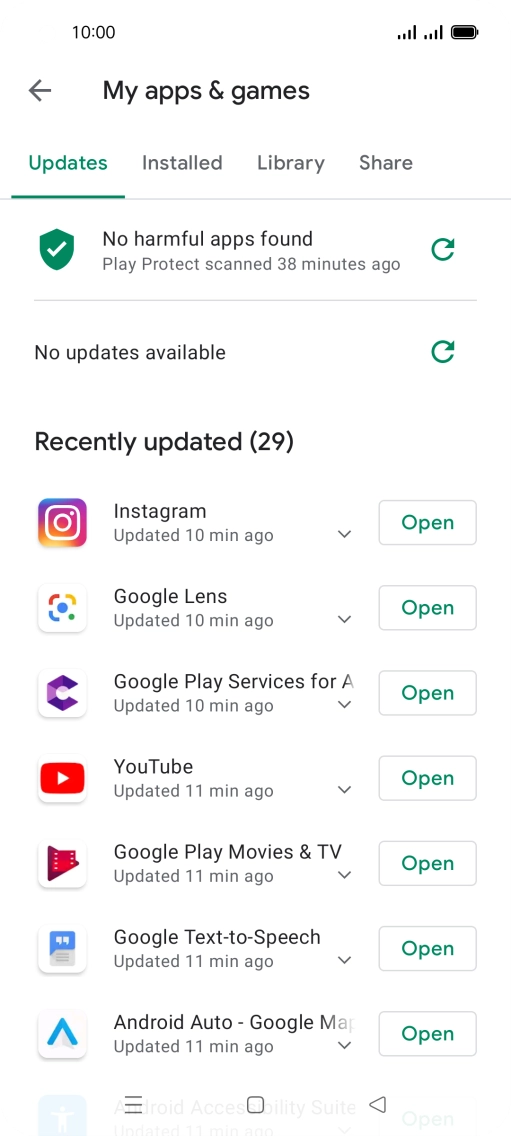
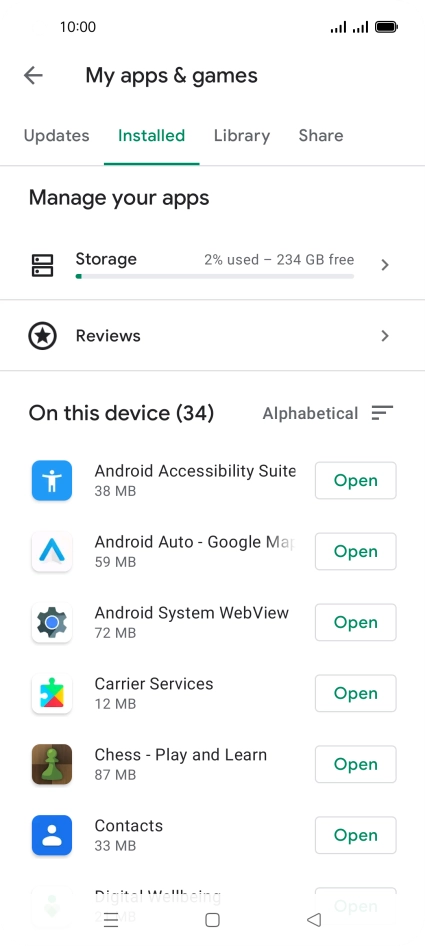
Press Installed.
Press Installed.
Step 5 of 9

Press Installed.

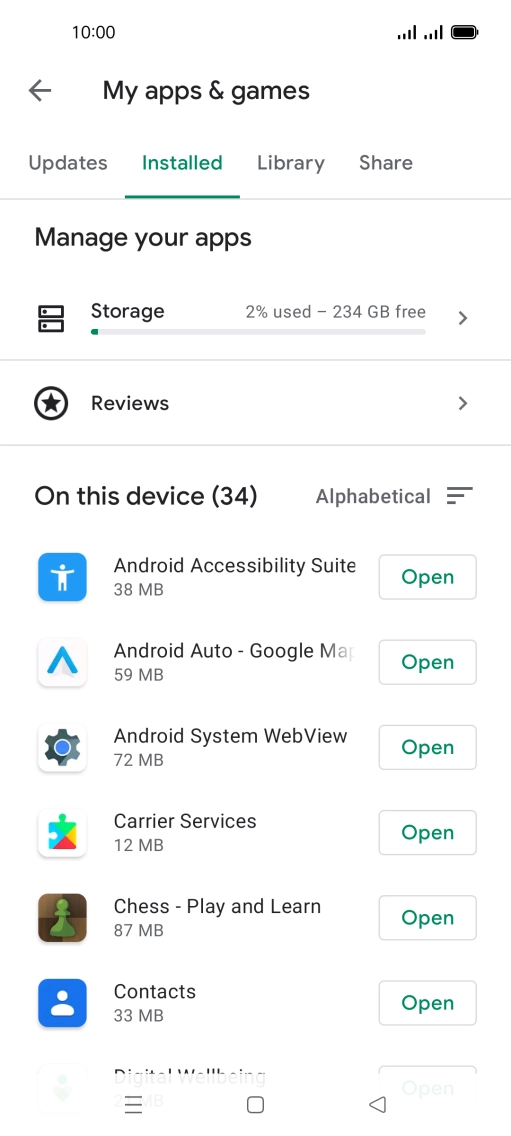
Press the required app.

Step 6 of 9

Press the required app.

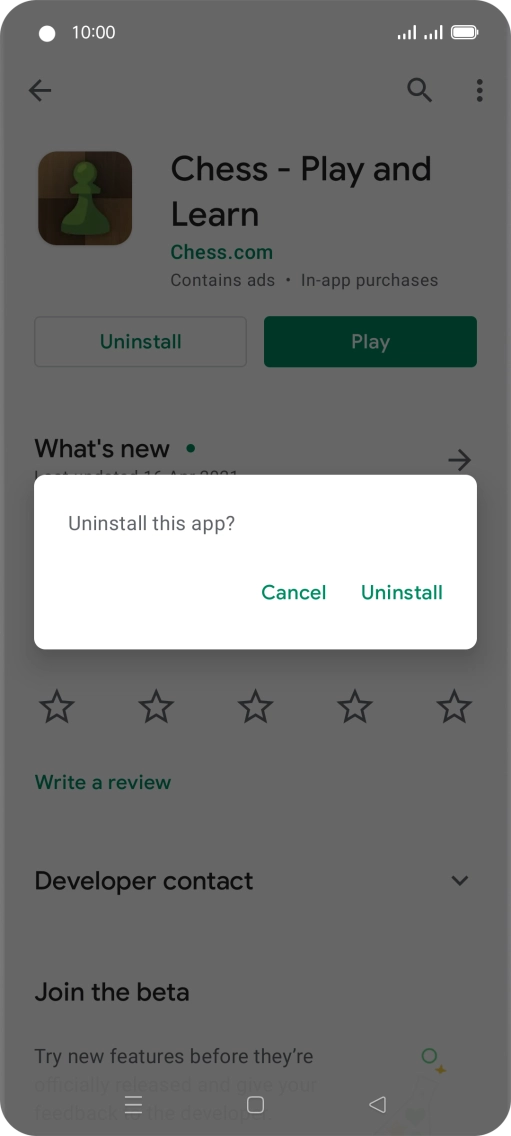
Press Uninstall.
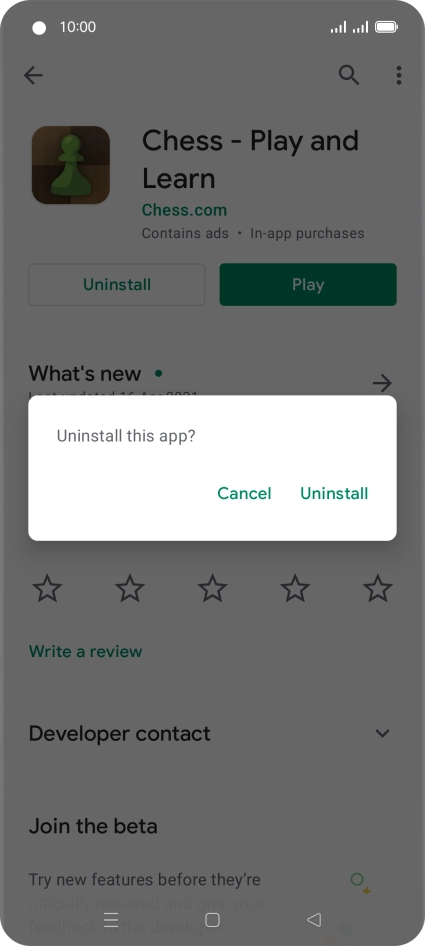
Press Uninstall.
Step 7 of 9

Press Uninstall.

Press Uninstall.
Press Uninstall.
Step 8 of 9

Press Uninstall.

Press the Home key to return to the home screen.
Step 9 of 9

Press the Home key to return to the home screen.

Get information on...

Or choose...

Show more