




Help
Device guides
OPPO
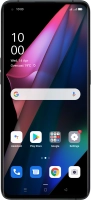
Find X3 Pro 5G

OPPO Find X3 Pro 5G

f-d9578667-1d15-4f35-a1fd-0e9bb68e6b26
f-84f1a5c8-4d53-4507-a623-1e8c4c31313e
f-57f481a5-0c17-4996-80ca-2bc4b8e8974a
f-18a1c559-e245-4fb9-bfb4-19fcd424586c
f-3f763c8a-c5f9-461c-8b79-bb7c0cb588be
f-ed7ab942-f79e-4b54-87c9-612e0fae9658
  • Device home
  • Getting started
  • Basic functions
  • Calls, contacts, messaging
  • Connectivity
  • Specifications
  • Device home
  • Getting started
  • Basic functions
  • Calls, contacts, messaging
  • Connectivity
  • Specifications

Cancelling all diverts

If you no longer wish to divert your calls, you need to cancel the diverts.

Press the phone icon.
Step 1 of 9

Press the phone icon.

Press the menu icon.
Step 2 of 9

Press the menu icon.

Press Settings.
Press Settings.
Step 3 of 9

Press Settings.

Press Calling accounts.
Step 4 of 9

Press Calling accounts.

Press Carrier call settings.
Step 5 of 9

Press Carrier call settings.

Press Call forwarding.
Step 6 of 9

Press Call forwarding.

Press the required SIM.
Step 7 of 9

Press the required SIM.

Press the indicator next to the required divert type.
Step 8 of 9

Press the indicator next to the required divert type.

Press the Home key to return to the home screen.
Step 9 of 9

Press the Home key to return to the home screen.

Get information on...

Or choose...

Show more