



Help
Device guides
OPPO
Find X5 Lite

OPPO Find X5 Lite

f-5729fa9f-b66a-4083-9710-63b8b08a51d5
f-40f06dc9-1bd2-43c3-8b2a-dd7ed45f379d
f-0b99ffe4-47f5-4249-ab8e-e9e0f9ae810b
f-5cb07c95-25f1-47d6-87b0-9be407a3f2e9
f-7f15af65-900c-4de0-a322-c47466bd2a03
f-2acac75e-dc76-497a-8c25-ddcb50cccf69
  • Device home
  • Getting started
  • Basic functions
  • Calls, contacts, messaging
  • Connectivity
  • Specifications
  • Device home
  • Getting started
  • Basic functions
  • Calls, contacts, messaging
  • Connectivity
  • Specifications

My phone uses a large amount of mobile data

Solution 4 of 4: Notifications are turned on

When you turn on notifications, you will be notified about various events such as new email messages, messages from social networks and calendar appointments.
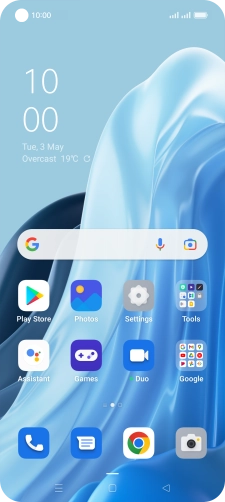
Slide two fingers downwards starting from the top of the screen.
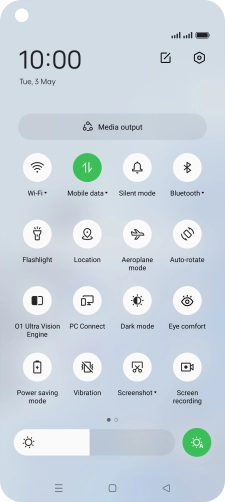
Step 1 of 6

Slide two fingers downwards starting from the top of the screen.

Press the settings icon.
Step 2 of 6

Press the settings icon.

Press Notification & status bar.
Step 3 of 6

Press Notification & status bar.

Press Manage notifications.
Step 4 of 6

Press Manage notifications.

Press the indicators next to the required apps to turn the function on or off.
Step 5 of 6

Press the indicators next to the required apps to turn the function on or off.

Press the Home key to return to the home screen.
Step 6 of 6

Press the Home key to return to the home screen.


Did this solve your problem?

Yes No

Get information on...

Or choose...

Show more