




Help
Device guides
OPPO
Find X5 Lite

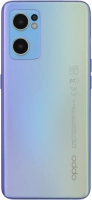
OPPO Find X5 Lite

f-5729fa9f-b66a-4083-9710-63b8b08a51d5
f-40f06dc9-1bd2-43c3-8b2a-dd7ed45f379d
f-0b99ffe4-47f5-4249-ab8e-e9e0f9ae810b
f-5cb07c95-25f1-47d6-87b0-9be407a3f2e9
f-7f15af65-900c-4de0-a322-c47466bd2a03
f-2acac75e-dc76-497a-8c25-ddcb50cccf69
  • Device home
  • Getting started
  • Basic functions
  • Calls, contacts, messaging
  • Connectivity
  • Specifications
  • Device home
  • Getting started
  • Basic functions
  • Calls, contacts, messaging
  • Connectivity
  • Specifications

Taking screenshot

You can take a picture of your screen if you want to share something with your friends or save the picture for later use.

Press On/Off.
Press On/Off.
Step 1 of 2

Press On/Off.

At the same time, press and hold the Bottom volume key and keep them both pressed to take a screenshot.
Step 2 of 2

At the same time, press and hold the Bottom volume key and keep them both pressed to take a screenshot.

The picture is saved in the phone gallery.

Get information on...

Or choose...

Show more