



Help
Device guides
OPPO
Find X5 Pro

OPPO Find X5 Pro

f-f63200ac-2ea2-44b0-b15e-2d8cc5b5f919
f-4d27fb34-5681-4e52-b30f-b47a49d47c75
f-f813ac54-ea1c-47a5-9e7a-6bc01ea9de30
f-9a33bd3b-969e-4b55-a081-4998b5ff1088
f-90e422b8-f97c-432f-b367-342cf4eea5e3
f-e6837c95-e259-4bad-b85a-ab54f378ff40
  • Device home
  • Getting started
  • Basic functions
  • Calls, contacts, messaging
  • Connectivity
  • Specifications
  • Device home
  • Getting started
  • Basic functions
  • Calls, contacts, messaging
  • Connectivity
  • Specifications

Uninstalling apps

You can uninstall apps to free up memory.
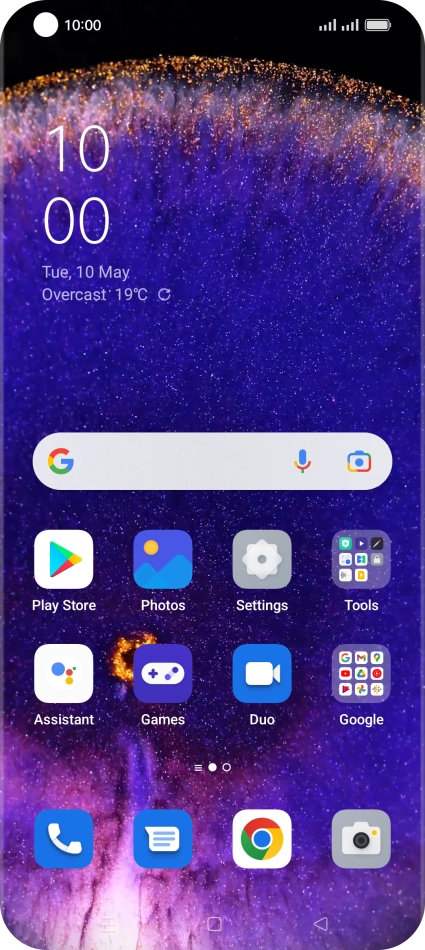
Slide your finger upwards on the screen.
Step 1 of 9

Slide your finger upwards on the screen.

Press Play Store.
Press Play Store.
Step 2 of 9

Press Play Store.

Press the profile icon.
Step 3 of 9

Press the profile icon.

Press Manage apps and device.
Step 4 of 9

Press Manage apps and device.

Press Manage.
Press Manage.
Step 5 of 9

Press Manage.

Press the required app.
Step 6 of 9

Press the required app.

Press Uninstall.
Press Uninstall.
Step 7 of 9

Press Uninstall.

Press Uninstall.
Press Uninstall.
Step 8 of 9

Press Uninstall.

Press the Home key to return to the home screen.
Step 9 of 9

Press the Home key to return to the home screen.

Get information on...

Or choose...

Show more