


Help
Device guides
OPPO
Reno13 FS 5G

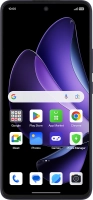
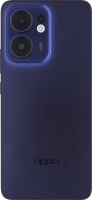
OPPO Reno13 FS 5G

f-c474ecc4-daeb-4393-bf41-8f440217504d
f-f8e94149-42d1-4a52-9042-132aa6f41a20
f-cfb358fe-805e-47b2-b2a8-8d5427603f16
f-87e30f88-6d69-4205-9a2a-59d49b9b5777
f-2c9f3617-cd22-4171-9534-34c7c5e6fd4d
f-274bbd3d-5b30-464f-a196-a420f545bea4
f-6683bbbd-37d7-4fa8-ad16-0e5db233ebaf
f-40e7f626-a2ee-4b47-94d6-ccfad52868a5
  • Device home
  • Getting started
  • Basic functions
  • Calls, contacts, messaging
  • Connectivity
  • Specifications
  • Device home
  • Getting started
  • Basic functions
  • Calls, contacts, messaging
  • Connectivity
  • Specifications

Cancelling all diverts

If you no longer wish to divert your calls, you need to cancel the diverts.

Press the call icon.
Step 1 of 8

Press the call icon.

Press the menu icon.
Step 2 of 8

Press the menu icon.

Press Settings.
Press Settings.
Step 3 of 8

Press Settings.

Press Calling accounts.
Step 4 of 8

Press Calling accounts.

Press Operator-related settings.
Step 5 of 8

Press Operator-related settings.

Press Call forwarding.
Step 6 of 8

Press Call forwarding.

Press the indicator next to the required divert type.
Step 7 of 8

Press the indicator next to the required divert type.

Slide your finger upwards starting from the bottom of the screen to return to the home screen.
Step 8 of 8

Slide your finger upwards starting from the bottom of the screen to return to the home screen.

Get information on...

Or choose...

Show more