


Help
Device guides
OPPO
Reno8 5G

OPPO Reno8 5G

f-5dcec46d-939d-48da-a3b8-379a596beb3e
f-5692557d-4ca8-4fef-b912-144ff5022f2d
f-27daa849-02e2-460a-9d32-fbbaf4d8d157
f-3cd3a3f1-69c2-4fbf-b435-805679f549b8
f-3b400d1f-3e6f-4ce6-8785-5e035935c235
f-4122ed3c-b11f-4c4b-b100-c9131d41878f
  • Device home
  • Getting started
  • Basic functions
  • Calls, contacts, messaging
  • Connectivity
  • Specifications
  • Device home
  • Getting started
  • Basic functions
  • Calls, contacts, messaging
  • Connectivity
  • Specifications

It's not possible to use Wi-Fi

Solution 1 of 4: No connection to a Wi-Fi network is established

You can use Wi-Fi as an alternative to the mobile network when establishing an internet connection. This way your phone doesn't use mobile data.
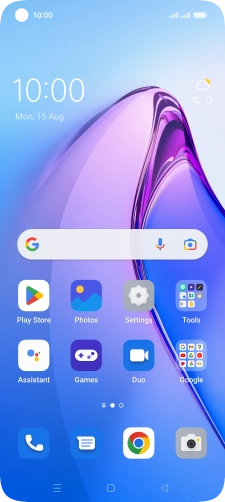
Slide two fingers downwards starting from the top of the screen.
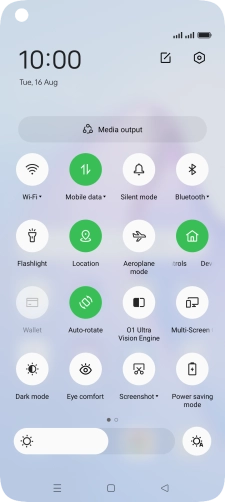
Step 1 of 7

Slide two fingers downwards starting from the top of the screen.

Press the settings icon.
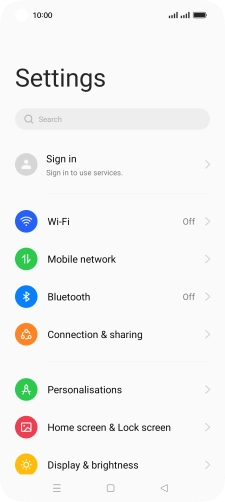
Step 2 of 7

Press the settings icon.

Press Wi-Fi.
Press Wi-Fi.
Step 3 of 7

Press Wi-Fi.

Press the indicator next to
Step 4 of 7

Press the indicator next to "Wi-Fi" to turn on the function.

Press the required Wi-Fi network.
Step 5 of 7

Press the required Wi-Fi network.

Key in the password for the Wi-Fi network and press the confirm icon.
Step 6 of 7

Key in the password for the Wi-Fi network and press the confirm icon.

Press the Home key to return to the home screen.
Step 7 of 7

Press the Home key to return to the home screen.


Did this solve your problem?

Yes No

Get information on...

Or choose...

Show more