


Help
Device guides
OPPO
Reno8 Pro 5G

OPPO Reno8 Pro 5G

f-4578d57a-aca2-4d7f-a4ef-62a28d2e27ff
f-63c74fb3-b5e6-4c0c-9b1c-e293d03d0338
f-09fda53e-3e24-418a-aa69-150b7fa2026a
f-f6b9ebbc-e1f4-40bd-af52-e45b5db6c688
f-b95806ea-04bf-41d7-880c-0712ca672b89
f-3db8c68e-7fdd-46a2-be31-7a78538b681d
  • Device home
  • Getting started
  • Basic functions
  • Calls, contacts, messaging
  • Connectivity
  • Specifications
  • Device home
  • Getting started
  • Basic functions
  • Calls, contacts, messaging
  • Connectivity
  • Specifications

Uninstalling apps

You can uninstall apps to free up memory.

Slide your finger upwards on the screen.
Step 1 of 9

Slide your finger upwards on the screen.

Press Play Store.
Press Play Store.
Step 2 of 9

Press Play Store.

Press the profile icon.
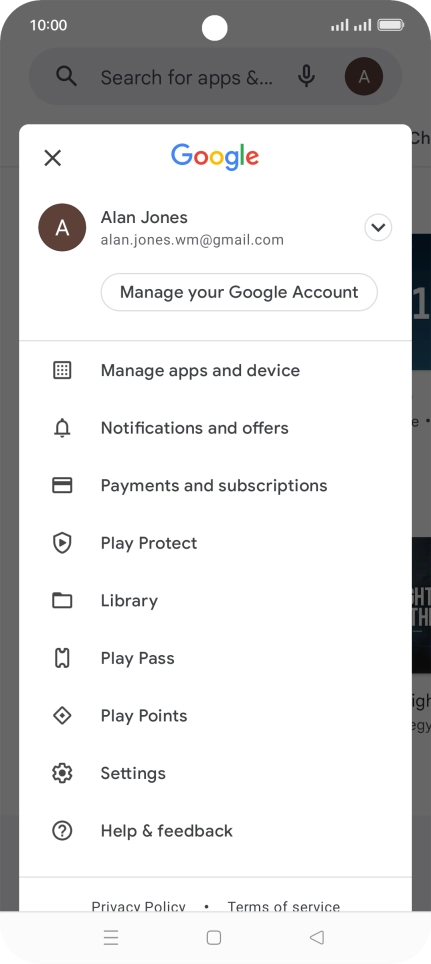
Step 3 of 9

Press the profile icon.

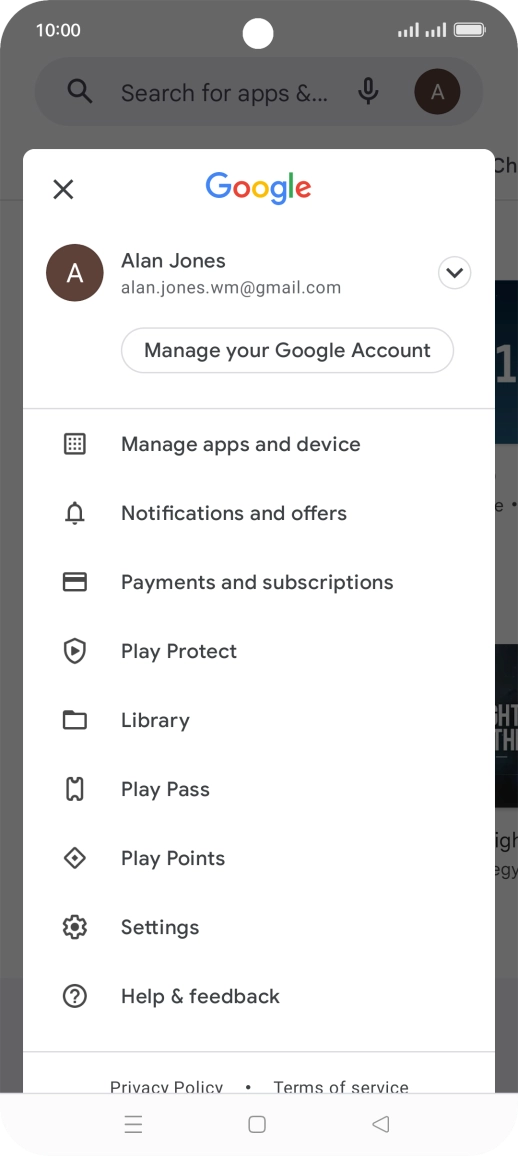
Press Manage apps & device.
Step 4 of 9

Press Manage apps & device.

Press Manage.
Press Manage.
Step 5 of 9

Press Manage.

Press the required app.
Step 6 of 9

Press the required app.

Press Uninstall.
Press Uninstall.
Step 7 of 9

Press Uninstall.

Press Uninstall.
Press Uninstall.
Step 8 of 9

Press Uninstall.

Press the Home key to return to the home screen.
Step 9 of 9

Press the Home key to return to the home screen.

Get information on...

Or choose...

Show more