


Help
Device guides
Samsung
Galaxy A04s

Samsung Galaxy A04s

f-afe3329c-b636-43ca-a582-bb69ae2f721e
f-7e433181-4c67-4085-9839-0b9817dbadcd
f-9619b616-f542-4e1a-bfb6-7b024257f1f4
f-2f0475ae-9ded-4309-b484-5e0ee884e44a
f-d8ef024a-a1d6-4042-874c-7a1e8d4121d0
f-3e678ab1-973b-4972-823a-248b29bd5137
  • Device home
  • Getting started
  • Basic functions
  • Calls, contacts, messaging
  • Connectivity
  • Specifications
  • Device home
  • Getting started
  • Basic functions
  • Calls, contacts, messaging
  • Connectivity
  • Specifications

Turning Wi-Fi calling on or off

When Wi-Fi calling is turned on, you can make and answer calls using a Wi-Fi network when you're in an area with little or no network coverage. To turn on Wi-Fi calling, you need to establish a connection to a Wi-Fi network, select 4G (LTE) as network mode and follow the steps below. You can also visit the EE web page for more information about Wi-Fi calling.
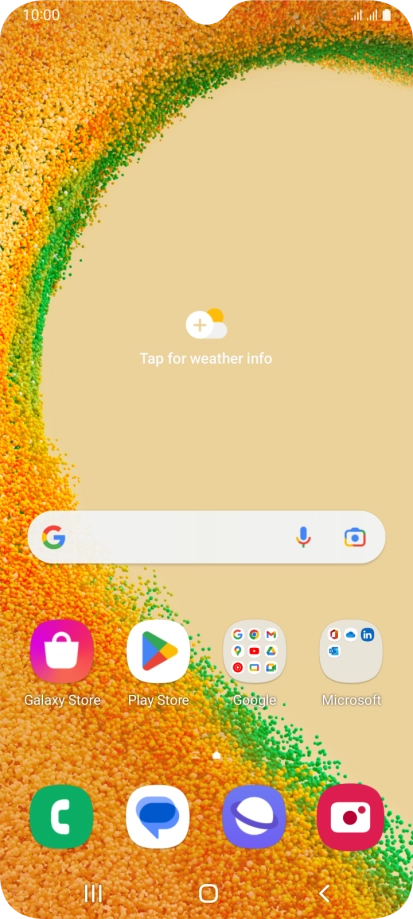
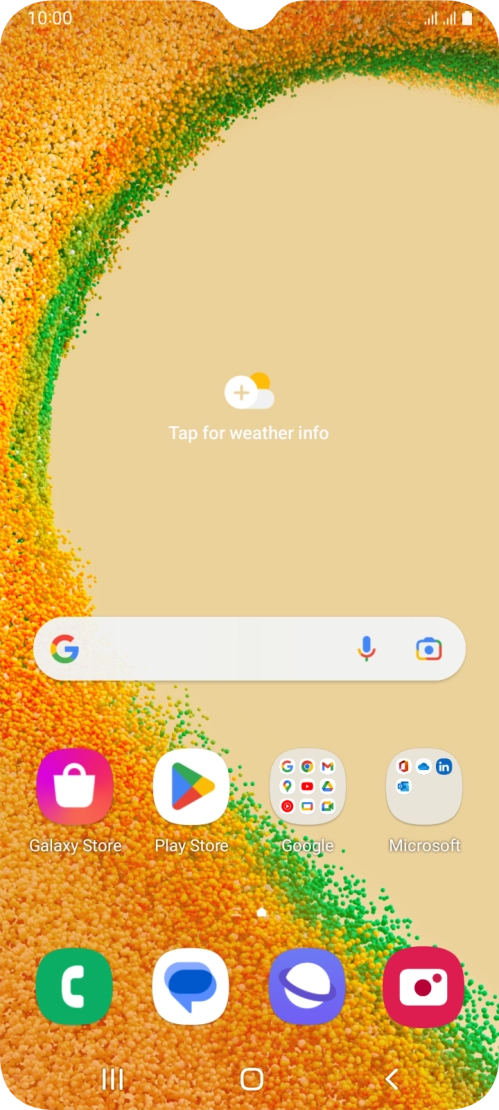
Slide two fingers downwards starting from the top of the screen.
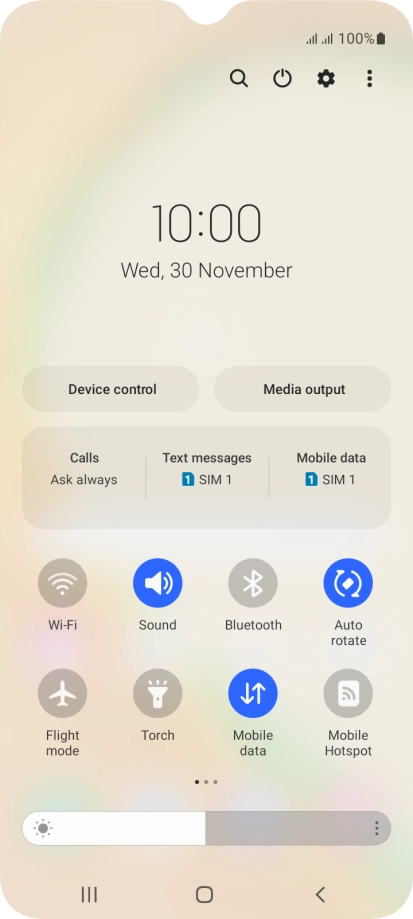
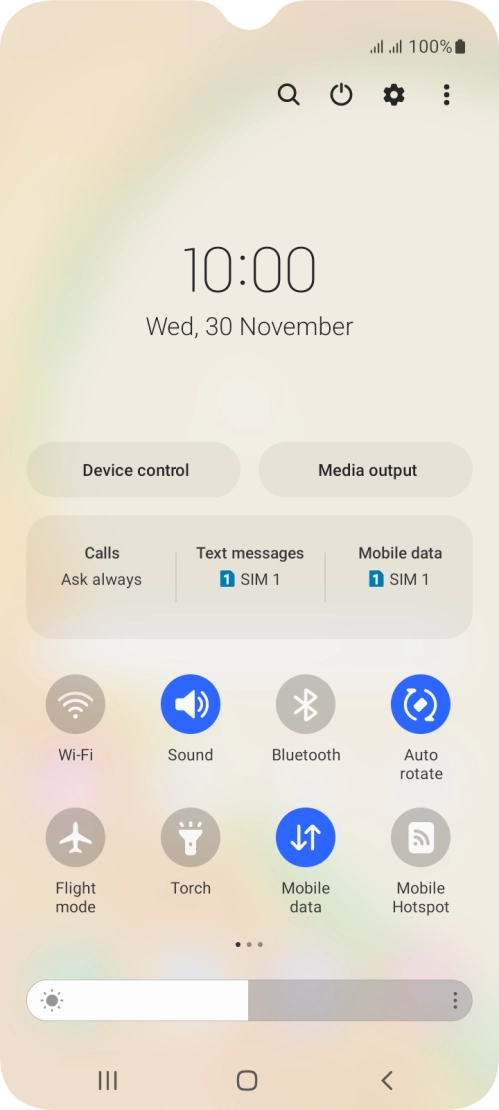
Step 1 of 6

Slide two fingers downwards starting from the top of the screen.

Press the settings icon.
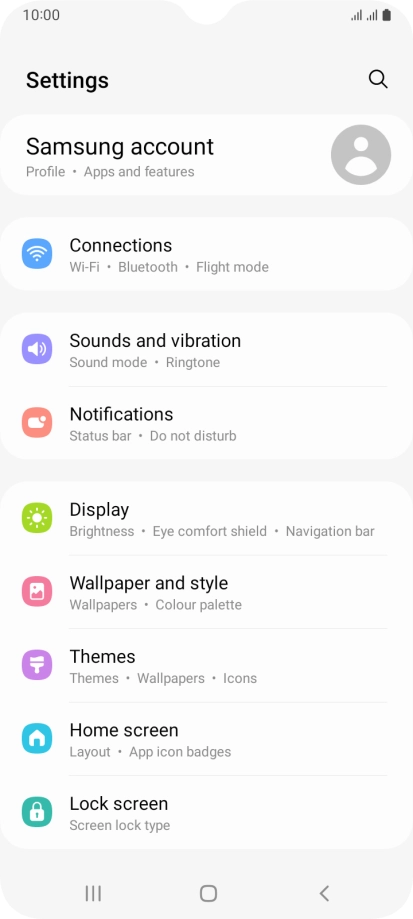
Step 2 of 6

Press the settings icon.

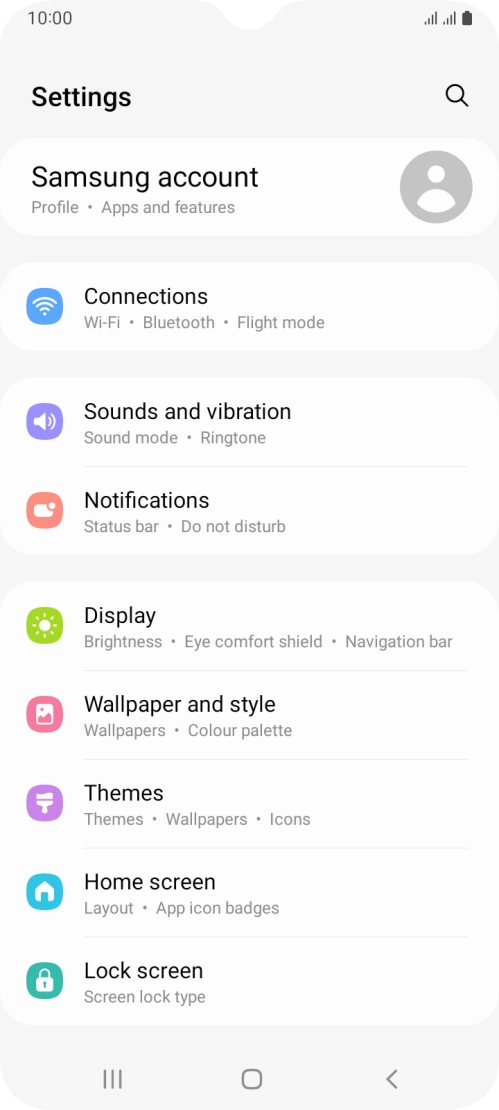
Press Connections.
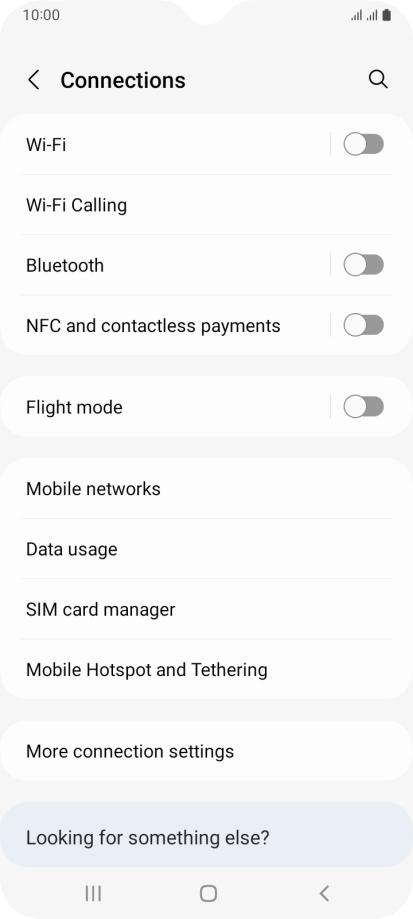
Press Connections.
Step 3 of 6

Press Connections.

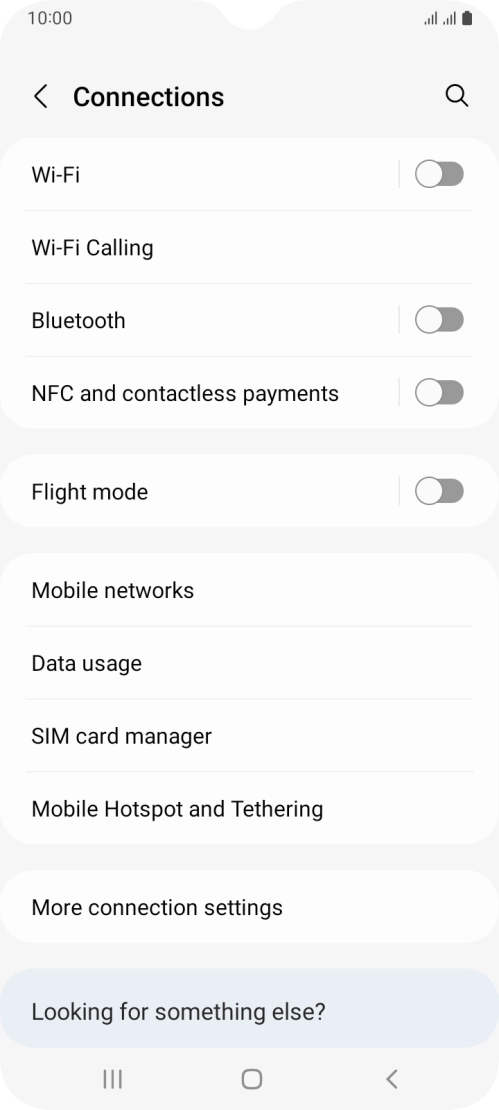
Press Wi-Fi Calling.
Step 4 of 6

Press Wi-Fi Calling.

Press the indicator next to the required SIM to turn the function on or off.
Step 5 of 6

Press the indicator next to the required SIM to turn the function on or off.

Press the Home key to return to the home screen.
Step 6 of 6

Press the Home key to return to the home screen.

Get information on...

Or choose...

Show more