


Help
Device guides
Samsung
Galaxy A13

Samsung Galaxy A13

f-8664d37a-0ca3-44a3-af79-d819daef5a83
f-1074e5a4-01a0-4d71-a081-a49239377aa4
f-e075fc43-46d2-4dc4-a496-a6f3da6043f0
f-992f1660-2bd3-4a27-9373-328893a18633
f-1663caf3-4661-4284-a336-ba85527a400f
f-0d87f245-ec9c-44cc-9339-c17093a08f6b
  • Device home
  • Getting started
  • Basic functions
  • Calls, contacts, messaging
  • Connectivity
  • Specifications
  • Device home
  • Getting started
  • Basic functions
  • Calls, contacts, messaging
  • Connectivity
  • Specifications

Creating contact

You can save your contacts in your phone's address book. You can save additional information to a contact such as email address and personal ring tone.
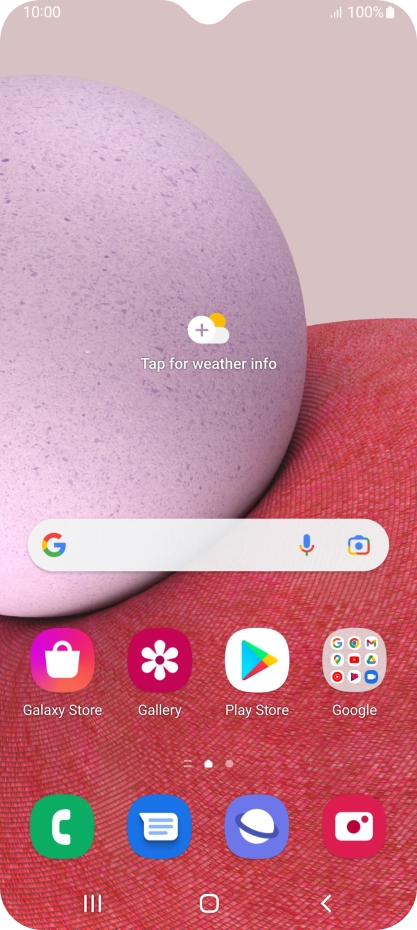
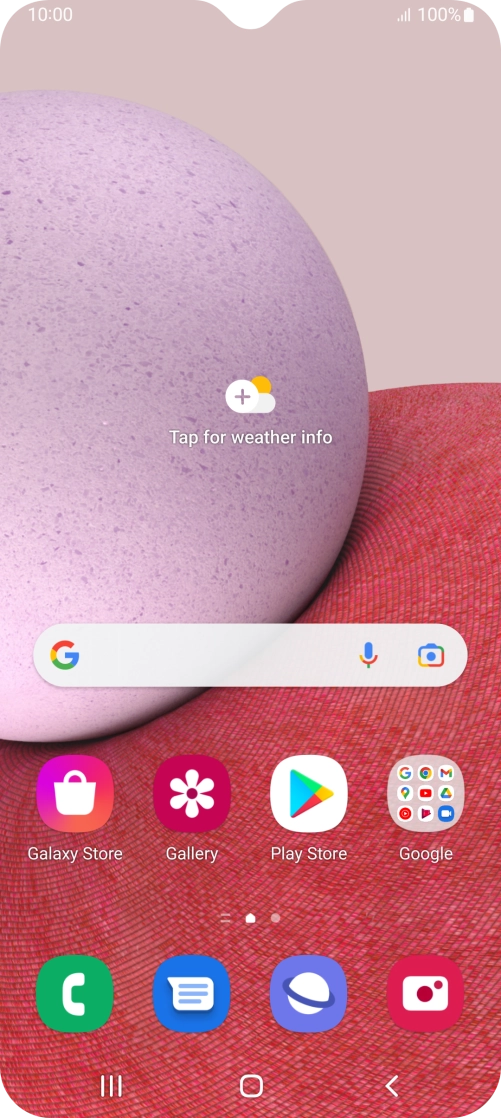
Slide your finger upwards on the screen.
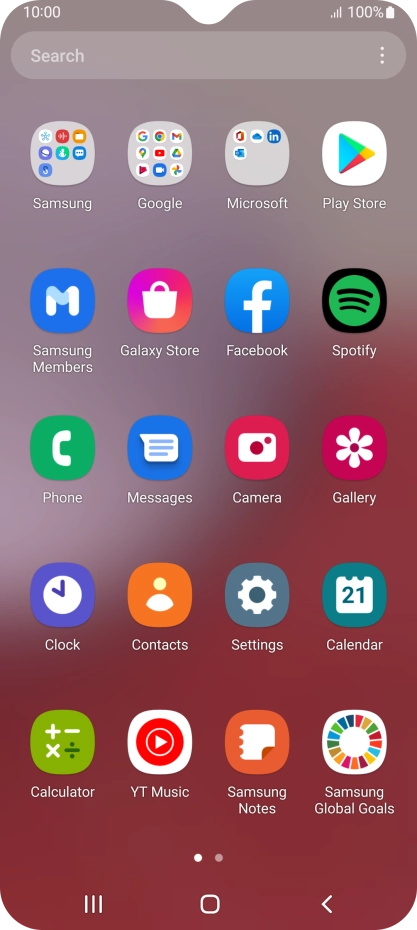
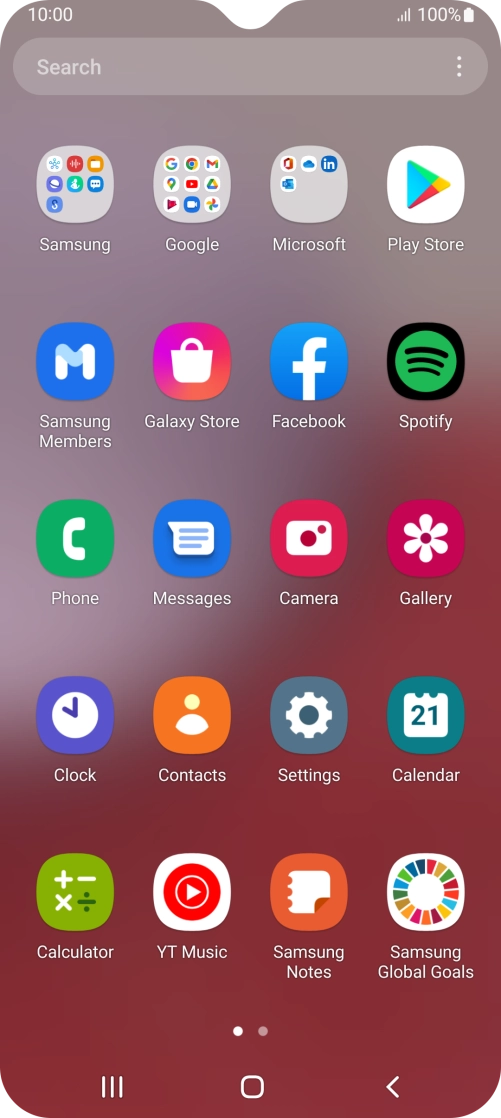
Step 1 of 9

Slide your finger upwards on the screen.

Press Contacts.
Press Contacts.
Step 2 of 9

Press Contacts.

Press the new contact icon.
Step 3 of 9

Press the new contact icon.

Press the address book drop down list.
Step 4 of 9

Press the address book drop down list.

Press Phone.
Press Phone.
Step 5 of 9

Press Phone.

Press Name and key in the required name.
Step 6 of 9

Press Name and key in the required name.

Press Phone and key in the required phone number.
Step 7 of 9

Press Phone and key in the required phone number.

Follow the instructions on the screen to add more information such as an email address and a personal ring tone.
Press Save.
Press Save.
Step 8 of 9

Press Save.

Press the Home key to return to the home screen.
Step 9 of 9

Press the Home key to return to the home screen.

Get information on...

Or choose...

Show more