Help
Device guides
Samsung
Galaxy A15 5G

Samsung Galaxy A15 5G
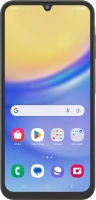
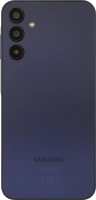
f-51e7f5d4-819c-4cd1-8cd5-ea7528838911
f-b35a67de-818f-4c9d-a6a8-d138edec42d6
f-18971f31-7df2-4edf-bb3b-12c78cda2874
f-6cc37974-9b9a-439b-84d4-f63f4b9244af
f-07767e6d-806c-475b-bb4d-a28adaa4b613
f-ba46e8e6-0494-4ca0-b5b5-684d622c172e
f-68ea40cd-f738-408b-83d0-825ac401c9d9
f-7e3d06a2-74ee-4c38-a55f-5f0f66eef75a
  • Device home
  • Getting started
  • Basic functions
  • Calls, contacts, messaging
  • Connectivity
  • Specifications
  • Device home
  • Getting started
  • Basic functions
  • Calls, contacts, messaging
  • Connectivity
  • Specifications

Turning Wi-Fi calling on or off

When Wi-Fi calling is turned on, you can make and answer calls using a Wi-Fi network when you're in an area with little or no network coverage. To turn on Wi-Fi calling, you need to establish a connection to a Wi-Fi network, select 4G (LTE) as network mode and follow the steps below. You can also visit the EE web page for more information about Wi-Fi calling.
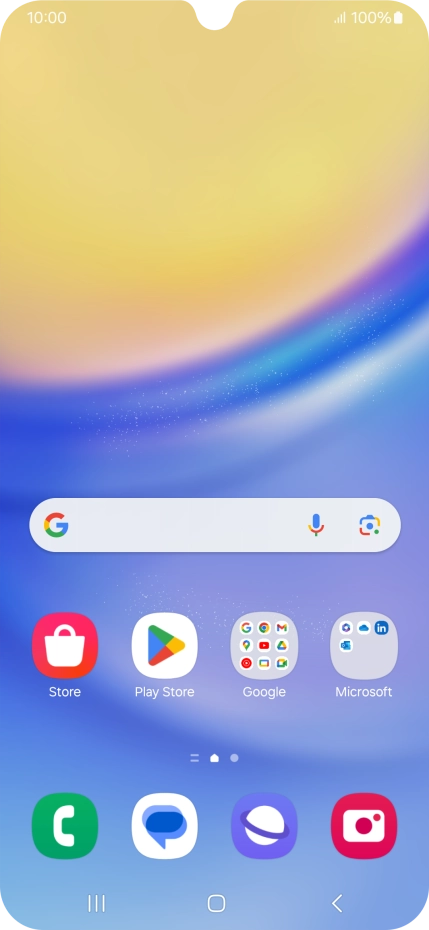
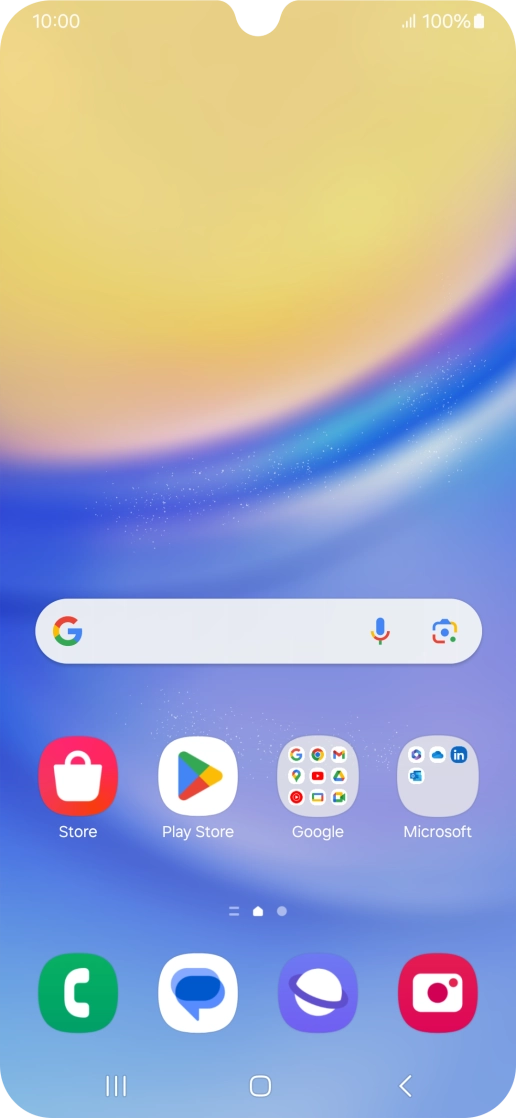
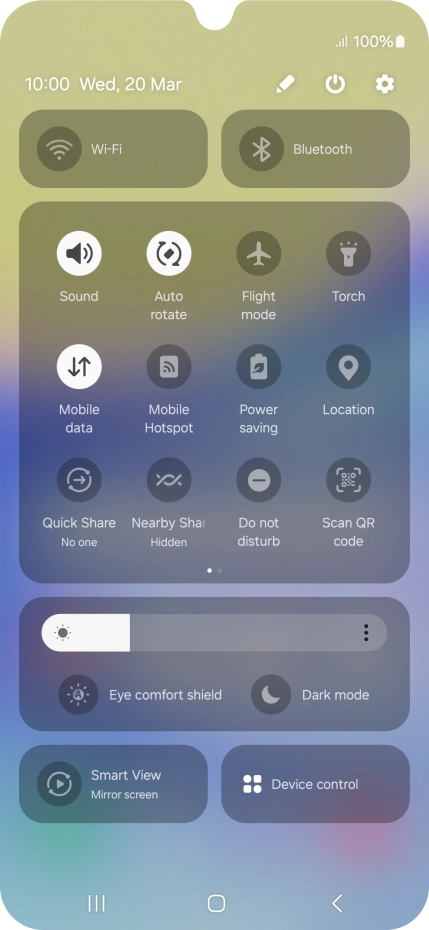
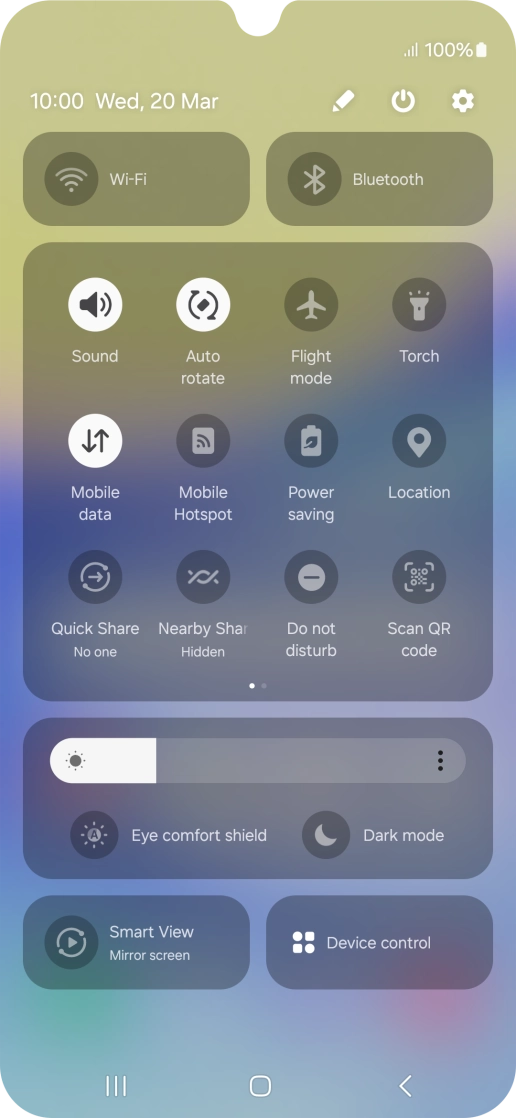
Slide two fingers downwards starting from the top of the screen.
Step 1 of 5

Slide two fingers downwards starting from the top of the screen.

Press the settings icon.
Step 2 of 5

Press the settings icon.

Press Connections.
Press Connections.
Step 3 of 5

Press Connections.

Press the indicator next to
Step 4 of 5

Press the indicator next to "Wi-Fi Calling" to turn the function on or off.

Press the Home key to return to the home screen.
Step 5 of 5

Press the Home key to return to the home screen.

Get information on...

Or choose...

Show more