Help
Device guides
Samsung
Galaxy A16 4G

Samsung Galaxy A16 4G
f-5b532328-c0d4-403a-bae8-02fc38b3952d
f-13e4350f-7815-40df-836b-f6ecb52a65d1
f-686f2be1-f2a8-447b-b6e2-0661a36824ba
f-c349d311-fee0-4a84-9956-2ddde04e0f47
f-a0b45309-e9fb-41f0-8a4c-7ae5c0bad923
f-bc16b161-f9fc-4af2-9600-c31b76312f7a
f-a27ca1bd-81b2-4115-9cd4-71274a315f3f
f-dd02f5ec-f00a-4029-9917-4d10a2dabbc3
  • Device home
  • Getting started
  • Basic functions
  • Calls, contacts, messaging
  • Connectivity
  • Specifications
  • Device home
  • Getting started
  • Basic functions
  • Calls, contacts, messaging
  • Connectivity
  • Specifications

Uninstalling apps

You can uninstall apps to free up memory.
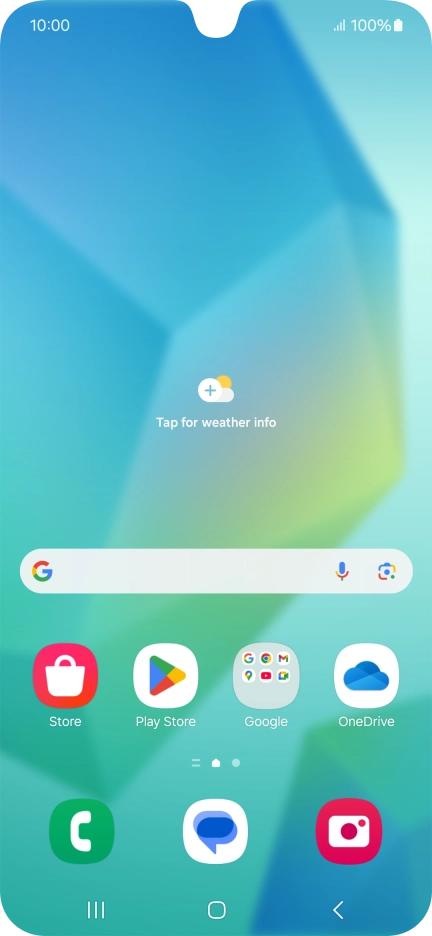
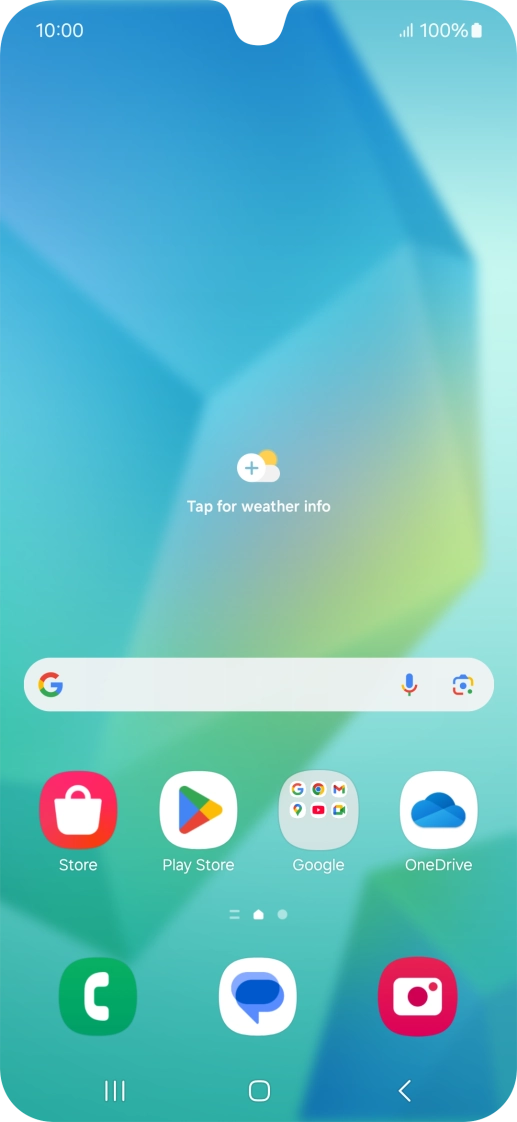
Slide your finger upwards on the screen.
Step 1 of 9

Slide your finger upwards on the screen.

Press Play Store.
Press Play Store.
Step 2 of 9

Press Play Store.

Press the profile icon.
Step 3 of 9

Press the profile icon.

Press Manage apps and device.
Step 4 of 9

Press Manage apps and device.

Press Manage.
Press Manage.
Step 5 of 9

Press Manage.

Press the required app.
Step 6 of 9

Press the required app.

Press Uninstall.
Press Uninstall.
Step 7 of 9

Press Uninstall.

Press Uninstall.
Press Uninstall.
Step 8 of 9

Press Uninstall.

Press the Home key to return to the home screen.
Step 9 of 9

Press the Home key to return to the home screen.

Get information on...

Or choose...

Show more