Help
Device guides
Samsung
Galaxy A16 5G

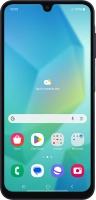
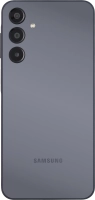
Samsung Galaxy A16 5G
f-c9848985-22d2-4fa5-948b-469e3da52849
f-d5bb565a-0ed7-4378-a64e-156ef6f49276
f-cfe96e67-c97d-4c7b-899b-48816b7d1e7d
f-264457c0-87b2-4f4b-a0b9-c044ebb177e6
f-5188aec5-a73f-44f4-86a6-82df780be186
f-a9de837f-5423-4cf3-bbfb-3c7026912a7f
f-b8e7be56-5448-48bf-a927-07aca342c99f
f-607db3e3-a11d-4840-b92b-18784396c80c
  • Device home
  • Getting started
  • Basic functions
  • Calls, contacts, messaging
  • Connectivity
  • Specifications
  • Device home
  • Getting started
  • Basic functions
  • Calls, contacts, messaging
  • Connectivity
  • Specifications

Uninstalling apps

You can uninstall apps to free up memory.
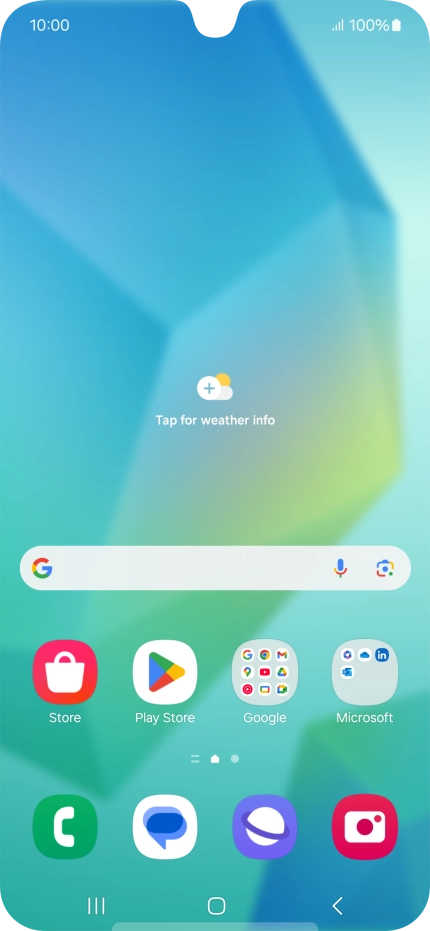
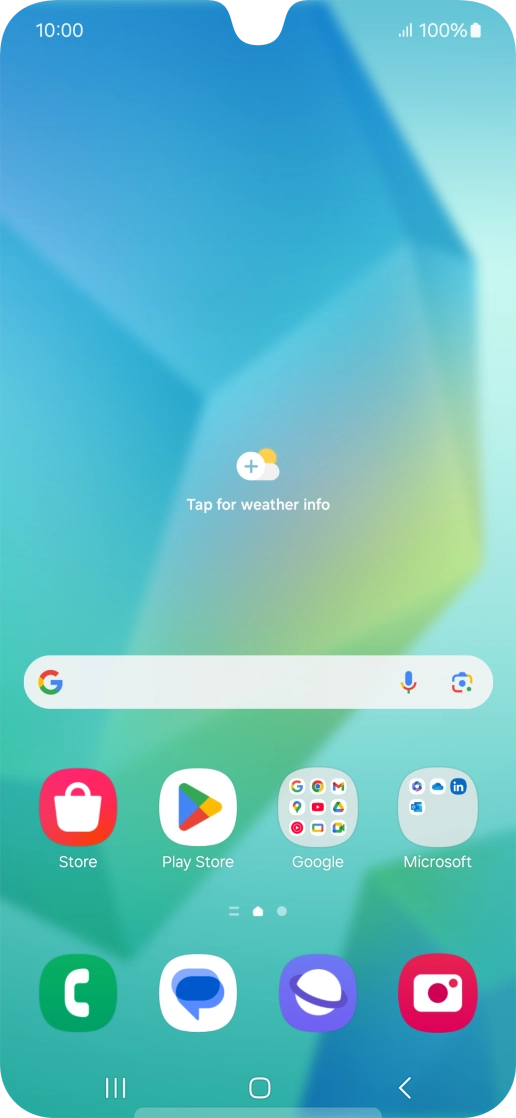
Slide your finger upwards on the screen.
Step 1 of 9

Slide your finger upwards on the screen.

Press Play Store.
Press Play Store.
Step 2 of 9

Press Play Store.

Press the profile icon.
Step 3 of 9

Press the profile icon.

Press Manage apps and device.
Step 4 of 9

Press Manage apps and device.

Press Manage.
Press Manage.
Step 5 of 9

Press Manage.

Press the required app.
Step 6 of 9

Press the required app.

Press Uninstall.
Press Uninstall.
Step 7 of 9

Press Uninstall.

Press Uninstall.
Press Uninstall.
Step 8 of 9

Press Uninstall.

Press the Home key to return to the home screen.
Step 9 of 9

Press the Home key to return to the home screen.

Get information on...

Or choose...

Show more