Help
Device guides
Samsung
Galaxy A22 5G

Samsung Galaxy A22 5G
f-983ea3d4-3376-4750-bcca-0208efc3054b
f-d3b12d2d-08f2-4866-bbbc-b2a2ba07f500
f-651dd4c9-c885-4612-94d9-56c3db0f7a7e
f-28d9be96-930f-42cd-a28f-5cb25f185eca
f-7a759d0a-aaf0-4579-9767-3f62a602232d
f-c9c708fc-3436-4af7-95df-19aeee519a8d
  • Device home
  • Getting started
  • Basic functions
  • Calls, contacts, messaging
  • Connectivity
  • Specifications
  • Device home
  • Getting started
  • Basic functions
  • Calls, contacts, messaging
  • Connectivity
  • Specifications

Uninstalling apps

You can uninstall apps to free up memory.
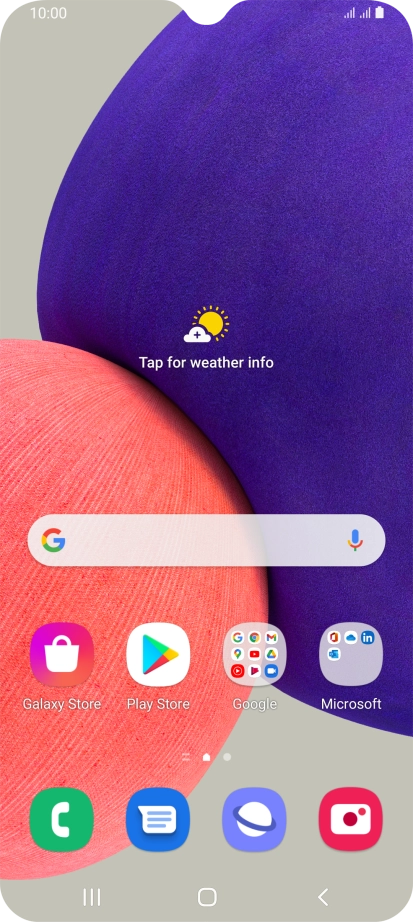
Slide your finger upwards on the screen.
Step 1 of 9

Slide your finger upwards on the screen.

Press Play Store.
Press Play Store.
Step 2 of 9

Press Play Store.

Press the profile icon.
Step 3 of 9

Press the profile icon.

Press Manage apps and device.
Step 4 of 9

Press Manage apps and device.

Press Manage.
Press Manage.
Step 5 of 9

Press Manage.

Press the field next to the required app.
Step 6 of 9

Press the field next to the required app.

Press the delete icon.
Step 7 of 9

Press the delete icon.

Press Uninstall.
Press Uninstall.
Step 8 of 9

Press Uninstall.

Press the Home key to return to the home screen.
Step 9 of 9

Press the Home key to return to the home screen.

Get information on...

Or choose...

Show more