Help
Device guides
Samsung
Galaxy A25 5G

Samsung Galaxy A25 5G
f-516a9adb-f65a-4024-8990-32d7cc16c3a8
f-a21110ff-aced-4c16-822b-ec8a883a0f8e
f-c0d4ec78-3e49-450d-b6e2-8f4251b63ed5
f-6cf81005-6e66-432d-98ed-30208171d6fb
f-427ea6aa-23c0-4b84-8c0d-f17514f090d6
f-2a5e7b1f-93f3-4376-8b1e-d0b2afba2579
  • Device home
  • Getting started
  • Basic functions
  • Calls, contacts, messaging
  • Connectivity
  • Specifications
  • Device home
  • Getting started
  • Basic functions
  • Calls, contacts, messaging
  • Connectivity
  • Specifications

Uninstalling apps

You can uninstall apps to free up memory.
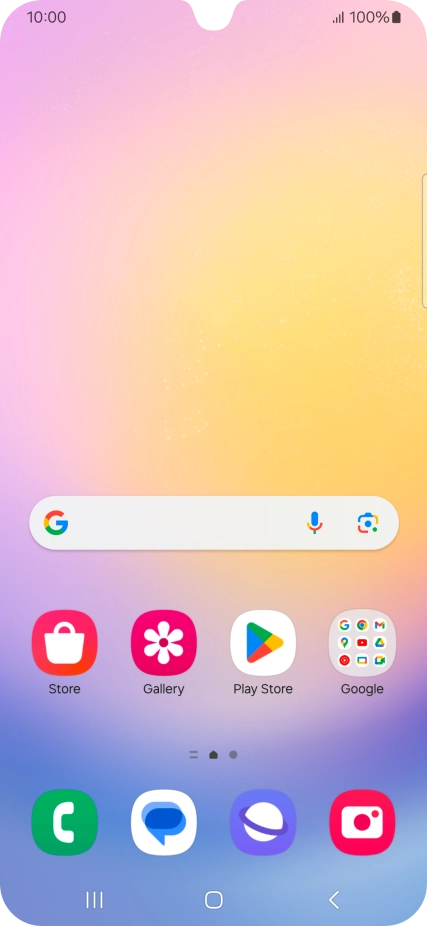
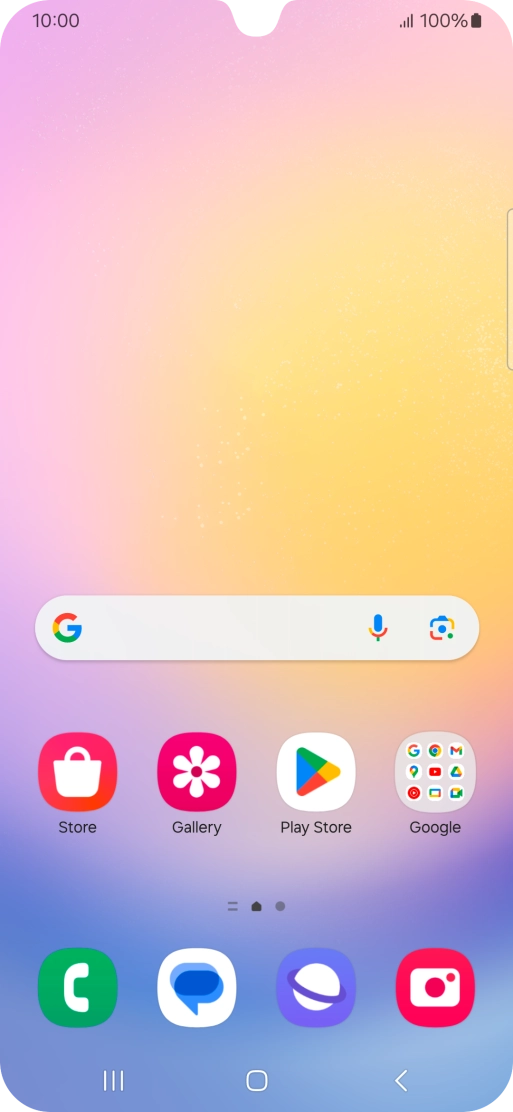
Slide your finger upwards on the screen.
Step 1 of 9

Slide your finger upwards on the screen.

Press Play Store.
Press Play Store.
Step 2 of 9

Press Play Store.

Press the profile icon.
Step 3 of 9

Press the profile icon.

Press Manage apps and device.
Step 4 of 9

Press Manage apps and device.

Press Manage.
Press Manage.
Step 5 of 9

Press Manage.

Press the required app.
Step 6 of 9

Press the required app.

Press Uninstall.
Press Uninstall.
Step 7 of 9

Press Uninstall.

Press Uninstall.
Press Uninstall.
Step 8 of 9

Press Uninstall.

Press the Home key to return to the home screen.
Step 9 of 9

Press the Home key to return to the home screen.

Get information on...

Or choose...

Show more