Help
Device guides
Samsung
Galaxy A34 5G

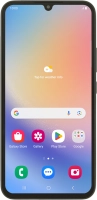
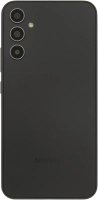
Samsung Galaxy A34 5G
f-b1f7f99d-3cb8-43bd-b17e-1e8b2c6b6c03
f-8db9579f-caf8-4bf0-9751-6cb02a4148e0
f-9e635dd1-6827-4222-b9d1-45c2a563fc82
f-b539eb38-7635-4aa8-9fdf-30b21d703a7d
f-b1cc0f72-aca0-4b23-bb60-04ca596691f0
f-968cdeb2-bb10-46fa-a4dd-de0f9477c3f1
  • Device home
  • Getting started
  • Basic functions
  • Calls, contacts, messaging
  • Connectivity
  • Specifications
  • Device home
  • Getting started
  • Basic functions
  • Calls, contacts, messaging
  • Connectivity
  • Specifications

Uninstalling apps

You can uninstall apps to free up memory.

Slide your finger upwards on the screen.
Step 1 of 9

Slide your finger upwards on the screen.

Press Play Store.
Press Play Store.
Step 2 of 9

Press Play Store.

Press the profile icon.
Step 3 of 9

Press the profile icon.

Press Manage apps and device.
Step 4 of 9

Press Manage apps and device.

Press Manage.
Press Manage.
Step 5 of 9

Press Manage.

Press the required app.
Step 6 of 9

Press the required app.

Press Uninstall.
Press Uninstall.
Step 7 of 9

Press Uninstall.

Press Uninstall.
Press Uninstall.
Step 8 of 9

Press Uninstall.

Press the Home key to return to the home screen.
Step 9 of 9

Press the Home key to return to the home screen.

Get information on...

Or choose...

Show more