


Help
Device guides
Samsung
Galaxy A35

Samsung Galaxy A35

f-113b4e9d-2605-4aee-b521-e95b3007b714
f-234caf96-25e2-4f27-aeaf-ee2ab2ff2e40
f-fda06747-b9ec-4823-ab5b-ab81a5fd2692
f-1da8db16-1ae1-471e-bde1-53bb1038e5f2
f-9c3f76af-d277-4bfc-b8aa-d7c09374fcc5
f-cd2c0b6d-a21e-4c9c-aeb0-f4317c04878d
f-1eb98e53-8503-491d-b5c0-f317dbd2f762
f-576d7446-ba77-457d-978f-30311328eaf5
  • Device home
  • Getting started
  • Basic functions
  • Calls, contacts, messaging
  • Connectivity
  • Specifications
  • Device home
  • Getting started
  • Basic functions
  • Calls, contacts, messaging
  • Connectivity
  • Specifications

Uninstalling apps

You can uninstall apps to free up memory.
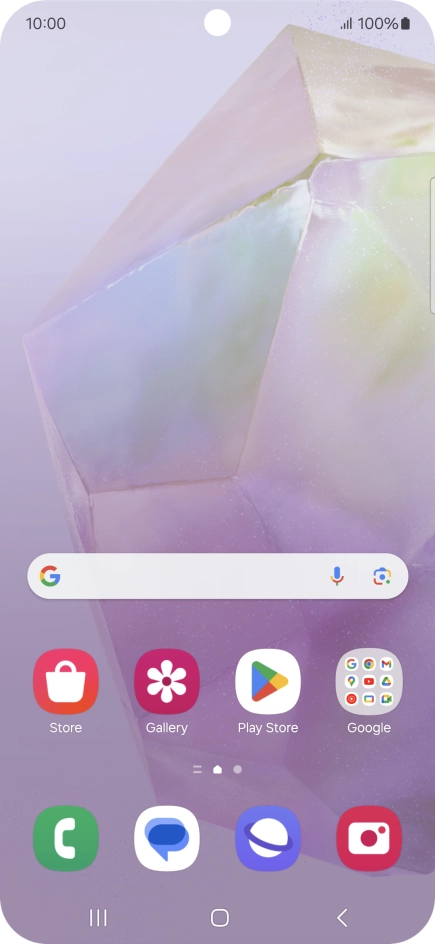
Slide your finger upwards on the screen.
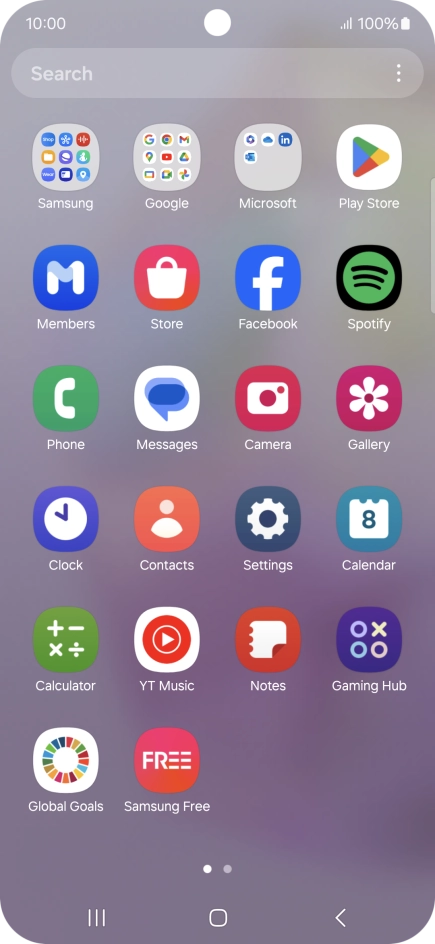
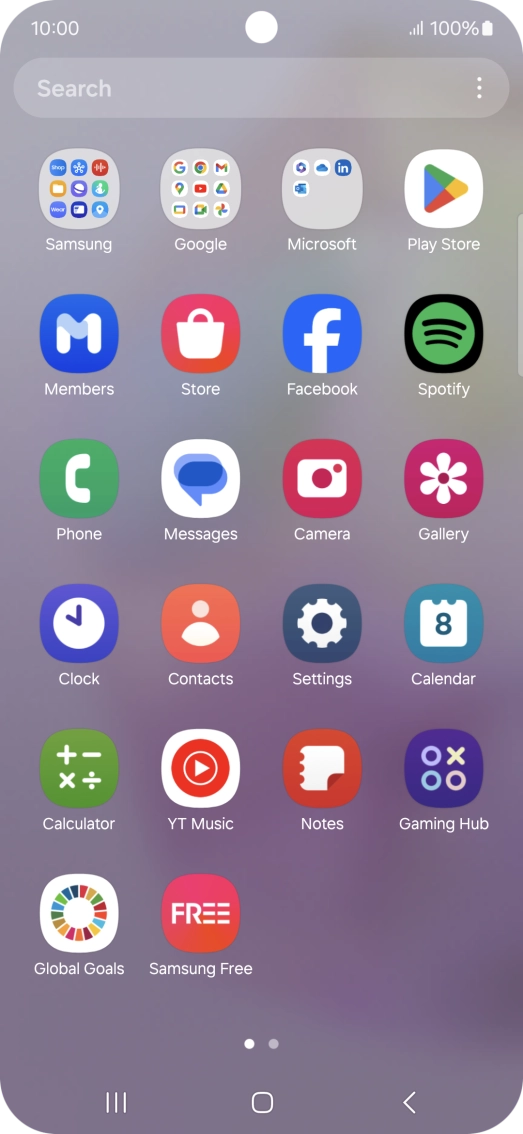
Step 1 of 9

Slide your finger upwards on the screen.

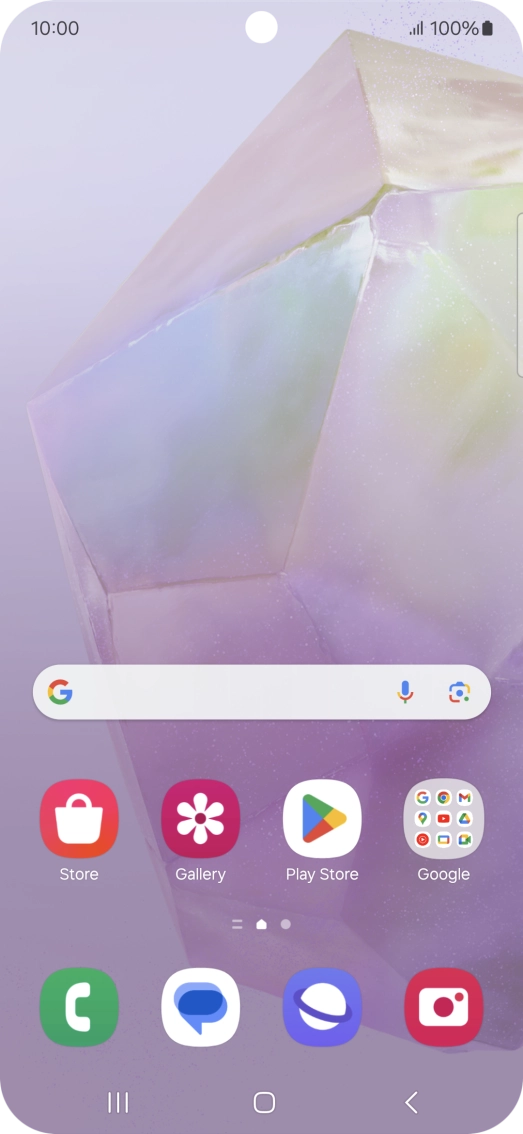
Press Play Store.
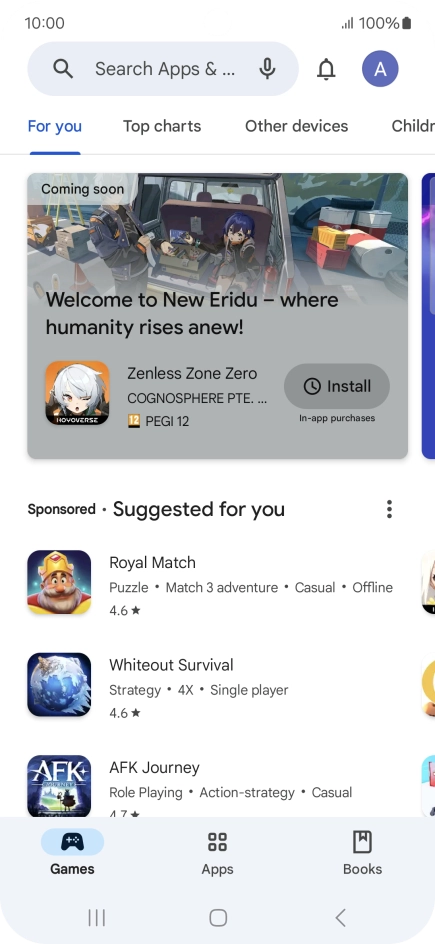
Press Play Store.
Step 2 of 9

Press Play Store.

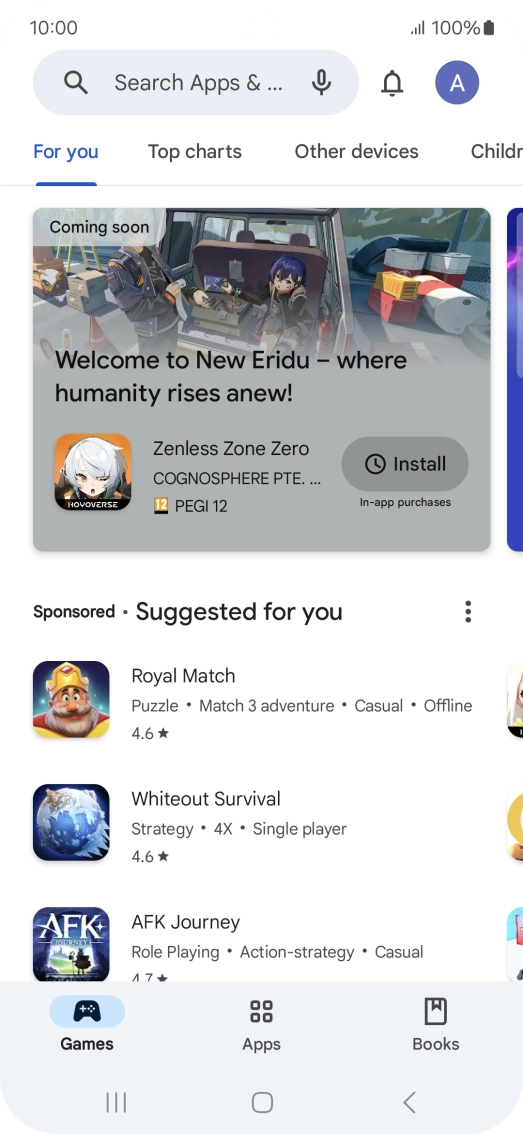
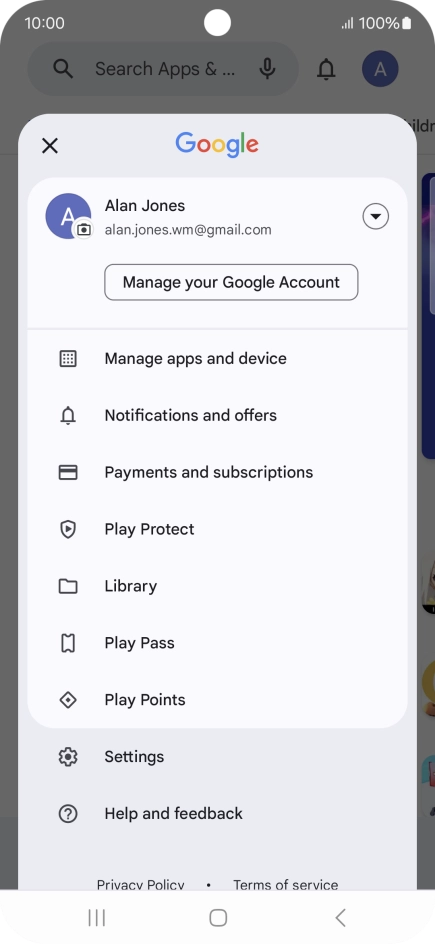
Press the profile icon.
Step 3 of 9

Press the profile icon.

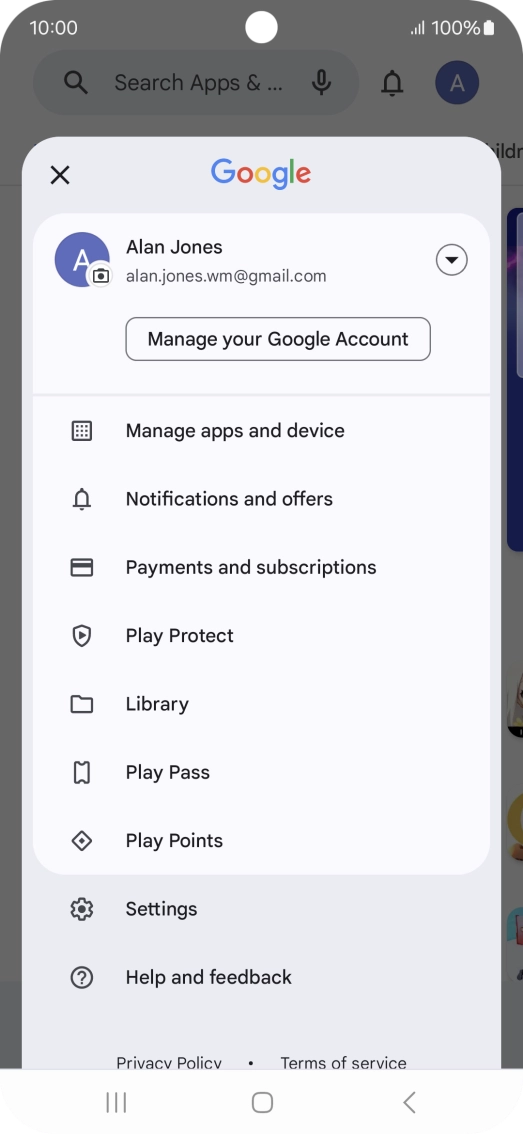
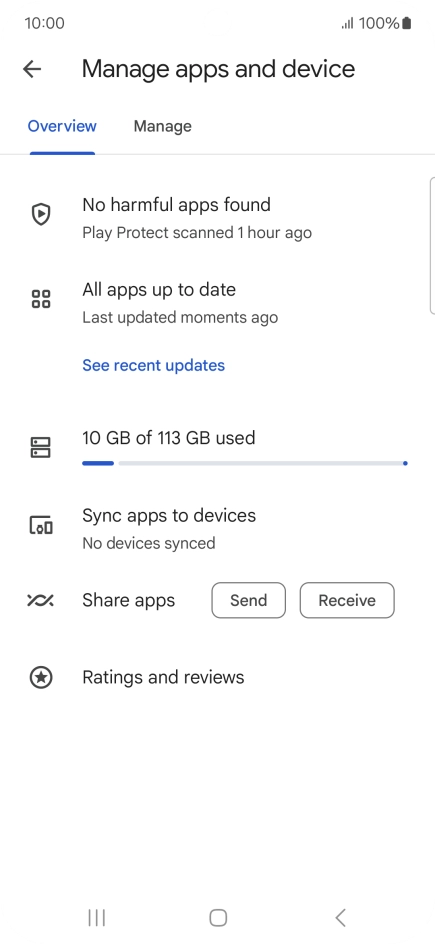
Press Manage apps and device.
Step 4 of 9

Press Manage apps and device.

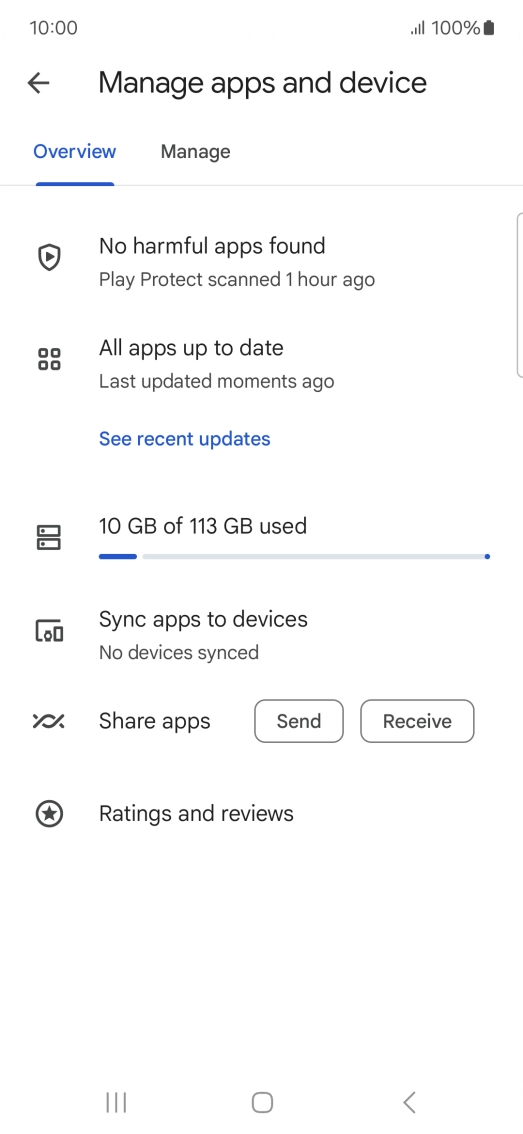
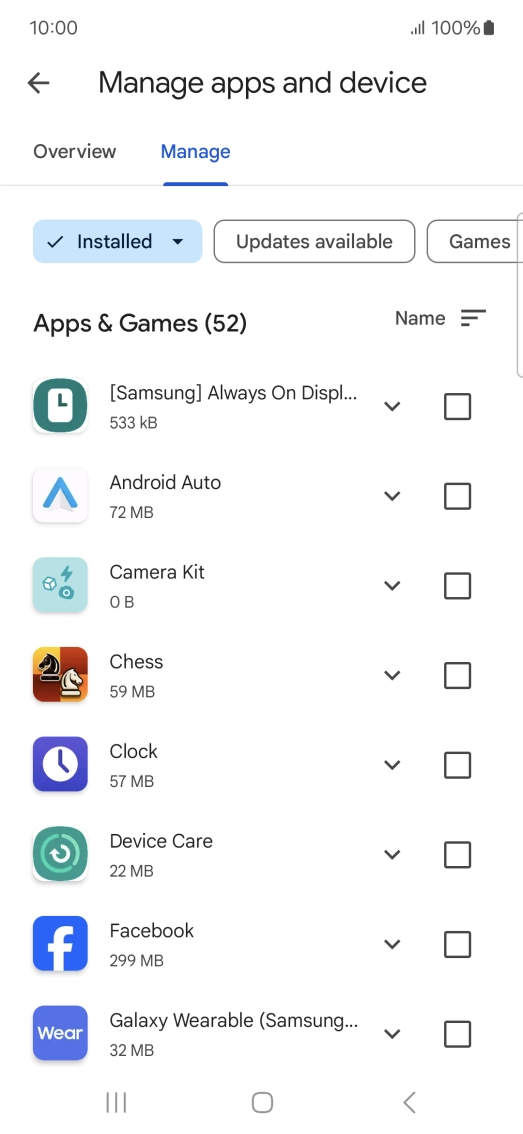
Press Manage.
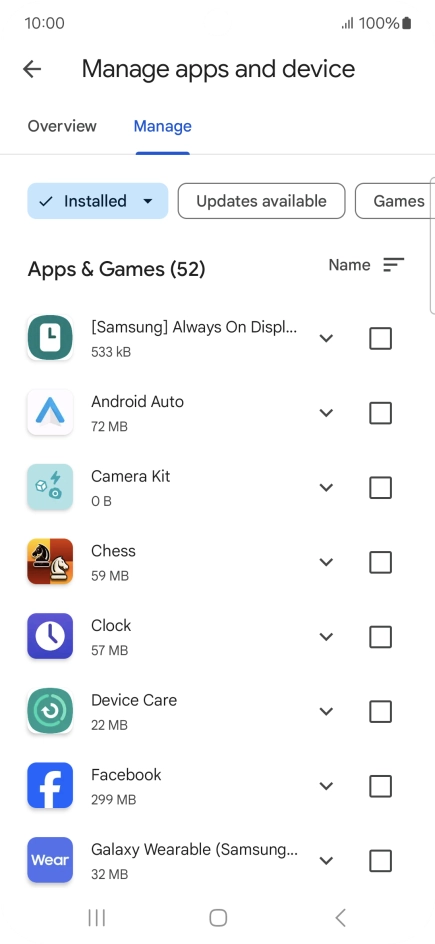
Press Manage.
Step 5 of 9

Press Manage.

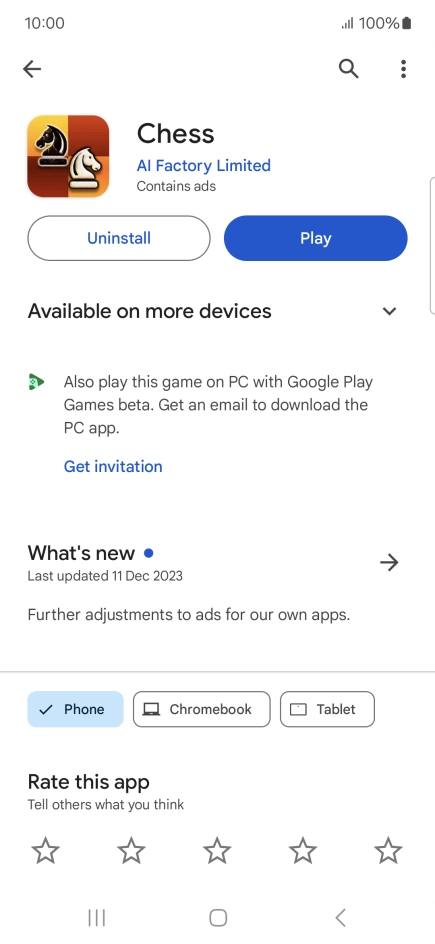
Press the required app.
Step 6 of 9

Press the required app.

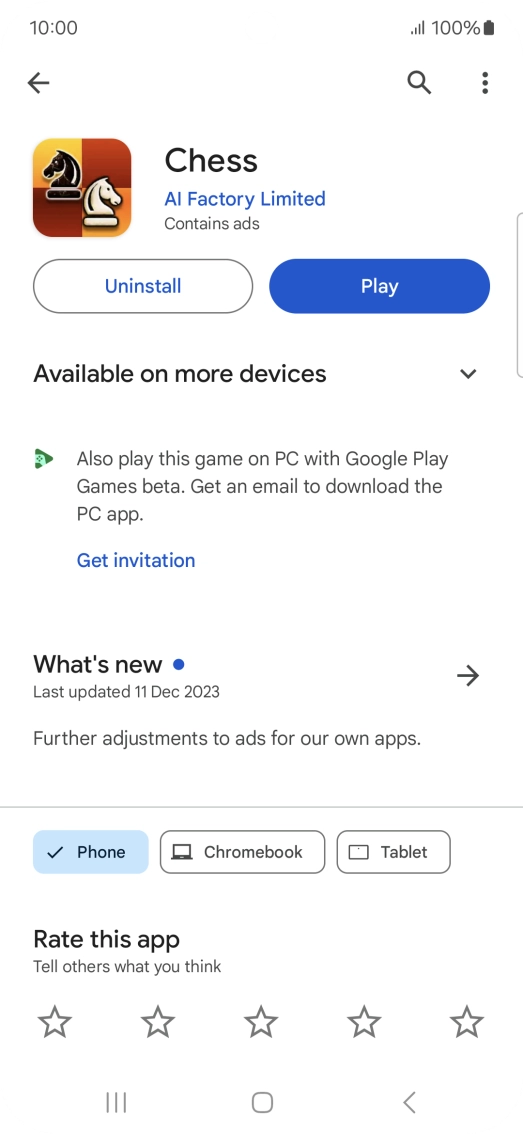
Press Uninstall.
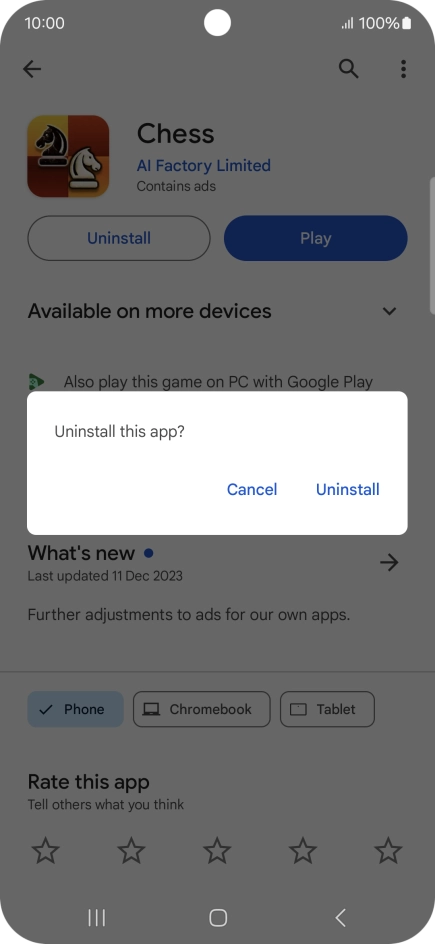
Press Uninstall.

Step 7 of 9

Press Uninstall.

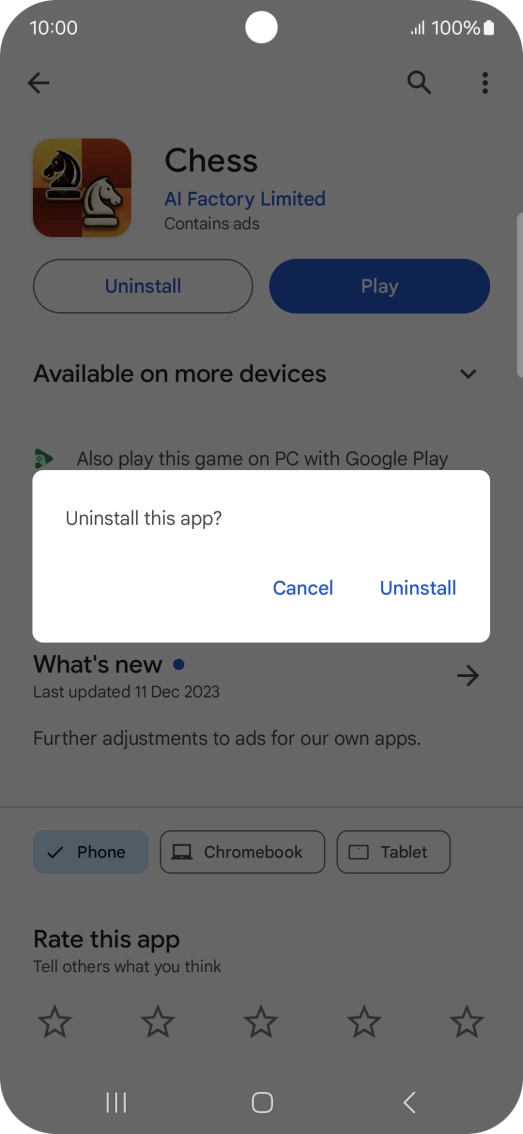
Press Uninstall.

Press Uninstall.
Step 8 of 9

Press Uninstall.

Press the Home key to return to the home screen.
Step 9 of 9

Press the Home key to return to the home screen.

Get information on...

Or choose...

Show more