Help
Device guides
Samsung
Galaxy A36 5G

Samsung Galaxy A36 5G

f-812d5610-8194-4ec8-b506-90b529bfae86
f-b7e6b3b9-e273-4279-ac76-d55e69c1da4b
f-f60aecfd-404a-4afb-94cc-54908b0a2b83
f-f9592191-6d56-4940-bef6-f70e74a5eb9a
f-9749a3ca-5ffe-48ad-be00-1442977c552d
f-97259afc-1d56-441b-a133-f309d8161d44
f-a2eed512-727c-4431-b895-f721aaa32a99
f-1cd5043a-0ec5-4201-8a34-404ef25efad6
  • Device home
  • Getting started
  • Basic functions
  • Calls, contacts, messaging
  • Connectivity
  • Specifications
  • Device home
  • Getting started
  • Basic functions
  • Calls, contacts, messaging
  • Connectivity
  • Specifications

Uninstalling apps

You can uninstall apps to free up memory.
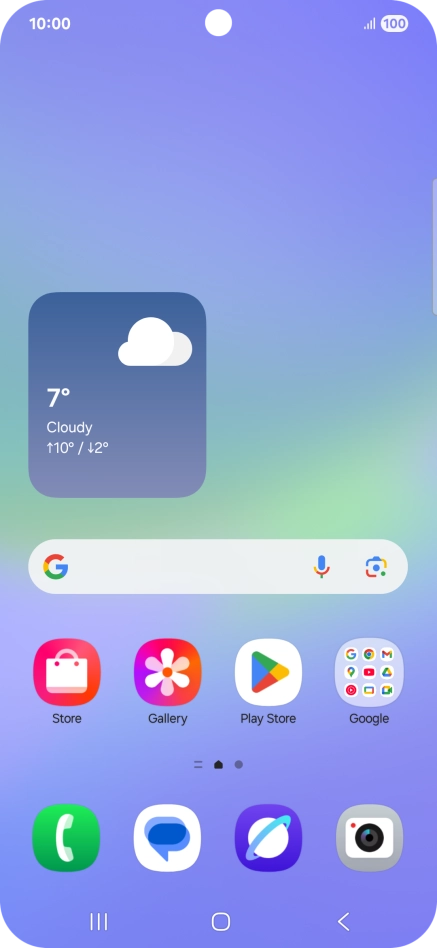
Slide your finger upwards on the screen.
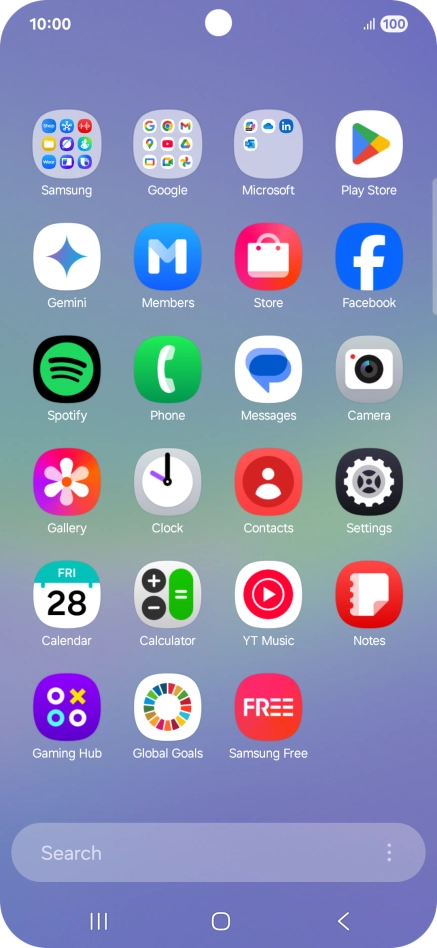
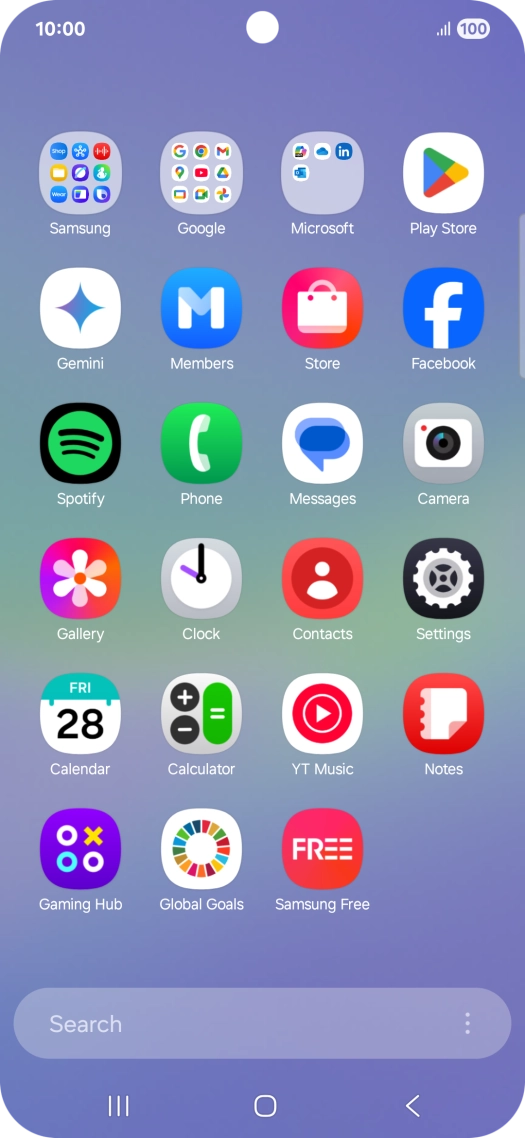
Step 1 of 9

Slide your finger upwards on the screen.

Press Play Store.
Press Play Store.
Step 2 of 9

Press Play Store.

Press the profile icon.
Step 3 of 9

Press the profile icon.

Press Manage apps and device.
Step 4 of 9

Press Manage apps and device.

Press Manage.
Press Manage.
Step 5 of 9

Press Manage.

Press the required app.
Step 6 of 9

Press the required app.

Press Uninstall.
Press Uninstall.
Step 7 of 9

Press Uninstall.

Press Uninstall.
Press Uninstall.
Step 8 of 9

Press Uninstall.

Press the Home key to return to the home screen.
Step 9 of 9

Press the Home key to return to the home screen.

Get information on...

Or choose...

Show more