Help
Device guides
Samsung
Galaxy A52s 5G

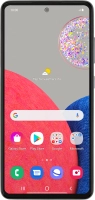
Samsung Galaxy A52s 5G
f-0a1fd46a-cdde-4863-bdd2-fe517e74f136
f-7608ba8c-9348-49fc-8589-55fd3855999d
f-0e274c24-d65d-4dee-ba7d-b75daf76b535
f-c1dcfee0-e618-4f5c-9816-d2ebc317799c
f-253a777b-d3e3-4391-810a-ca506336ed51
f-fa5a9867-670a-41f4-ab92-3bffd09535ff
  • Device home
  • Getting started
  • Basic functions
  • Calls, contacts, messaging
  • Connectivity
  • Specifications
  • Device home
  • Getting started
  • Basic functions
  • Calls, contacts, messaging
  • Connectivity
  • Specifications

Creating contact

You can save your contacts in your phone's address book. You can save additional information to a contact such as email address and personal ring tone.

Slide your finger upwards on the screen.
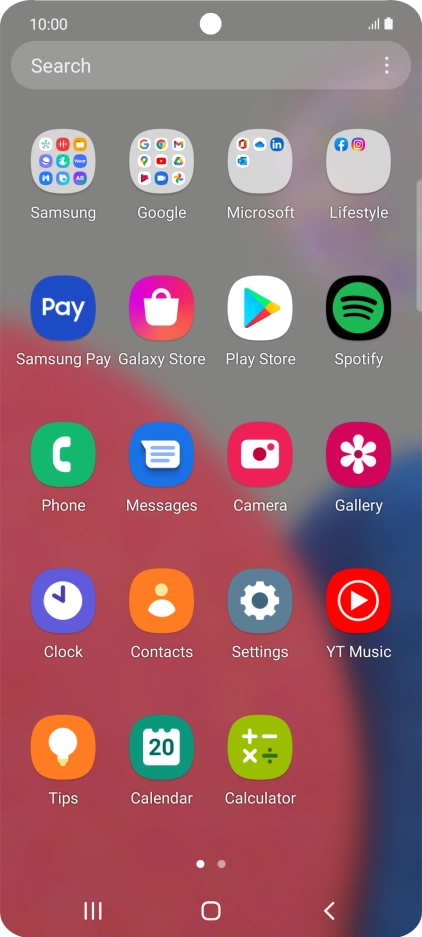
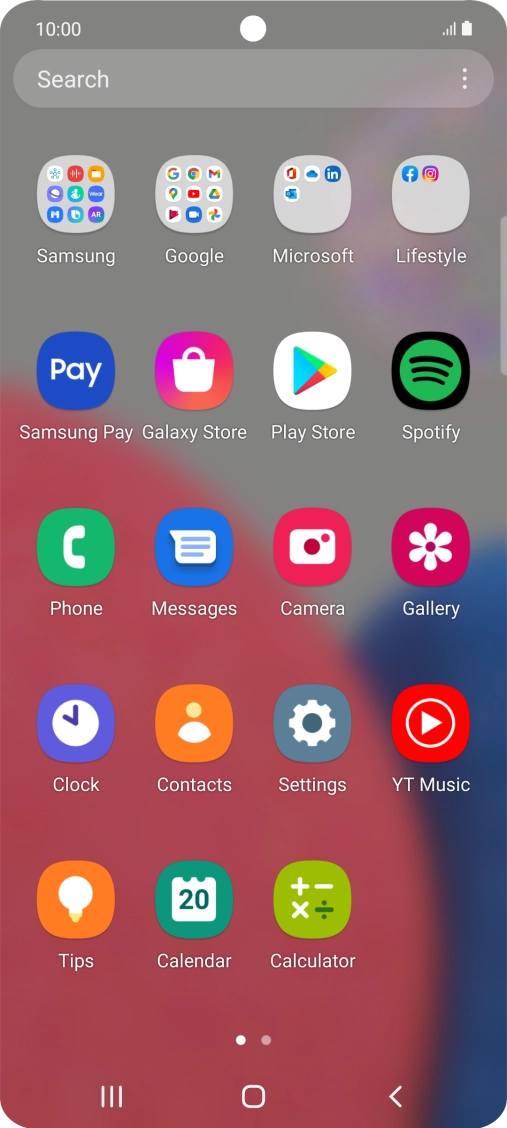
Step 1 of 9

Slide your finger upwards on the screen.

Press Contacts.
Press Contacts.
Step 2 of 9

Press Contacts.

Press the new contact icon.
Step 3 of 9

Press the new contact icon.

Press the address book drop down list.
Step 4 of 9

Press the address book drop down list.

Press Phone.
Press Phone.
Step 5 of 9

Press Phone.

Press Name and key in the required name.
Step 6 of 9

Press Name and key in the required name.

Press Phone and key in the required phone number.
Step 7 of 9

Press Phone and key in the required phone number.

Follow the instructions on the screen to add more information such as an email address and a personal ring tone.
Press Save.
Press Save.
Step 8 of 9

Press Save.

Press the Home key to return to the home screen.
Step 9 of 9

Press the Home key to return to the home screen.

Get information on...

Or choose...

Show more