Help
Device guides
Samsung
Galaxy A53 5G

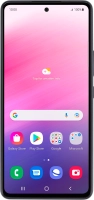
Samsung Galaxy A53 5G
f-aa99f168-13a3-4c8d-9d4d-8fca574147db
f-ad92b3c8-2c9c-4edc-8650-e24efb7ec2b6
f-f4245a5d-bb42-466f-b47d-080a5969a3bf
f-b5c4bc34-ead9-4975-835a-1b48b34086d1
f-712c9c1e-a8f4-4dfd-94b9-dc67fddc676a
f-2ab82977-33e4-4e39-8be2-bbb13982f000
  • Device home
  • Getting started
  • Basic functions
  • Calls, contacts, messaging
  • Connectivity
  • Specifications
  • Device home
  • Getting started
  • Basic functions
  • Calls, contacts, messaging
  • Connectivity
  • Specifications

Moving apps to memory card

You can move your apps to a memory card to free up phone memory. To move apps to the memory card, you need to .
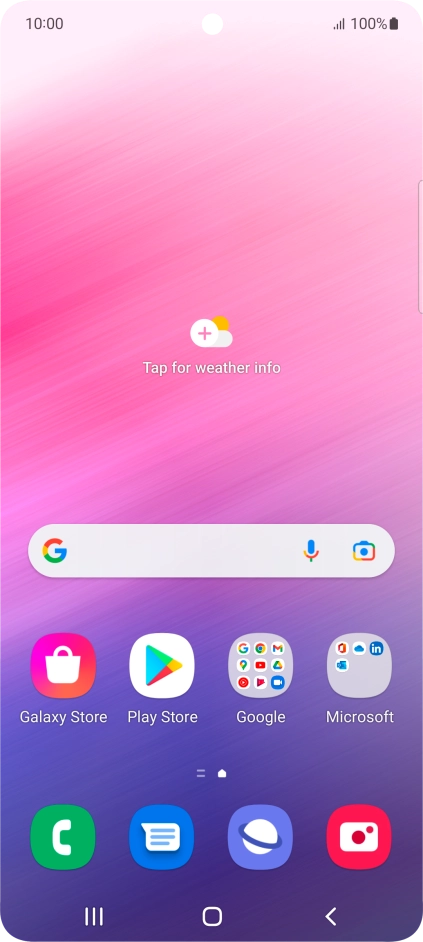
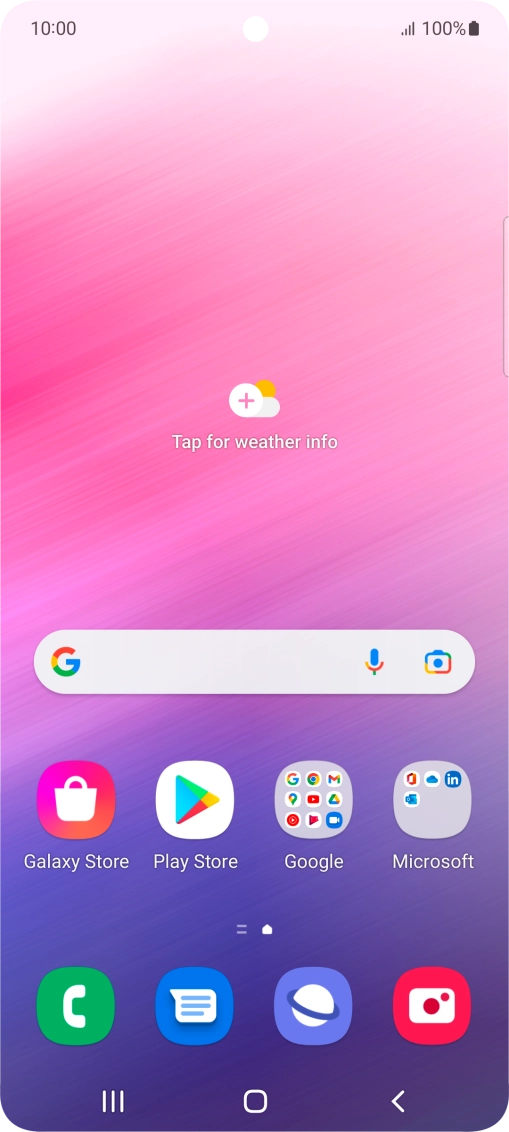
Slide two fingers downwards starting from the top of the screen.
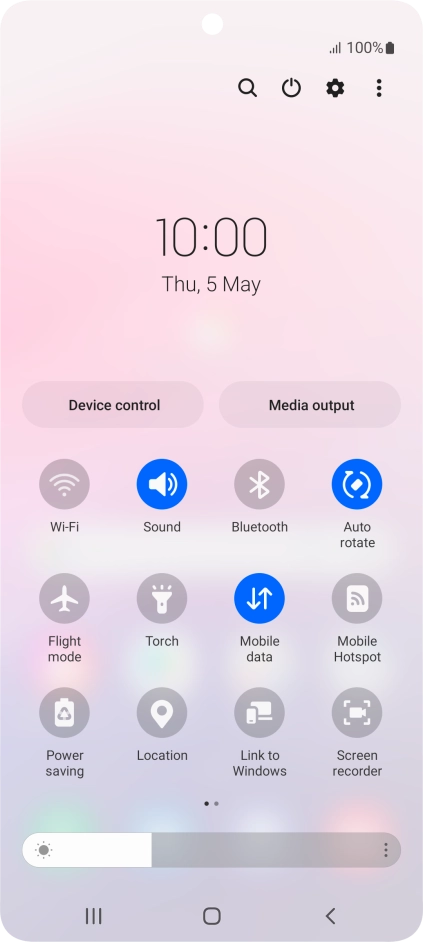
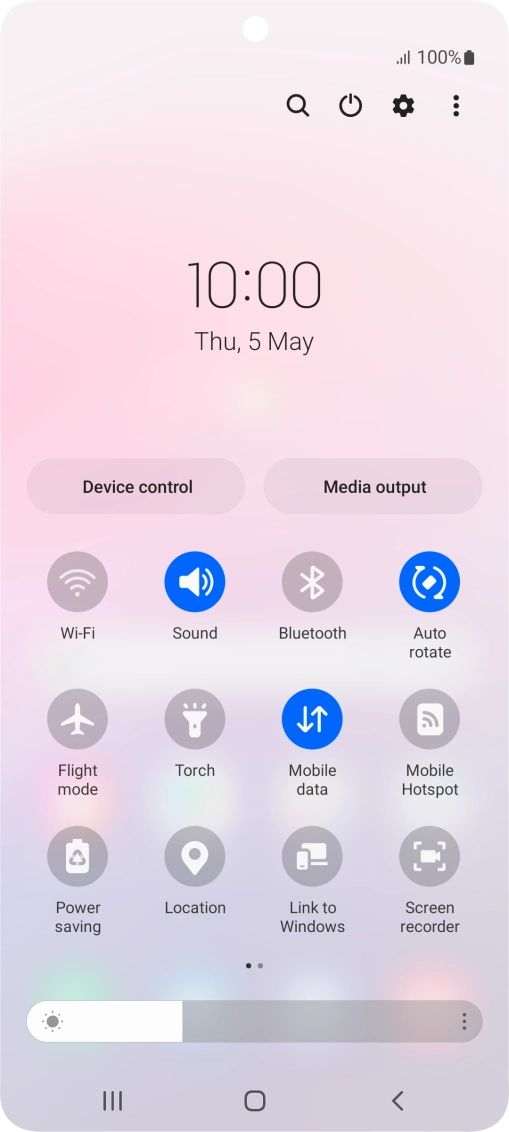
Step 1 of 9

Slide two fingers downwards starting from the top of the screen.

Press the settings icon.
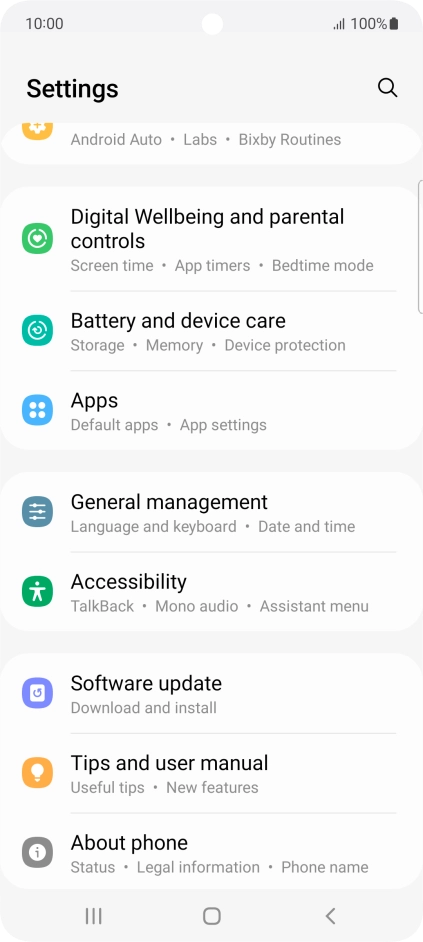
Step 2 of 9

Press the settings icon.

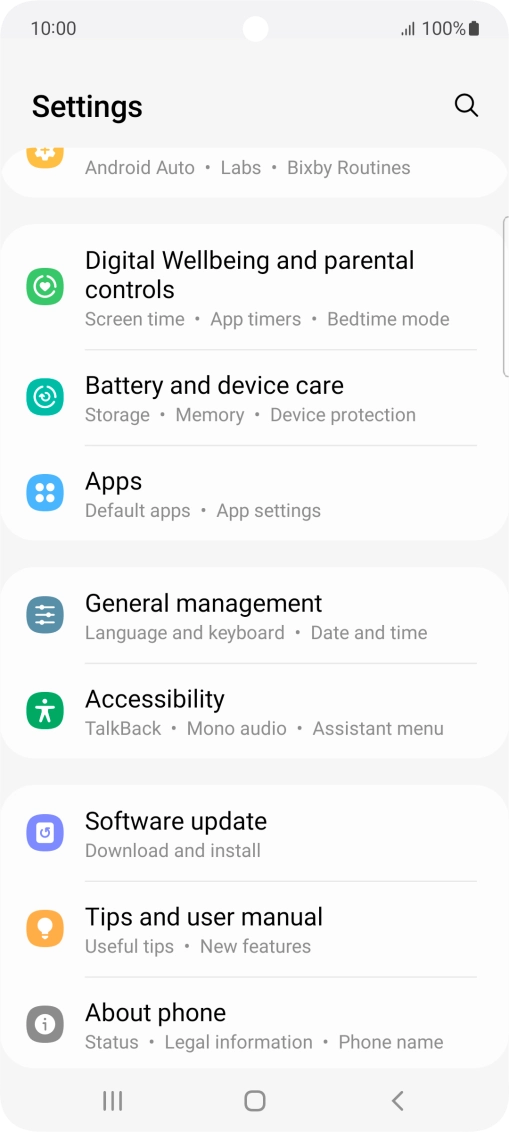
Press Apps.
Press Apps.
Step 3 of 9

Press Apps.

Press the required app.
Step 4 of 9

Press the required app.

Press Storage.
Press Storage.
Step 5 of 9

Press Storage.

Press Change.
Press Change.
Step 6 of 9

Press Change.

Press the name of the memory card.
Step 7 of 9

Press the name of the memory card.

Press Move.
Press Move.
Step 8 of 9

Press Move.

Press the Home key to return to the home screen.
Step 9 of 9

Press the Home key to return to the home screen.

Get information on...

Or choose...

Show more