

Help
Device guides
Samsung
Galaxy A55

Samsung Galaxy A55

f-4990cbc5-dc2f-4ffc-9015-a9296cf8a4e8
f-fe532214-fa39-4f5b-ab7b-c7ade27136b2
f-292f7946-617b-4f81-8590-e360f9c30277
f-069ccbec-fdf6-42d5-adfd-c1e1b2fd9635
f-5570e54d-c5f6-43c3-a354-ab0c5af73369
f-319e84f9-01d6-42dc-a3cd-1a5cd5d831d8
f-bfbb80df-0a7d-48ec-8fbc-b7890d5bdc19
f-7bd9e5b5-1a5d-49c7-8d0f-99104f7c5d61
  • Device home
  • Getting started
  • Basic functions
  • Calls, contacts, messaging
  • Connectivity
  • Specifications
  • Device home
  • Getting started
  • Basic functions
  • Calls, contacts, messaging
  • Connectivity
  • Specifications

Uninstalling apps

You can uninstall apps to free up memory.
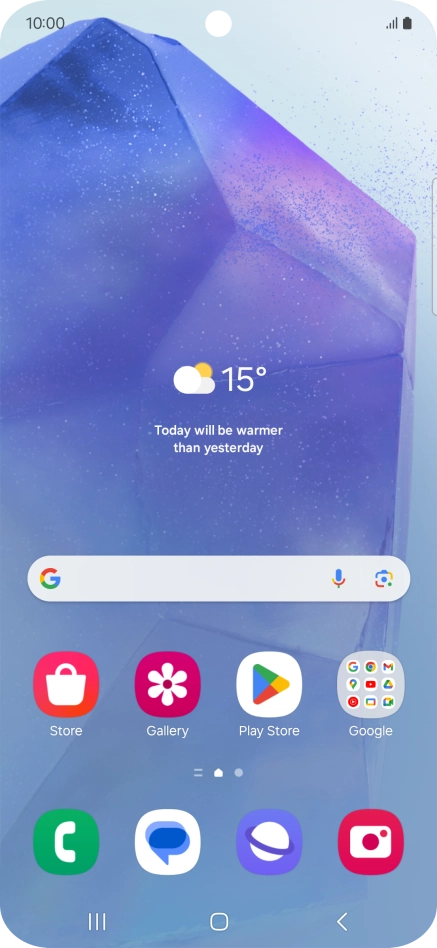
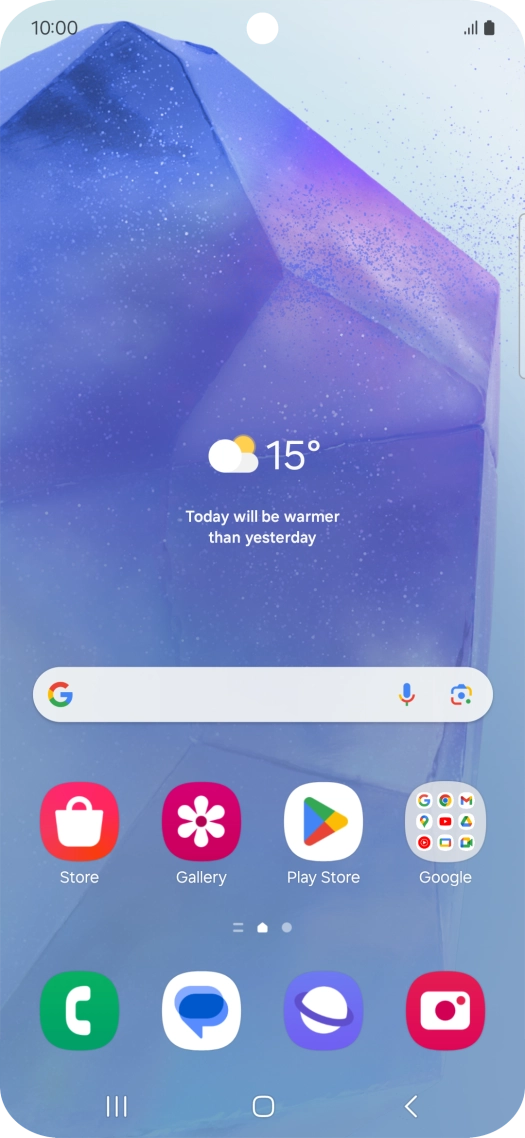
Slide your finger upwards on the screen.
Step 1 of 9

Slide your finger upwards on the screen.

Press Play Store.
Press Play Store.
Step 2 of 9

Press Play Store.

Press the profile icon.
Step 3 of 9

Press the profile icon.

Press Manage apps and device.
Step 4 of 9

Press Manage apps and device.

Press Manage.
Press Manage.
Step 5 of 9

Press Manage.

Press the required app.
Step 6 of 9

Press the required app.

Press Uninstall.
Press Uninstall.
Step 7 of 9

Press Uninstall.

Press Uninstall.
Press Uninstall.
Step 8 of 9

Press Uninstall.

Press the Home key to return to the home screen.
Step 9 of 9

Press the Home key to return to the home screen.

Get information on...

Or choose...

Show more