Help
Device guides
Samsung
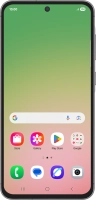
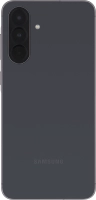
Galaxy A56 5G

Samsung Galaxy A56 5G
f-2ef72e27-e782-49f1-b7d1-1e515fc80731
f-fc991117-191b-412c-852a-aa0ba255d9ad
f-243ec78f-fd15-4f3a-9b66-9f18bebb0f1c
f-6842206d-0e42-492e-a7c1-a7b4068abd6e
f-abb3e9d3-e9bf-4b5b-9129-9641e34fd6ea
f-8f71adad-6d4d-4f46-9aec-3b785f84502b
f-e7861e84-21bd-4513-a9f4-603509899c17
f-06cce795-9fa8-4d7a-811a-0058fd901cf6
  • Device home
  • Getting started
  • Basic functions
  • Calls, contacts, messaging
  • Connectivity
  • Specifications
  • Device home
  • Getting started
  • Basic functions
  • Calls, contacts, messaging
  • Connectivity
  • Specifications

Uninstalling apps

You can uninstall apps to free up memory.

Slide your finger upwards on the screen.
Step 1 of 9

Slide your finger upwards on the screen.

Press Play Store.
Press Play Store.
Step 2 of 9

Press Play Store.

Press the profile icon.
Step 3 of 9

Press the profile icon.

Press Manage apps and device.
Step 4 of 9

Press Manage apps and device.

Press Manage.
Press Manage.
Step 5 of 9

Press Manage.

Press the required app.
Step 6 of 9

Press the required app.

Press Uninstall.
Press Uninstall.
Step 7 of 9

Press Uninstall.

Press Uninstall.
Press Uninstall.
Step 8 of 9

Press Uninstall.

Press the Home key to return to the home screen.
Step 9 of 9

Press the Home key to return to the home screen.

Get information on...

Or choose...

Show more