Help
Device guides
Samsung
Galaxy A7 (2018)

Samsung Galaxy A7 (2018)
f-767f2e15-be45-4799-b91e-bdfbf2eba1e3
f-e0e79a71-916c-42af-8d07-9ce8362810fc
f-b72b608c-76b0-4a95-83e4-167d8f0cf60b
f-25c68b62-abc3-4d7a-a99c-b53242edd50e
f-ca2f1384-417e-4fbf-8156-f72471499b91
f-34a5f2e4-a970-4640-90d2-f477d913add9
  • Device home
  • Getting started
  • Basic functions
  • Calls, contacts, messaging
  • Connectivity
  • Specifications
  • Device home
  • Getting started
  • Basic functions
  • Calls, contacts, messaging
  • Connectivity
  • Specifications

Uninstalling apps

You can uninstall apps to free up memory.

Slide your finger upwards on the screen.
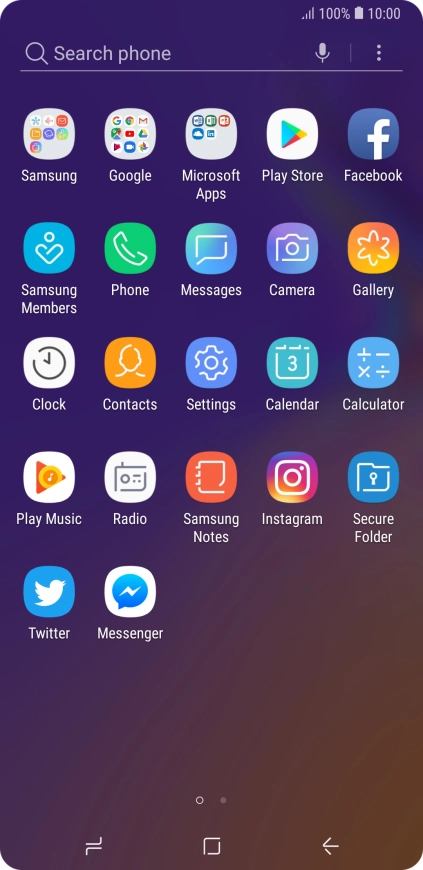
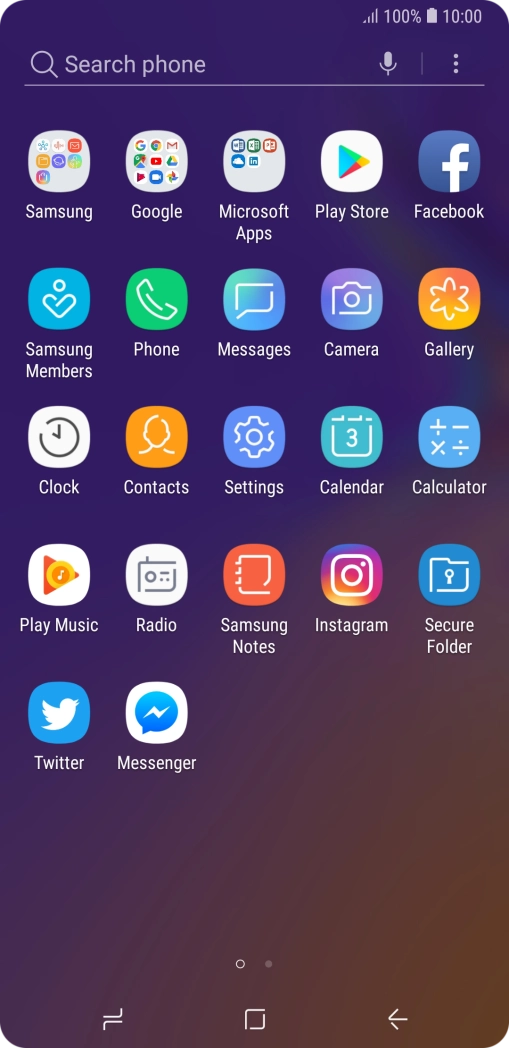
Step 1 of 9

Slide your finger upwards on the screen.

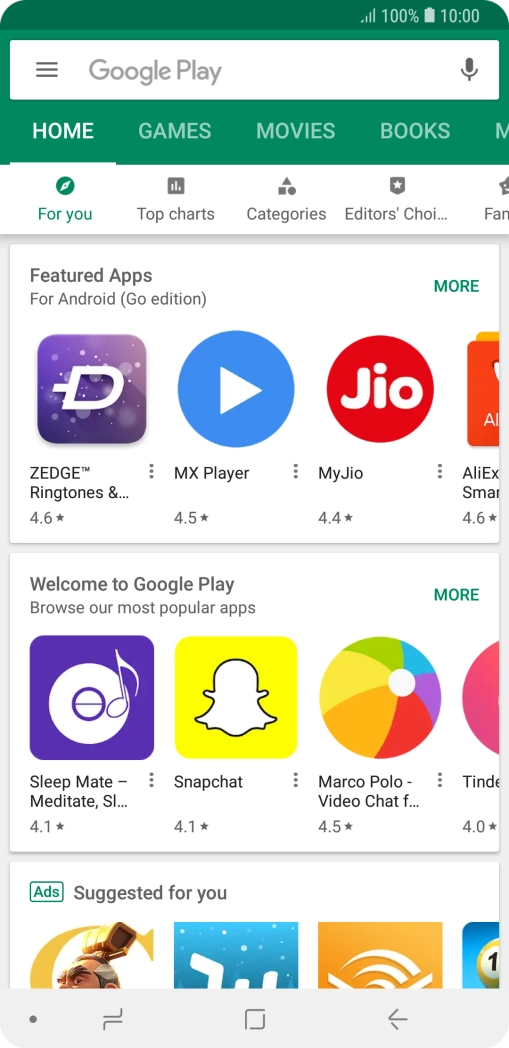
Press Play Store.
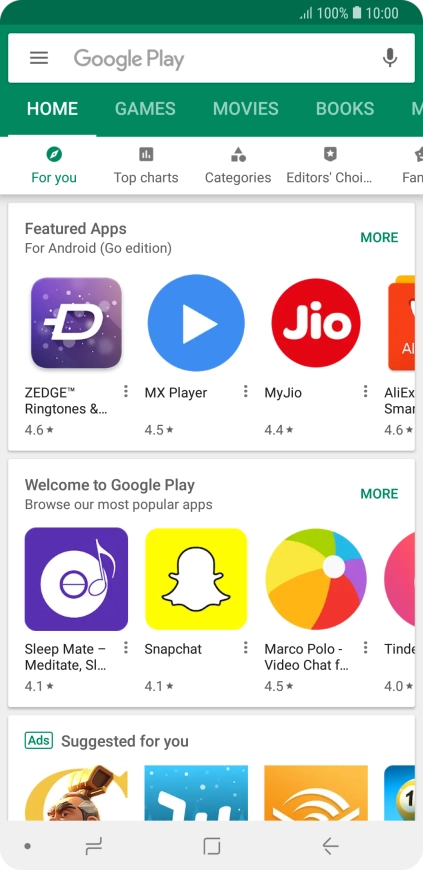
Press Play Store.
Step 2 of 9

Press Play Store.

Slide your finger right starting from the left side of the screen.
Step 3 of 9

Slide your finger right starting from the left side of the screen.

Press My apps & games.
Step 4 of 9

Press My apps & games.

Press INSTALLED.
Press INSTALLED.
Step 5 of 9

Press INSTALLED.

Press the required app.
Step 6 of 9

Press the required app.

Press UNINSTALL.
Press UNINSTALL.
Step 7 of 9

Press UNINSTALL.

Press OK.
Press OK.
Step 8 of 9

Press OK.

Press the Home key to return to the home screen.
Step 9 of 9

Press the Home key to return to the home screen.

Get information on...

Or choose...

Show more