Help
Device guides
Samsung
Galaxy Book

Samsung Galaxy Book

f-9aedb87b-739e-4bc4-bb3d-0d6252a0525e
f-3fabe695-4c0b-4aff-8af9-5767dc6f037b
f-d4bb129d-285a-4cfd-afae-9f35bcadc49c
  • Device home
  • Getting started
  • Basic functions
  • Connectivity
  • Specifications
  • Device home
  • Getting started
  • Basic functions
  • Connectivity
  • Specifications

Turning your laptop on and off

See how to turn your laptop on and off.

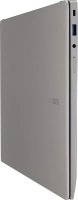
Connect the power supply to the power plug and to a wall socket.
Step 1 of 6

Connect the power supply to the power plug and to a wall socket.

When the charger is correctly connected, the LED will light up.


Step 2 of 6

When the charger is correctly connected, the LED will light up.

Press and hold On/Off until your laptop is turned on. Follow the instructions on the screen to log on.
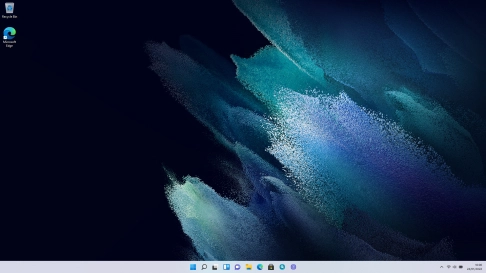
Step 3 of 6

Press and hold On/Off until your laptop is turned on. Follow the instructions on the screen to log on.

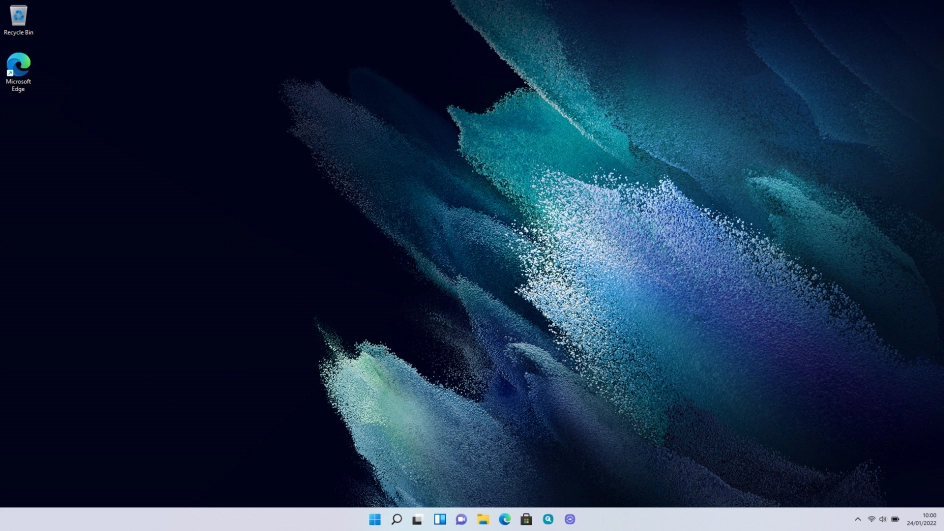
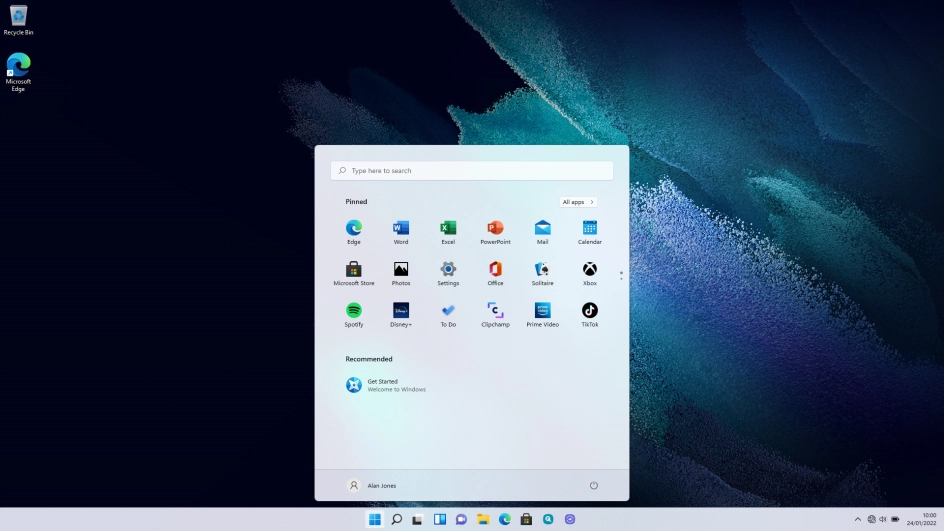
Click the Windows icon.
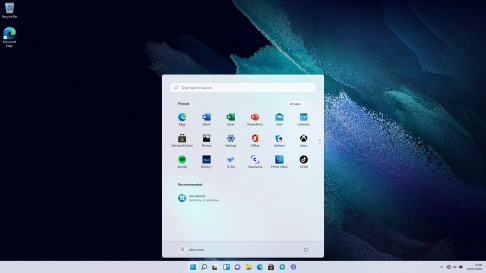
Step 4 of 6

Click the Windows icon.

Click the power off icon.
Step 5 of 6

Click the power off icon.

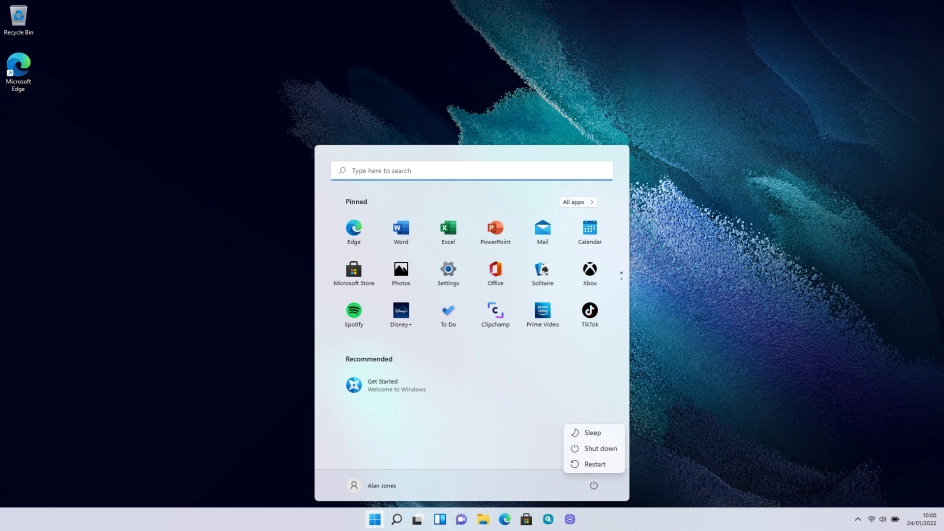
Click Shut down.
Click Shut down.
Step 6 of 6

Click Shut down.

Get information on...

Or choose...

Show more