Help
Device guides
Samsung
Galaxy Book2 Go 5G

Samsung Galaxy Book2 Go 5G
f-aaf44c8b-6254-4a60-bd85-bda34a97793e
f-5662114d-bbb7-40b1-9a5c-5dfbbcb76d7f
f-2af27aff-39cf-47d5-87b5-cd71ed162056
  • Device home
  • Getting started
  • Basic functions
  • Connectivity
  • Specifications
  • Device home
  • Getting started
  • Basic functions
  • Connectivity
  • Specifications

Updating laptop apps

You can update your apps to the latest version automatically or manually.
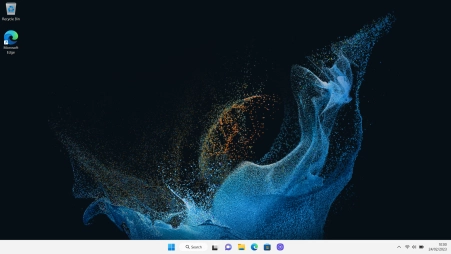
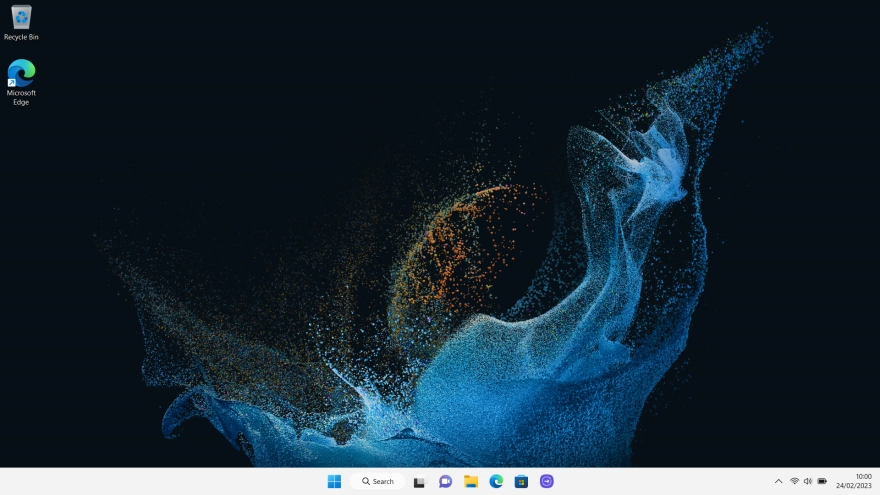
Click the Microsoft Store icon.
Step 1 of 9

Click the Microsoft Store icon.

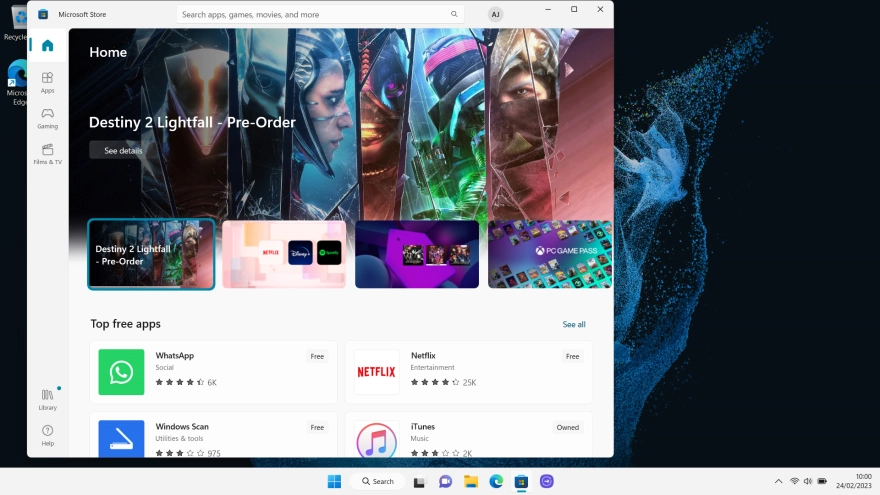
Click Library.
Click Library.
Step 2 of 9

Click Library.

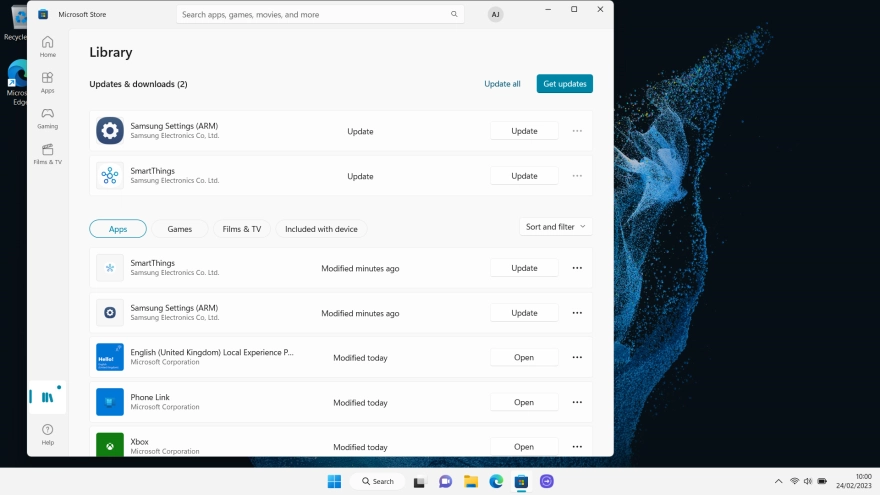
Click Update all and wait while your apps are updated.
Step 3 of 9

Click Update all and wait while your apps are updated.

Click the close icon.
Step 4 of 9

Click the close icon.

Click the Microsoft Store icon.
Step 5 of 9

Click the Microsoft Store icon.

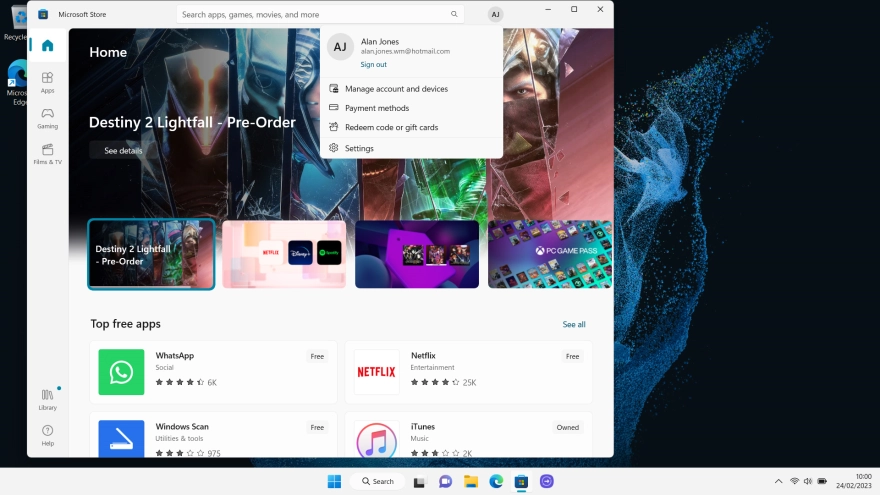
Click the profile icon.
Step 6 of 9

Click the profile icon.

Click Settings.
Click Settings.
Step 7 of 9

Click Settings.

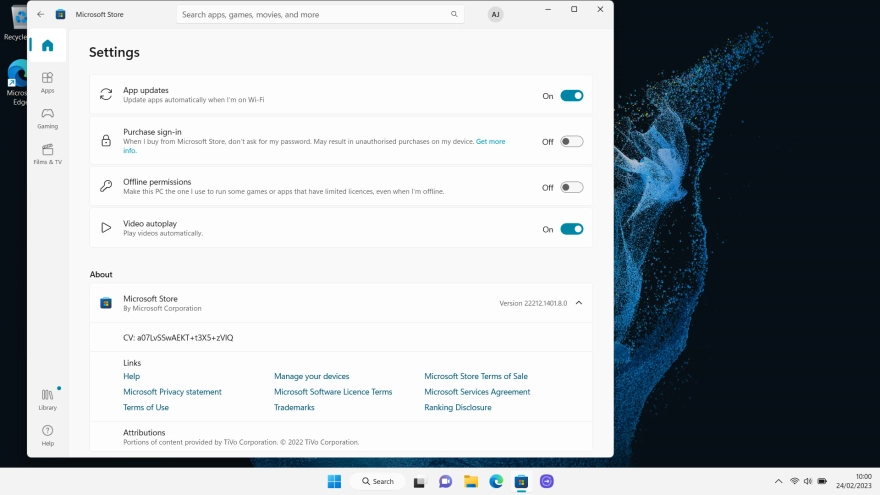
Click the indicator next to
Step 8 of 9

Click the indicator next to "Update apps automatically when I'm on WiFi" to turn the function on or off.

If you turn on the function, your apps will automatically be updated when you're connected to a Wi-Fi network.
Click the close icon to return to the home screen.
Step 9 of 9

Click the close icon to return to the home screen.

Get information on...

Or choose...

Show more