Help
Device guides
Samsung
Galaxy Chromebook Go

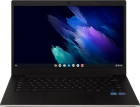
Samsung Galaxy Chromebook Go
f-a0982606-bb3b-47ee-83ae-4e3f6fa42846
f-88d9349b-98fa-4047-94a1-2e30db4f6985
f-18983dad-a854-4f7a-b794-d373957f26b9
  • Device home
  • Getting started
  • Basic functions
  • Connectivity
  • Specifications
  • Device home
  • Getting started
  • Basic functions
  • Connectivity
  • Specifications

Installing apps from Google Play

You can add new functions to your laptop by installing apps from Google Play. Before you can install apps, you need a network connection and a Google account.
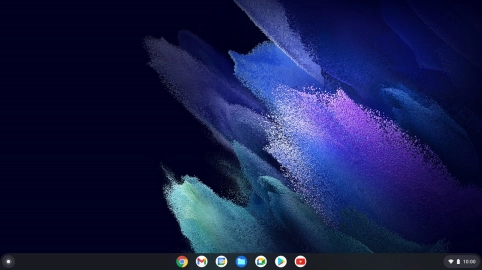
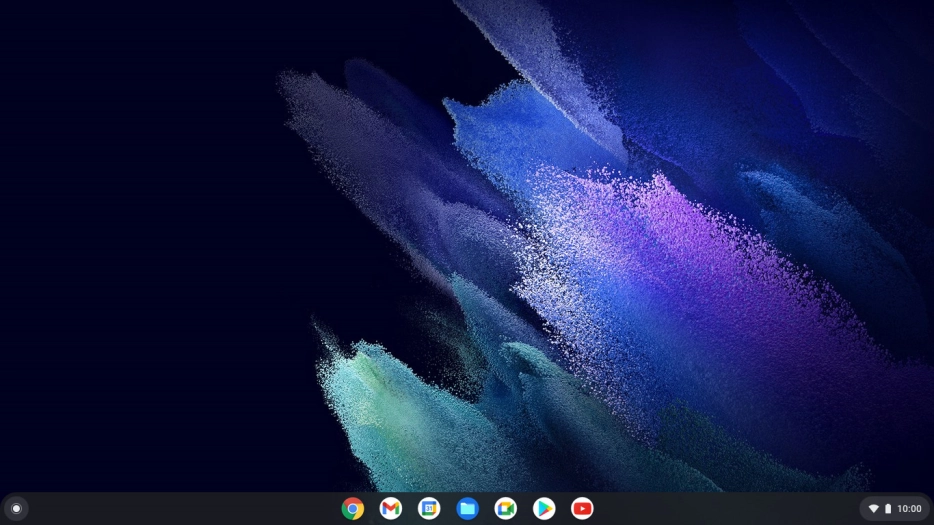
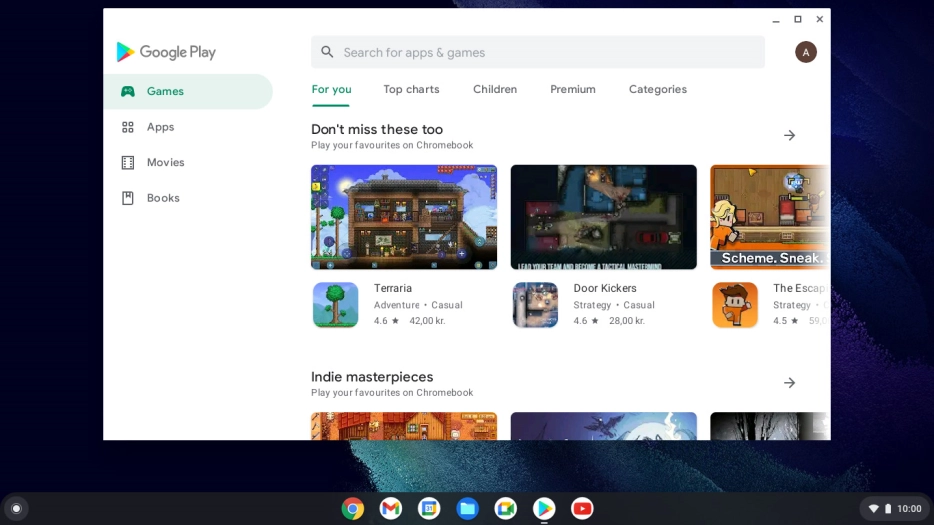
Click the Google Play icon.
Step 1 of 7

Click the Google Play icon.

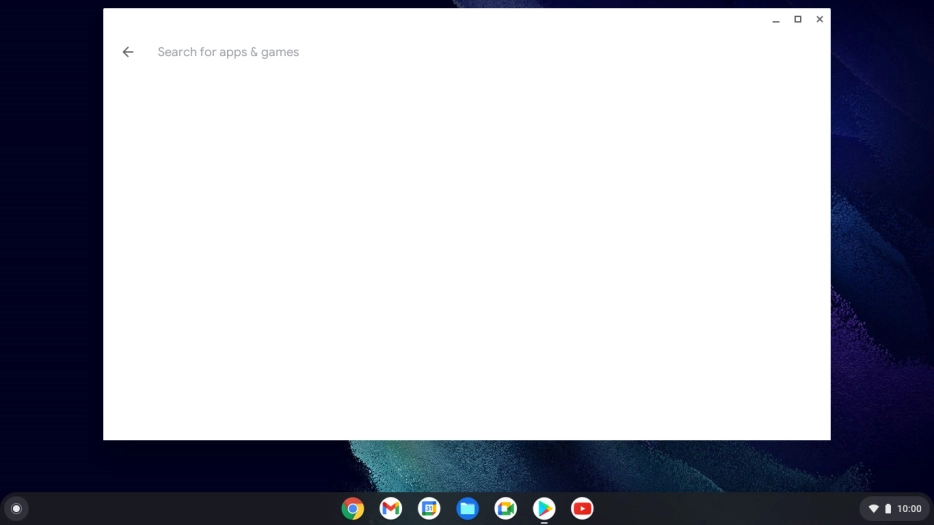
Click the search field.
Step 2 of 7

Click the search field.

Click the text input field.
Step 3 of 7

Click the text input field.

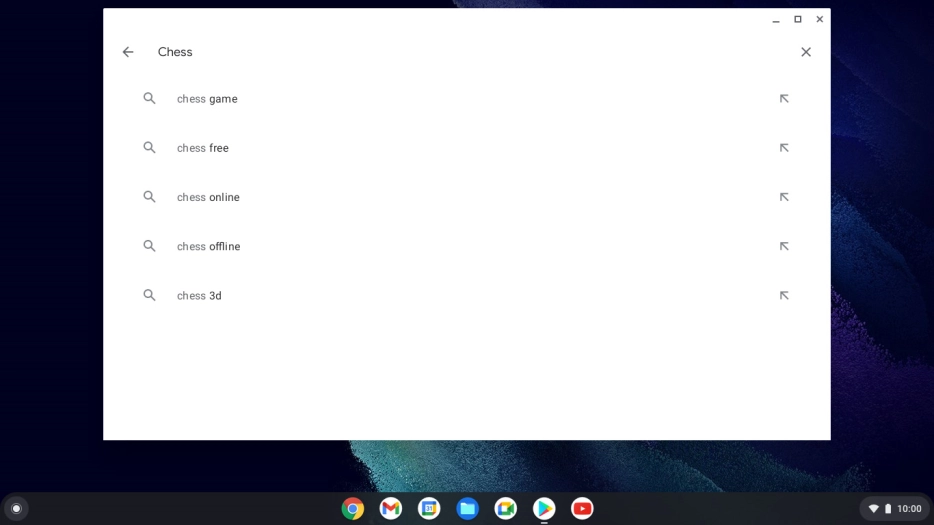
Key in the name or subject of the required app and press enter.
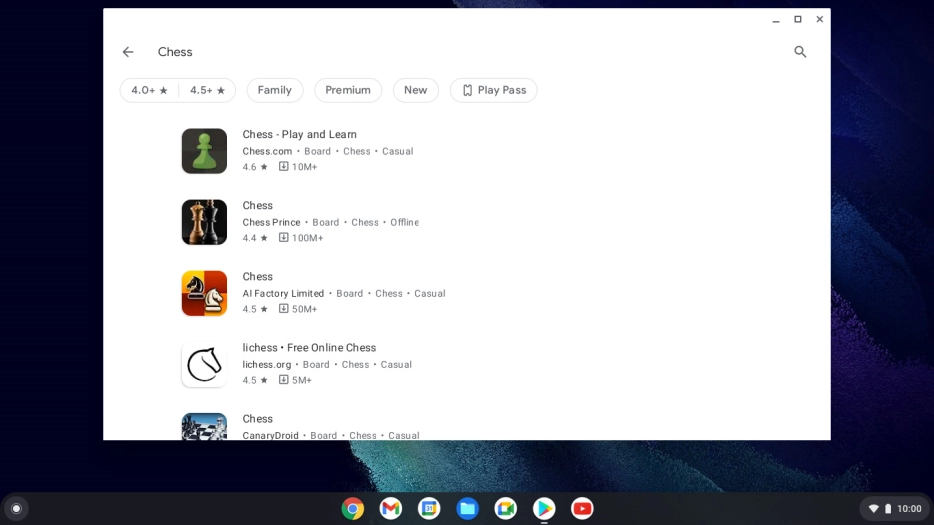
Step 4 of 7

Key in the name or subject of the required app and press enter.

Click the required app.
Step 5 of 7

Click the required app.

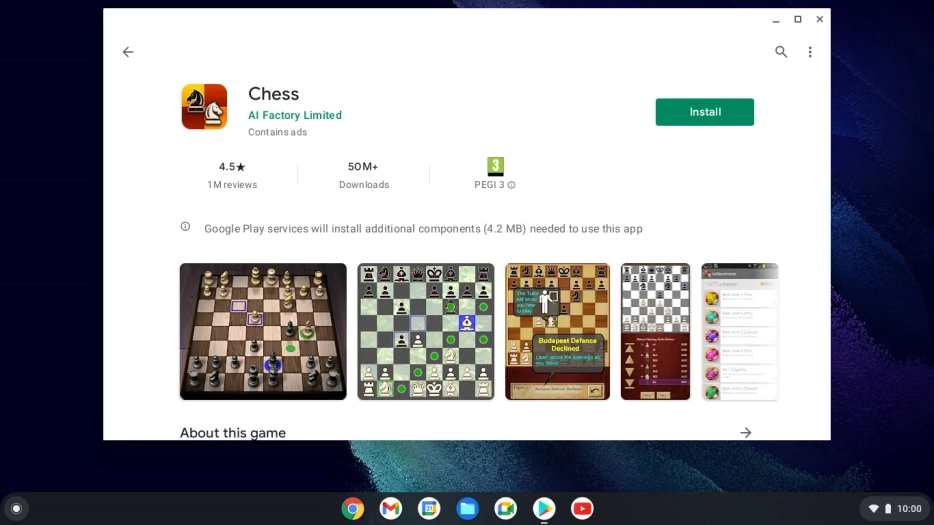
Click Install and follow the instructions on the screen to install the app.
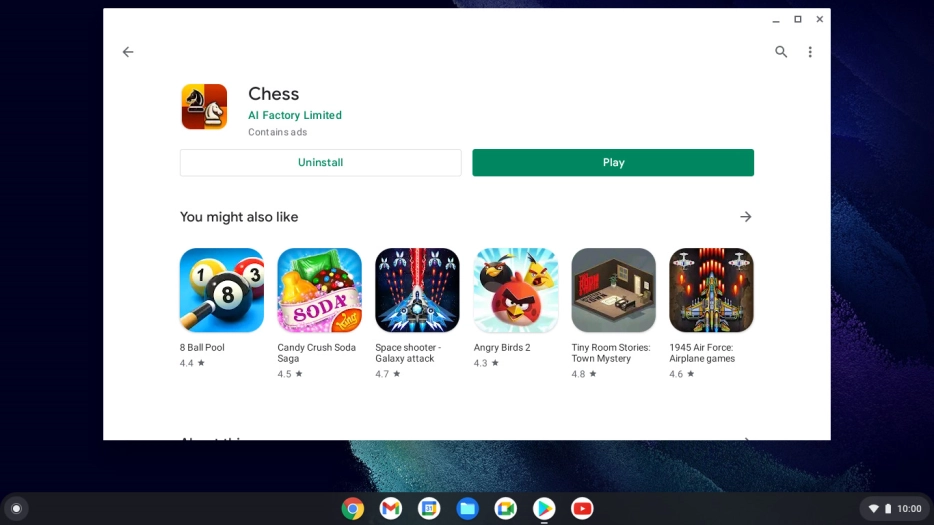
Step 6 of 7

Click Install and follow the instructions on the screen to install the app.

If you've selected a paid app, click the price to install the app.
Click the close icon to return to the home screen.
Step 7 of 7

Click the close icon to return to the home screen.

Get information on...

Or choose...

Show more