Help
Device guides
Samsung
Galaxy Chromebook Go

Samsung Galaxy Chromebook Go
f-a0982606-bb3b-47ee-83ae-4e3f6fa42846
f-88d9349b-98fa-4047-94a1-2e30db4f6985
f-18983dad-a854-4f7a-b794-d373957f26b9
  • Device home
  • Getting started
  • Basic functions
  • Connectivity
  • Specifications
  • Device home
  • Getting started
  • Basic functions
  • Connectivity
  • Specifications

Restoring factory default settings

If your laptop gets slow or doesn't work as it usually does, it may help to restore the factory default settings. All settings and configurations you've made on your laptop are deleted. Remember to back up your files before restoring the factory default settings as all content will be deleted.
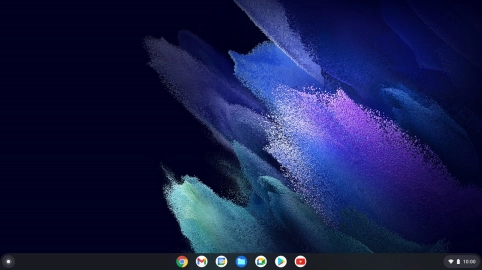
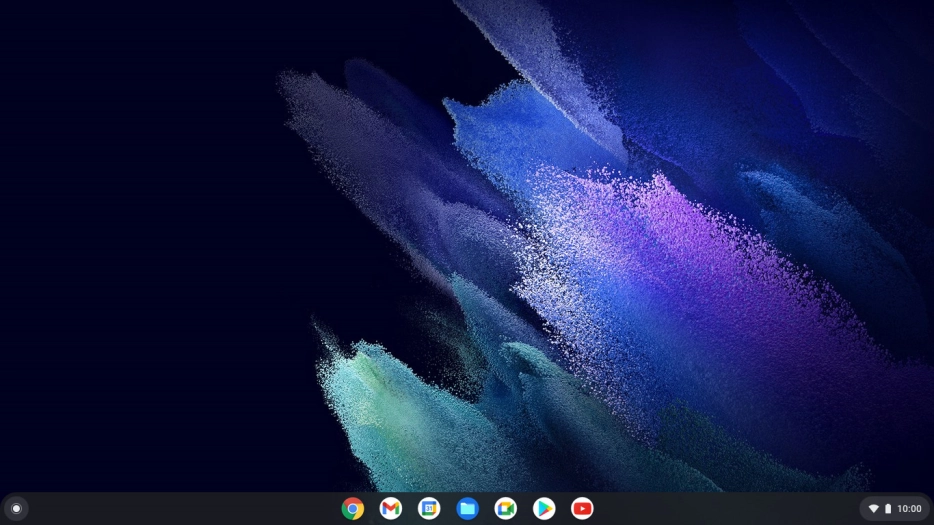
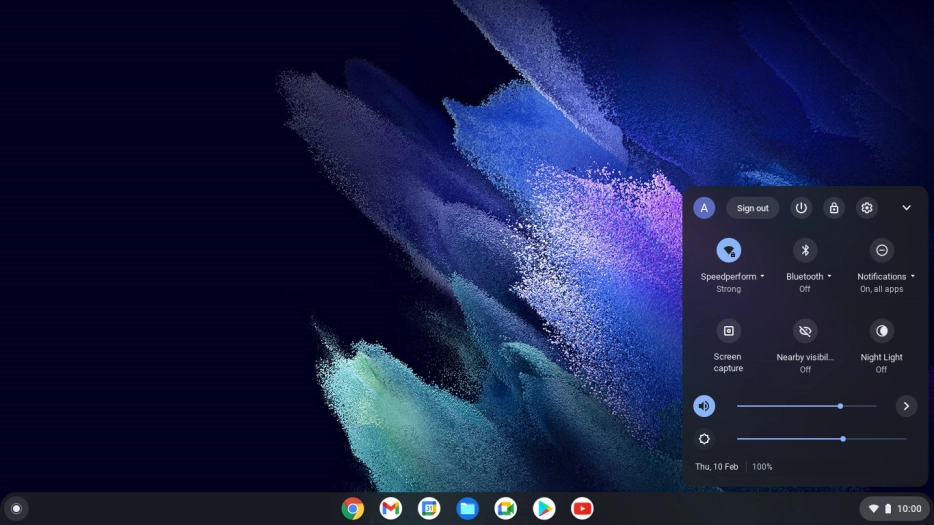
Click the menu field.
Step 1 of 8

Click the menu field.

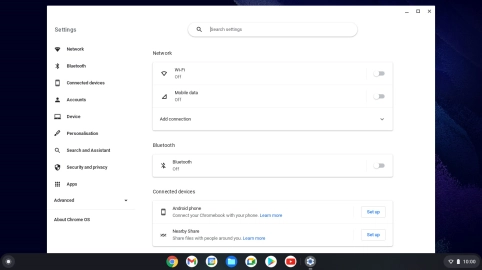
Click the settings icon.
Step 2 of 8

Click the settings icon.

Click Advanced.
Click Advanced.
Step 3 of 8

Click Advanced.

Click Reset settings.
Step 4 of 8

Click Reset settings.

Click Reset.
Click Reset.
Step 5 of 8

Click Reset.

Click Restart.
Click Restart.
Step 6 of 8

Click Restart.

Click Powerwash.
Click Powerwash.
Step 7 of 8

Click Powerwash.

Click Continue. Wait a moment while the factory default settings are restored. Follow the instructions on the screen to set up your laptop and prepare it for use.
Step 8 of 8

Click Continue. Wait a moment while the factory default settings are restored. Follow the instructions on the screen to set up your laptop and prepare it for use.

Get information on...

Or choose...

Show more