Help
Device guides
Samsung
Galaxy Chromebook Go

Samsung Galaxy Chromebook Go
f-a0982606-bb3b-47ee-83ae-4e3f6fa42846
f-88d9349b-98fa-4047-94a1-2e30db4f6985
f-18983dad-a854-4f7a-b794-d373957f26b9
  • Device home
  • Getting started
  • Basic functions
  • Connectivity
  • Specifications
  • Device home
  • Getting started
  • Basic functions
  • Connectivity
  • Specifications

Using focus mode

You can set your laptop to a specific focus mode helping you filter notifications if you don't want to be disturbed.
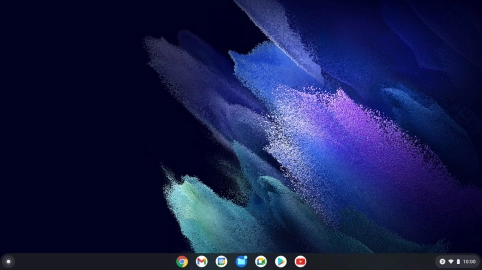
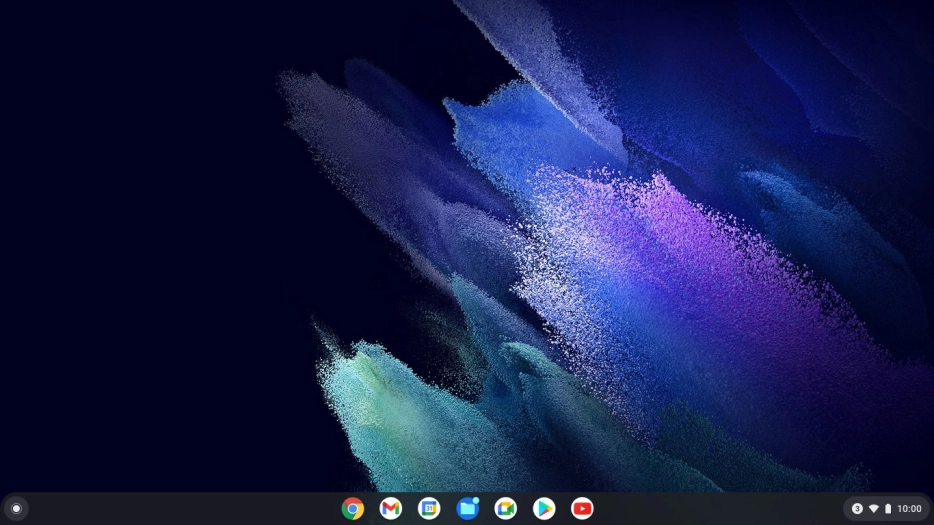
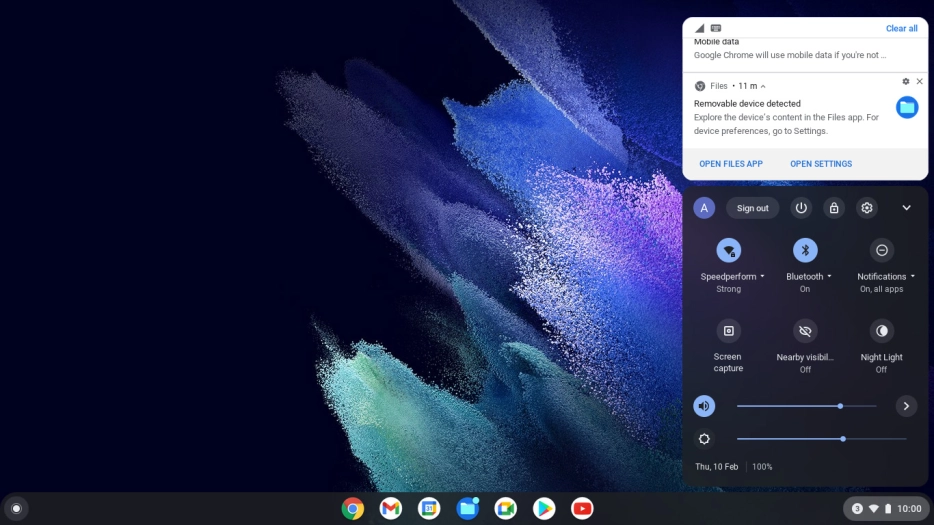
Click the menu field.
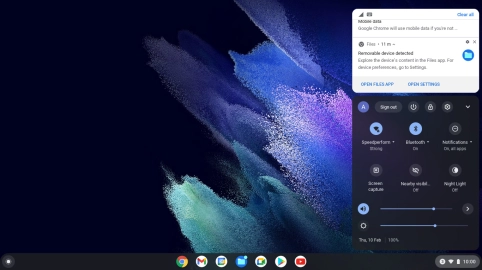
Step 1 of 5

Click the menu field.

Click the drop down list next to
Step 2 of 5

Click the drop down list next to "Notifications".

Click the indicator next to
Step 3 of 5

Click the indicator next to "Do not disturb" to turn the function on or off.

Click the fields next to the required apps to turn notification permission on or off.
Step 4 of 5

Click the fields next to the required apps to turn notification permission on or off.

Click the desktop to return to the home screen.
Step 5 of 5

Click the desktop to return to the home screen.

Get information on...

Or choose...

Show more