Help
Device guides
Samsung
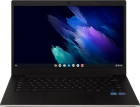
Galaxy Chromebook Go

Samsung Galaxy Chromebook Go
f-a0982606-bb3b-47ee-83ae-4e3f6fa42846
f-88d9349b-98fa-4047-94a1-2e30db4f6985
f-18983dad-a854-4f7a-b794-d373957f26b9
  • Device home
  • Getting started
  • Basic functions
  • Connectivity
  • Specifications
  • Device home
  • Getting started
  • Basic functions
  • Connectivity
  • Specifications

It's not possible to turn on my laptop

Solution 3 of 3: Your laptop isn't turned on correctly

See how to turn your laptop on and off.

Connect the power supply to the power plug and to a wall socket.
Step 1 of 4

Connect the power supply to the power plug and to a wall socket.

Press On/Off. Follow the instructions on the screen to log on.
Step 2 of 4

Press On/Off. Follow the instructions on the screen to log on.

Click the menu field.
Step 3 of 4

Click the menu field.

Click the power off icon.
Step 4 of 4

Click the power off icon.


Did this solve your problem?

Yes No

Get information on...

Or choose...

Show more