Help
Device guides
Samsung
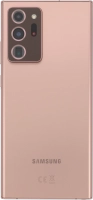
Galaxy Note20 Ultra 5G

Samsung Galaxy Note20 Ultra 5G
f-a6d66dc4-6c9a-499b-aab7-ca2636fa0f7d
f-31e1df8d-ccad-4120-8009-9e21a418f3c4
f-52c6689d-ff91-4af9-b6a3-b5df2465be59
f-9bcd2aab-30dd-405e-b929-df3a4837aba8
f-1123f0e1-a7aa-4ce8-8bde-c490ed3d6c6e
f-472ac829-579f-4508-9867-2750d5057764
  • Device home
  • Getting started
  • Basic functions
  • Calls, contacts, messaging
  • Connectivity
  • Specifications
  • Device home
  • Getting started
  • Basic functions
  • Calls, contacts, messaging
  • Connectivity
  • Specifications

Uninstalling apps

You can uninstall apps to free up memory.

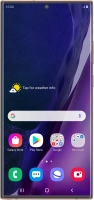
Slide your finger upwards on the screen.
Step 1 of 9

Slide your finger upwards on the screen.

Press Play Store.
Press Play Store.
Step 2 of 9

Press Play Store.

Slide your finger right starting from the left side of the screen.
Step 3 of 9

Slide your finger right starting from the left side of the screen.

Press My apps & games.
Step 4 of 9

Press My apps & games.

Press Installed.
Press Installed.
Step 5 of 9

Press Installed.

Press the required app.
Step 6 of 9

Press the required app.

Press Uninstall.
Press Uninstall.
Step 7 of 9

Press Uninstall.

Press OK.
Press OK.
Step 8 of 9

Press OK.

Press the Home key to return to the home screen.
Step 9 of 9

Press the Home key to return to the home screen.

Get information on...

Or choose...

Show more