Help
Device guides
Samsung
Galaxy S20 Ultra 5G

Samsung Galaxy S20 Ultra 5G
f-a8a4a997-5738-4064-990f-a8996a5eb19f
f-7c9cb320-169a-49a5-af96-87c4179299b8
f-cd5d6fa2-e277-4ce0-ae97-1ce9846dbfbe
f-a49b8802-db24-4ba1-a510-976efc6e50f5
f-c8394c3a-1083-4cfd-93fd-1c28b3227393
f-eeb6a9ba-078e-4d3c-9f88-19d11538e7ec
  • Device home
  • Getting started
  • Basic functions
  • Calls, contacts, messaging
  • Connectivity
  • Specifications
  • Device home
  • Getting started
  • Basic functions
  • Calls, contacts, messaging
  • Connectivity
  • Specifications

Selecting ring tone

You can select the ring tone you want to hear when you get a call.

Slide two fingers downwards starting from the top of the screen.
Step 1 of 9

Slide two fingers downwards starting from the top of the screen.

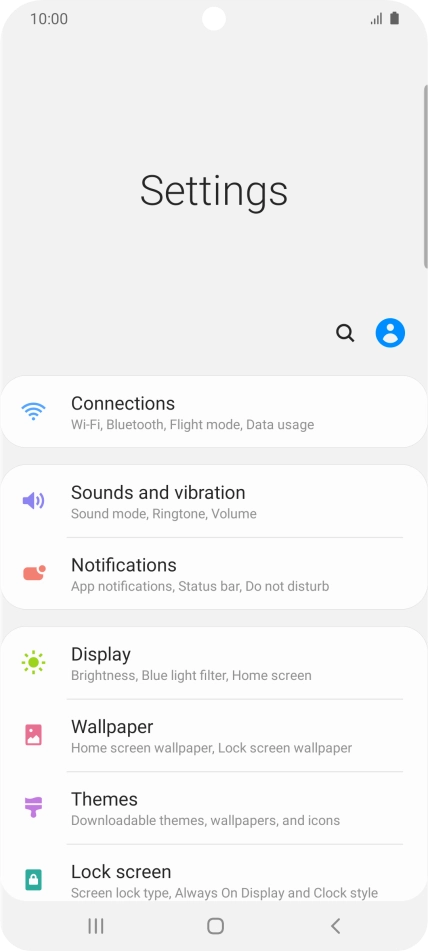
Press the settings icon.
Step 2 of 9

Press the settings icon.

Press Sounds and vibration.
Step 3 of 9

Press Sounds and vibration.

Press Ringtone.
Press Ringtone.
Step 4 of 9

Press Ringtone.

Press the name of the SIM.
Step 5 of 9

Press the name of the SIM.

Press the add ring tone icon.
Step 6 of 9

Press the add ring tone icon.

Press the required ring tones to hear them.
Step 7 of 9

Press the required ring tones to hear them.

Once you've found a ring tone you like, press Done.
Step 8 of 9

Once you've found a ring tone you like, press Done.

Press the Home key to return to the home screen.
Step 9 of 9

Press the Home key to return to the home screen.

Get information on...

Or choose...

Show more