



Help
Device guides
Samsung
Galaxy S22

Samsung Galaxy S22

f-f52ed4a8-6973-40ed-ac96-6a905eb531ac
f-29561bd4-ba7b-4a79-9fdc-8fcd31a0cd3f
f-2fad90b2-fd13-4d94-a054-55b46d334fec
f-fdd8196d-835e-418f-ab54-b9b2802beba9
f-0c9d7f83-e071-4178-9c86-60398c5ef359
f-ff06fa90-aa65-4b5e-87b5-1b3d54bf8f98
  • Device home
  • Getting started
  • Basic functions
  • Calls, contacts, messaging
  • Connectivity
  • Specifications
  • Device home
  • Getting started
  • Basic functions
  • Calls, contacts, messaging
  • Connectivity
  • Specifications

Uninstalling apps

You can uninstall apps to free up memory.
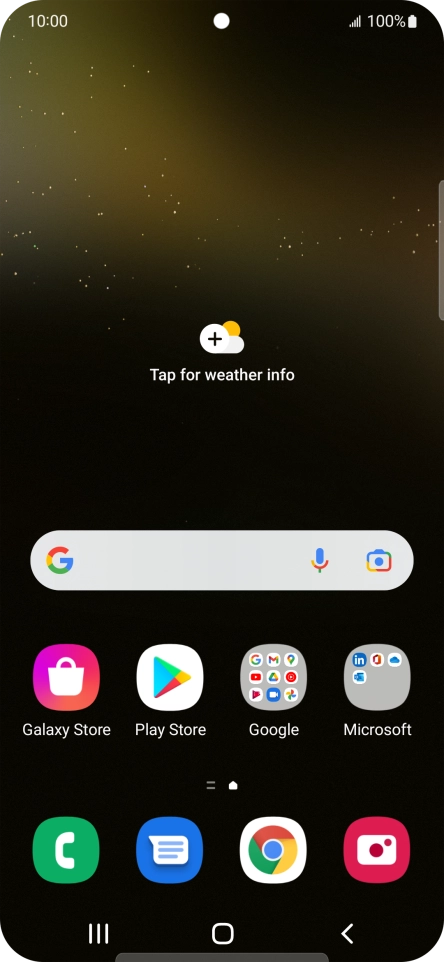
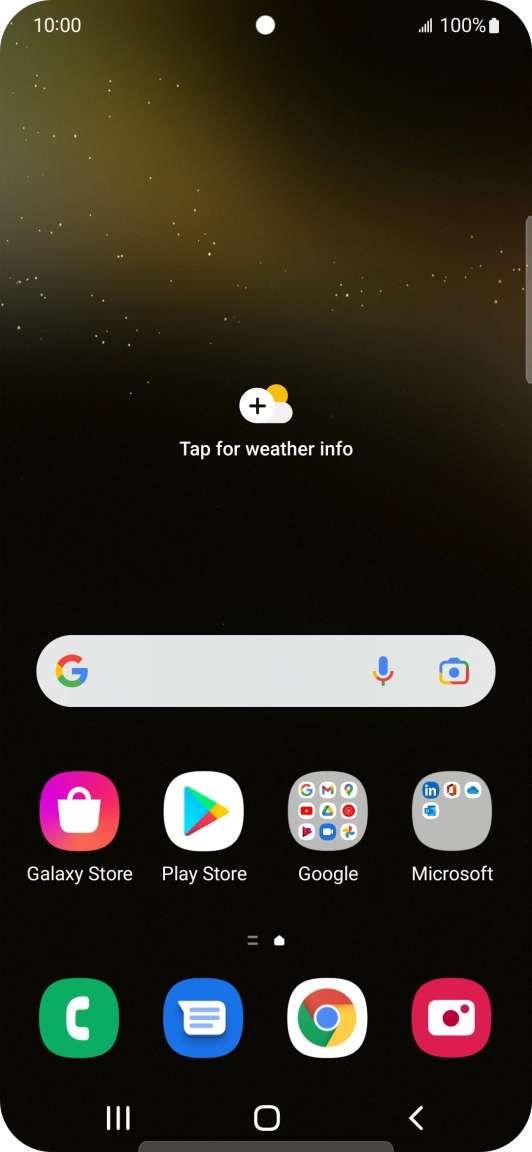
Slide your finger upwards on the screen.
Step 1 of 9

Slide your finger upwards on the screen.

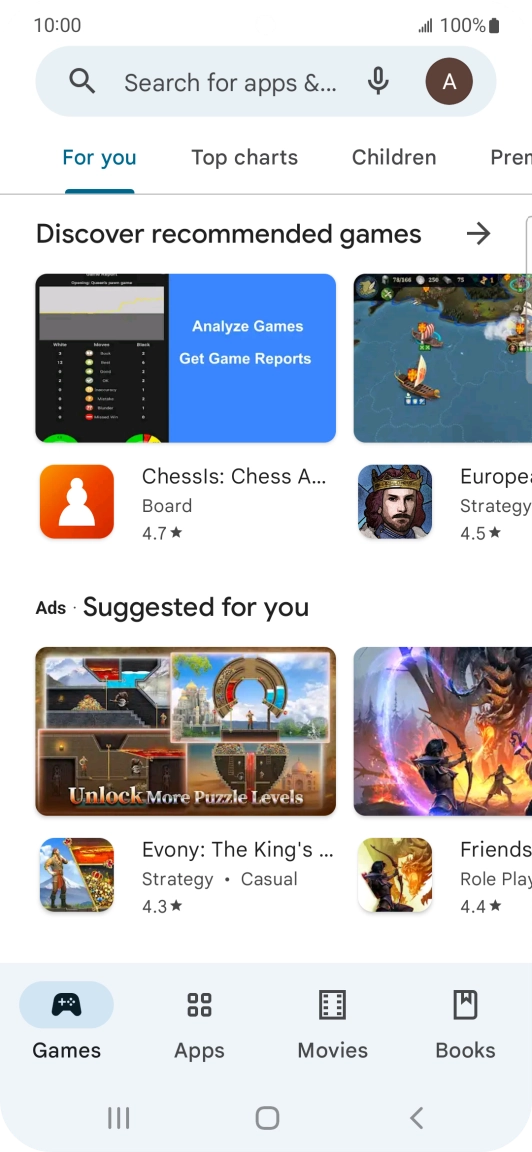
Press Play Store.
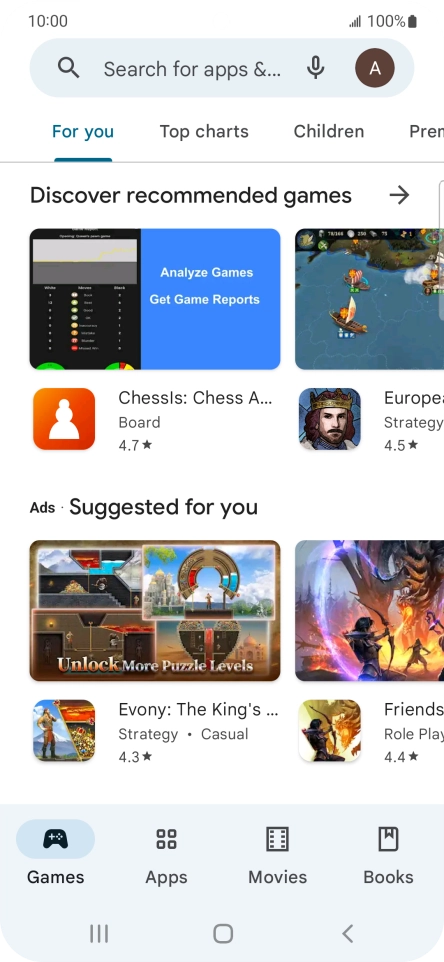
Press Play Store.
Step 2 of 9

Press Play Store.

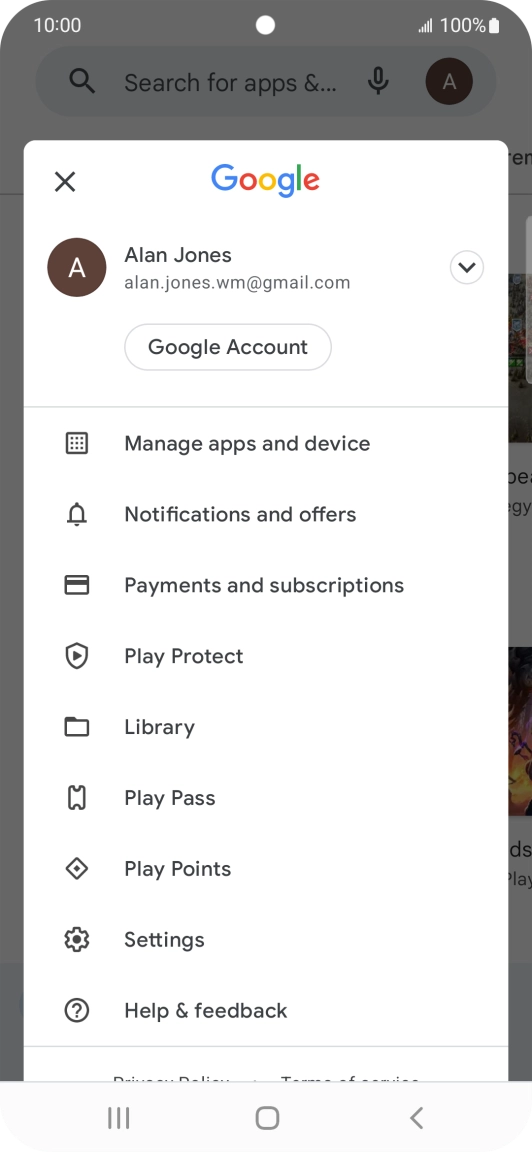
Press the profile icon.
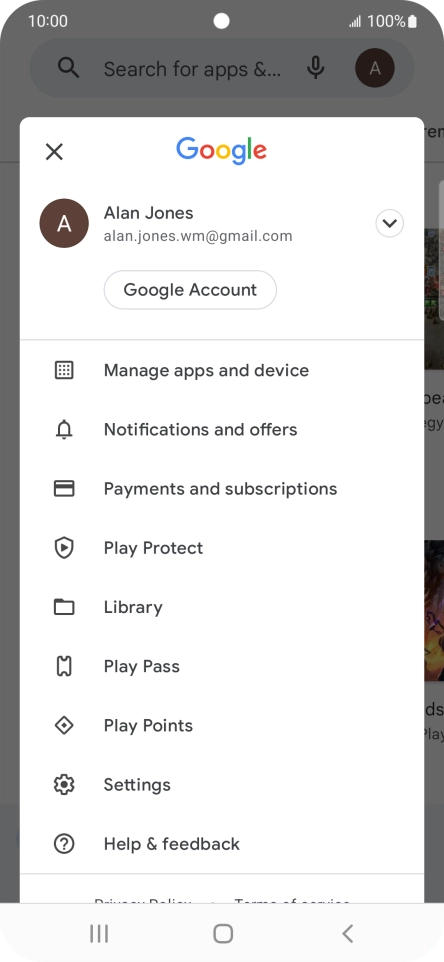
Step 3 of 9

Press the profile icon.

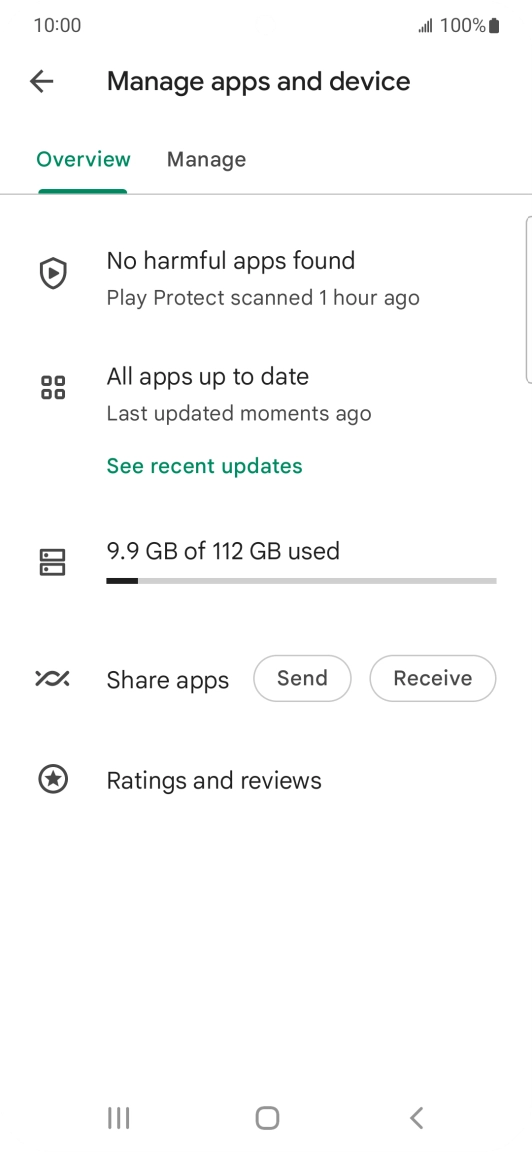
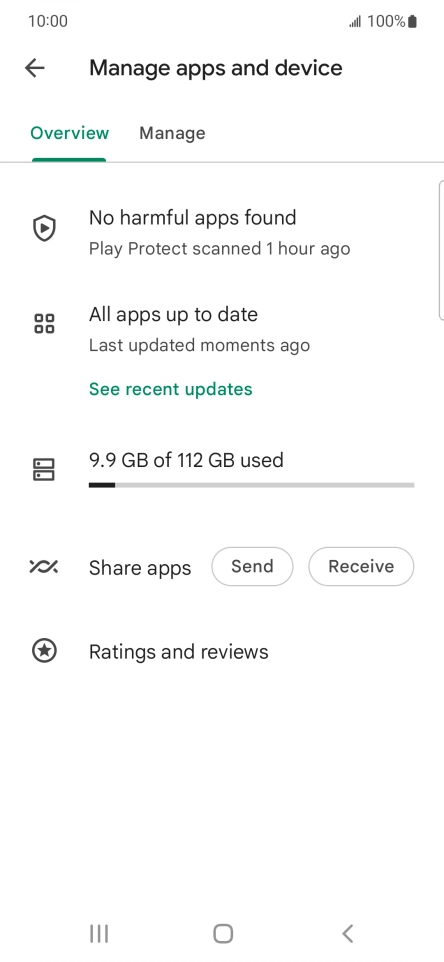
Press Manage apps and device.
Step 4 of 9

Press Manage apps and device.

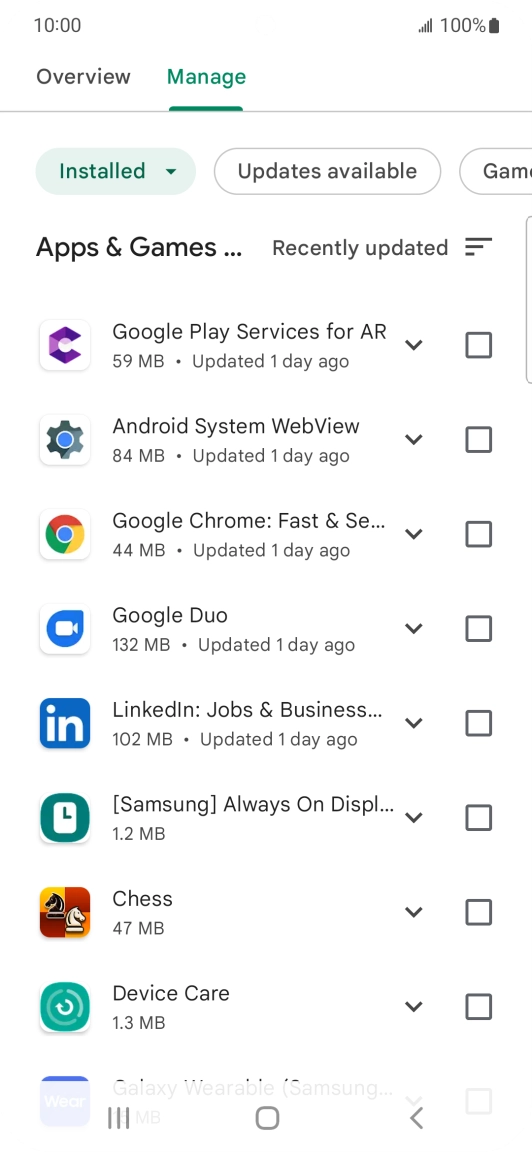
Press Manage.
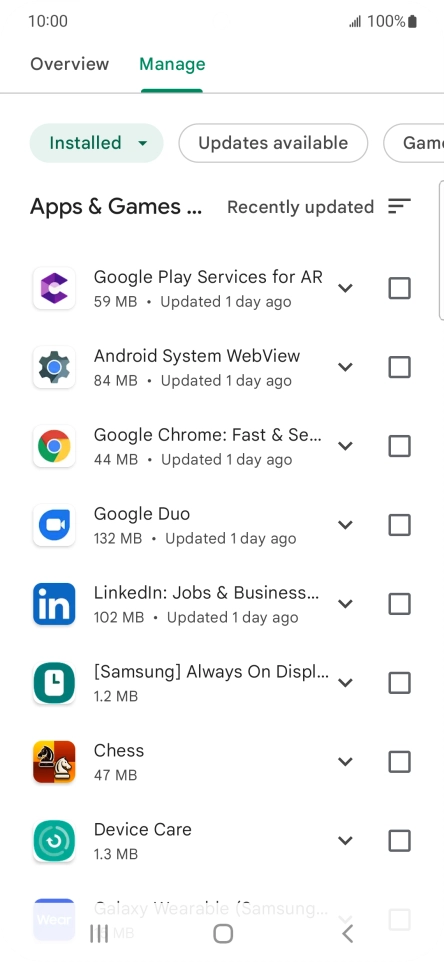
Press Manage.
Step 5 of 9

Press Manage.

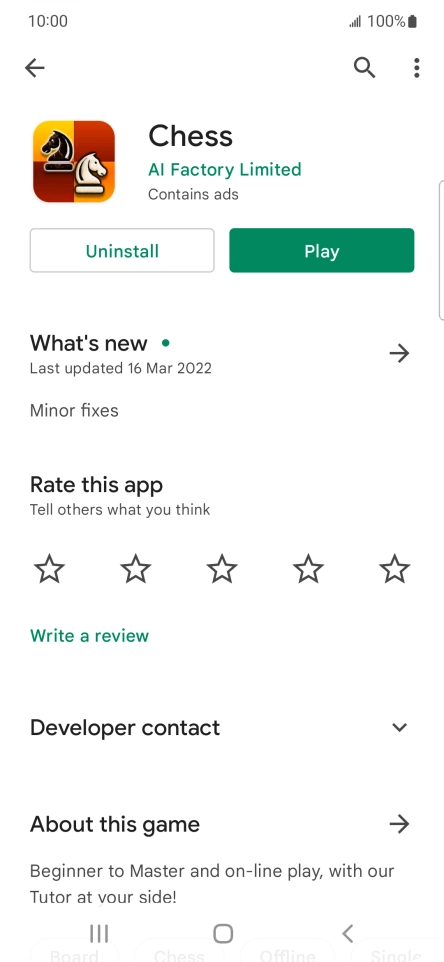
Press the required app.
Step 6 of 9

Press the required app.

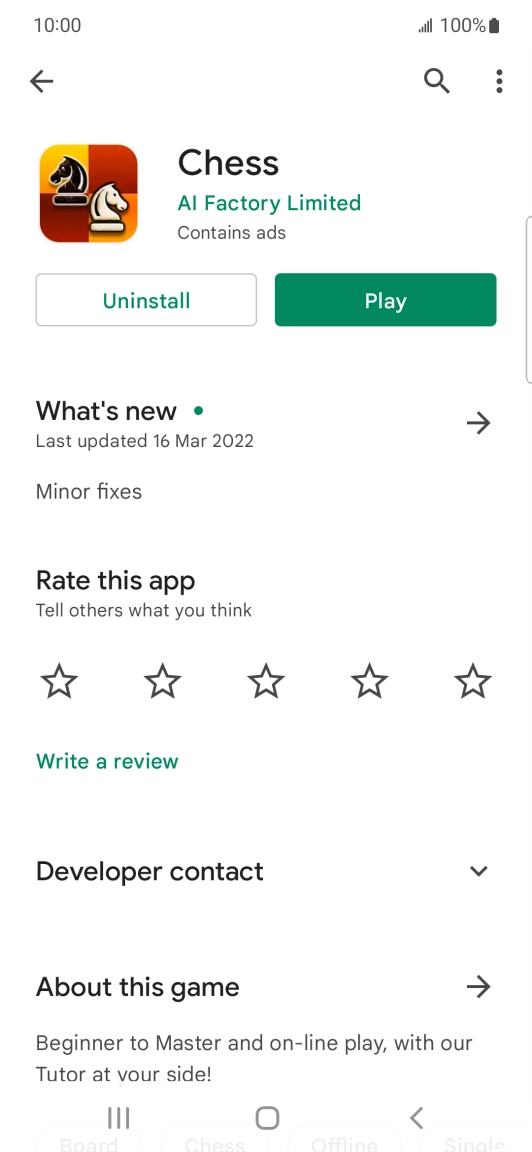
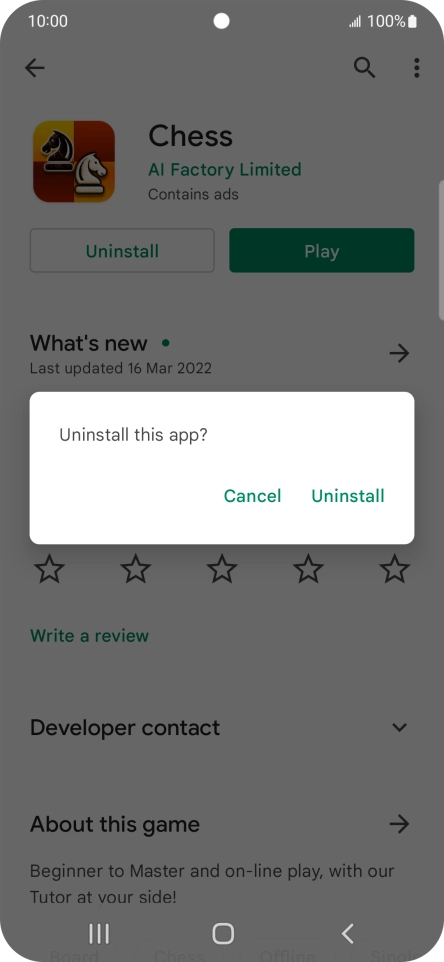
Press Uninstall.
Press Uninstall.
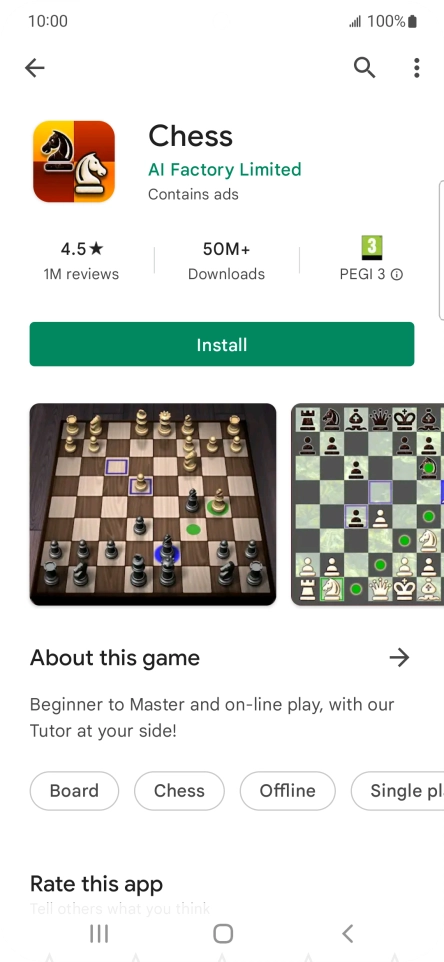
Step 7 of 9

Press Uninstall.

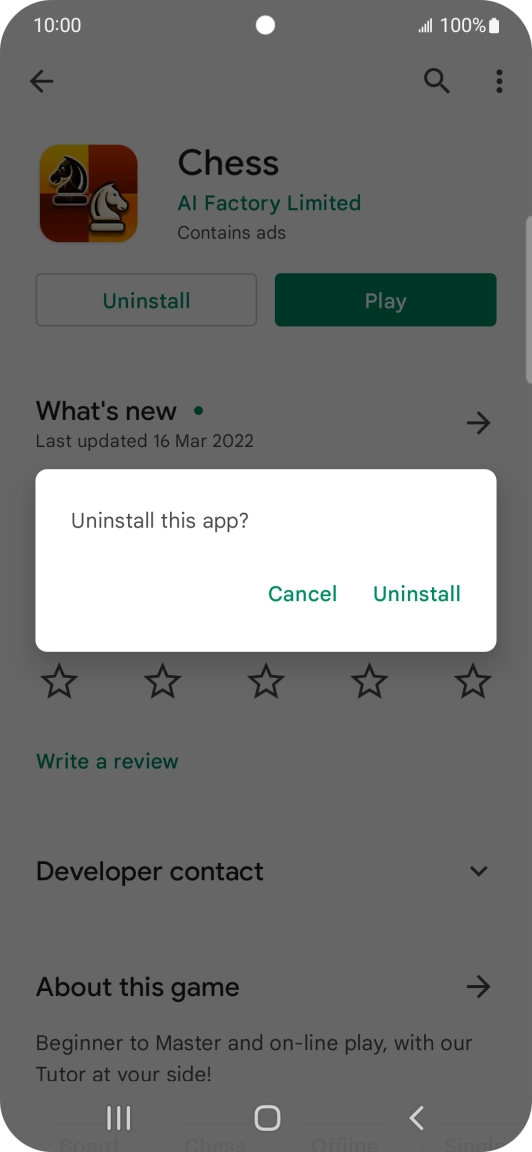
Press Uninstall.
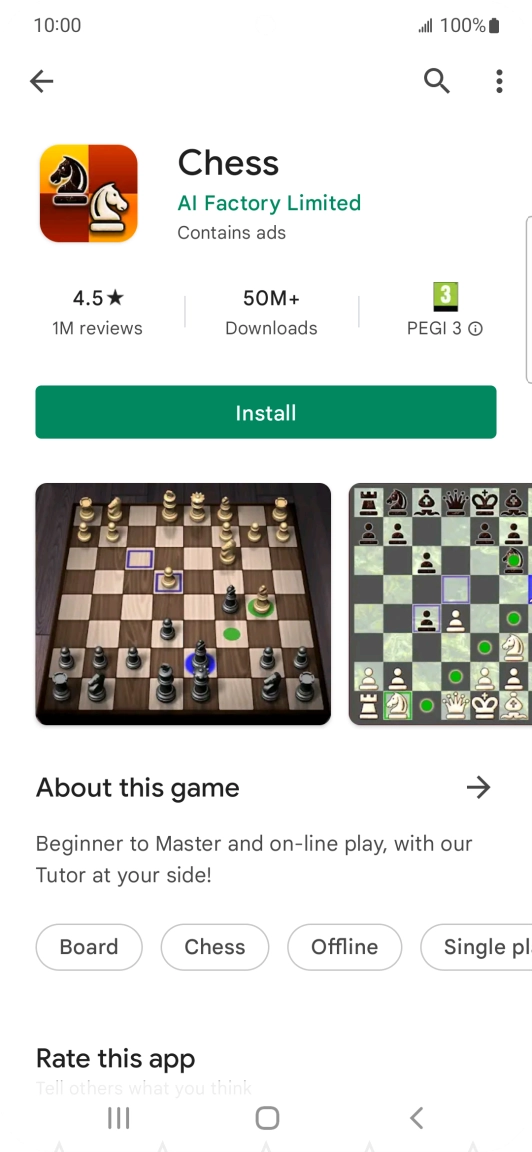
Press Uninstall.
Step 8 of 9

Press Uninstall.

Press the Home key to return to the home screen.
Step 9 of 9

Press the Home key to return to the home screen.

Get information on...

Or choose...

Show more