Help
Device guides
Samsung
Galaxy S23 Plus

Samsung Galaxy S23 Plus
f-66cbdf2b-9f20-41ef-a6c2-dd2604e1fea5
f-b8403258-a132-4482-8a94-28f7d7648cf8
f-a63805e1-ee40-4227-b0ab-aff2db6e3079
f-b246013f-e324-4f53-ad9b-7d13a412ad3b
f-96c2f8f6-d99b-4eb5-ac53-0028f1b1baa7
f-bd4fced5-f446-4ad8-8dfa-70b8eadf860b
  • Device home
  • Getting started
  • Basic functions
  • Calls, contacts, messaging
  • Connectivity
  • Specifications
  • Device home
  • Getting started
  • Basic functions
  • Calls, contacts, messaging
  • Connectivity
  • Specifications

Turning Wi-Fi calling on or off

When Wi-Fi calling is turned on, you can make and answer calls using a Wi-Fi network when you're in an area with little or no network coverage. To turn on Wi-Fi calling, you need to establish a connection to a Wi-Fi network, select 4G (LTE) as network mode and follow the steps below. You can also visit the EE web page for more information about Wi-Fi calling.

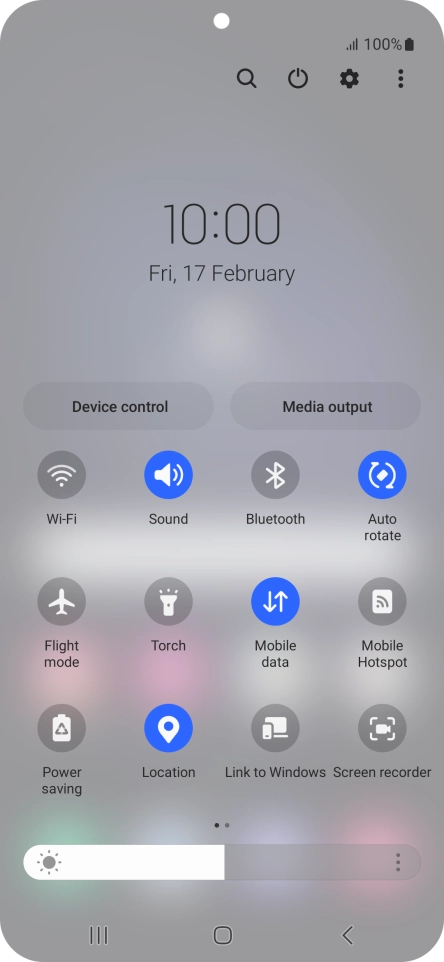
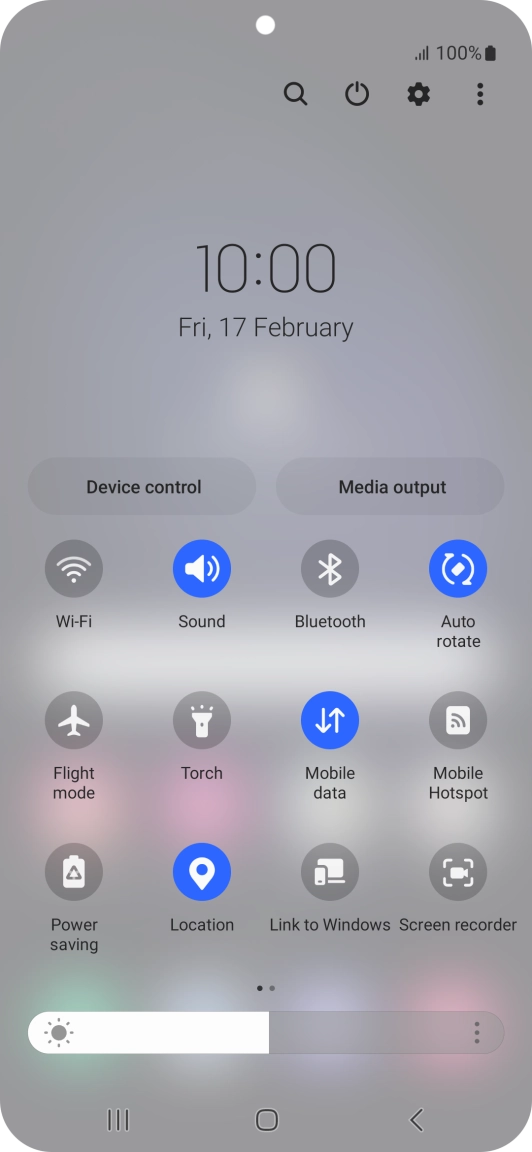
Slide two fingers downwards starting from the top of the screen.
Step 1 of 5

Slide two fingers downwards starting from the top of the screen.

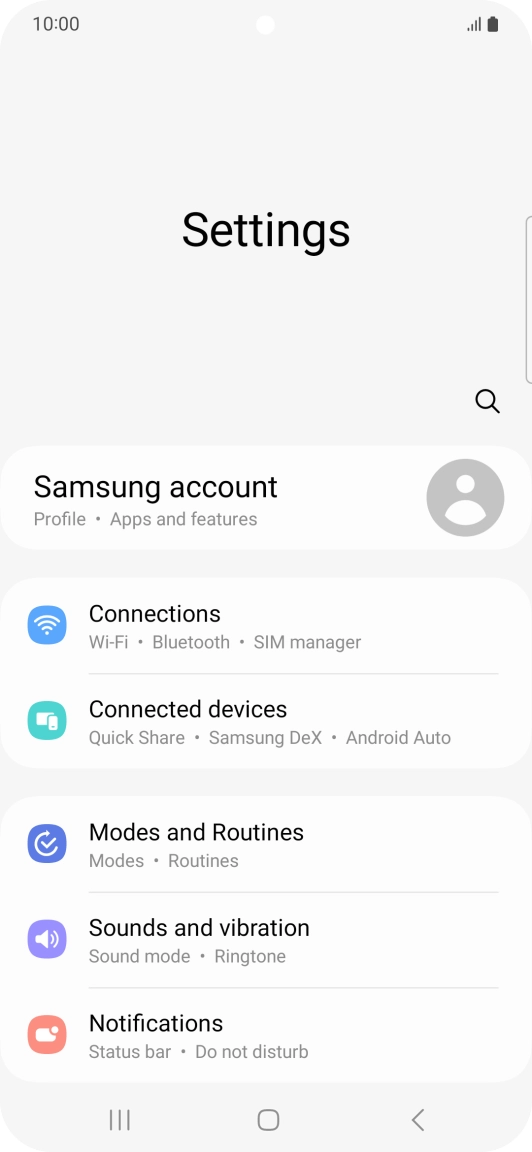
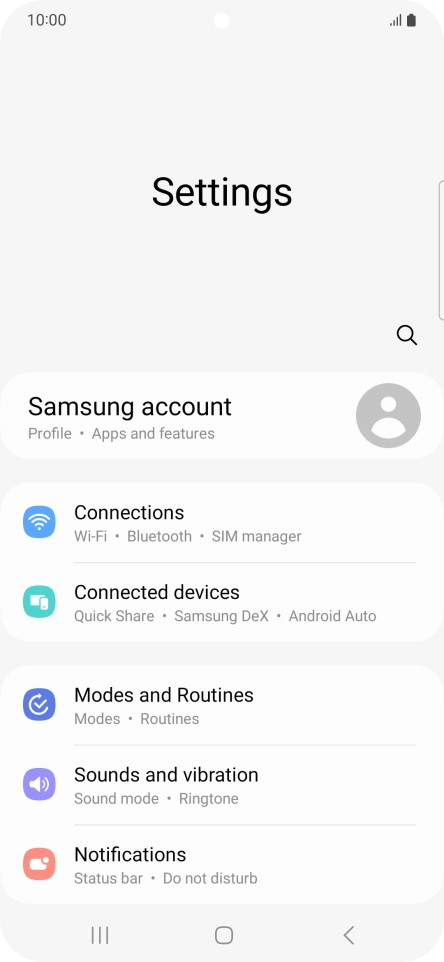
Press the settings icon.
Step 2 of 5

Press the settings icon.

Press Connections.
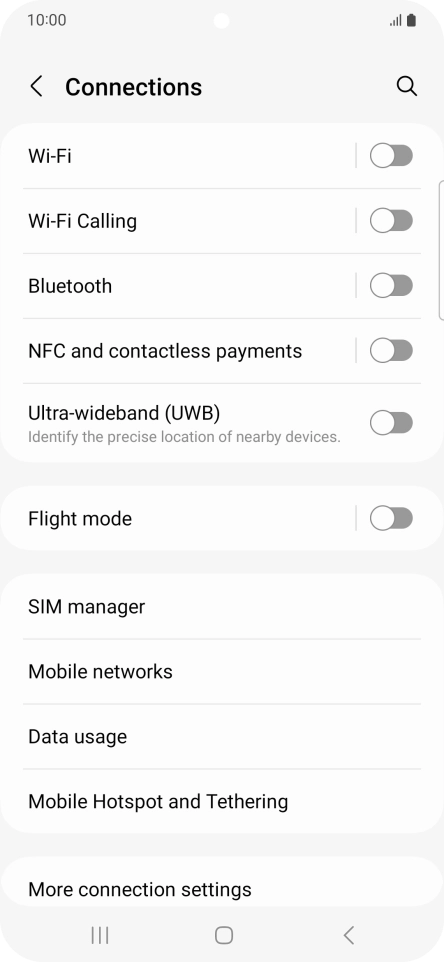
Press Connections.
Step 3 of 5

Press Connections.

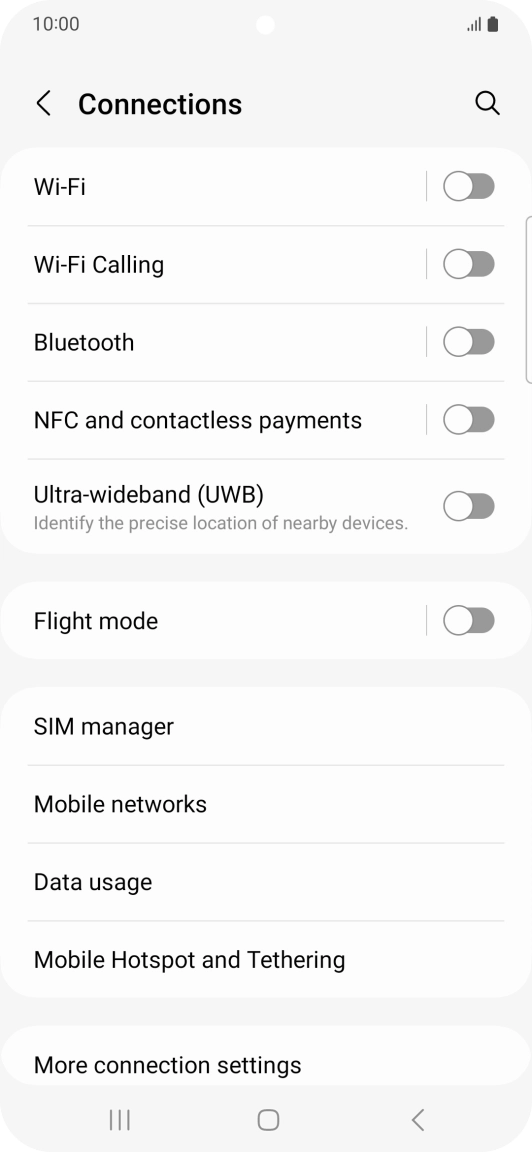
Press the indicator next to
Step 4 of 5

Press the indicator next to "Wi-Fi Calling" to turn the function on or off.

Press the Home key to return to the home screen.
Step 5 of 5

Press the Home key to return to the home screen.

Get information on...

Or choose...

Show more