Help
Device guides
Samsung
Galaxy S24 Plus

Samsung Galaxy S24 Plus
f-11c14b89-c6ed-4baf-a808-63318f5ecf5d
f-4f312ab3-7549-4e4d-8d8e-fa7a897c8830
f-a2bab2bf-5994-4060-a627-7a1f5bccd808
f-6d8f8090-ab68-40cf-8d35-6b0127c14db2
f-20f471ed-7fcb-4f91-8ea3-9a793ccc3bc5
f-9f4e76f0-fe06-4767-8a83-b67bc435c223
f-18eb6fd3-ff8d-4b92-aa03-73163bdd2b58
f-804f84ec-c88b-49cb-ad29-eec55bcd7463
  • Device home
  • Getting started
  • Basic functions
  • Calls, contacts, messaging
  • Connectivity
  • Specifications
  • Device home
  • Getting started
  • Basic functions
  • Calls, contacts, messaging
  • Connectivity
  • Specifications

Taking screenshot

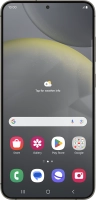
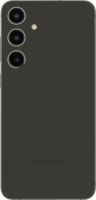
You can take a picture of your screen if you want to share something with your friends or save the picture for later use.

Press the Side key.
Press the Side key.
Step 1 of 2

Press the Side key.

At the same time, press the lower part of the Volume key to take a screenshot.
Step 2 of 2

At the same time, press the lower part of the Volume key to take a screenshot.

The picture is saved in the phone gallery.

Get information on...

Or choose...

Show more