Help
Device guides
Samsung
Galaxy S24 Ultra

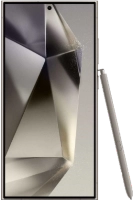
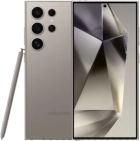
Samsung Galaxy S24 Ultra
f-01961826-dceb-41d4-b5c2-33b461bff33d
f-b274d0e9-eeb1-4ba0-b48b-237d35bace21
f-c3c16a6f-3267-418b-b8d8-b72d75af797a
f-f7ebff1a-c51e-4a98-aac2-ea8f5764a315
f-79766f2e-ae38-4008-aa2c-ce8e6b888adf
f-e871ec49-fa44-4e3e-9a05-28273e553675
f-eef3b6f4-5503-42a0-83d3-c1e015c4d4e9
f-3c619efa-f3e4-4955-90c2-07dfc53ba772
  • Device home
  • Getting started
  • Basic functions
  • Calls, contacts, messaging
  • Connectivity
  • Specifications
  • Device home
  • Getting started
  • Basic functions
  • Calls, contacts, messaging
  • Connectivity
  • Specifications

Uninstalling apps

You can uninstall apps to free up memory.
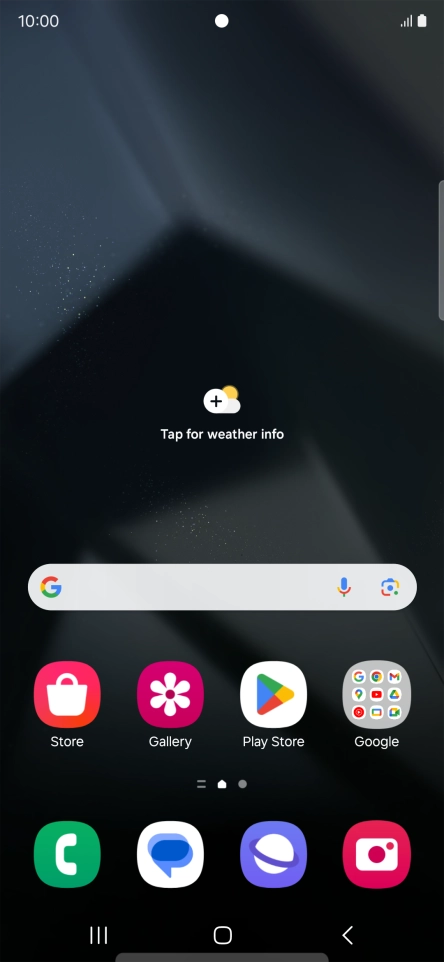
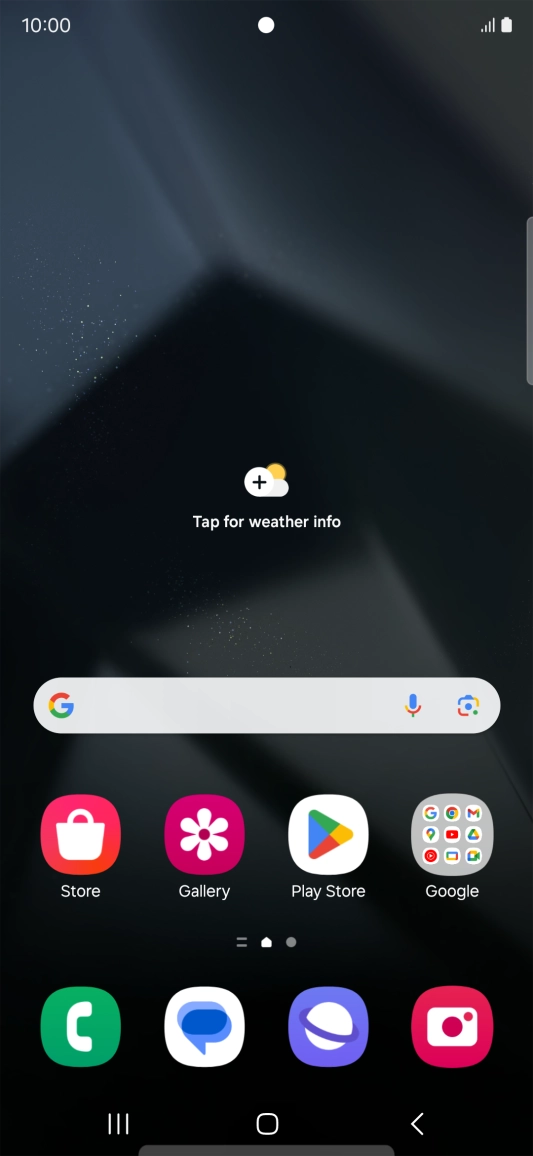
Slide your finger upwards on the screen.
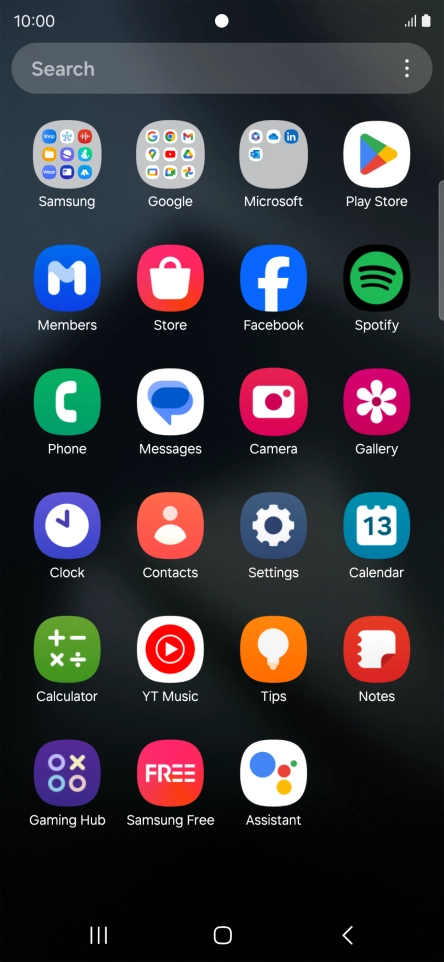
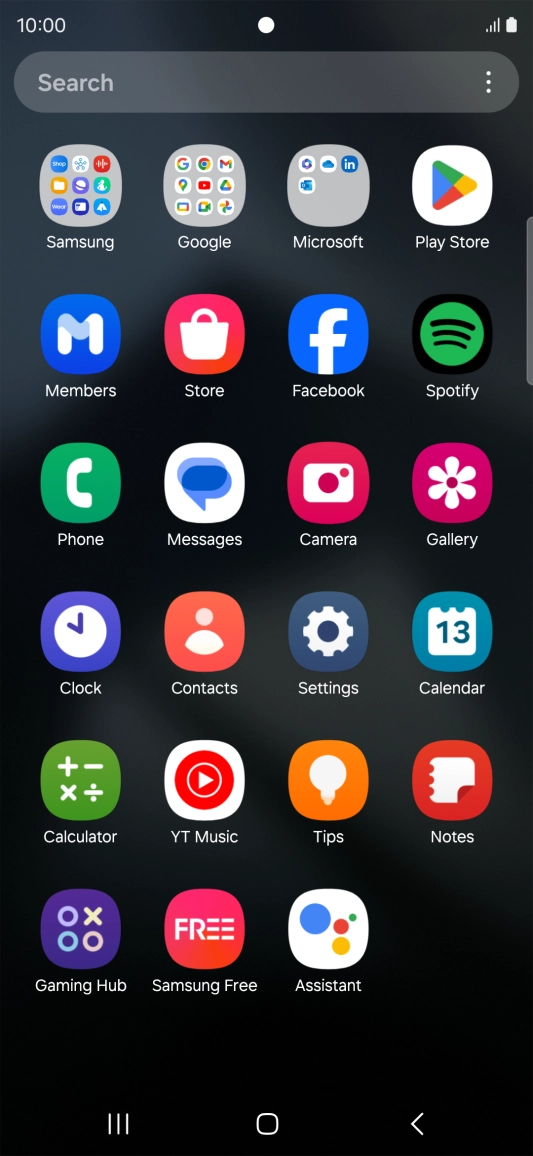
Step 1 of 9

Slide your finger upwards on the screen.

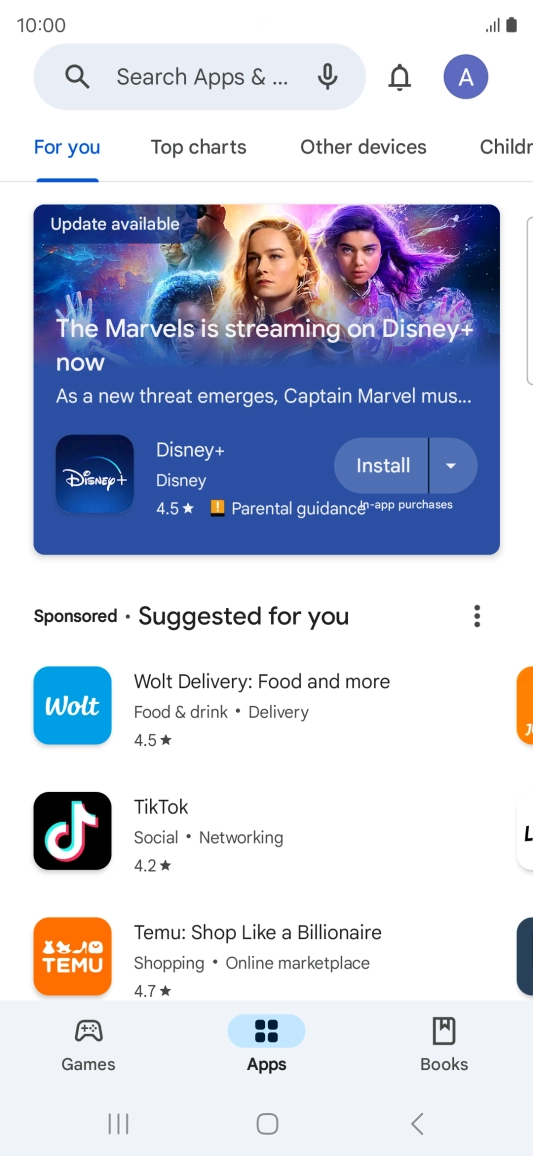
Press Play Store.
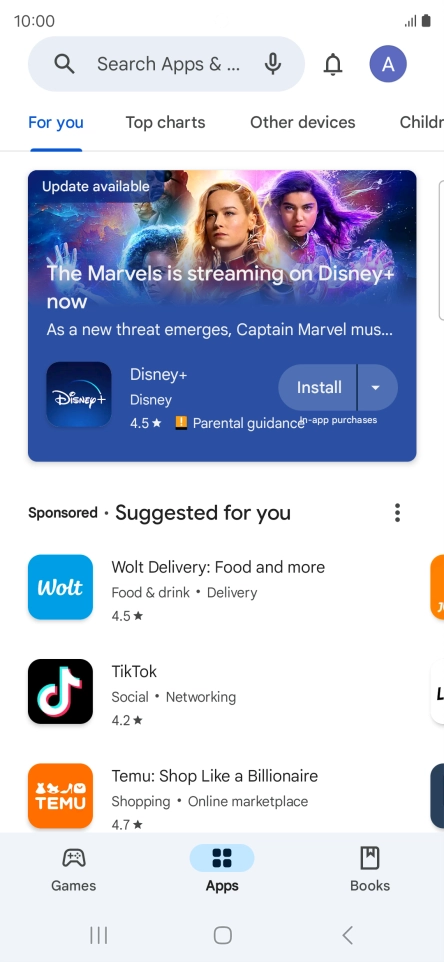
Press Play Store.
Step 2 of 9

Press Play Store.

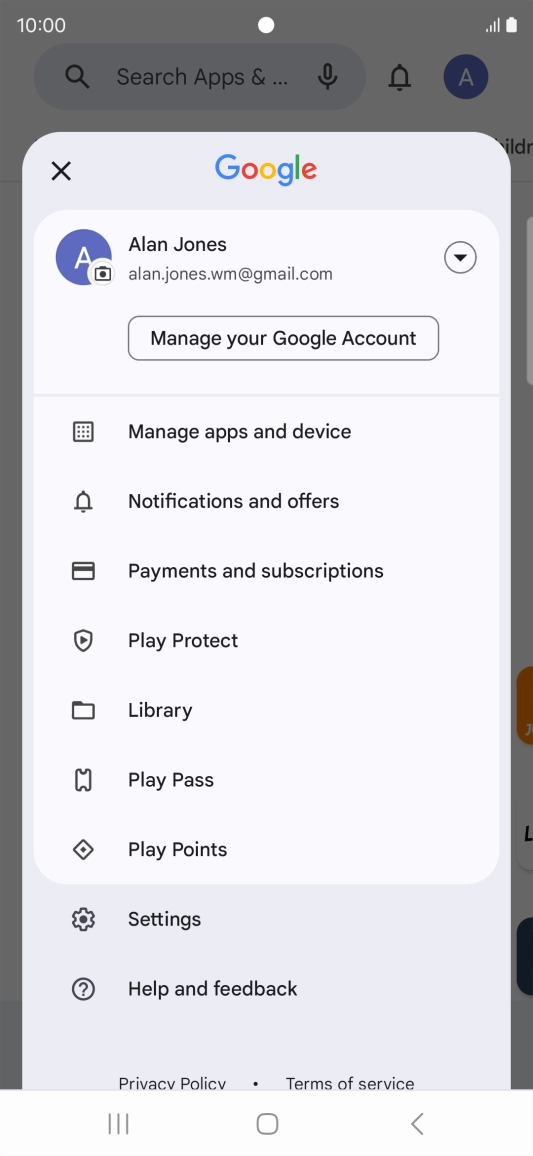
Press the profile icon.
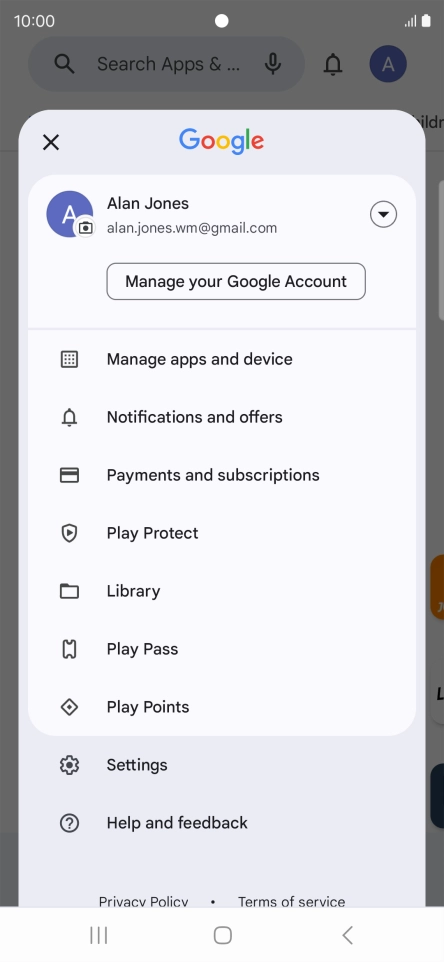
Step 3 of 9

Press the profile icon.

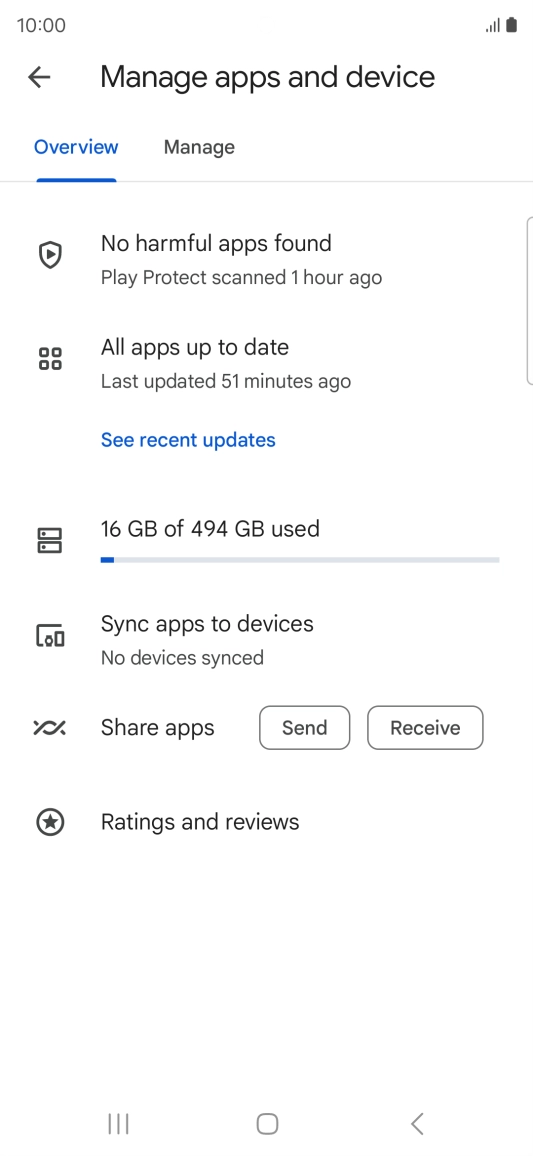
Press Manage apps and device.
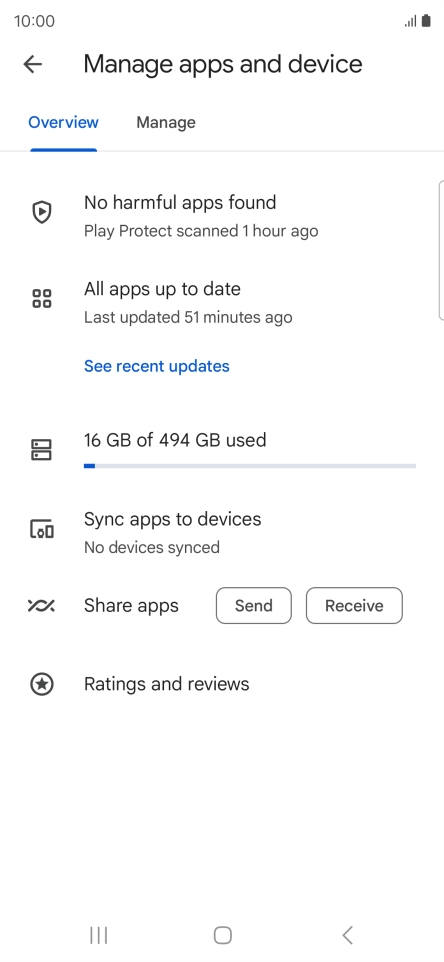
Step 4 of 9

Press Manage apps and device.

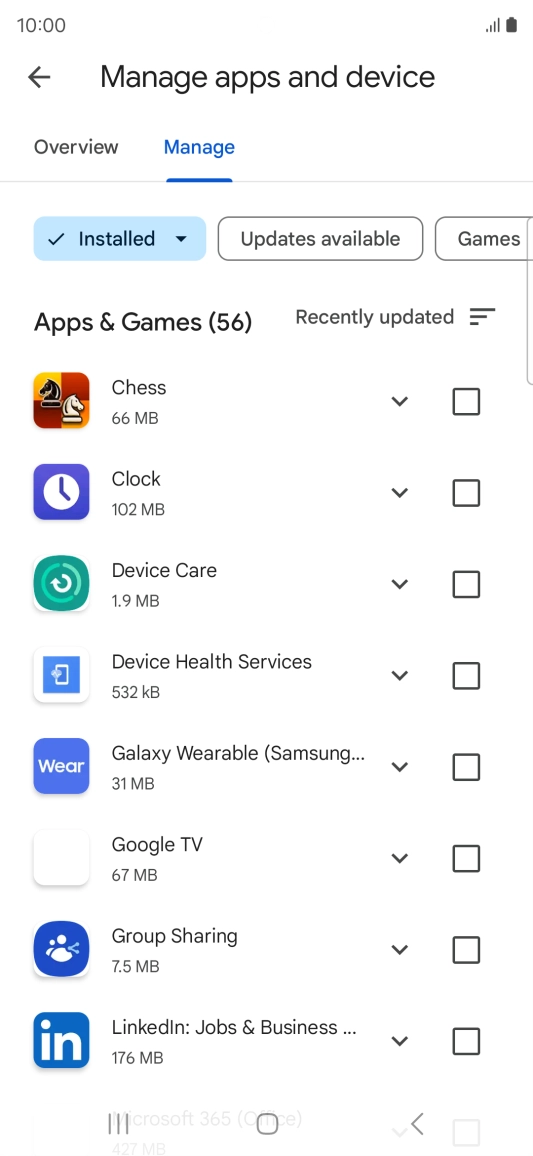
Press Manage.
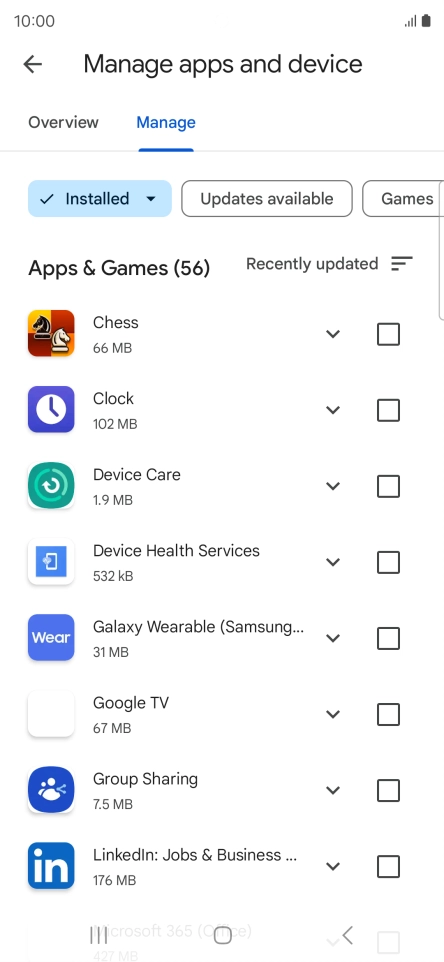
Press Manage.
Step 5 of 9

Press Manage.

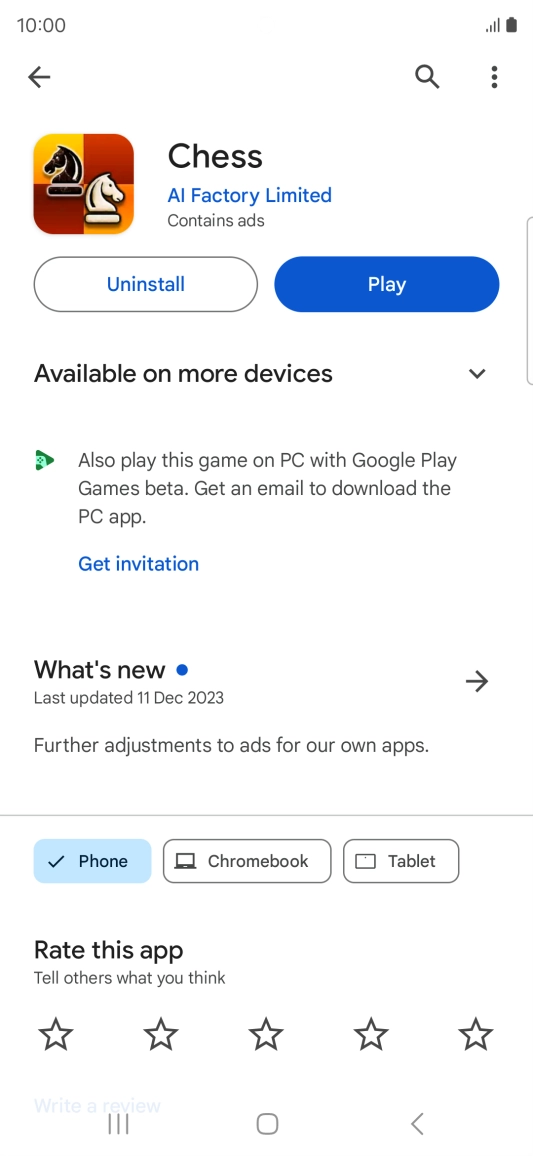
Press the required app.
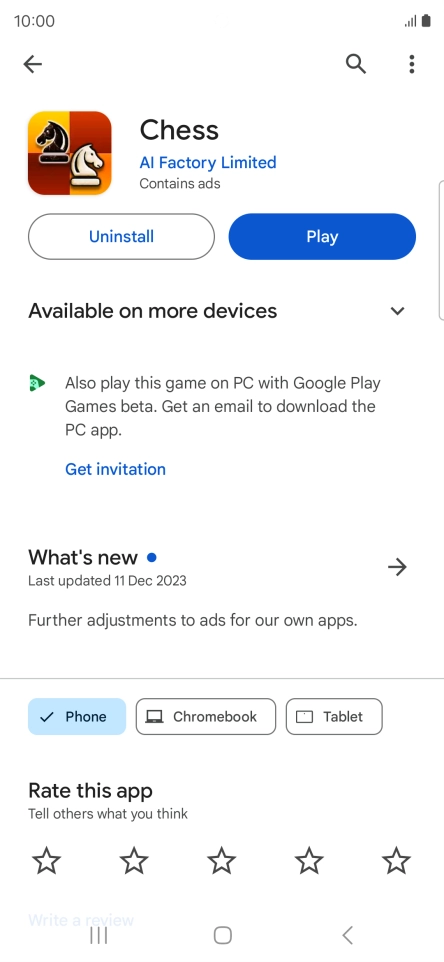
Step 6 of 9

Press the required app.

Press Uninstall.
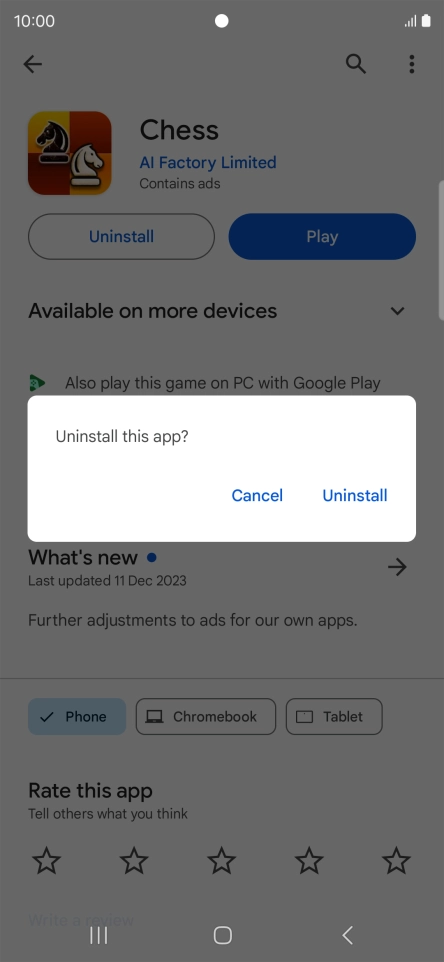
Press Uninstall.
Step 7 of 9

Press Uninstall.

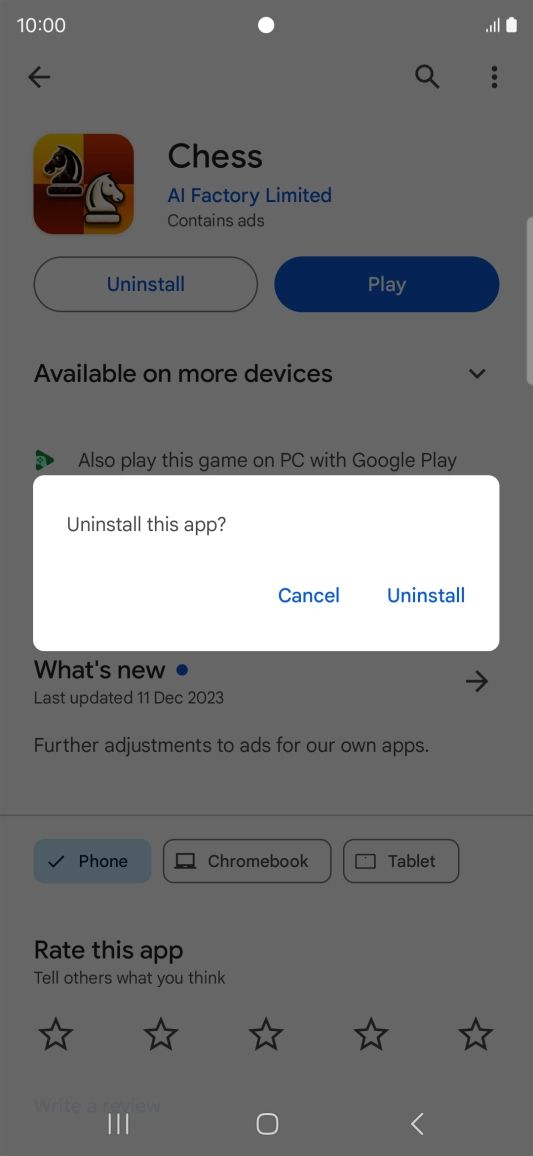
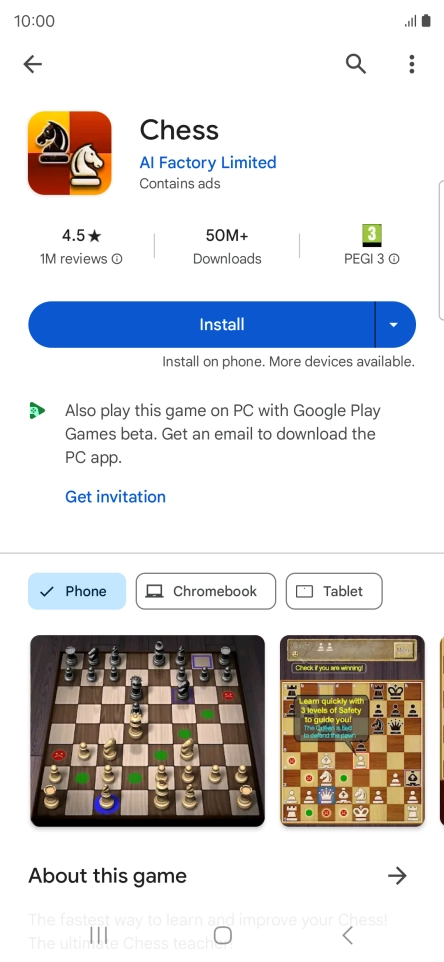
Press Uninstall.
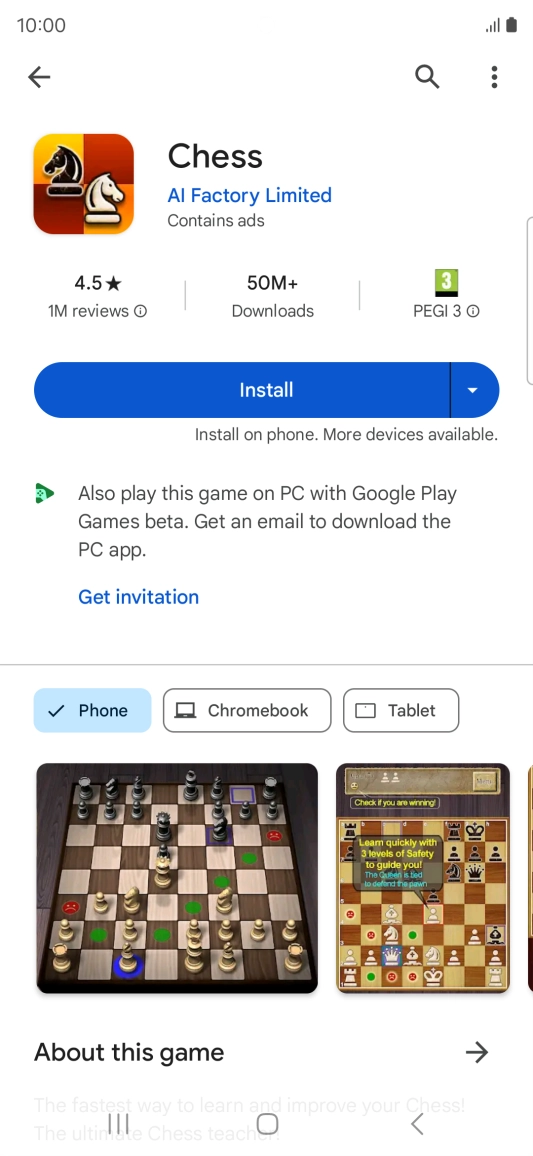
Press Uninstall.
Step 8 of 9

Press Uninstall.

Press the Home key to return to the home screen.
Step 9 of 9

Press the Home key to return to the home screen.

Get information on...

Or choose...

Show more