Help
Device guides
Samsung
Galaxy S26

Samsung Galaxy S26

f-9469e9f7-f607-45c4-893c-50e448745796
f-a4dfb8be-8af9-4aa0-9a9e-a4c70247a762
f-2c53529b-c648-4f63-a70a-d92a1e965f89
f-fb4a9bdd-21de-49bc-a82c-f9c337759f34
f-d00242ca-25ea-46b5-a69d-9899d6d0d413
f-74f6b71d-5957-43f5-9b71-cc078fad3295
f-b88fe78e-956d-47e7-b5ae-57ed94b99849
f-84e90586-02ad-4f5b-9c59-faf50ba9df14
  • Device home
  • Getting started
  • Basic functions
  • Calls, contacts, messaging
  • Connectivity
  • Specifications
  • Device home
  • Getting started
  • Basic functions
  • Calls, contacts, messaging
  • Connectivity
  • Specifications

Uninstalling apps

You can uninstall apps to free up memory.
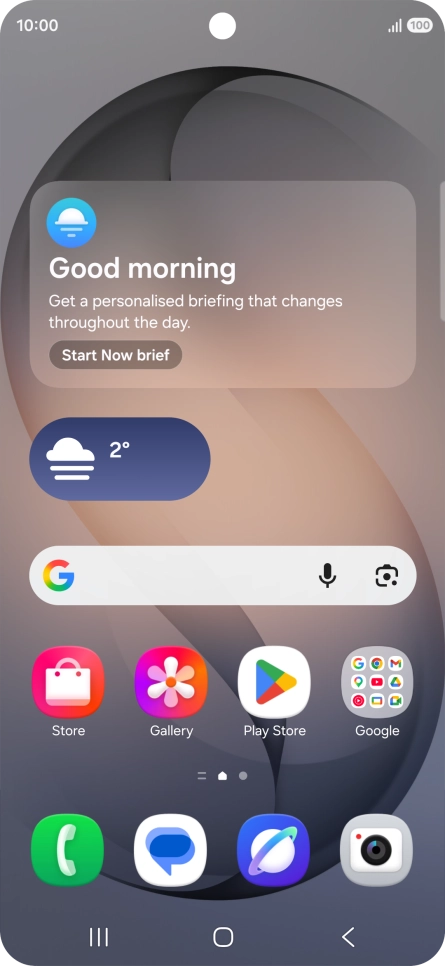
Slide your finger upwards on the screen.
Step 1 of 9

Slide your finger upwards on the screen.

Press Play Store.
Press Play Store.
Step 2 of 9

Press Play Store.

Press the profile icon.
Step 3 of 9

Press the profile icon.

Press Manage apps and device.
Step 4 of 9

Press Manage apps and device.

Press Manage.
Press Manage.
Step 5 of 9

Press Manage.

Press the required app.
Step 6 of 9

Press the required app.

Press Uninstall.
Press Uninstall.
Step 7 of 9

Press Uninstall.

Press Uninstall.
Press Uninstall.
Step 8 of 9

Press Uninstall.

Press the Home key to return to the home screen.
Step 9 of 9

Press the Home key to return to the home screen.

Get information on...

Or choose...

Show more