Help
Device guides
Samsung
Galaxy S26+

Samsung Galaxy S26+

f-903eba60-99b1-40c3-984e-e87b4aa48e2e
f-fdc67a4b-4f3e-4c04-a0df-4f2b57455692
f-5aca7394-41d1-4bcf-964f-39778ce64f69
f-d0c23809-f1e8-4c5e-b260-9f4271c07444
f-42d830d7-d85b-46bf-8f6d-8bebb94bfdd0
f-9736b515-4ccb-4c54-85e7-657a16f0b14c
f-b5a8aeaf-8970-41fc-83b7-0390b9eed86d
f-e440bf31-80b2-45a4-8bfb-57816d5dba6b
  • Device home
  • Getting started
  • Basic functions
  • Calls, contacts, messaging
  • Connectivity
  • Specifications
  • Device home
  • Getting started
  • Basic functions
  • Calls, contacts, messaging
  • Connectivity
  • Specifications

Uninstalling apps

You can uninstall apps to free up memory.
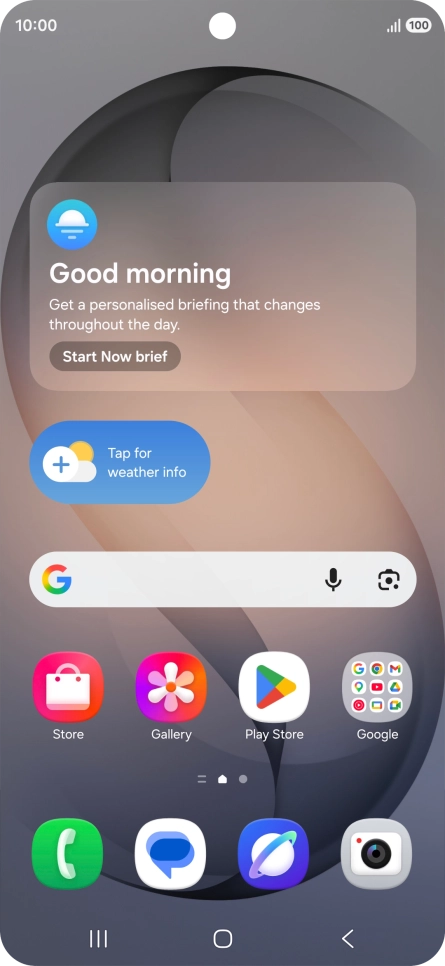
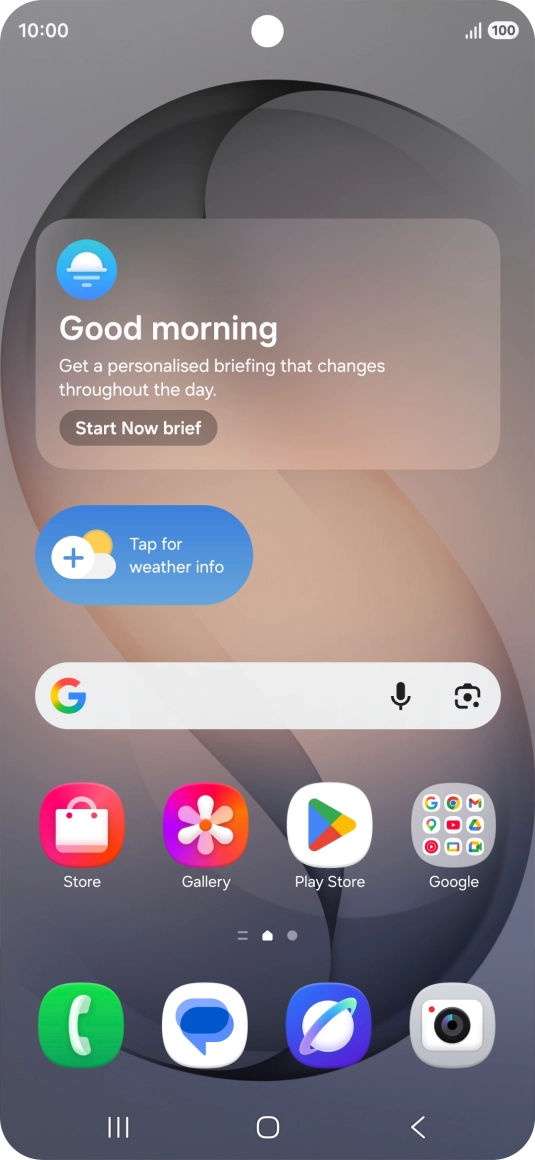
Slide your finger upwards on the screen.
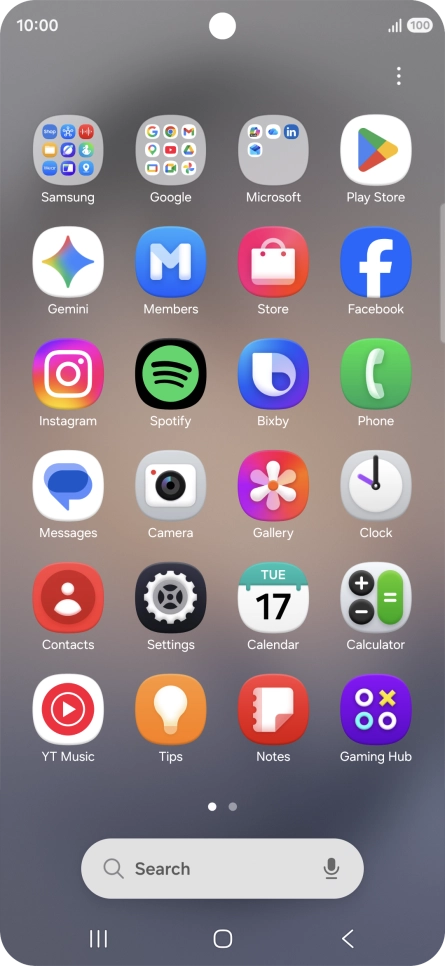
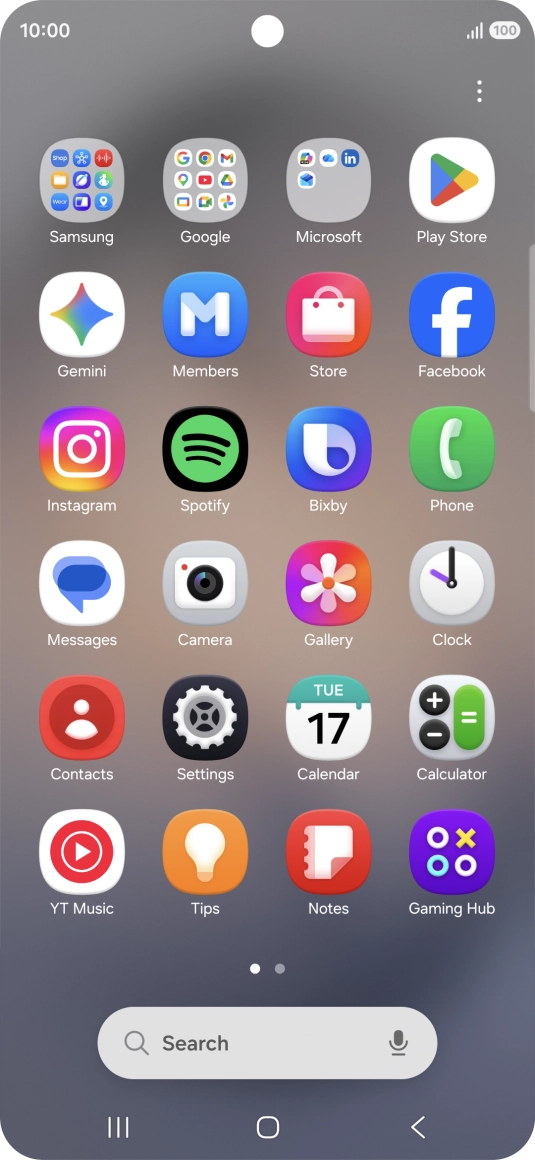
Step 1 of 9

Slide your finger upwards on the screen.

Press Play Store.
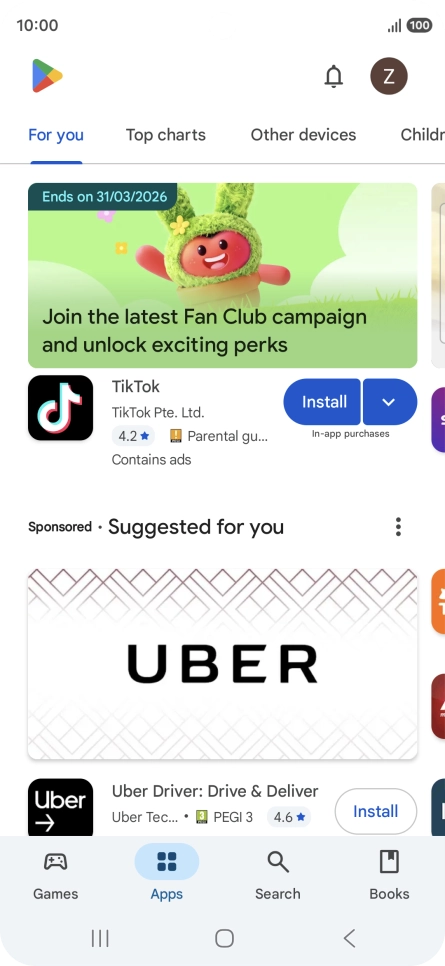
Press Play Store.
Step 2 of 9

Press Play Store.

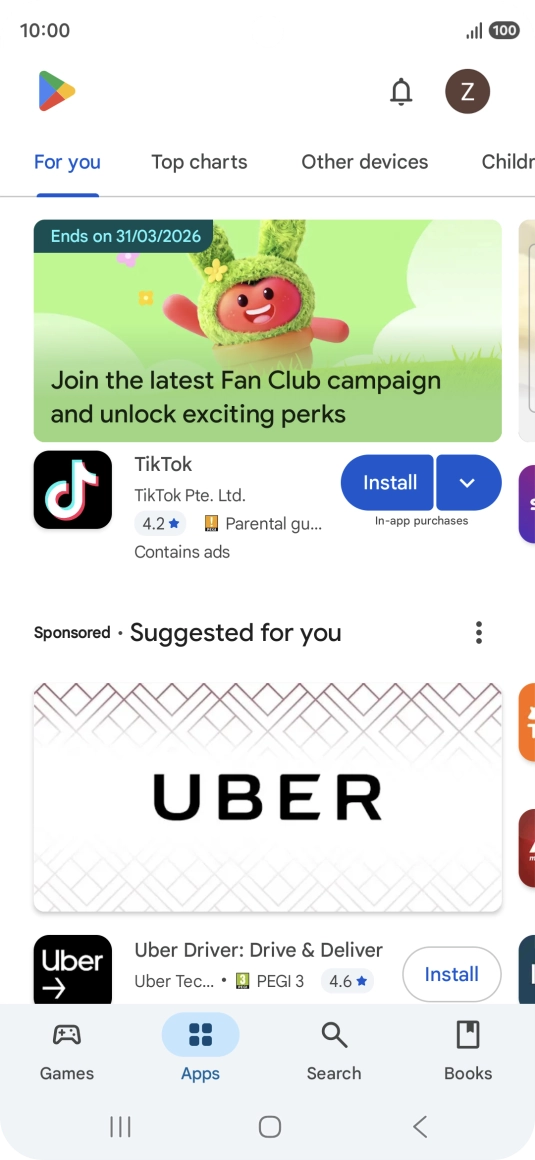
Press the profile icon.
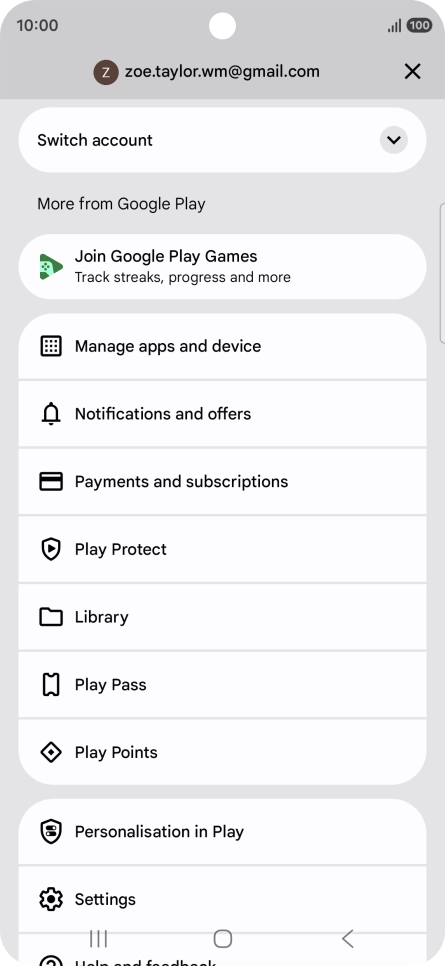
Step 3 of 9

Press the profile icon.

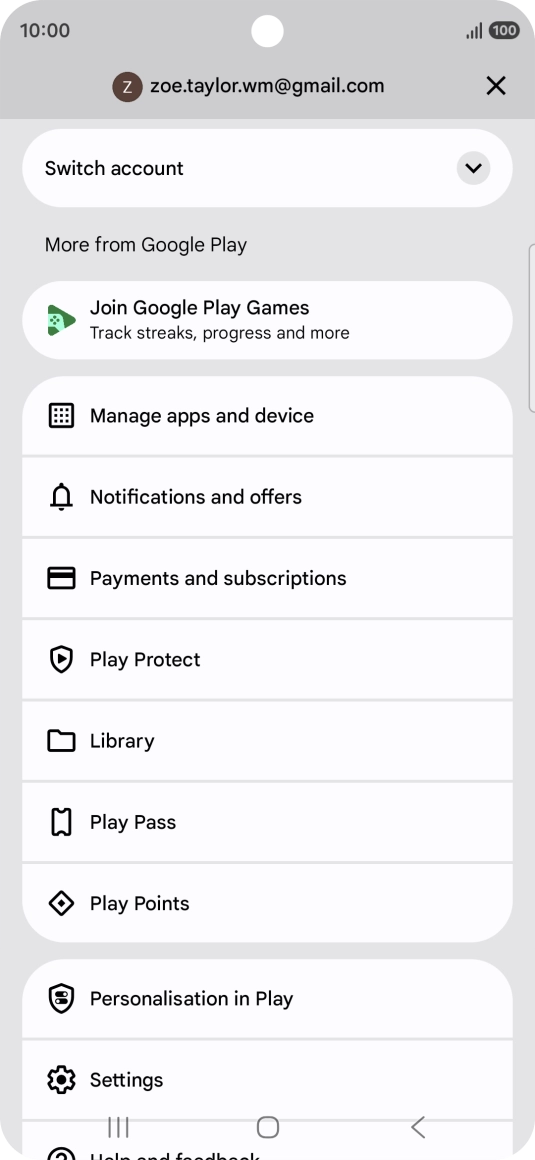
Press Manage apps and device.
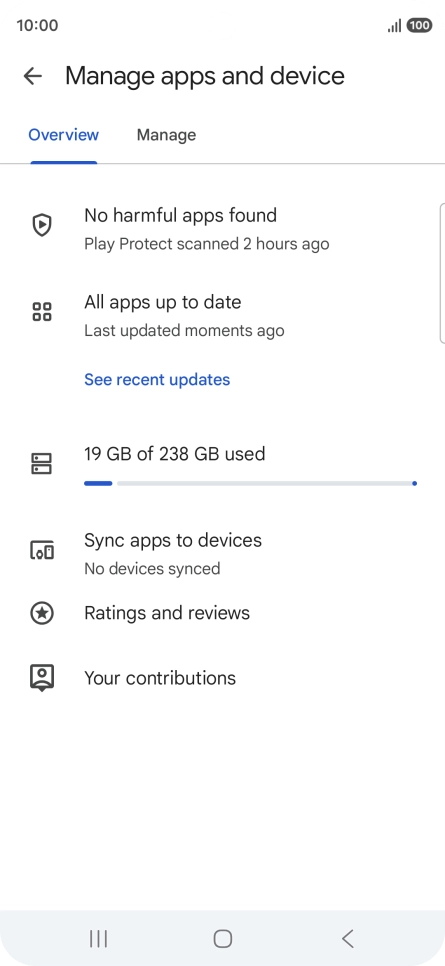
Step 4 of 9

Press Manage apps and device.

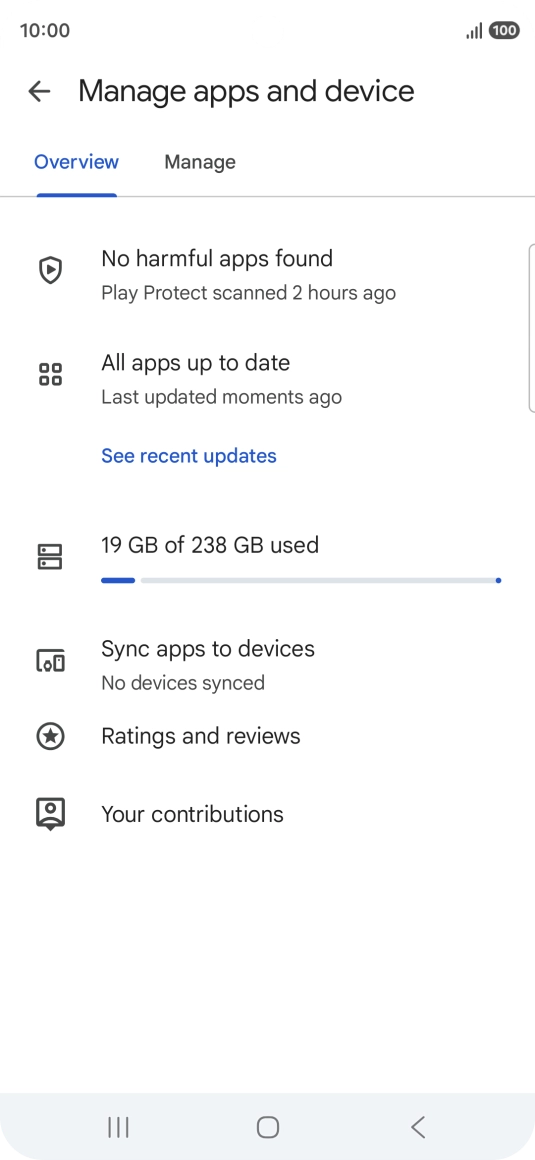
Press Manage.
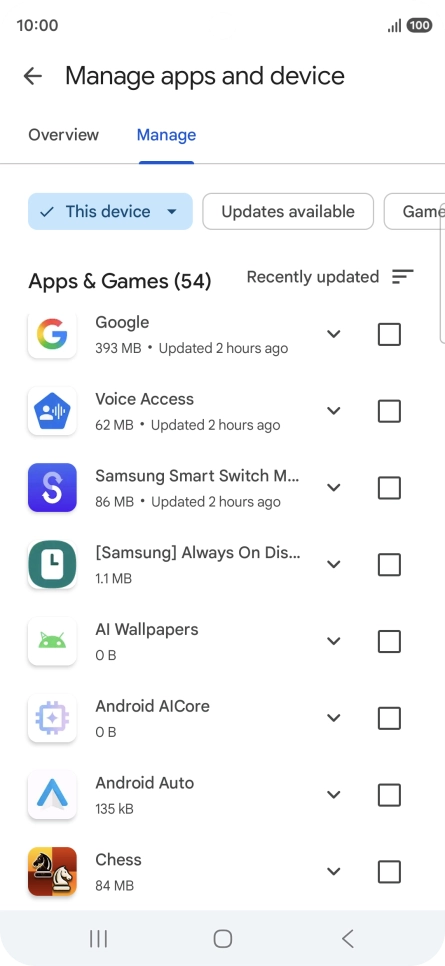
Press Manage.
Step 5 of 9

Press Manage.

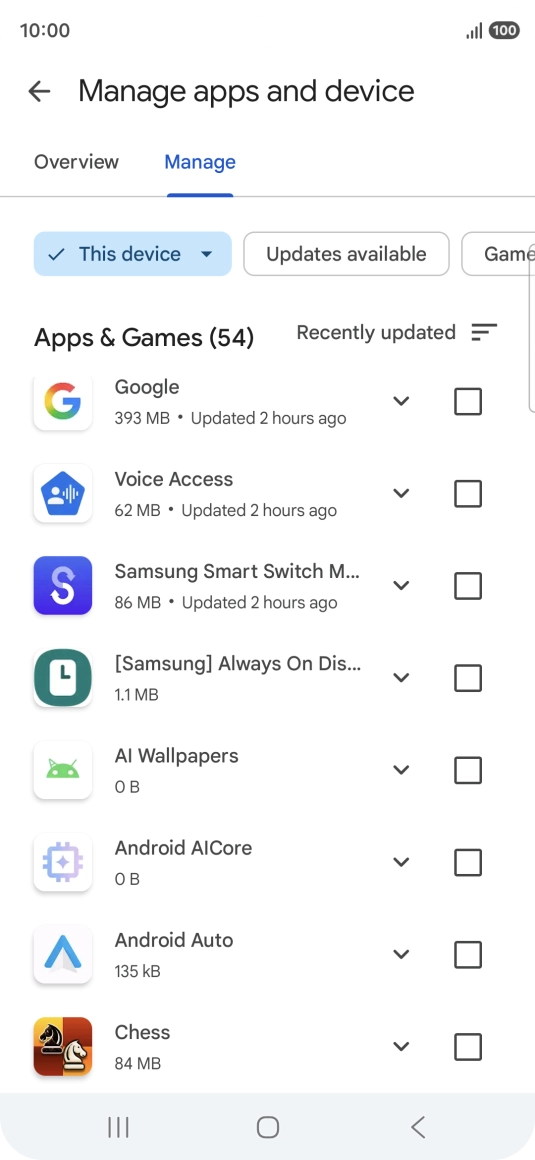
Press the required app.
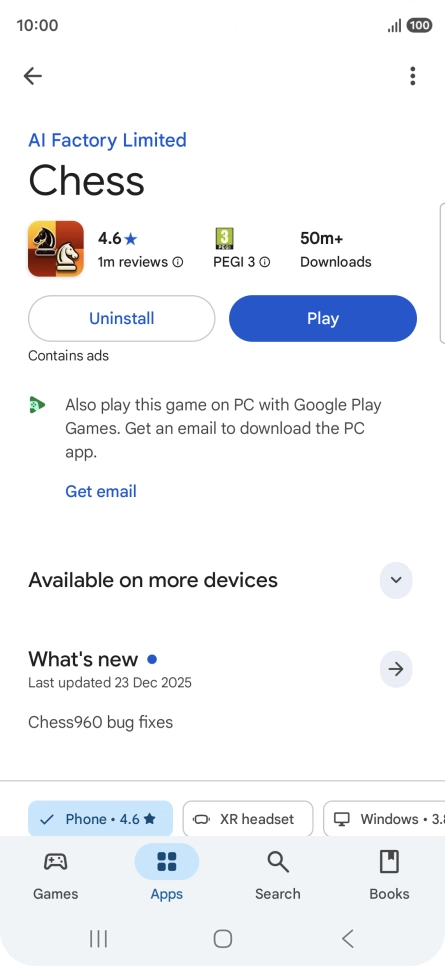
Step 6 of 9

Press the required app.

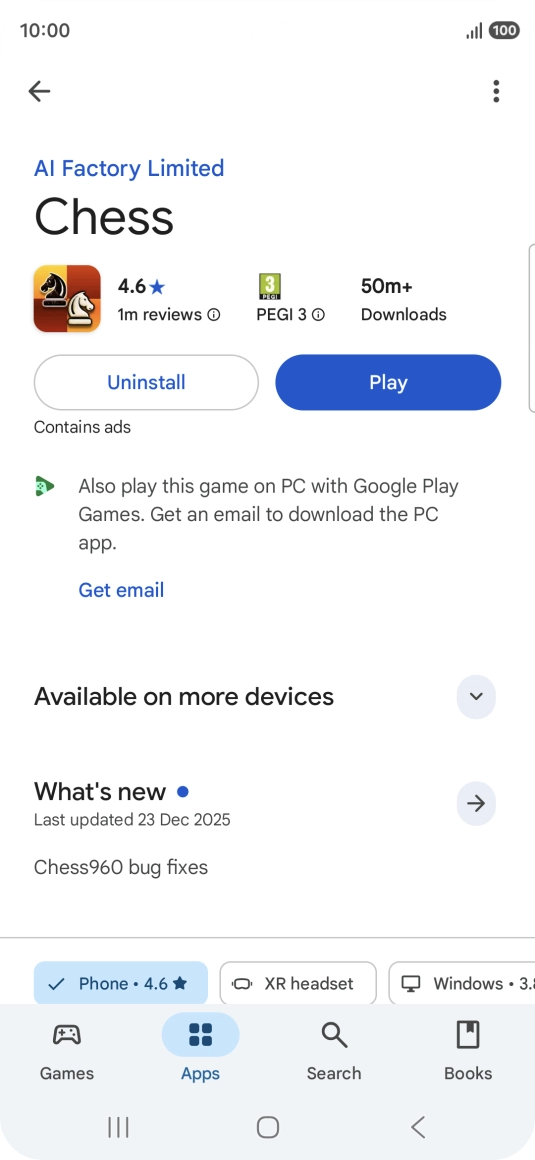
Press Uninstall.
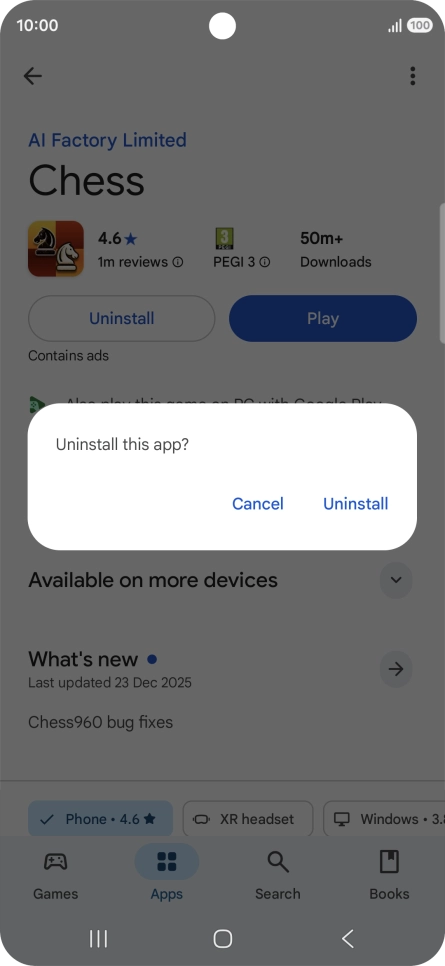
Press Uninstall.
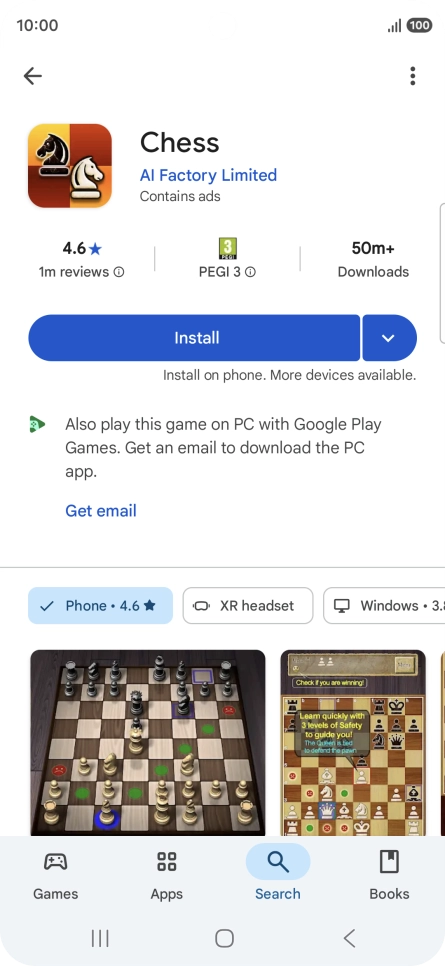
Step 7 of 9

Press Uninstall.

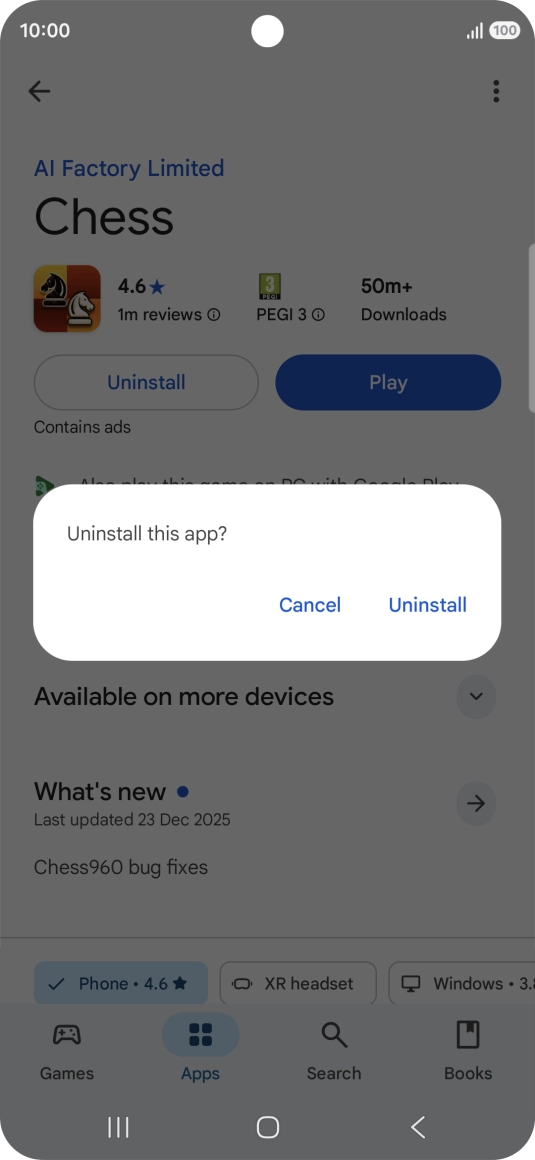
Press Uninstall.
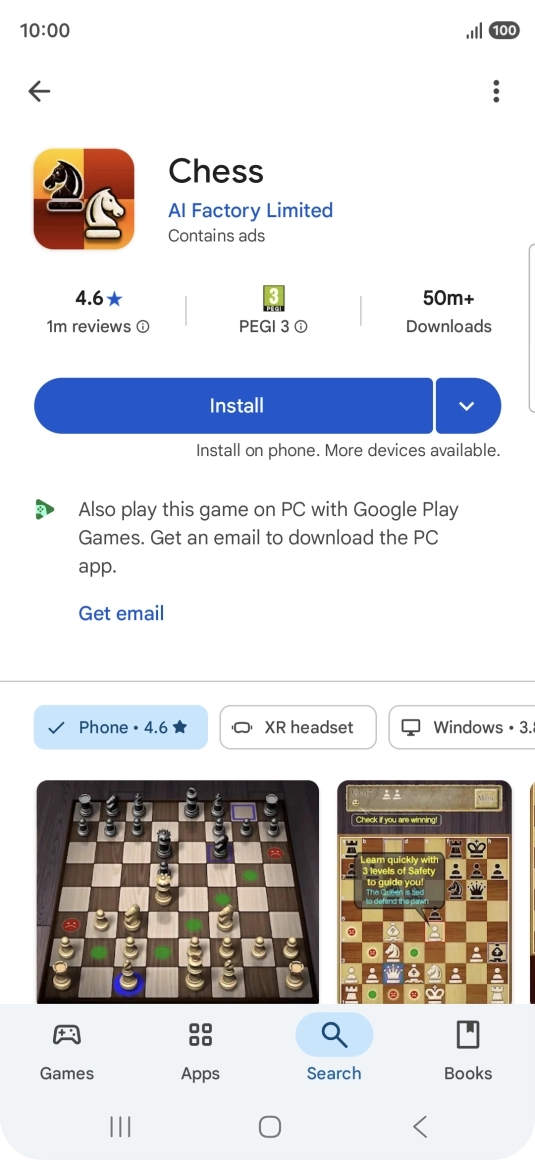
Press Uninstall.
Step 8 of 9

Press Uninstall.

Press the Home key to return to the home screen.
Step 9 of 9

Press the Home key to return to the home screen.

Get information on...

Or choose...

Show more