Help
Device guides
Samsung
Galaxy S26 Ultra

Samsung Galaxy S26 Ultra

f-821650c0-c578-4a07-944a-e71496445501
f-bff0e0df-786d-468a-a275-3062fcfba55e
f-e9d6ed08-dec2-4844-8e73-1e9b2963e54c
f-5fada14f-2f4a-4db7-a1f9-c9409d1dc8db
f-4f8cc684-177a-416b-b35a-62112a744d66
f-71e7e71f-6d00-48ed-9eae-66dbc307f015
f-b80fd9c6-1e46-4c10-8289-17fda8598f22
f-fe5acd42-e178-4044-9e11-a85e8116741e
  • Device home
  • Getting started
  • Basic functions
  • Calls, contacts, messaging
  • Connectivity
  • Specifications
  • Device home
  • Getting started
  • Basic functions
  • Calls, contacts, messaging
  • Connectivity
  • Specifications

Cancelling all diverts

If you no longer wish to divert your calls, you need to cancel the diverts.
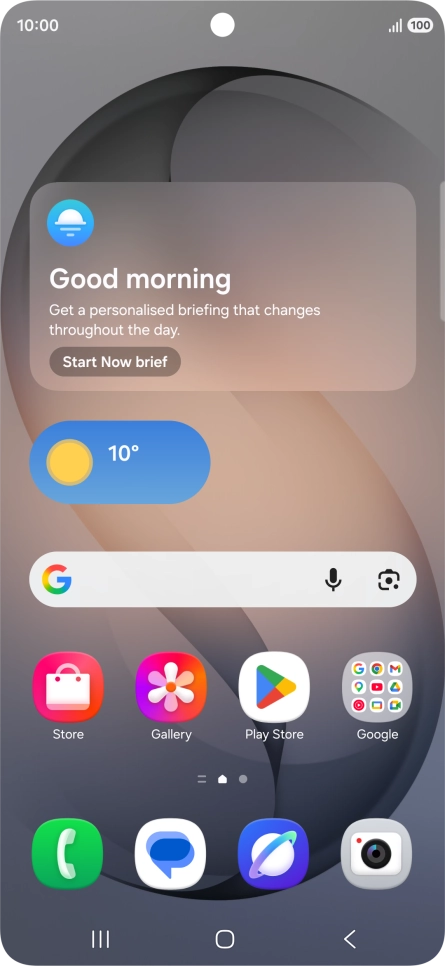
Press the call icon.
Step 1 of 8

Press the call icon.

Press the menu icon.
Step 2 of 8

Press the menu icon.

Press Settings.
Press Settings.
Step 3 of 8

Press Settings.

Press Supplementary services.
Step 4 of 8

Press Supplementary services.

Press Call forwarding.
Step 5 of 8

Press Call forwarding.

Press the required divert type.
Step 6 of 8

Press the required divert type.

Press Disable.
Press Disable.
Step 7 of 8

Press Disable.

Press the Home key to return to the home screen.
Step 8 of 8

Press the Home key to return to the home screen.

Get information on...

Or choose...

Show more