Help
Device guides
Samsung
Galaxy S7

Samsung Galaxy S7

f-d8c8228d-c283-474f-9e9d-26708245c58e
f-87298e1c-8baf-4e5b-b616-0118fbfa7a32
f-c5fa6ed6-833b-47e1-8f75-5ecb5514868a
f-aa506c5c-d0c1-4c48-98dc-b97017887b7e
f-17c90e43-3897-4fd7-9f6e-9bc5092a5baa
  • Device home
  • Getting started
  • Basic functions
  • Calls, contacts, messaging
  • Connectivity
  • Specifications
  • Device home
  • Getting started
  • Basic functions
  • Calls, contacts, messaging
  • Connectivity
  • Specifications

Writing and sending email messages

You can send and receive email messages from your email accounts. To send and receive email messages, you need to set up your phone for email.
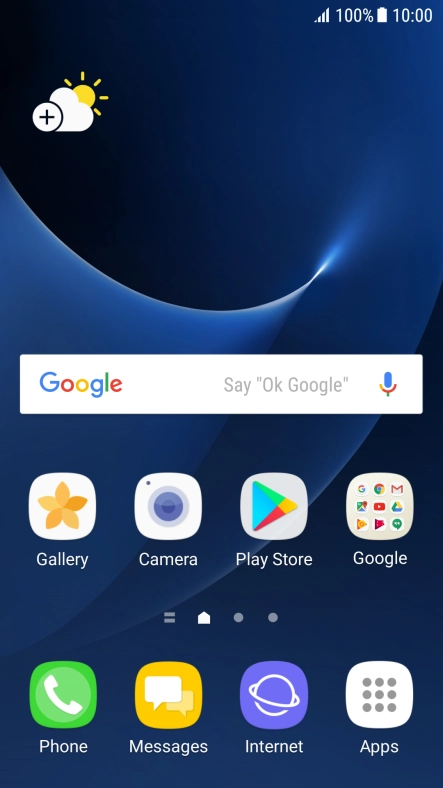
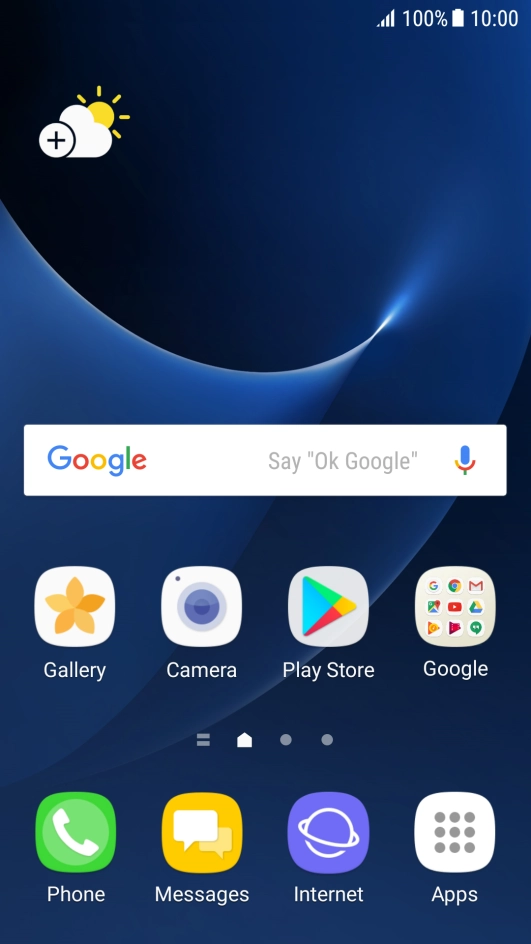
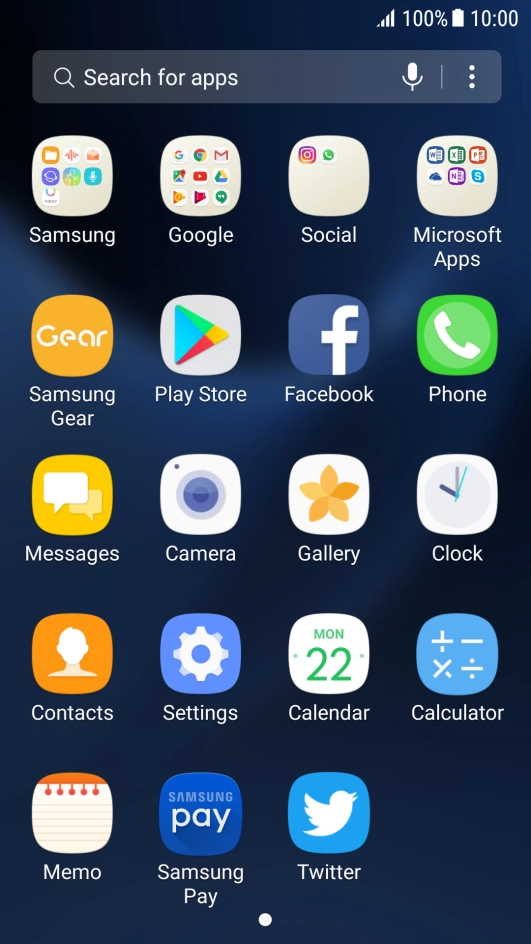
Press Apps.
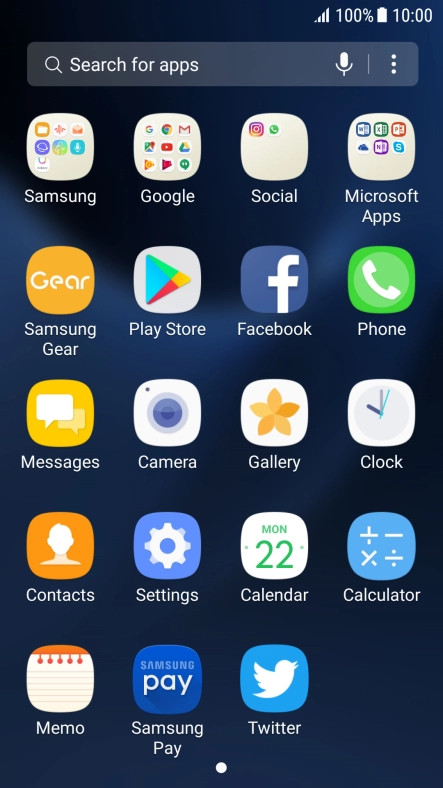
Press Apps.
Step 1 of 17

Press Apps.

Press Samsung.
Press Samsung.
Step 2 of 17

Press Samsung.

Press Email.
Press Email.
Step 3 of 17

Press Email.

Slide your finger right starting from the left side of the screen.
Step 4 of 17

Slide your finger right starting from the left side of the screen.

Press the required account.
Step 5 of 17

Press the required account.

Press the new email message icon.
Step 6 of 17

Press the new email message icon.

Press the search field and key in the first letters of the recipient's name.
Step 7 of 17

Press the search field and key in the first letters of the recipient's name.

Press the required contact.
Step 8 of 17

Press the required contact.

Press Subject and key in the required subject.
Step 9 of 17

Press Subject and key in the required subject.

Press the text input field and write the text for your email message.
Step 10 of 17

Press the text input field and write the text for your email message.

Press ATTACH.
Press ATTACH.
Step 11 of 17

Press ATTACH.

Press OTHER and go to the required folder.
Step 12 of 17

Press OTHER and go to the required folder.

Press My Files.
Press My Files.
Step 13 of 17

Press My Files.

Press the required file.
Step 14 of 17

Press the required file.

Press DONE.
Press DONE.
Step 15 of 17

Press DONE.

Press SEND when you've finished your email message.
Step 16 of 17

Press SEND when you've finished your email message.

Press the Home key to return to the home screen.
Step 17 of 17

Press the Home key to return to the home screen.

Get information on...

Or choose...

Show more