Help
Device guides
Samsung
Galaxy Tab A8

Samsung Galaxy Tab A8
f-491986ed-d7d5-4c04-a2a5-67a7ef463341
f-c046b525-7d09-450c-a9f0-b2fb94cb5f88
f-f53d6fa0-8aae-4ac9-a092-06e2c673fb94
f-86b06000-90b0-49a5-9347-1cb548725024
f-e1f25745-b58c-4bdd-acb9-c9a3b50b39ea
f-45c45408-77d4-4fbd-941c-1a448a5f587e
  • Device home
  • Getting started
  • Basic functions
  • Calls, contacts, messaging
  • Connectivity
  • Specifications
  • Device home
  • Getting started
  • Basic functions
  • Calls, contacts, messaging
  • Connectivity
  • Specifications

Uninstalling apps

You can uninstall apps to free up memory.
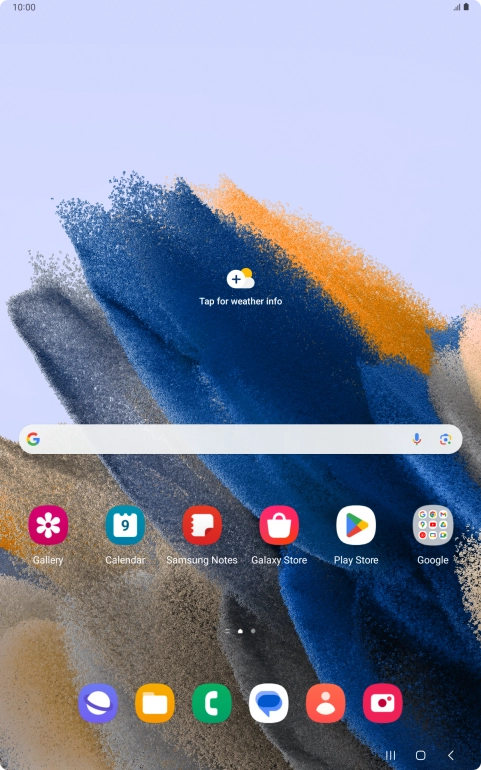
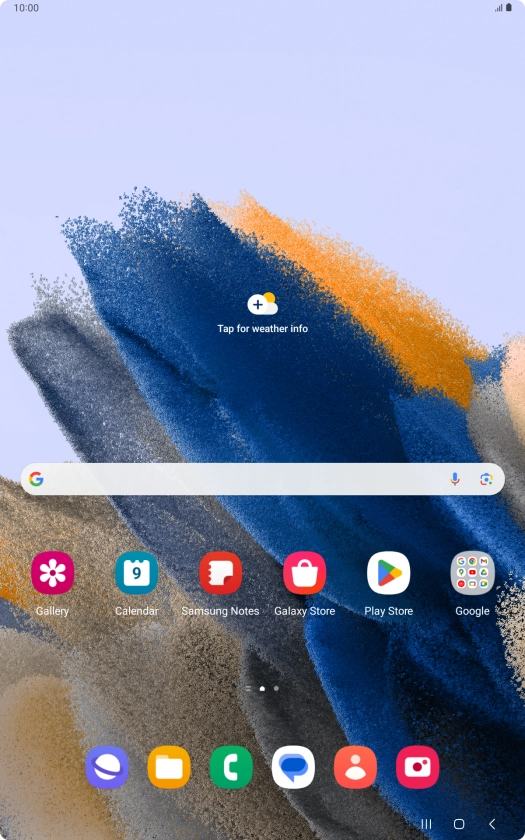
Slide your finger upwards on the screen.
Step 1 of 9

Slide your finger upwards on the screen.

Press Play Store.
Press Play Store.
Step 2 of 9

Press Play Store.

Press the profile icon.
Step 3 of 9

Press the profile icon.

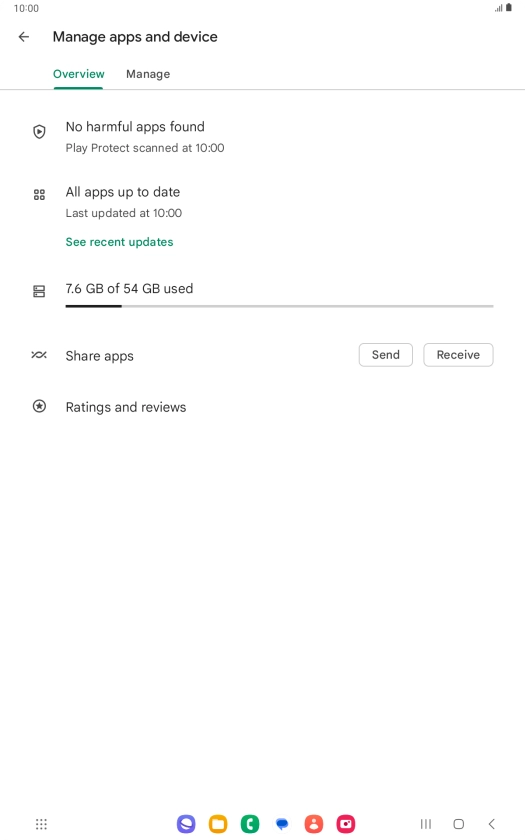
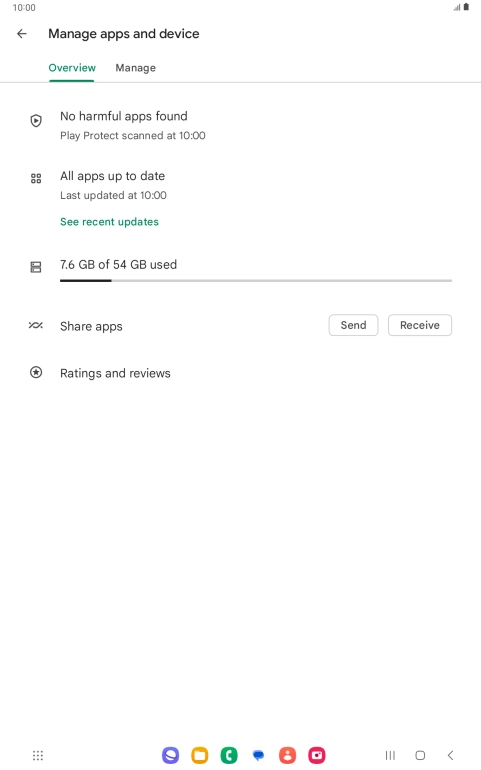
Press Manage apps and device.
Step 4 of 9

Press Manage apps and device.

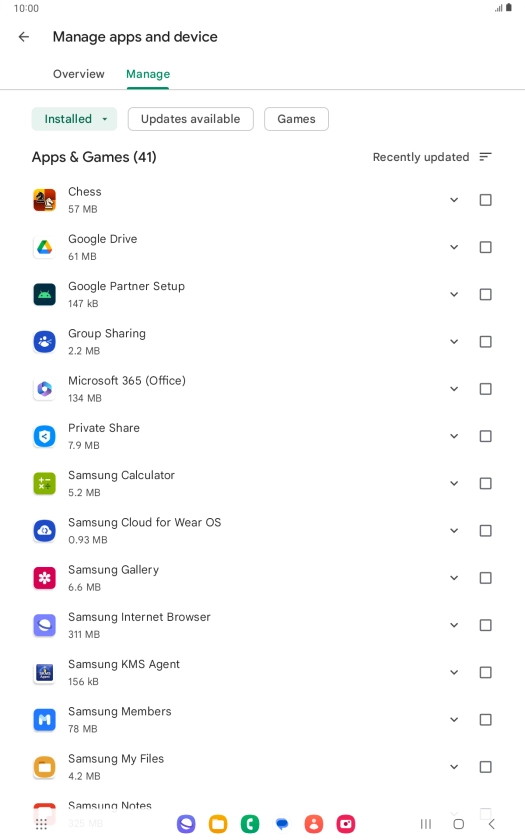
Press Manage.
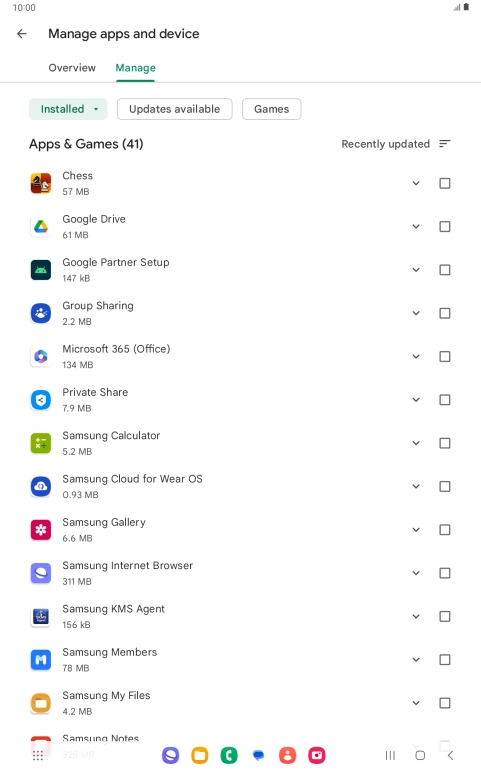
Press Manage.
Step 5 of 9

Press Manage.

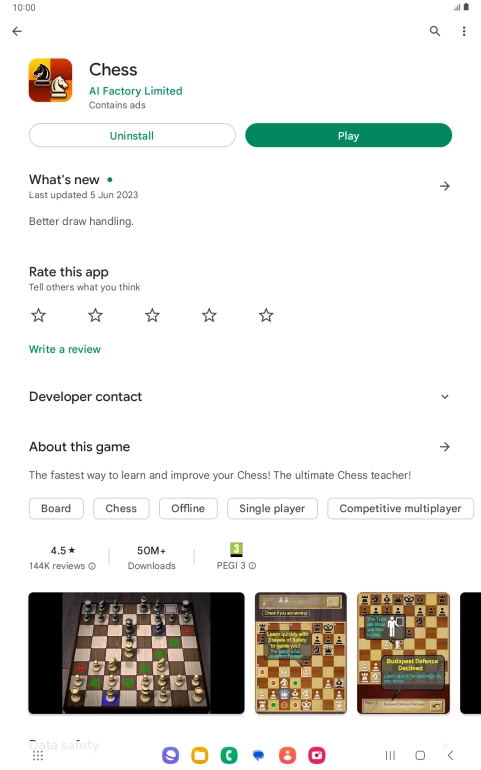
Press the required app.
Step 6 of 9

Press the required app.

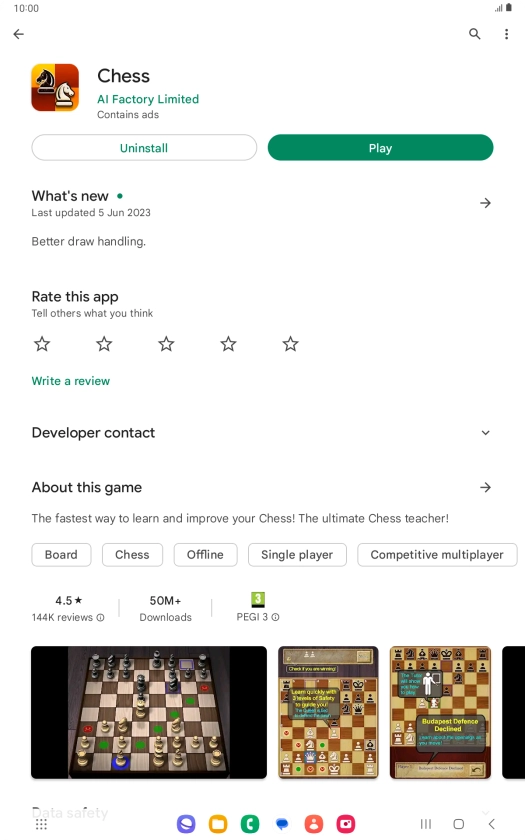
Press Uninstall.
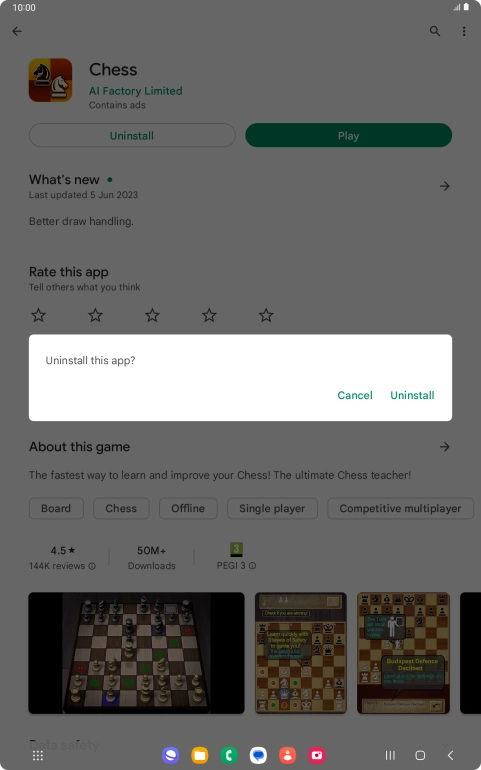
Press Uninstall.
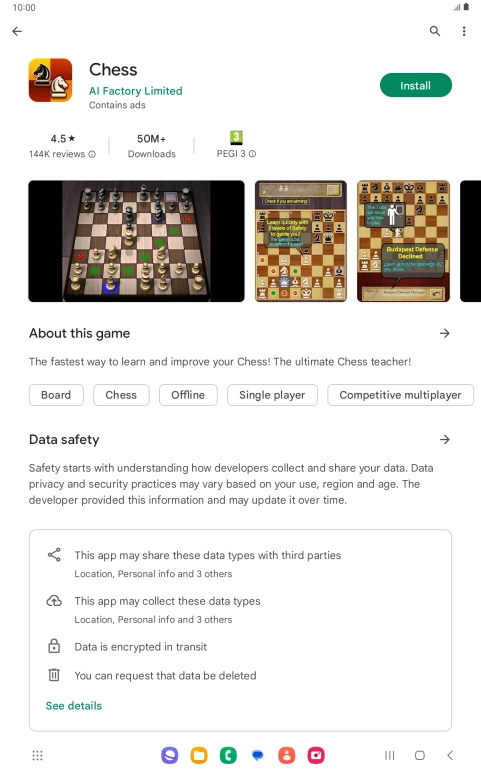
Step 7 of 9

Press Uninstall.

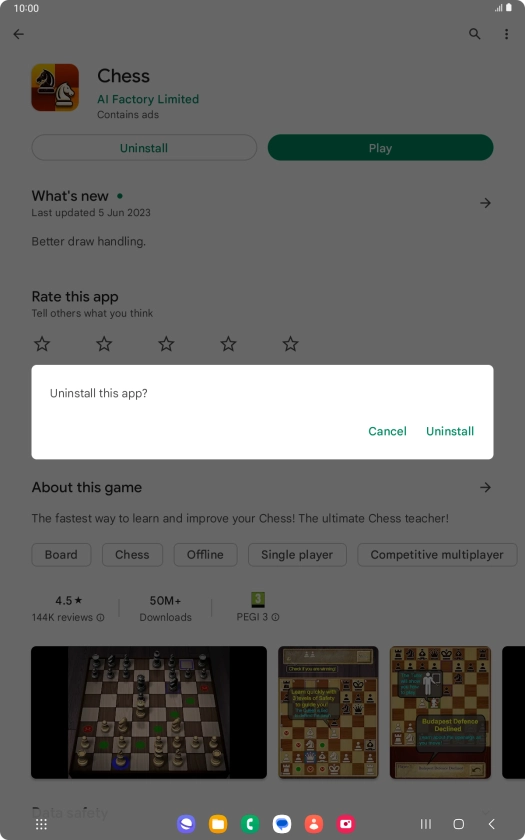
Press Uninstall.
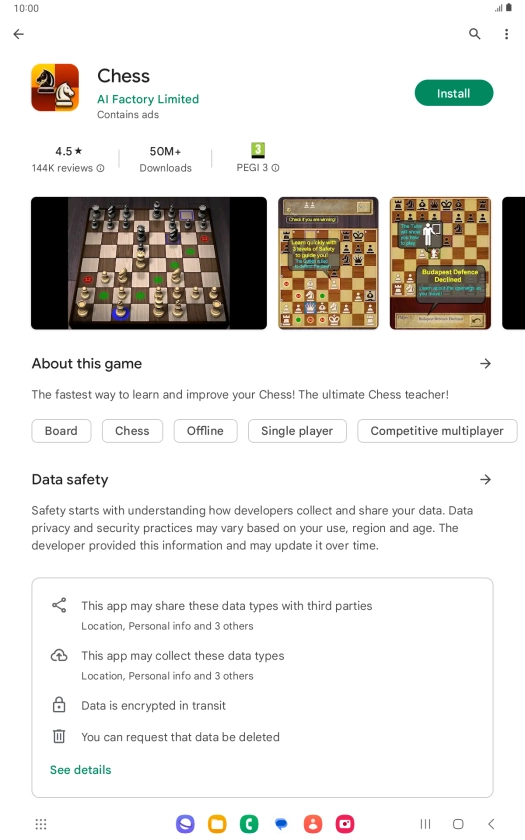
Press Uninstall.
Step 8 of 9

Press Uninstall.

Press the Home key to return to the home screen.
Step 9 of 9

Press the Home key to return to the home screen.

Get information on...

Or choose...

Show more