Help
Device guides
Samsung
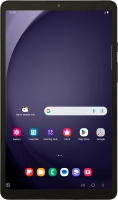
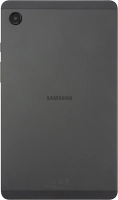
Galaxy Tab A9

Samsung Galaxy Tab A9
f-d1d3ae7e-9518-4fbc-a632-ec61e6a43aaa
f-71e3e1a7-63a2-4558-96a3-ded4216a4e18
f-74aaaead-f55e-4c92-bfb6-f98ee5566c0f
f-06ad923b-4ea7-4c02-8d59-e502229380a5
f-a3c16ce0-9614-493b-8c94-db23a0a552e6
f-91da8762-0630-453e-b1d5-76b64998abc5
f-00491c0c-b865-4ffe-801c-a0e42c54728c
f-1b97c5b4-6a3e-482f-b022-ce095acaf259
  • Device home
  • Getting started
  • Basic functions
  • Calls, contacts, messaging
  • Connectivity
  • Specifications
  • Device home
  • Getting started
  • Basic functions
  • Calls, contacts, messaging
  • Connectivity
  • Specifications

Cancelling all diverts

If you no longer wish to divert your calls, you need to cancel the diverts.
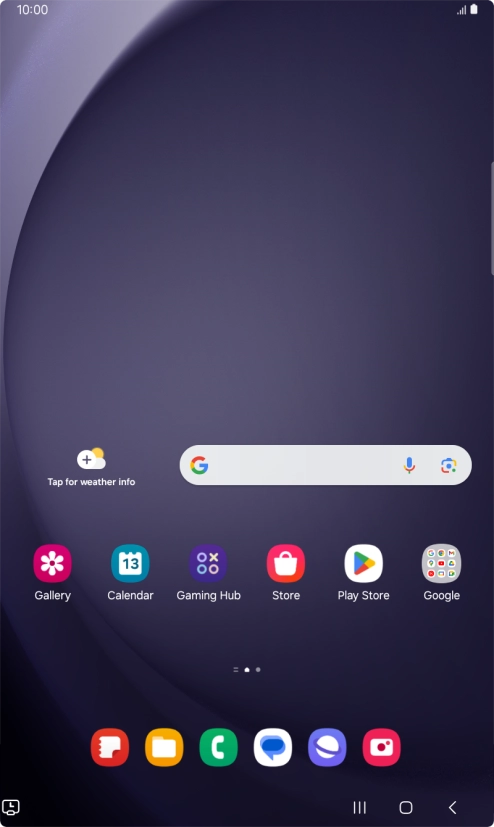
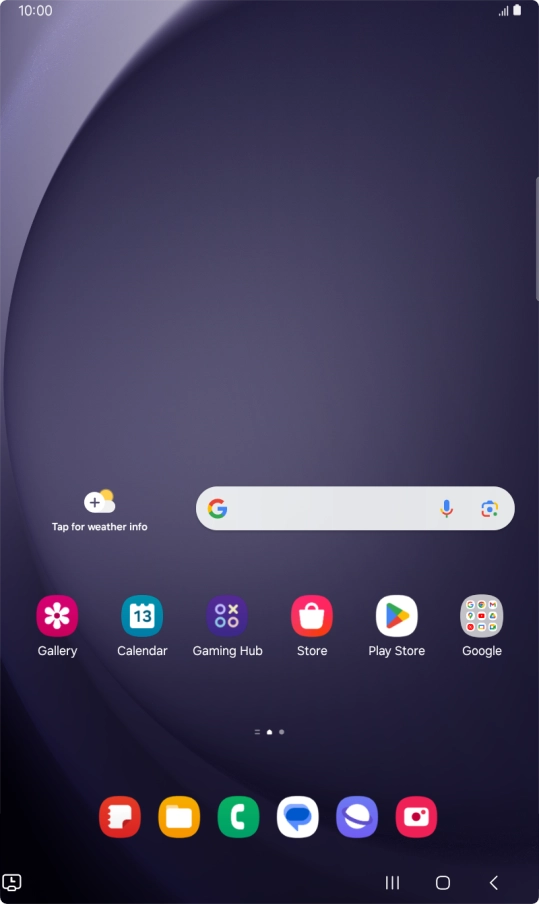
Press the call icon.
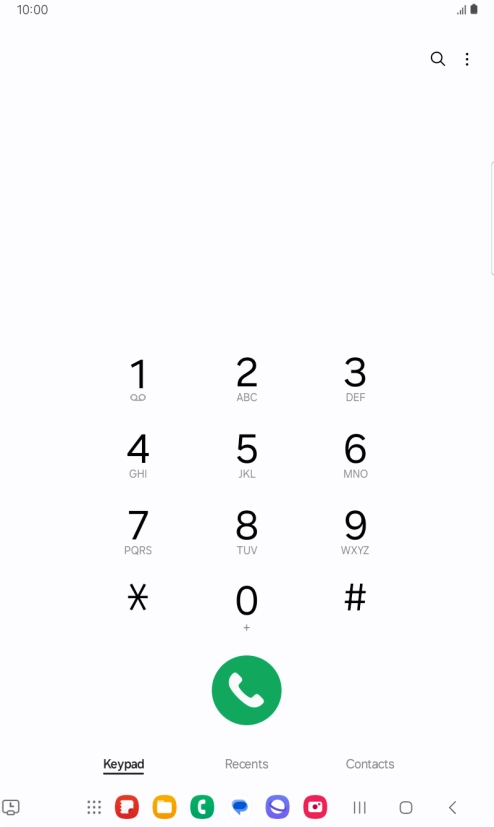
Step 1 of 8

Press the call icon.

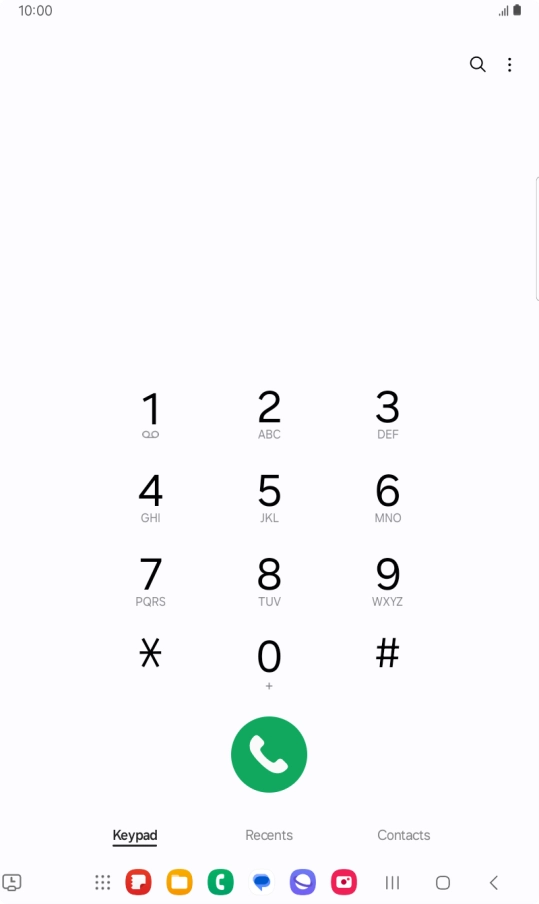
Press the menu icon.
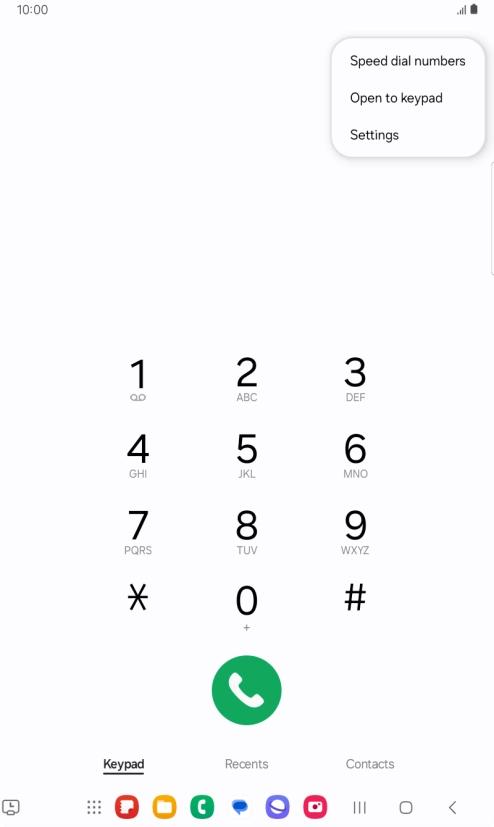
Step 2 of 8

Press the menu icon.

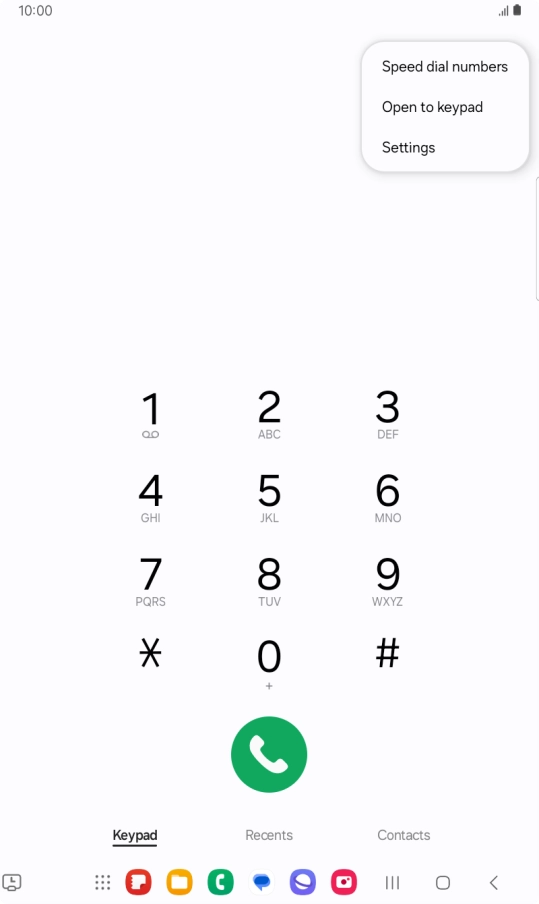
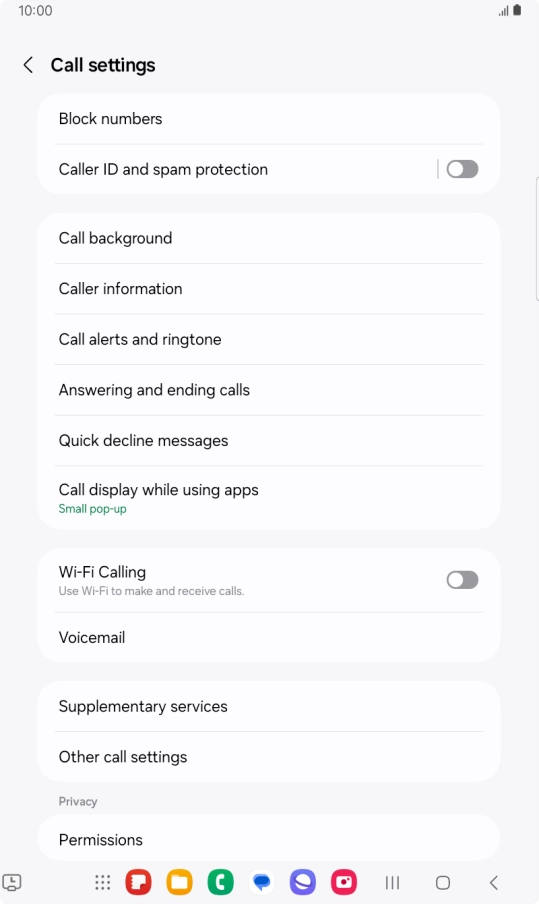
Press Settings.
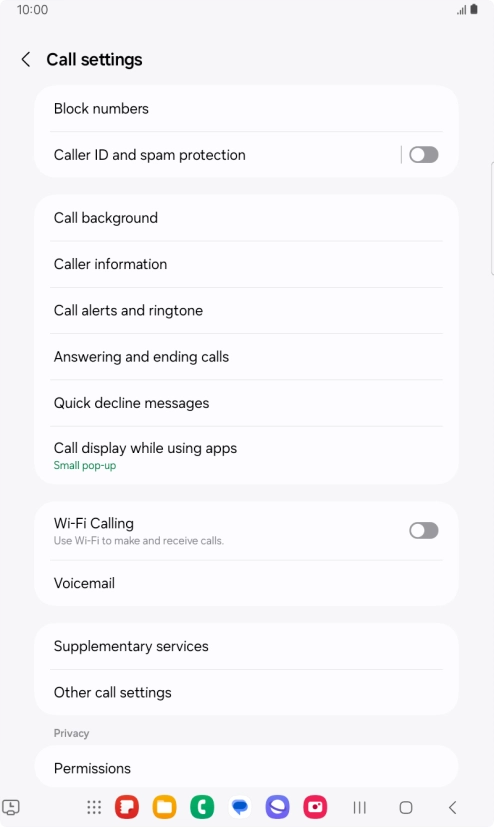
Press Settings.
Step 3 of 8

Press Settings.

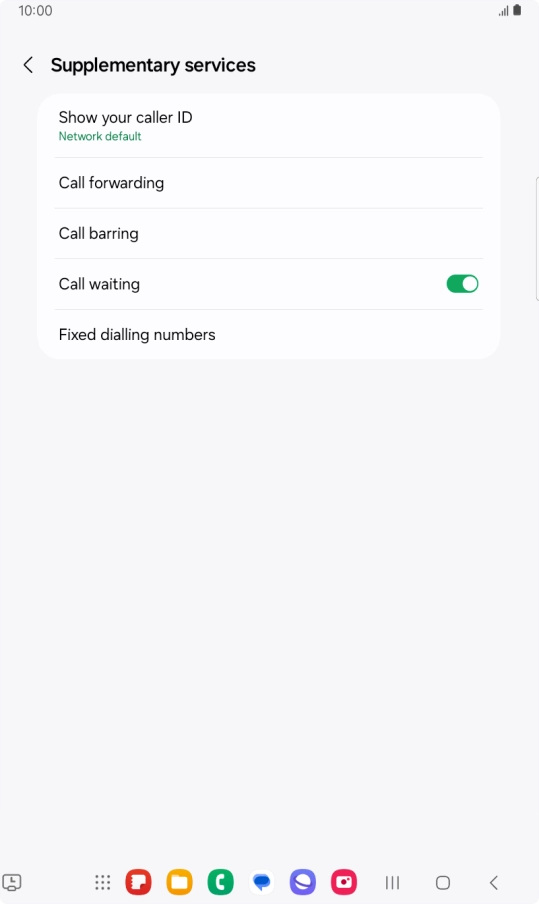
Press Supplementary services.
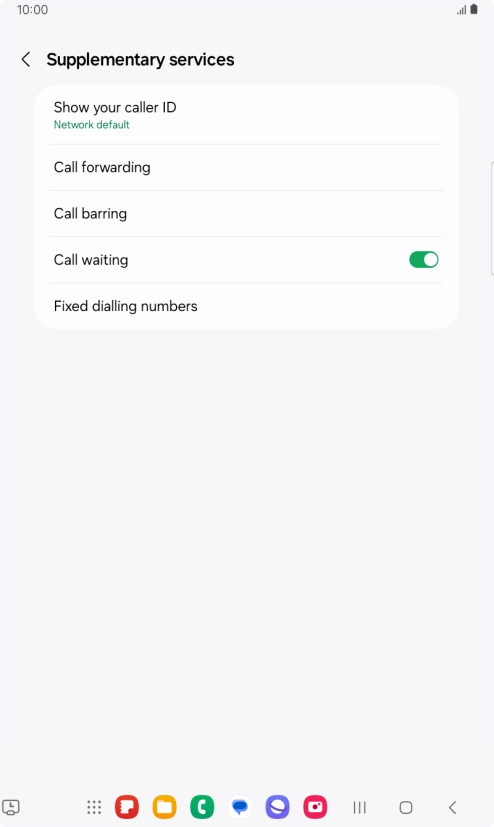
Step 4 of 8

Press Supplementary services.

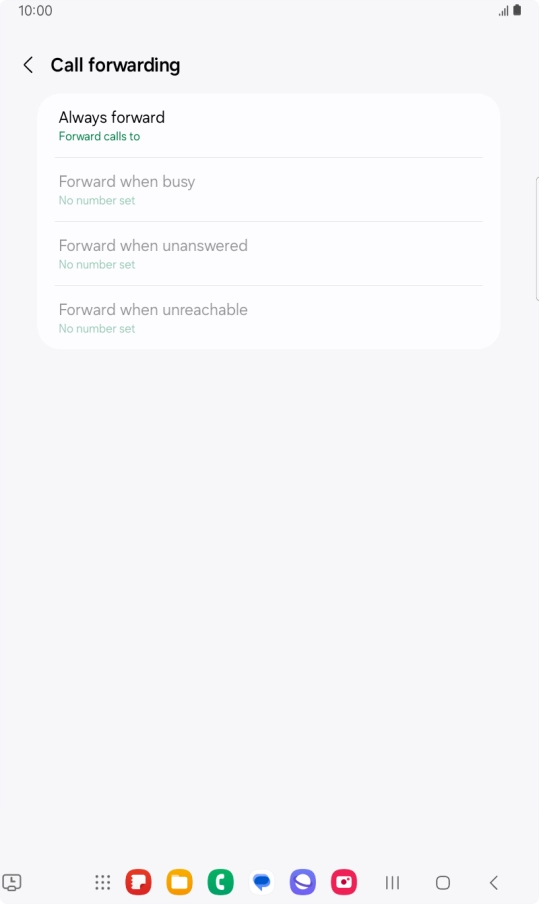
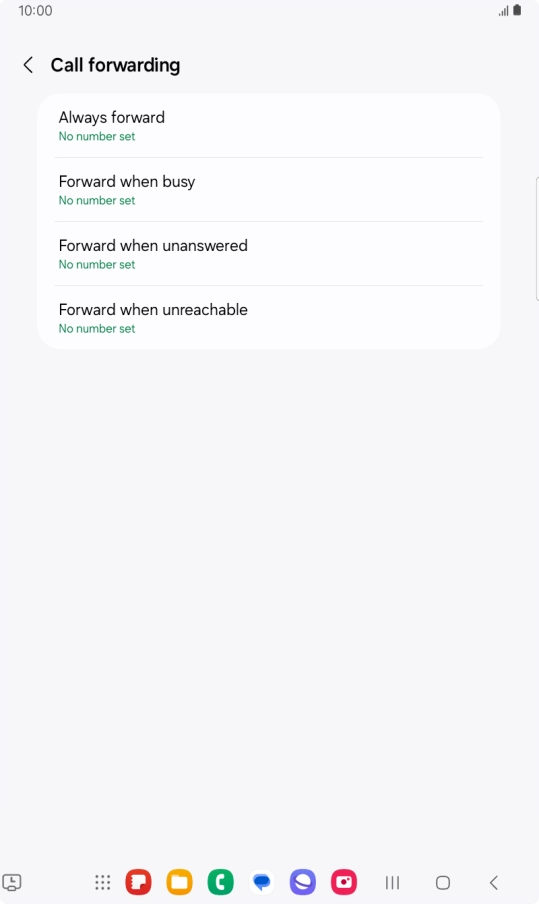
Press Call forwarding.
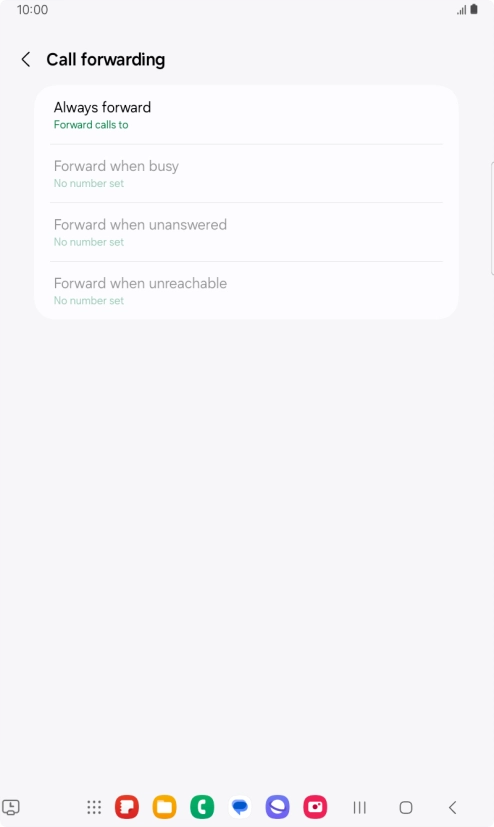
Step 5 of 8

Press Call forwarding.

Press the required divert type.
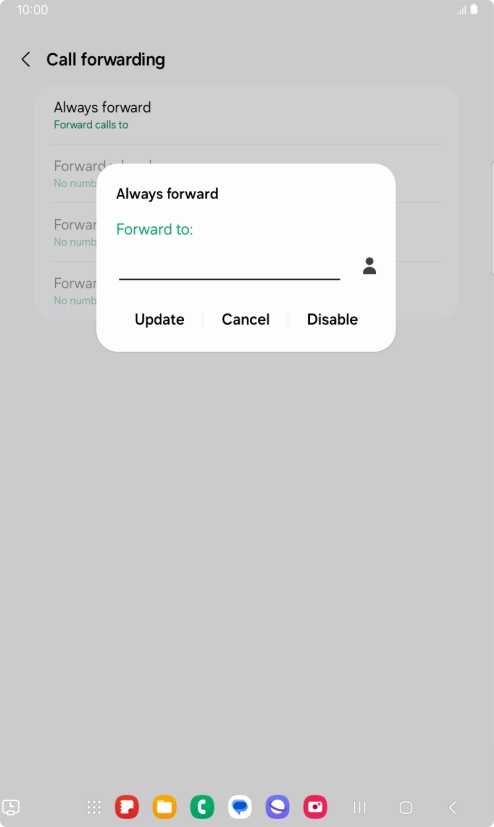
Step 6 of 8

Press the required divert type.

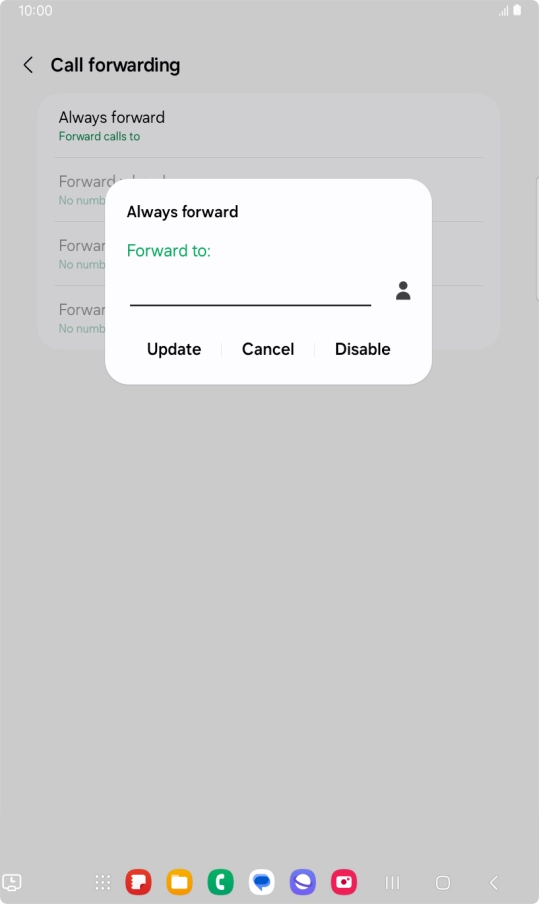
Press Disable.
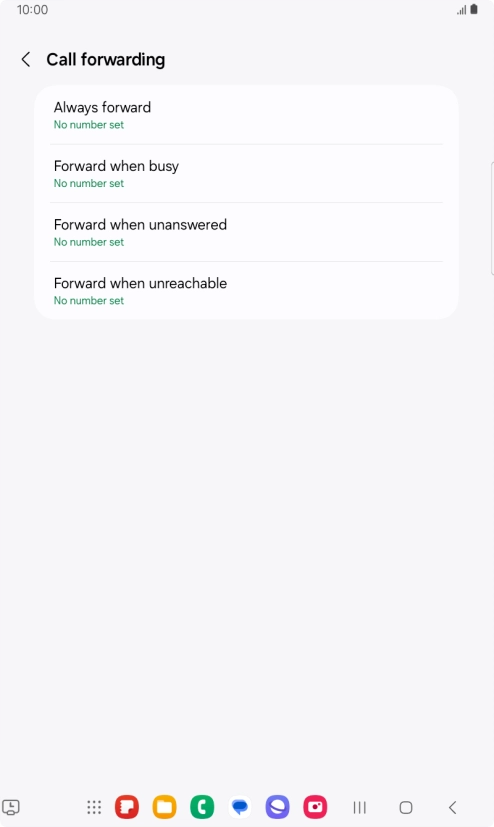
Press Disable.
Step 7 of 8

Press Disable.

Press the Home key to return to the home screen.
Step 8 of 8

Press the Home key to return to the home screen.

Get information on...

Or choose...

Show more